Security Processes
Write down the security work your organisation actually performs — patching, vulnerability management, EDR, backups — and evidence that it runs by linking the tickets behind it.
A security process is a security activity you perform again and again: applying patches, chasing vulnerabilities, running endpoint detection, watching a SIEM (a system that collects and correlates security logs), restoring from backup. This module gives each one a named home — an owner, the tooling that powers it, a review cadence, an objective — and attaches the external tickets that show the work happening. When an auditor asks "how do you patch?", you open the process, read the objective, and show the tickets underneath it.
Aegis does not perform the work. You define the process and record the ticket references; the page counts how many are linked and how many are still open, so the picture stays honest.
Who uses it
Reading is open to every role; editing sits with Contributor, and creating or deleting with Manager and above.
| Role | What you can do here |
|---|---|
| Admin Manager | Create, edit and delete processes; link, edit, re-status and remove tickets; connect external ticket sources; run both AI actions. |
| Contributor | Read processes, edit a process, link tickets and change their status, run both AI actions. Cannot create or delete a process, and cannot remove a ticket link. |
| Viewer | Read-only: browse processes, tickets and sources. The AI runs are also available, because they only read. |
What's on this screen
Open Security Processes from the Governance group in
the left sidebar. The page leads with its title and a one-line subtitle: define
the active security processes and track their execution through linked tickets.
Managers and Admins also see a New security process button at the
right of that header row; the screenshot below was captured as
Contributor, which is why no
such button appears.
Under the header sits a three-part filter bar — a search box, an
All types dropdown and an All statuses dropdown.
Processes appear below as cards in a grid, and the foot of the page carries
Page 1 of 1 with Previous and
Next buttons, greyed out while there is one page.
-
Type into
Search security processes...to narrow the grid by name. The list refreshes shortly after you stop typing and pagination returns to page one. -
Open
All typesto show one kind of process only —Patch management,Vulnerability management,SIEM monitoringand so on. The grid redraws at once. -
Open
All statusesto show onlyActiveor onlyInactiveprocesses. The three filters combine. -
Read a card's body for the working detail:
OwnerandToolingon the middle lines, then two counts at the foot —linked ticketsandopen tickets. The tooling line is left out when nothing is recorded. - Select the card to open the process. Aegis navigates to the detail page, where the tickets and the AI actions live.
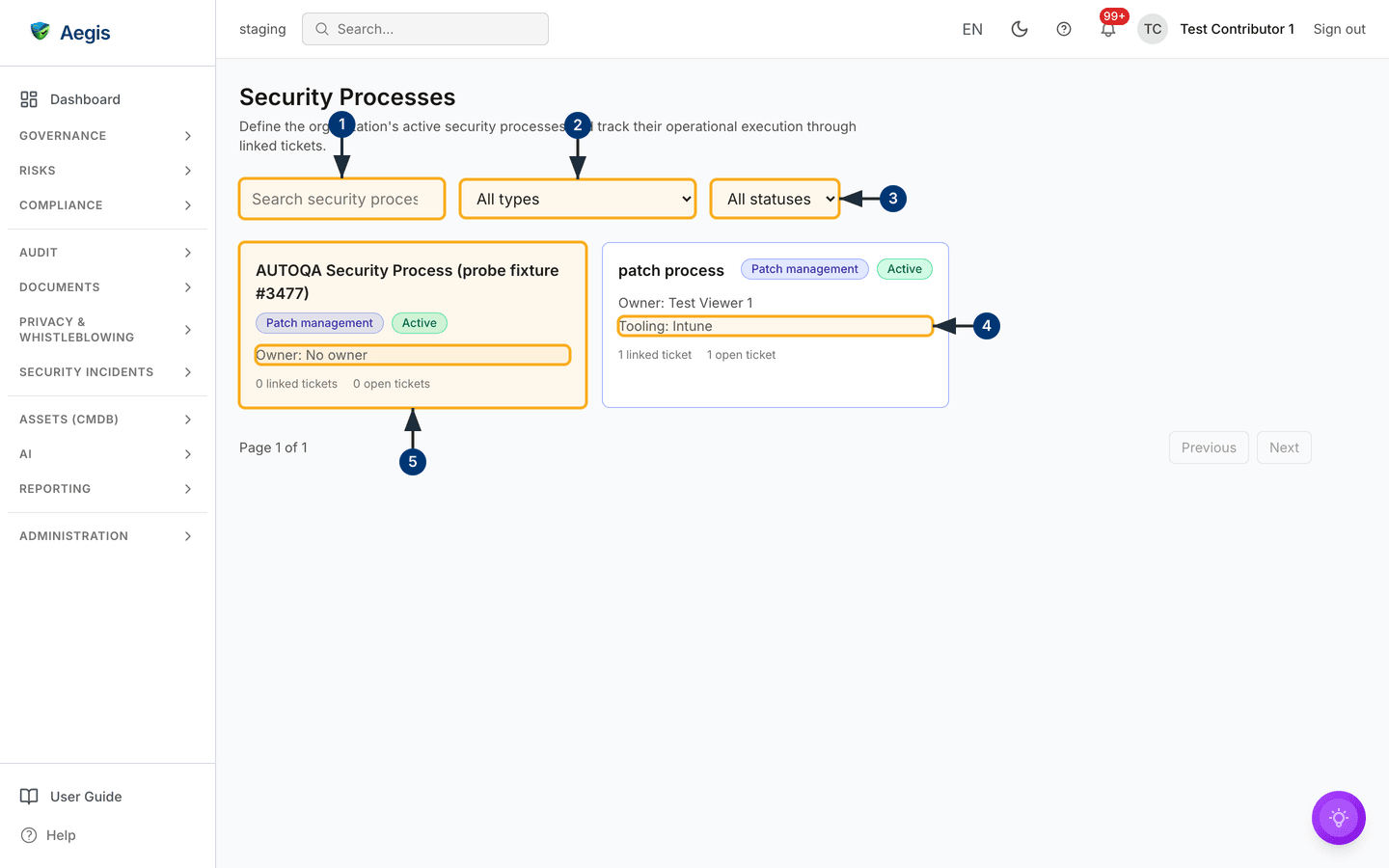
The captured example holds one process, patch process, badged
Patch management and Active, with tooling
Intune and counts of 1 linked ticket and
1 open ticket — a defined capability with one piece of evidence,
still outstanding.
Define a new security process
Select New security process. A modal titled
Define security process
opens over the page.
-
Enter the
Name— what your organisation calls this work, such asMonthly OS patching. Required, up to 200 characters. -
Pick a
Typefrom the fixed list:Patch management,Vulnerability management,EDR,NDR,SIEM monitoring,Incident response,Backup & recovery,Access management,Change management,Other. Required; it drives the coloured badge on the card. -
Choose an
Owner. This picker appears only if your role may list users; otherwise the process is created without one and a Manager sets it later. -
Fill in the optional fields:
Tooling(free text, up to 500 characters — for exampleCrowdStrike Falcon) andReview cadence(free text, up to 200 — for exampleQuarterly), then theObjective— what the process must achieve and how success is measured — and aDescriptionof its scope, each up to 5,000 characters. -
Select
Create. The modal closes, aSecurity process createdconfirmation appears and the card joins the grid. New processes always startActive— there is no status field on the create form.
Only the overview was captured, as a Contributor — who cannot create a process. The controls described from here on are read from the product itself; there is no figure for them.
Open a process and read its detail
Selecting a card opens /security-processes/<id>, with a
← Back to security processes link at the top-left. The header
repeats the name and its two badges, shows the description, then a line of
facts: Owner, Review cadence (only when recorded) and
the live open ticket count. On the right sit
Review Gaps & Controls, Validate & Optimize,
Edit and Delete — the last two only for roles that
hold them. Below come the Objective and
Tooling panels, shown only when filled in, then Tickets, External
ticket sources, and the saved AI insight history.
Link a ticket as evidence
Linking tickets turns a definition into evidence, and it is a Contributor task. A row here is a reference to a ticket in your own tracker; the ticket itself stays where it is.
- In the Tickets section, select
Link ticket. A modal opens. -
Enter the
Ticket reference— its identifier in its home system, for exampleOPS-431. This is the only required field. -
Add a
Titleand aURLif you have them. A valid web address turns the reference into a clickable link in the table; unsafe addresses are stored but never linked. -
Set the
Systemthe ticket lives in and its startingStatus, and useNotesfor context a later reader will need. -
Select
Link. The ticket appears as the newest row, aTicket linkedconfirmation shows, and both counts — on the process and on its card in the overview — update.
The table has columns Reference, Title,
System, Status, Linked by,
Closed and Actions, its own
All statuses and All systems filters, and pagination
below. For roles that may edit, Status is an inline dropdown:
change it in the row and it saves at once; read-only roles see the status as a
badge instead. Moving a ticket to Closed stamps the
Closed date, and moving it back clears the date — you never type
it. Edit reopens the full form; Delete is offered to
Manager and above behind a
confirmation.
| Ticket status | What it means |
|---|---|
Open |
Raised, not started. Counts towards the process's open-ticket total. |
In progress |
Being worked. Still counts as open. |
Closed |
Finished. The closed date is stamped automatically and it leaves the open count. |
Connect an external ticket source
Under the tickets table sits External ticket sources. It binds a connector you have already configured — Jira, GitHub, SharePoint or ServiceNow — to one list or project, so tickets from that list are pulled into the table above. It needs connector-management rights, so it is a Manager or Admin task.
-
Select
Connect source. TheConnect ticket sourcemodal opens; with no eligible connector configured it says so and points you at the Connectors page — credentials are never entered here. -
Choose the
Connectorfrom the dropdown of what is already set up. -
Enter the
List / projectreference — a Jira project key, a repository, a SharePoint list or a ServiceNow queue. Required. -
Add an optional
Filter(a JQL query, a label, a milestone) to narrow what is followed, and leaveIngestionenabled unless you want the binding recorded but dormant. -
Select
Connect. The source joins a table ofConnector,List / project,FilterandEnabled, withEditandRemovebeside it. Removing it detaches the source and leaves the connector untouched.
Once a source is connected and left enabled, a background job walks it on a
schedule — every 15 minutes unless your operator has changed that — and creates
or updates a row in the Tickets table for each ticket it finds, filling the
reference, title, URL, system, status and closed date from the source. Rows are
matched by reference and system, so a ticket you had already linked by hand is
adopted rather than duplicated. There is no Sync now button here: a
binding you disable, or one whose connector is not connected, is skipped.
Ingestion is built for GitHub, SharePoint and ServiceNow. A Jira binding can be saved and shows in the table, but the scheduled job passes over it — Jira credentials are held outside the connector record a binding points at, so there is no route to the Jira API today. Until that is wired, link Jira tickets by hand.
The AI assist
Two AI actions sit in the detail header. Both read your own records only, both stream their working as they go, and both produce advice for a person to weigh — neither changes anything on its own.
-
Review Gaps & Controlscompares the objective against the tooling, the cadence and the evidence. It reports coverage gaps, proposes the framework controls (NIS2, ISO 27001, CyFun, DORA) this process should map to, checks whether cadence and evidence are still fresh, and drafts a tighter description you may adopt or ignore. -
Validate & Optimizeworks on the linked tickets. It names mismatched, dangling, stale or duplicate links by reference; summarises KPIs — open against closed volume, mean time to close, on-time-close rate, overdue backlog, throughput, evidence freshness; and proposes a prioritised improvement plan. The KPIs and the main findings are calculated from your ticket rows; the AI ranks and narrates them.
Either button opens a modal that first sets out what the run covers; nothing is
sent until you select Run review or Run validation. In
the Validate & Optimize result, each proposed improvement
carries a Create action item button, which creates a tracked item
linked back to this process for follow-up under
Action Items. Either result can be kept as a
record; saved runs appear in the insight history panel at the foot of the page,
so a later reader sees what was advised and when.
Both actions require the AI assist feature on your licence and the Compliance module. Each run counts against your organisation's monthly AI allowance, is subject to a per-user rate limit, and is recorded in the AI usage log.
Edit, retire or delete a process
Edit reopens the same form you created with, now titled
Edit security process and carrying one extra field,
Status. Everything stays editable, including the type — a
mis-classified process can be re-typed at any time. To retire a capability you
no longer operate, set Status to Inactive: the
process, its tickets and its sources all remain, and the card is badged
Inactive in the overview. Delete is a
Manager-and-above action behind a confirmation warning that the ticket links
will no longer be visible.
Prefer Inactive over Delete: it preserves the
linked tickets as a record that the capability once ran and was evidenced.
Reserve delete for entries created in error.
The empty state
Before any processes exist, the grid is replaced by a panel headed
No security processes yet, with a
New security process button inside it for roles that may create.
The filter bar stays visible in every state, which matters for the other empty
case: when a search or filter matches nothing you see
No security processes match the current filters. — clear the search
box and return both dropdowns to All types and
All statuses.
Tips and limits
-
The counts are Aegis's counts: they reflect the ticket rows recorded here. A
ticket you linked by hand does not follow its tracker — close it in Jira and
it stays
Openin Aegis until someone changes it. Only rows brought in by an enabled source are refreshed for you, and then only as often as the job runs. - Tooling and cadence are free text with no controlled vocabulary. Agree a house style — "Quarterly" and "Every 3 months" will not group together.
-
Ticket references are not validated — Aegis accepts one that points nowhere.
The
Validate & Optimizerun is the check that flags dangling and stale links. -
An owner is optional but worth setting: a card reading
Owner: No owneris a process nobody has been asked to run. - A ticket link is a pointer to evidence, not the evidence itself. For documents and artefacts an auditor will read, use Evidence.
Where this connects
Security Processes sits in the Governance group beside Security Standards, Governance Bodies and Security Awareness. The controls these processes support live under Compliance Frameworks and Control Monitoring. Ticket sources reuse the integrations in Connectors; AI-raised improvements land in Action Items. For the limits of your role, see Roles Overview.