Questionnaires
Hold the security questionnaires you receive and the ones you send, import a supplier's spreadsheet, answer question by question, route a questionnaire to a colleague or a vendor, and export the finished answers.
A questionnaire is a structured list of questions, usually about security or compliance. Two situations call for one. Inbound: a customer or an auditor sends you a long list of questions about your controls. Outbound: you are assessing a supplier. Aegis stores each question with its text, an optional category and an optional answer, counts a completion figure as you go, tracks who owns the questionnaire and who it has been routed to, and exports the set to a spreadsheet.
Questionnaires are gated behind the
QUESTIONNAIRE_AUTOMATION licence flag, and the
QUESTIONNAIRES module has to be provisioned for your tenant. If
the module is not in your plan, /questionnaires shows a short
“not available” message instead of the table. The AI actions further down
need the separate AI_ASSIST
flag as well.
Who uses it
-
Viewer — open the page, search
and filter, read any questionnaire and export it. No
Sync now,ImportorCreate Questionnairebuttons appear. -
Contributor — all of that,
plus create, import and sync. A Contributor cannot change the owner, edit
answers, forward, delete, or run the AI drafting actions
AI AutofillandRegenerate answers; the owner and follow-up fields show as read-only text.Review readinessis the exception — it needs only read access, so anyone who can open a questionnaire can run it. - Manager and Admin — the full set: change the owner, edit answers, move the follow-up status, forward internally or to an external email, delete, and run all three AI actions.
What's on this screen
Open /questionnaires from the Compliance group in
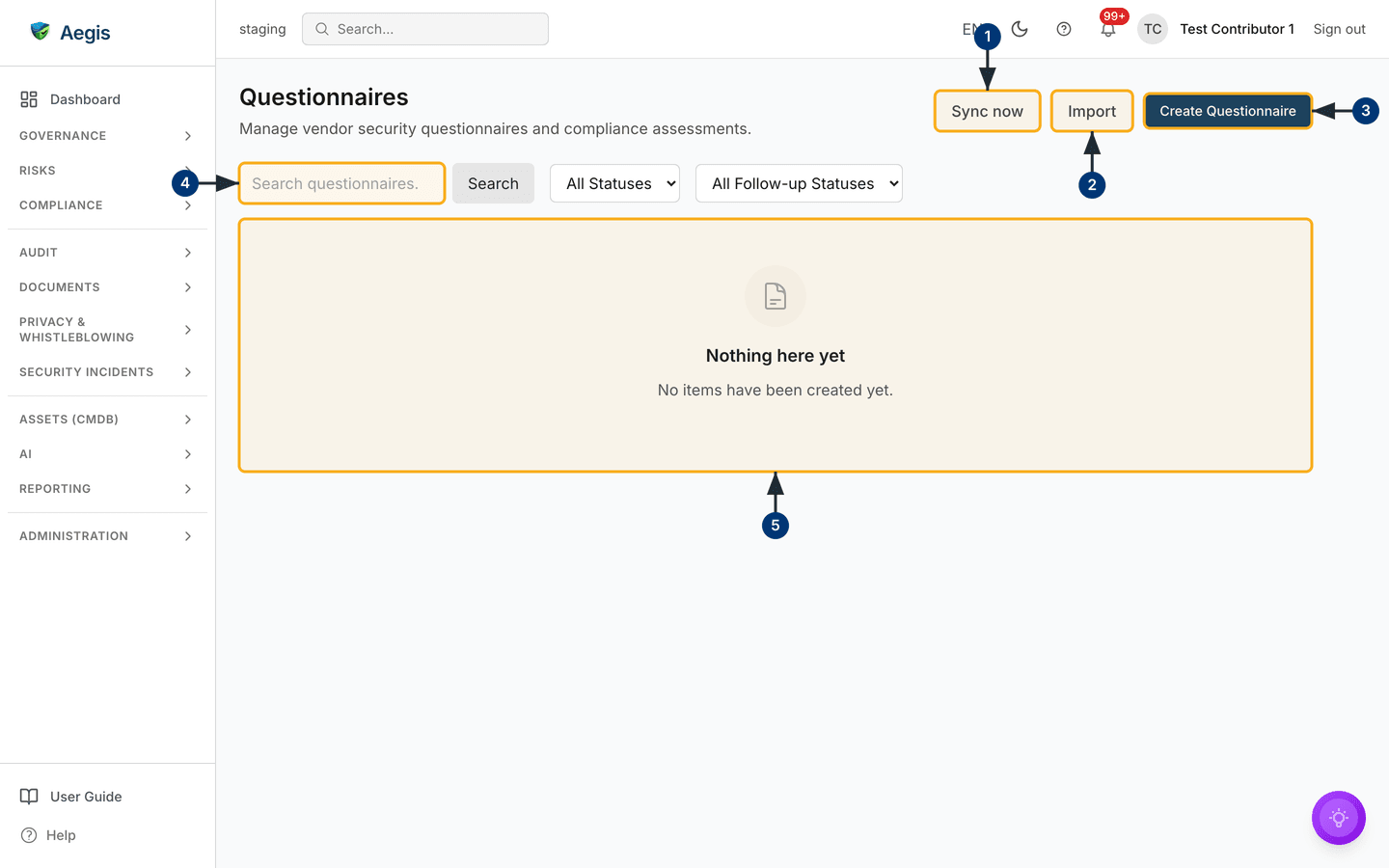
the left menu. The header reads Questionnaires over the line
Manage vendor security questionnaires and compliance assessments, with
three buttons at its right: Sync now, Import and the
dark primary Create Questionnaire. Below sits the filter bar — a
Search questionnaires… box, a Search button, and the
All Statuses and All Follow-up Statuses dropdowns.
Under that the table carries Title,
Source (with a Connector chip on synced rows),
Status, Follow-up status,
Owner, Assigned to,
Questions and Created. In the capture the
table area is empty and no columns are drawn — the demo instance held no
questionnaires.
-
Select
Sync nowto ask a connected source for questionnaires. With a schedule configured, Aegis queues the import and confirms; with none, it says so and asks you to add a Questionnaires schedule to a SharePoint connector first. -
Select
Importto upload a supplier's spreadsheet. A dialog opens where you pick the format and let Aegis parse the questions. -
Select
Create Questionnaireto start an empty one by hand. A small dialog opens over the table. - Type in the search box to narrow the table to matching titles, then set either dropdown to narrow it further.
- With nothing created yet, the table area reads Nothing here yet — No items have been created yet. Create, import or sync one and rows replace it.
Creating a questionnaire by hand
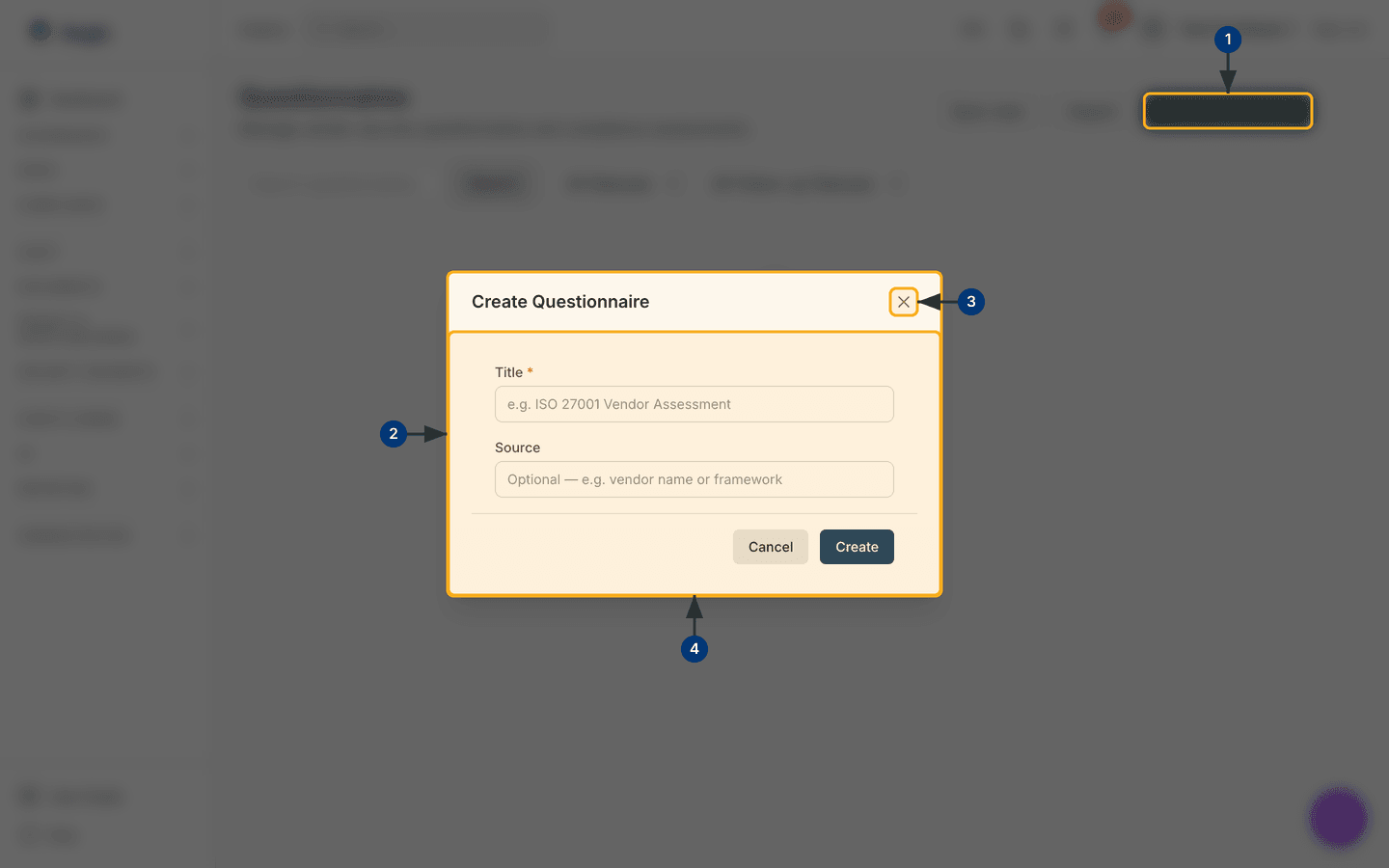
The create dialog is deliberately small: a title and an optional source label, nothing more. Use it to start an outbound assessment and add or import the questions afterwards.
-
Select
Create Questionnairein the header. The page dims and a dialog opens in the centre. -
The dialog is titled Create Questionnaire and holds two
fields — Title, marked with a red asterisk because it is
required, and Source — above
CancelandCreate. -
The × in the corner closes the dialog, as does
Cancel. Nothing is saved. -
Type a clear Title — the placeholder shows the shape,
e.g. ISO 27001 Vendor Assessment— and, optionally, a Source such as the vendor name or framework. SelectCreate: the dialog closes and the questionnaire appears inDraftwith no questions yet. Leave the title blank and the field turns red.
Importing a questionnaire from a spreadsheet
Import reads a supplier's own spreadsheet and creates a draft with
the questions loaded, so you need not reshape the columns first.
-
Select
Import. The Import Questionnaire dialog opens. -
Choose the Format that matches your file:
Generic (xlsx/csv)for a question-per-row layout,SIG (Standardized Information Gathering)for the Shared Assessments questionnaire, orCAIQ (Consensus Assessments Initiative)for the Cloud Security Alliance one. -
Choose the File —
.xlsxor.csv, up to 10 MB. Optionally set a Title; leave it blank and Aegis names the questionnaire after the file. -
Select
Import. Aegis parses the file, creates the questionnaire inDraftwith its questions, and confirms. If your file has a Required or Mandatory column, a second note tells you that column is not stored and was ignored.
The import dialog was not captured for this edition, so there is no figure of it.
Opening a questionnaire
Selecting a row opens the detail over the list. At the top sit the status badge
and, once there are questions, a completion line such as
14/47 answered (30%), with the action buttons along the right.
Overview follows with the source, question count, source file,
who created it, the Owner, who it is
Assigned to and when, and the
Follow-up status; a synced questionnaire also shows its
connector and last-synced time. Questions lists each question
with its number, text, an optional category chip and any answer in a green
panel, with a confidence figure on AI drafts. Metadata shows
the created and last-changed times.
- If the list is empty, create, import or sync a questionnaire first — there has to be a row before there is a detail to open.
- Narrow the list with the search box and the status dropdowns until you see the one you want.
- Select the row. The detail opens over the list, and closing it returns you to the table with your filters intact.
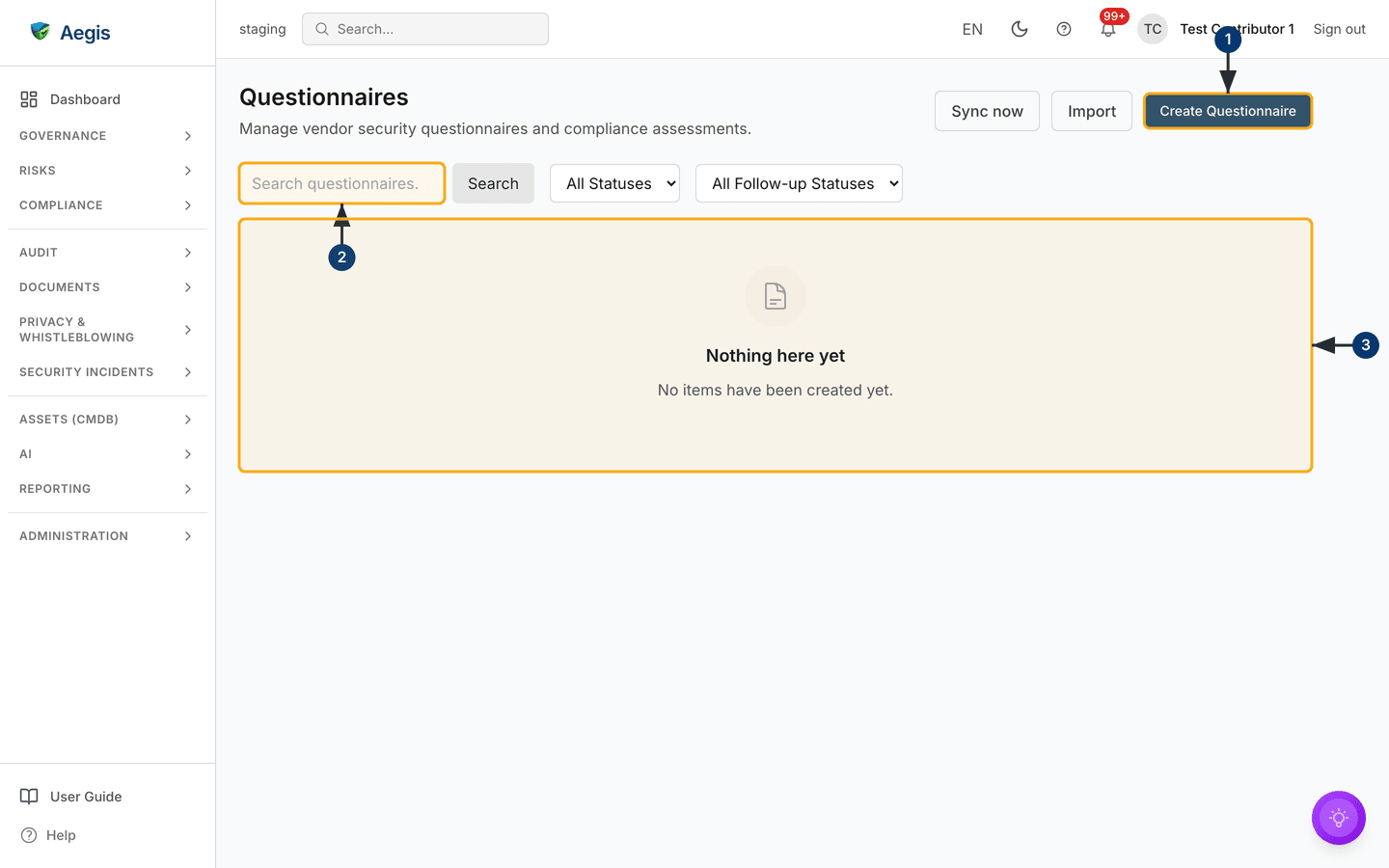
The detail view, the forward dialog and the AI dialogs could not be captured for this edition. What follows names the real controls, but claims no screenshot for them.
Answering the questions
With the update permission — Manager and Admin — every question carries its own answer box.
- Scroll to Questions. The list scrolls inside its own panel, so a long questionnaire does not push the rest of the detail off screen.
-
Type into the answer box under a question; the placeholder reads
Enter your answer…. -
Select
Save answer. The button readsSaving…, then Aegis confirms, the answer appears in the green panel, and the completion figure at the top moves up.
The two status cycles
Each questionnaire carries two independent statuses — two columns in the table,
two dropdowns in the filter bar. The answering status tracks
how far the answers have come: Draft (created, imported or synced),
In Progress (some answered), Completed (all answered
and reviewed) and Archived (kept for reference; forwarding and the
AI drafting actions are hidden in this state).
The follow-up status tracks a questionnaire you have routed to someone else. It moves one step at a time, with a step back allowed for correction, so the dropdown only ever offers the moves valid from where you are now.
| Follow-up status | Can move to |
|---|---|
None — no follow-up in progress (the default) |
Pending response, In review |
Pending response — routed, awaiting their answers |
In review, Escalated,
Resolved,
None
|
In review — answers received and being checked |
Pending response, Escalated,
Resolved
|
Escalated — review stalled and raised for attention
|
In review, Resolved |
Resolved — the follow-up is complete |
In review |
Changing the owner and the follow-up status
Both live in Overview in the detail view, and both are dropdowns for a Manager or Admin and plain read-only text for everyone else.
- Open the questionnaire and find Owner in Overview. The dropdown lists Aegis users; pick one and Aegis saves the transfer and confirms.
- Open the Follow-up status dropdown beside it. It shows the current value and only the moves allowed from it — the table above lists them. Pick one and Aegis records the move and confirms.
- Close the detail view. The Owner and Follow-up status columns in the table show the new values.
Forwarding to a colleague or a vendor
With the forward permission, the detail view shows a Forward button
— hidden once the questionnaire is archived.
-
Select
Forward. The dialog opens with a Forward to choice ofAegis userorExternal email. -
For a colleague, keep
Aegis user, search by name or email and pick someone. For a supplier, switch toExternal emailand enter the recipient's email and, optionally, their name. -
Add an optional message of up to 500 characters and select
Forward. The recipient becomes Assigned to, the follow-up status moves toPending response, and the time is recorded.
An external recipient gets a one-time link to a page outside the application — no sign-in, no menu, nothing but the questionnaire. The link is used up only after at least one matching answer has been saved. An empty or mismatched submission leaves the link available for correction. An invalid, expired or already-used link shows the same neutral “link unavailable” page, so it never reveals which it was, and search engines are told not to index it.
Exporting the questions and answers
Anyone who can read a questionnaire can export it, once it has questions.
- Open it — the export buttons appear only when there are questions.
-
Select
Export Excelfor an.xlsxfile orExport CSVfor a.csv. The button readsExporting…while the file is built, then the browser downloads it.
The export includes the original external response separately from the current review draft. Human edits do not erase that original response.
The AI assist
Where AI Assist is licensed, the detail view offers three actions.
-
AI Autofilldrafts a suggested answer for every question from your policies, controls and evidence, each with a confidence figure, and you apply them one at a time withApply as draft. A question with nothing to ground an answer in says so and asks you to answer it by hand; a weak draft is labelled Low confidence — review this draft carefully before applying. Applied answers are saved as drafts marked for review, never submitted. Source limitations show the complete supplied excerpt and explain what it does not establish. If sources cannot be verified, review them and answer manually; the dialog does not offer a repeat of the same deterministic failure. -
Review readinessnarrates which questions still need attention before you send the questionnaire back — unanswered, low confidence, not yet reviewed by a person, or with no cited source. It is computed from your own questions and answers, so it invents nothing. -
Regenerate answersre-runs the drafting across the whole questionnaire, for example after you update your policies. Confirm the number of existing answers being replaced. Previous draft versions are retained. External responses are protected from regeneration and AI replacement; their original text stays visible when you edit a review draft.
AI Autofill and Regenerate answers need the update
permission and are hidden on an archived questionnaire;
Review readiness needs only read access.
AI Autofill and Review readiness also appear only once
the questionnaire has questions, while Regenerate answers is shown
even on an empty draft — where it has nothing to redraft.
Suggested answers are drafts drawn from your own records. They change no policy and no other record, and Aegis never sends a questionnaire to a customer or a vendor on its own. A person reads each answer, corrects it and decides what is appropriate to share — most carefully for a low-confidence answer headed to an outside party.
Tips and limits
-
Create Questionnairecaptures a title and a label only; it reads no file. For questions from a spreadsheet useImport, or connect a source through Connectors and useSync now. - The export, AI and answer-editing controls appear only once a questionnaire has questions. An empty draft shows none of them.
-
Questionnaires are not linked to a vendor record. Name the supplier in the
title — for example
Security Assessment — TechCorp 2026— and search for it later. - Deleting asks for confirmation and needs the delete permission, which a Contributor lacks.
Where this connects
Questionnaires are one way to assess the suppliers you track in Vendors, and the AI drafts its answers from your Policies, control monitoring and Evidence. Files can also arrive through Connectors, and what you publish outwards sits alongside your Trust Center. For a supplier assessed end to end, see the vendor scenario; for who can do what, see Roles overview.