Getting Started
A live checklist that tracks how far your organisation has set up Aegis, with a link beside every task still to be done.
Once the first-time setup wizard has run, Getting Started is your
launch pad for the first weeks: a progress ring, a short checklist of the things
a new tenant should do, and — where your
framework (the set of rules you are working
towards, such as ISO 27001 or NIS2) has one — a certification roadmap
underneath. It is a guide, not a gate. Nothing here blocks the rest of Aegis,
and there is no "mark as done" button: each item ticks itself off when the
underlying record exists.
The checklist moved into the Action Center, where it is the
Getting Started tab. Opening /getting-started —
from a bookmark or a dashboard banner — redirects you to
/action-center?tab=getting-started and shows the same content.
Aegis remembers the tab you last used.
Who uses it
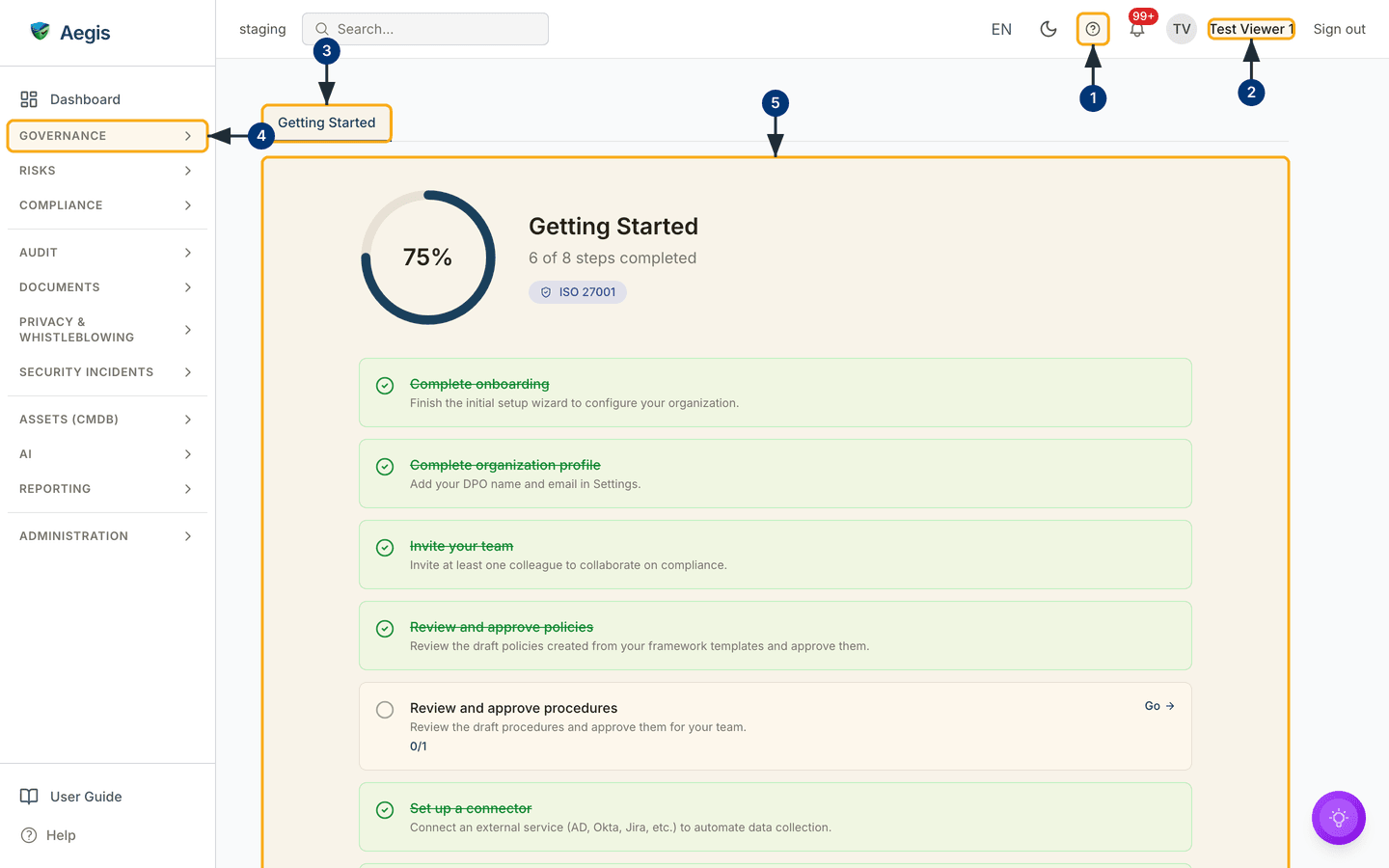
Any signed-in user can open the page; there is no minimum role. That means a Viewer can watch the organisation's progress and follow the links to read each area — the screenshot below was captured as a Viewer. What differs by role is who can finish the tasks:
- Admin — every task on the list, and the two only an Admin can finish: the organisation profile and inviting your team.
- Manager — approving the draft policies and procedures, setting up a connector, and starting a compliance assessment.
- Contributor — uploading evidence, and drafting the policies and procedures a Manager then approves.
-
Viewer — no checklist task. The
Golinks still open, but you can only read what is there.
A Go link never checks your role first. Where your role cannot act,
the screen usually opens with the create and approve buttons hidden — and where
it does not, the action is refused when you try it. Hand that task to a
colleague with the right role.
Roles overview sets out who can do what.
What's on this screen
The content sits in a single narrow column under one tab. Along the top of the
working area is the tab strip, currently holding a single tab —
Getting Started — underlined in blue to show it is open. More tabs
will appear here as the Action Center grows.
Beneath it is the progress header: a circular ring with your
completion percentage in the middle (the capture shows 75%), the
heading Getting Started, and a step count reading
6 of 8 steps completed. Under that count sits a small pill-shaped
badge, marked with a shield icon, naming your primary framework —
ISO/IEC 27001 in this tenant. If no primary framework has been
chosen, the badge is absent.
Below the header is the checklist, one card per task. A
completed card is tinted green, carries a green tick, and strikes its title
through — the capture shows Complete onboarding,
Complete organization profile, Invite your team,
Review and approve policies and
Set up a connector that way. An outstanding card keeps a plain
background, an open circle, and a Go link on the right: in the
capture, Review and approve procedures is open and shows the
counter 0/1, because that task counts records rather than answering
yes or no.
Three sections continue below the fold, out of shot: the
Certification Roadmap, an Ask Aegis AI panel, and a
list of saved AI setup plans and their action items. Each is covered below.
Before you start, find these five landmarks — two in the app shell you meet on
every screen, one in the sidebar, and two in the Action Center itself. They are
numbered on the figure that follows.
- Find the help "?" button in the top bar, between the theme toggle and the notification bell. Selecting it opens the in-app help panel, which shows this User Guide anchored to the screen you are on.
-
Look to the far right for your name and avatar — they
confirm who is signed in and which role you hold.
Sign outsits immediately beside them; the language picker (EN) and the light/dark theme toggle are a little further left in the same bar. -
Above the content, note the
Getting Startedtab, underlined in blue to show it is open. It is the only tab today; more will appear here as the Action Center grows. Selecting a tab remembers your choice, so/action-centeron its own reopens the tab you used last. -
In the left sidebar, open the
GOVERNANCEgroup. It holdsAction Center— your way back to this checklist once the bookmark has gone — alongside the roadmap, action items, governance bodies, and your security processes and standards. TheRISKSandCOMPLIANCEgroups below it, and the remaining groups down toADMINISTRATION, expand the same way; most checklist tasks land inCOMPLIANCE. - The rest of the screen is the Getting Started panel itself: progress header, checklist, roadmap, and AI panel, in that order down a single centred column. Everything in the rest of this chapter happens inside it.
Work through the checklist
You do not complete a task on this page. You follow its link, do the work on the proper screen, and come back to watch the card tick over. A new tenant sees eight universal tasks, and the framework you chose during setup may add one more.
| Task | What it means | Where Go takes you |
|---|---|---|
Complete onboarding |
Finish the initial setup wizard that configures your organisation.
This card has no
Go link — reaching this page at all means the wizard
has run.
|
Nowhere — see First-time setup. |
Complete organization profile |
Add your DPO (Data Protection Officer) name and email to the profile. | /settings?tab=organization |
Invite your team |
Invite at least one colleague, so compliance is not a one-person job. |
/settings/users, which opens
/settings?tab=users
|
Review and approve policies |
Check the draft policies generated from your framework templates and approve them. | /policies?status=Draft |
Review and approve procedures |
Check the draft procedures and approve them for your team. | /procedures?status=Draft |
Set up a connector |
Connect an external service (AD, Okta, Jira and similar) to collect data for you. | /connectors |
Upload evidence |
Add your first piece of evidence (the proof a control works) to the Evidence Locker. | /evidence |
Start a compliance assessment |
Assess at least one framework control, so scoring can begin. | /compliance |
To clear one card:
-
Pick an outstanding task — one with an open circle on the left — and read
its one-line description. If it carries a counter such as
0/1, that is how many qualifying records Aegis has found against how many it expects. -
Select the
Golink on the right of the card. Aegis opens the matching screen, filtered where that helps: the policy and procedure links open their lists filtered toDraft, so the items awaiting approval come first. - Do the work there — approve the draft, upload the file, send the invitation.
- Return to the Action Center. The card is now green and struck through, the step count has moved on, and the ring has redrawn to the new percentage.
The checklist is tailored to your primary framework. A CyFun tenant also
gets
Set CyFun assurance level; a NIS2 tenant gets
Create an incident workflow; DORA adds
Register an ICT provider and the EU AI Act adds
Register an AI system. A list that does not match this chapter
exactly is expected, not a fault.
Follow the certification roadmap
Scroll past the checklist. Where your framework has a roadmap, Aegis shows a
Certification Roadmap heading, with a line beneath it naming your
framework in full. It divides the journey into four phases —
Phase 1: Foundation, Phase 2: Implementation,
Phase 3: Verification and Phase 4: Certification —
each with a coloured dot and its own indented list of steps.
- Read the phase headings first to place yourself on the journey. For ISO 27001, Foundation covers the ISMS scope and the risk assessment; Implementation covers the Statement of Applicability, deploying controls and documenting policies; Verification covers awareness training, the internal audit and the management review; Certification covers the Stage 1 and Stage 2 audits by the certification body.
-
Select
Learn morewhere a step offers it — only the steps with a written article carry the link. The help panel slides out from the right with that article, without losing your place on the page. -
Select
Goon a step to open the screen where that work happens — the risk register, the policies list, security awareness, or the framework's own assessment page. Steps that are performed by an external auditor rather than in Aegis have noGolink.
The roadmap is reference material, not a second checklist: its steps do not tick themselves off and do not feed the ring. Treat it as the longer map behind the shorter list above.
The AI assist
Below the roadmap is a panel headed Need help? Ask Aegis AI, with
two controls.
-
Select
Generate my setup plan. A dialogue opens explaining that Aegis will order your remaining steps by fastest path. SelectGenerate planand the assistant works through three visible stages — reading your progress, ordering the path, and writing the plan — then streams the result into the dialogue. -
Read the plan and decide whether to keep it.
Save as recordstores it, after which it appears in the saved-insights list below the panel, along with any action items drawn from it.Regenerate planruns it again once your progress has moved on. -
Select
Ask Aegis AIinstead to open the general assistant, where a question such as "What should I do next?" is answered against your live checklist.
The assistant proposes an order and explains its reasoning. It does not complete tasks, approve anything, or alter records — a person reads the plan and decides. Generating a plan spends one AI credit; asking the assistant in chat does not. See AI assistant and agents and Action items.
Tips and limits
- The ticks come from real records. A task completes because the policy is approved or the connector is configured. Deleting that record moves the card back to outstanding.
- Progress is per organisation, not per person. A colleague's work moves your ring too.
-
The page steps aside when you are done. With every task
complete, the tab replaces the checklist with a short
You're all set!confirmation. If onboarding has not run yet, it showsComplete onboarding to access the getting started guide.instead — finish the wizard first. - Reaching 100% is not compliance. It confirms your tenant is set up and your programme has started. Certification, audit outcomes, and keeping in line with a framework are continuing work, tracked by the roadmap and the compliance module.
Where this connects
- Signing in — how you got here, and how to sign out.
- First-time setup — the onboarding wizard behind the first card.
- The screen layout and The left menu — the top bar and sidebar groups, in full.
- Settings — the organisation profile and user invitations behind two cards.
- Policies and Procedures — where the draft approvals happen.
- Connectors and Evidence — the two sides of collecting proof.
- Compliance frameworks — the first assessment, and where roadmap steps land.
- Your dashboard — where you work once these tasks are done.