Software Bill of Materials (SBOM)
A register for the component inventories of the software you build and run, with a licence-risk reading of every package and a vulnerability check you trigger yourself.
An SBOM (software bill of materials — a machine-readable list of every component inside a piece of software, including the libraries it depends on) is now routinely asked for by regulators such as the EU Cyber Resilience Act, and by enterprise procurement teams before they will sign. This module is where those files live: you upload what your build produces, and Aegis parses the component list, classifies each package's licence, and records how many known vulnerabilities a scan matched.
Producing an SBOM from your source code is the job of tools such as Syft, Trivy or cdxgen, or the SBOM output built into many CI/CD pipelines. Aegis is the register on top of them, so you can show an auditor or a customer that you know what you ship.
Who uses it
Everyone with an account can read this register. A
Viewer holds
sbom:read — they can search it and browse any record's components,
but the Upload SBOM, Scan and
Delete controls are hidden for them rather than shown and then
refused. A Contributor adds
sbom:create, covering both uploading and scanning; only a
Manager or
Admin holds
sbom:delete. Triage with AI follows
sbom:read, so any role can run it where the AI assist is switched
on.
The module also sits behind the SBOM_MANAGEMENT licence feature. If
your plan does not include it, /sbom shows a short
SBOM Management notice in place of the table, telling you to
upgrade.
What's on this screen
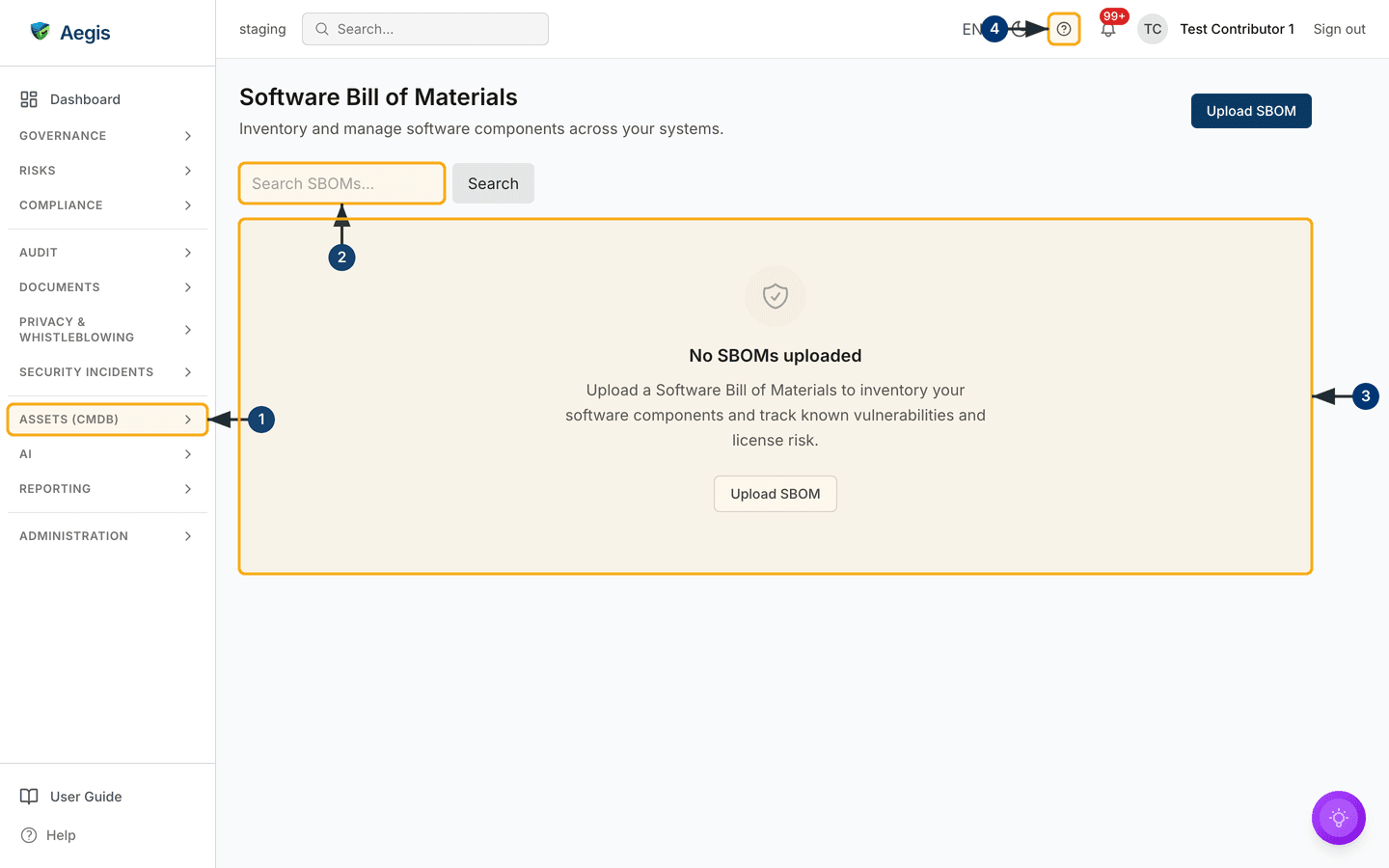
Open /sbom and you get a single table view, nothing more. The
header on the left reads Software Bill of Materials over the line
"Inventory and manage software components across your systems"; the primary
action, Upload SBOM, sits opposite it at the right-hand edge. Under
the header is one filter — a box with the placeholder
Search SBOMs… and a Search button beside it, matching
the record name and its version. There are no status, format or date filters
here.
The table has five columns: SBOM (the record name, with the version
in small grey text beside it), Format (CycloneDX or SPDX),
Components (how many packages Aegis parsed out of the file),
Vulnerabilities (a count in a coloured badge, red once there is a
critical finding, with the critical figure in brackets) and
Last Analyzed. Records are listed newest first, twenty to a page,
and selecting one opens it in a detail window over the table — there is no
separate detail page and no row-level menu.
In the capture below the register is empty, as it is in a fresh tenant: a shield
icon, the heading No SBOMs uploaded, a line of guidance, and a
second Upload SBOM button that opens the same form as the header
one. In the left menu the module sits at the foot of the
ASSETS (CMDB) group, below External Services.
-
In the left menu, open the
ASSETS (CMDB)group and selectSBOM, the last entry in it. The entry highlights and the register loads at/sbom. -
Type a product name or version into
Search SBOMs…. The table narrows a moment after you stop typing, matching the record name and its version; theSearchbutton beside the box only submits the form, so the list has already caught up by the time you reach it. Clearing the box restores the full list. -
With nothing uploaded yet, the
No SBOMs uploadedpanel fills the centre of the page. ItsUpload SBOMbutton opens the upload form. -
For guidance while you work, select the
?in the top bar. It opens this user guide at the chapter for the page you are on.
Upload an SBOM
Generate the file in your build first, then bring it into Aegis. The upload form opens over the table and has four fields, two of them required.
-
Produce the SBOM in your pipeline — for example
syft packages dir:. -o cyclonedx-json > sbom.json. -
On
/sbom, selectUpload SBOM. A window of that name opens, withSBOM Fileas its first and required field. -
Choose the file under
SBOM File. The help text reads "JSON format (CycloneDX 1.4+). Maximum 5 MB." A valid choice fills an emptyNamefield with the filename minus its extension, and never overwrites a name you have typed. Anything that is not.jsonclears the selection, shows "Only JSON files are supported (.json)" and disablesUploaduntil you pick another file. -
Confirm or overwrite
Name(required — the placeholder suggestse.g. aegis-web), add aVersionif you have one, and setFormattoCYCLONEDXorSPDXto match the document. Your choice decides which parser reads the file, so an SPDX document left onCYCLONEDXis rejected rather than half-read. -
Select
Upload. Aegis parses the document, writes one row per component, and the record appears in the table with itsComponentscount filled in. If the file is not valid JSON, is over the size limit, or cannot be parsed, the window stays open with an error and nothing is saved — you never end up with an empty record.
If your toolchain emits XML, RDF or an SPDX tag-value file, convert it to
JSON first — for example with cyclonedx-cli. CycloneDX
documents below spec version 1.4 are refused, and the
Format dropdown is not a hint: the file is parsed as whatever
you select there.
Open a record and run the vulnerability scan
A freshly uploaded record opens with 0 vulnerabilities and
Last Analyzed: Never: parsing and scanning are separate steps, and
the scan is one you start.
-
Select a row. The detail window opens with the SBOM name as its title and a
summary strip across the top: the vulnerability badge (for example "3
vulnerabilities (1 critical)"), the component count, and — where any
component carries a strong-copyleft, commercial or unrecognised licence — a
purple
Licensing Issuescount. -
Read the
Overviewblock:FormatandVersionas you set them at upload, thenSpec Version, which Aegis reads out of the document itself —1.5for a CycloneDX file,SPDX-2.3for an SPDX one.VersionandSpec Versionappear only when they hold a value. Below them sitComponentsandLast Analyzed, and aMetadatablock carries the created and last-updated dates. -
Scroll the
Componentssection, headed with the count. Each package shows its name, its version in a small code chip, its declared licence, its supplier where the document names one, and a licence-risk badge —Permissive,Weak Copyleft,Strong Copyleft,CommercialorUnknown. A package with matches carries a red "vulns" badge at the right. -
Select
Scanat the foot of the window. The button readsScanning…while it runs, then the summary badge, the per-component "vulns" badges andLast Analyzedall update in place and the row behind refreshes. Run it again whenever you want a fresh reading. -
A Manager or
Admin also sees
Delete. It asks "Are you sure you want to delete this SBOM?"; confirming removes the record and its component rows and closes the window.
The Scan button matches your components against a small
built-in list of well-known vulnerable package versions that ships with
Aegis. It is not a live NVD or OSV feed and will not find everything your
own scanner finds. Treat the count as a register entry and an audit trail —
every scan is logged — and keep your pipeline scanner for remediation
triage.
The AI assist
The detail window carries one AI action, Triage with AI, at the
right of the summary strip. It opens SBOM Vulnerability Triage,
with this SBOM's own name beneath the title.
-
Select
Triage with AI. It opens on an introduction listing what the analysis covers: a severity-ranked list of CVEs, each tied to a component and version with its CVSS score, and a summary of components whose licence is a risk. -
Select
Run Vulnerability Triage. Progress lines appear in turn — reading the components, cross-referencing known CVEs, ranking by severity and CVSS, drafting the triage — and the narrative streams in as it is written. -
When it finishes, act on it.
Copy,Export DOCXandExport PDFtake it away;Save as recordattaches the narrative to this SBOM;Create action itemraises one action item;Create work itemsseeds roadmap work items, one per point, which you edit or de-select first. The last two appear only for roles that may create those records, andRun againclears the result and runs the analysis afresh.
The ranking is deterministic. Aegis cross-references the stored components
against the same built-in list the Scan button uses — offline, at
the moment you run it, which is why the triage also works on a record nobody has
scanned yet — then hands the model a fixed briefing: the 25 highest-ranked CVEs
and up to 25 components with a risky licence. The model narrates that briefing;
it invents no CVEs, versions or scores, and changes nothing in the record. A
person reviews the output and decides what to remediate. Each run needs the AI
assist switched on for your tenant and counts against its monthly allowance.
Tips and limits
-
Uploading parses; scanning counts.
Last AnalyzedstaysNeveruntil someone selectsScan, however long the record has been in the register. - Your own scanner will usually report more, because it draws on live feeds. A low count here does not mean a clean product.
- The licence-risk badges are a first pass for spotting copyleft, commercial and unrecognised licences. Confirm anything material against the component's own licence.
- This build has no per-CVE acknowledgement, no version-to-version diff, no import-history timeline, no in-app export of the SBOM file itself, and no "attach to evidence" button. Export the AI triage, or raise a risk or action item, to carry a finding forward.
- Searching matches the record name and version only, so name each upload for the product you will want to find a year from now, and keep that naming consistent across releases.
Where this connects
SBOMs describe what runs on the assets you track in the CMDB, alongside the Software register, and they support your wider compliance evidence. Findings worth carrying forward become risks or action items. Every upload, scan and deletion is written to the audit log, and what each role may do here is set out in Part 3 — What each role can do.