EU AI Act
Register the AI systems your organisation builds or uses, record each one's risk level, and work through the obligations that follow — documentation, conformity, transparency and registration.
The EU AI Act (Regulation 2024/1689, a European law that regulates AI systems according to how much risk they pose) sets different duties for different systems. A spam filter is treated lightly; a system that screens job applicants or scores creditworthiness is high-risk and carries documentation, oversight and registration duties. This module holds one inventory of those systems and the flows that produce the paperwork each risk level demands. It does not classify a system for you, and it never makes a system lawful on its own.
The EU AI Act is a pay-per-framework module. Without it in your licence the
module home shows a short "not available on your current plan" message
instead of the dashboard, and the sub-pages redirect instead of opening —
Technical Documentation and
Transparency Notices return you to /compliance,
the rest to the module home. Ask your administrator if you expect the module
and cannot see it.
Who uses it
Everyone who reaches the Compliance area can read the register. Changing it needs a higher role, and controls you may not use are hidden rather than shown and refused.
-
Viewer reads every page here
and can run the AI readiness assessment. No
Register AI Systembutton appears, and the edit, classify and delete controls on a system page stay hidden. - Contributor adds registering, editing, deleting and risk-classifying a system.
- Manager adds the right to complete a FRIA (Fundamental Rights Impact Assessment — a structured review of how a system might affect people's rights).
- Admin has full access across the module.
What's on this screen
Open Compliance in the left sidebar and choose
EU AI Act. You land on the module home at
/compliance/eu-ai-act, headed
EU AI Act Compliance with the line "Manage compliance with EU AI
Act (Regulation 2024/1689) requirements for AI system risk classification." To
its right sits the one action button on this screen,
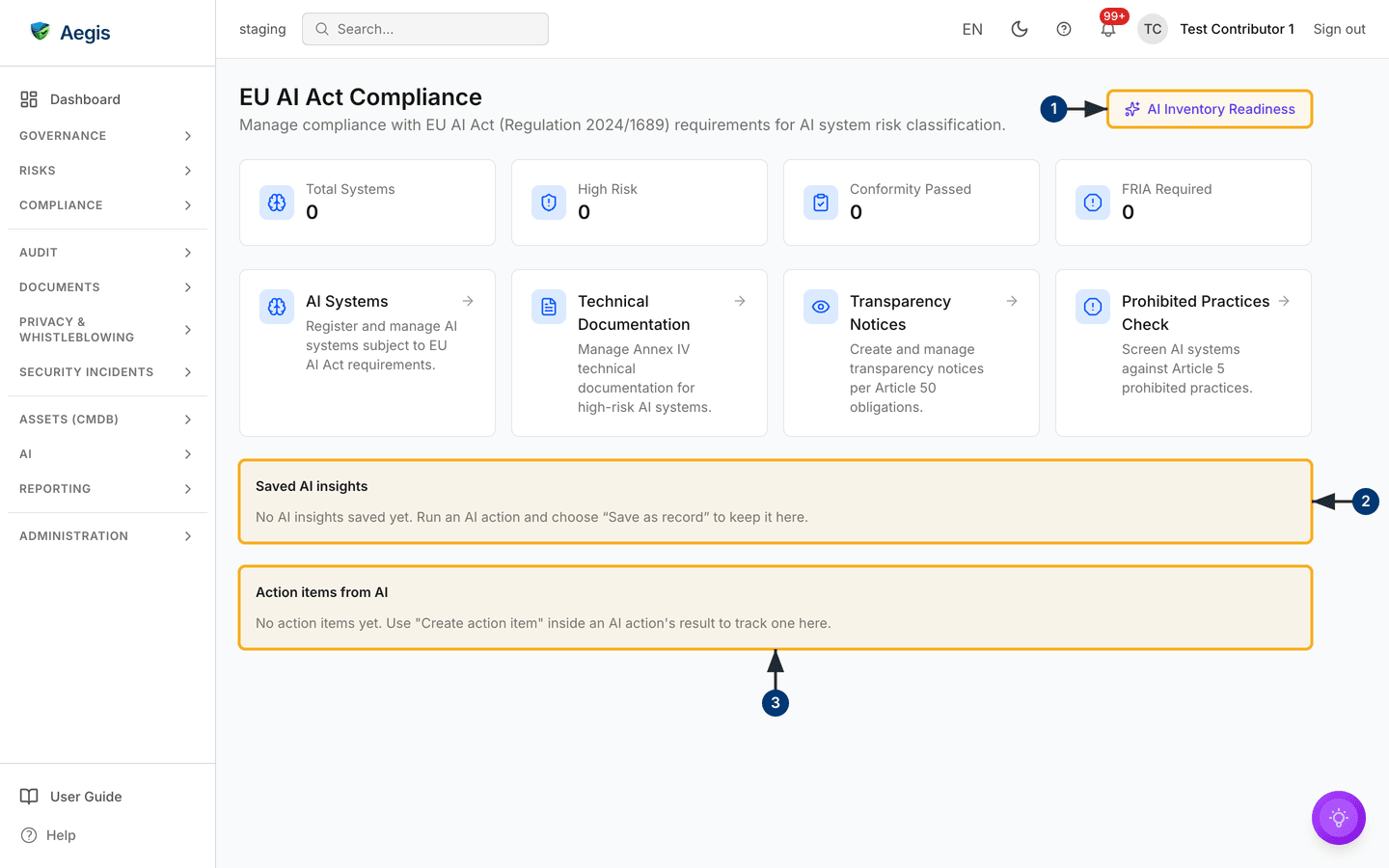
AI Inventory Readiness. Below the header the page stacks four
bands:
-
Four count cards.
Total Systems,High Risk,Conformity PassedandFRIA Required. Every card reads0on the tenant captured here. The last three colour themselves once they rise above zero — amber, green and red respectively;Total Systemsstays neutral whatever it counts. -
Four navigation cards.
AI Systems,Technical Documentation,Transparency NoticesandProhibited Practices Check.Technical DocumentationandTransparency Noticesopen with aBack to EU AI Actlink;Prohibited Practices Checkcarries a plainBacklink to the same place. TheAI Systemsinventory has no back link — use the sidebar or your browser's back control to return here. - Saved AI insights. Keeps readiness narratives you chose to store. Empty here: "No AI insights saved yet. Run an AI action and choose "Save as record" to keep it here."
- Action items from AI. The follow-up list, likewise empty: "No action items yet. Use "Create action item" inside an AI action's result to track one here."
There is no filter bar and no table here — this screen is a hub, and the working
lists live one level down. Its three live areas are numbered on the figure
below: the readiness button
1, the saved-insights panel 2 and the action-items
panel 3.
The AI assist
AI Inventory Readiness reads your registered systems and narrates
where you stand. The scoring is done by Aegis, not the model: the counts and the
severity-ranked gap list — each gap tied to an article, such as Article 6 for
classification or Article 43 for conformity — are worked out first. The model
writes them up and proposes three to five next steps. It never recomputes a
score, reorders the gaps, or invents a system or an article. You decide what to
do with it.
-
Select
AI Inventory Readinessat the top right. A dialog opens explaining what the assessment covers, with aRun Inventory Readinessbutton. Choose it and the answer streams in while four progress lines tick past. When it finishes, a confidence indicator and aVerified figurespanel appear beneath the text, alongsideCopy,Export DOCXandExport PDF. -
Select
Save as recordto keep the narrative. Close the dialog and theSaved AI insightspanel lists it with the date it was saved, replacing the empty-state line. -
Select
Create action itemto turn a recommendation into tracked work. Give it a title and description and confirm; it then appears inAction items from AIat the foot of this page and in the main action items list.
With Total Systems at 0, as above, there is
nothing to score and the read will say so. Register your systems first, then
come back. Each run consumes one AI credit from your tenant's monthly pool.
Register an AI system
The AI Systems card opens
/compliance/eu-ai-act/systems. Its table has columns for
Name, Provider, Risk Level,
Status, Domain, Conformity and
Actions; the only row action is a Details link,
because editing happens on the system page. It shows 25 systems per page, with
paging controls below once you exceed that. Before anything is registered you
see an empty state — "No AI systems registered yet. Register your first AI
system to begin compliance tracking" — with a
Register AI System button beneath it.
-
Select
Register AI System— top right of the inventory, or in the middle of the empty state. The form opens at/compliance/eu-ai-act/systems/new. -
Type a
Name. It is the only required field, and the form will not submit without it. A recognisable name such as "Resume Screening Assistant" is what colleagues search for later. -
Set
Operator role— your organisation's relationship to the system:Provider,Deployer,Importer,DistributororAuthorized Representative. Duties differ by role, so this drives what you owe. -
Choose a
Risk level:Not Classified,Unacceptable,High Risk,Limited RiskorMinimal Risk. Leave it atNot Classifieduntil the decision is taken, then classify it from the system page. -
Set the operational
Status(Development,Testing,Production,SuspendedorDecommissioned) and fillProvider,Intended purposeandDescriptionif you know them. -
Select
Register system. The button reads "Registering…" while it saves, then Aegis opens the new system's detail page, where the rest of the record and the obligation flows live.Cancelreturns you to the inventory without saving.
Work through a system's obligations
The detail page at /compliance/eu-ai-act/systems/[id] is the
workbench for one system. Its header shows the name with coloured risk-level and
status badges. Under it is an action bar — Edit system,
Classify risk and Delete system — each opening a
dialog and each hidden from roles lacking the matching right.
Classify risk asks for a risk level, a risk category (such as
Employment & Worker Management) and a written justification, so
the decision carries its reasoning.
Below that, an overview grid lays out the operator role, conformity status including CE marking (the mark declaring a product meets EU rules) and the EU database identifier, deployment details, and a side column with the classification, FRIA status and key dates. If the system is high-risk and unregistered, an amber banner says the EU database filing is outstanding. Then come the tools, each a step towards an obligation:
-
Annex IV Technical Documentation— a guided wizard through the Annex IV sections (the technical file high-risk providers must keep). Each takes content and a status ofMissing,Draft,In review,CompleteorOutdated; a review step counts the completed ones and offersExport as PDF. -
Conformity Self-Attestation— records your Article 43 assessment and tells you which route applies: Annex III point 1 systems (biometric or law-enforcement) need a named notified body, the rest self-assess. Outcomes runNot startedthroughPassed,FailedorExpired, and you canExport Declaration of Conformity. Downgrading a completed attestation asks you to confirm. - Conformity checklist and prohibited practices check — inline panels showing where this system stands on each.
-
FRIA wizard — shown only when Aegis derives that Article 27
requires one. It scores criteria for severity and likelihood, then reports
Low Impact,Medium Impact,High ImpactorImpact Mitigatedwith recommendations. -
EU Database Registration— tracks the Article 71 filing throughDraft,Ready to file,FiledandAccepted, and exports an Annex VIII dossier. Filing is a manual submission to the European Commission — there is no API — so you record the identifier here once issued. - Transparency notice editor — drafts the Article 50 disclosure telling people they are dealing with an AI system, with notice types for chatbots, emotion recognition, biometric categorisation, deepfakes and generated content. Publishing a material revision bumps the version and re-prompts everyone who acknowledged the last one.
Screen for prohibited practices
Prohibited Practices Check opens
/compliance/eu-ai-act/prohibited, a cross-system view of the
Article 5 bans — the practices the Act
forbids outright. A banner at the top reads green ("All n systems
passed prohibited practices screening") or red with a count when systems are
flagged. The table below lists System Name,
Risk Level, Emotion Recognition,
Biometric Categorization, Deepfake Capable and
Status. A green tick means the practice is not flagged; a red
Flagged warning means it is and needs review, and the row is
tinted. Selecting a system name opens its detail page. With nothing registered
you get an empty state and a Go to AI System Inventory link.
The screening surfaces the flags recorded against each system. It is not an independent detector — a system nobody has marked as emotion-recognising reads as clear here.
Tips and limits
Two of the four navigation cards behave differently from what their titles suggest:
| Card | What you get | State |
|---|---|---|
AI Systems |
Inventory, registration and the system workbench | Built and in daily use. |
Prohibited Practices Check |
Cross-system Article 5 screening table | Built and in daily use. |
Technical Documentation |
A signpost page with a Go to AI system inventory button
|
No aggregate view yet; the per-system wizard and PDF export are built. |
Transparency Notices |
A signpost page listing what is still to come — disclosure templates, Article 50 conformity tracking, deepfake labelling rules, an affected-user audit trail | Labelled "Coming soon" there; the per-system notice editor is built. |
Aegis stores the risk level, conformity outcome and FRIA result that
you enter. A Passed conformity status is your own
attestation, not a legal certification, and no status here makes a system
lawful. These fields are your organisation's record of decisions taken by
people.
Deleting a system warns you first that its documentation items, transparency
notices and assessments will no longer be reachable. And if the inventory fails
to load it shows a red error — "Could not load your AI systems. This is a
temporary problem" — with a
Try again button rather than an empty table, so a passing fault
never reads as though your records had vanished.
Where this connects
- Compliance frameworks — the EU AI Act also appears as a framework alongside CyFun, GDPR, NIS2 and DORA, mapped to controls.
- Risks — record and treat what a high-risk AI system could cause.
- Vendors — when the system comes from a supplier, keep that supplier's assessment there.
- Evidence and Audit readiness — attach the proof behind each obligation and gather it when an auditor asks.
- Action items — where readiness follow-ups are tracked to completion.
- AI dashboard — the credits your readiness runs consume, and every AI action taken across Aegis.