Scenario: preparing for an external audit
An external audit is booked for next quarter — this is the route one team takes through Aegis to arrive prepared, rather than assembling answers the night before.
An external audit (an independent check that your controls really work) is rarely a surprise: the date is usually known months ahead. This chapter follows a compliance lead, a Contributor named Priya, and her Manager, Tom, from "we have an audit coming" to a board pack on the morning of the assessment. The journey crosses five modules — the mock audit, the framework view, the evidence library, audit readiness, and board reports. No single screen does the whole job; what follows is the order to work in, with each module's own chapter linked as you go.
Who does what
Two steps in this journey are reserved. Running a mock audit —
and deleting one, generating AI questions for it, or driving its simulator —
needs the Run Mock Audits permission, held by
Manager and
Admin. Generating a
board report is likewise Manager and above.
Everything in between is ordinary
Contributor work: mapping
controls, uploading evidence, updating statuses. Reading is open wider — a
Viewer can open the Mock Audits
list and the Audit Readiness page, but cannot
start or change anything there. Every action is written to the
audit log, so the record of who did what, and when,
builds itself as you work.
What's on this screen
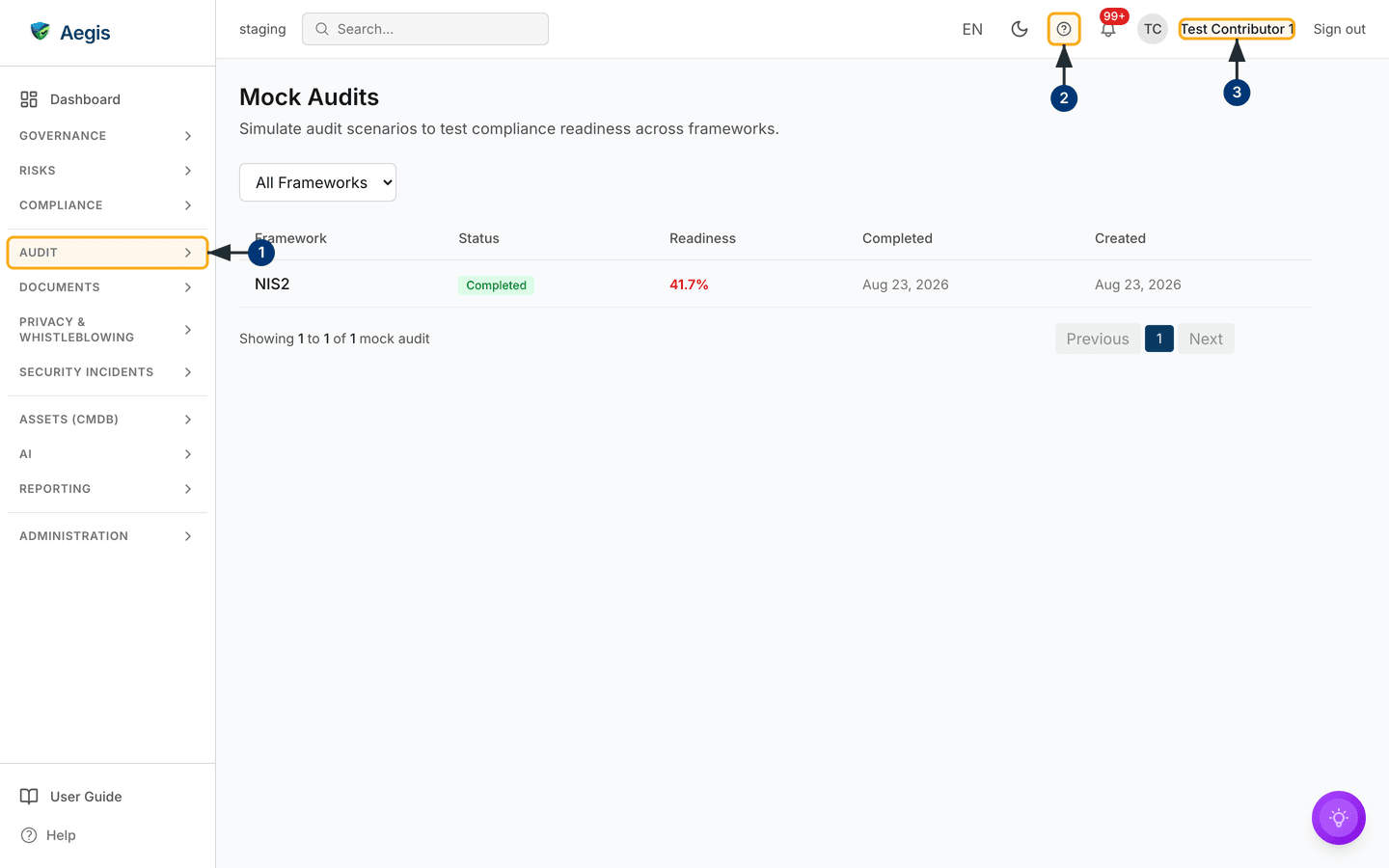
The journey starts at Mock Audits, at
/compliance/mock-audit. Despite the route, the sidebar link sits in
the Audit group, one below Compliance — the same group that
holds the audit log. The link itself reads Mock Audit, singular,
where the page it opens is titled Mock Audits. The top bar above it
— search, language, light/dark toggle, the ? help button, the
notification bell and your own name — is constant across Aegis and is described
in The screen layout.
The page itself opens with the title Mock Audits and the line
"Simulate audit scenarios to test compliance readiness across frameworks."
Beneath it sits a single control: an All Frameworks dropdown that
narrows the list to one framework at a time.
The rest of the page is a table of past runs with five columns —
Framework, a Status badge, a
Readiness percentage, and the Completed and
Created dates. There are no per-row buttons; the row itself is the
control, and selecting one opens that run's detail dialog. Below the table a
count ("Showing 1 to 1 of 1 mock audit") sits opposite the pager:
Previous, the page numbers, and Next. With a single
page of results, both arrows are greyed out. The capture holds a single finished
run: a NIS2 audit marked Completed, scoring
41.7%, created and completed on 23 August 2026. The readiness
figure is colour-coded — green at 80% and above, amber from 60%, red below —
though the number itself carries the meaning.
One thing is missing from this capture, and its absence is worth knowing. There
is no
Run Mock Audit button in the header. The screenshot was taken as a
Contributor, and that button is rendered only for roles holding the write
permission. If you cannot see it, that is your role, not a fault.
Step 1 — Open the rehearsal and read the score
A mock audit (a rehearsal of a real assessment) runs in its own tracking space and does not move your live compliance score, so it is safe to practise with. The module sits behind two gates. Your operator provisions it for your tenant, and your licence tier has to include the feature, which ships with Professional and Enterprise. Without the module, the link is absent from the Audit group; with the module but not the licence, the page opens with a short notice that the feature is not available on your plan.
-
Open the Audit group in the left sidebar and select
Mock Audit. The list loads with the framework dropdown above it and one row per past run. -
If you want the module chapter open while you work, the
?button in the top bar opens the in-app guide at the chapter for the screen you are on. It is a full page of its own, so use your browser's back button to return to the list. -
Check the name in the top bar. Your role decides what you get here: with
Run Mock Auditsyou also see aRun Mock Auditbutton in the header; without it, the list is read-only.
Tom, as Manager, selects Run Mock Audit. A small dialog opens with
one field: a Framework dropdown offering NIS2,
GDPR, CyFun and DORA. He picks the
framework the auditor will assess and selects Run Audit. The dialog
cannot be dismissed while the run is being queued; once it closes, the table
refreshes with the new row. Until the score is computed, the
Readiness cell reads Pending rather than a percentage.
Step 2 — Read the findings inside the run
The percentage on the list is the headline. The useful detail is one click deeper, and this is where Priya starts her to-do list for the quarter.
-
Select the run's row. A detail dialog opens, headed with the framework name
— for example
NIS2 Mock Audit— the status badge, and the readiness badge. -
Read the
SummaryandOverviewsections: framework, total findings, and the created and completed timestamps. -
Work through
Findings Breakdown, which counts findings by type (Conforming,Observation,Minor NC,Major NC), thenCritical Gaps, which names each weak answer with an explanation and a suggested fix, andRecommendations. - Where a gap warrants formal tracking, use the raise-a-non-conformity button in the dialog header. The form opens already anchored to this run and pre-titled with the framework, so finding and corrective action stay linked.
The simulation builds audit-style questions from the framework's controls and your current status, then scores how well you could answer them. It tells you where you are weak. The remediation happens in the modules that follow. A person reviews the findings and decides what to act on; nothing is changed on your behalf.
Step 3 — Close the gaps in the framework
Armed with named gaps, Priya moves to the live framework view to do the real work.
- Open Compliance and select the framework that scored low. Its controls load.
- Work down the controls that carry no mappings — those are the gaps. For each one, link an existing policy, attach evidence, or correct the control's status so it reflects what is actually true today.
- Use the filters to split the work across the team, so several people can take different slices of the same framework rather than queuing behind one another.
This is the substantive part of getting ready: the mock audit told Priya where to look, and the framework view is where coverage improves. See Control mapping for how one policy can satisfy controls in several frameworks at once. Where a control genuinely will not be met in time, record it in the Exceptions register with an owner and an end date; an auditor treats a documented, time-boxed exception differently from an unexplained blank.
Step 4 — Assemble the proof behind each claim
Several controls will need fresh proof. Evidence is what an auditor can verify — a report, an export, a signed record — so a control claim with no artefact behind it will not survive the conversation.
- Open the Evidence library and start a new item. A form opens for the file and its details.
-
Upload the artefacts the audit will ask for — often a penetration-test
report and an access-review export — and set a
Valid Untildate on each, so Aegis can warn you before they lapse. - Link each item to the controls it supports, so both the framework view and the readiness figures count it.
Dating each item matters more than it looks. An item with no
Valid Until date counts as permanently valid; one whose date has
passed stops counting towards completeness. That keeps the readiness picture
honest, and it is why a figure can fall without anyone touching it.
Step 5 — Check the aggregate picture
With gaps closed and evidence linked, Priya checks where the programme now
stands. The figures on
Audit Readiness are derived: they reflect
work done in the other modules and cannot be edited on that page. Its own
controls are few: a ranked Recommendations panel whose entries link
out to the screen where each fix is made, and one AI triage that drafts a
pre-audit plan from the score Aegis has already computed.
-
Open Audit Readiness. Four stat cards
head the page:
Overall Readiness, with aHigh,MediumorLowlabel beneath the percentage, thenFrameworks,Controls CoveredandCoverage Rate. - Scan the framework table below. Each row shows control coverage as a bar with the fraction and percentage beside it, an evidence percentage, and a readiness badge — so you can watch the framework you have been working on climb.
-
Confirm the evidence column has picked up your new items. If a framework
still reads
Low, step back into Compliance and keep going. -
Work through the
Recommendationspanel under the table. Aegis ranks what is weakest — thin policy coverage, missing or stale evidence, open control gaps — and each entry carries aHigh,MediumorLowpriority and aTake actionlink that opens the screen where the fix is made. When there is nothing left to rank, the panel says so instead of listing items. -
For a sequenced plan covering the time that is left, select
Readiness Triage (AI)beside the heading. It narrates the recommendations Aegis has already worked out — it does not invent a gap or move a score — and what it drafts is kept with the page as saved insights and action items you can hand out.
The bands themselves are fixed, and the same thresholds label a framework row and the overall card — but they are applied to different numbers: a row is graded on its control coverage, the card on the weighted readiness score described under Tips and limits.
| Score | Readiness label |
|---|---|
| 80% and above | High |
| 50–79% | Medium |
| Below 50% | Low |
| No controls loaded yet (a framework row only) |
N/A, with the coverage cell reading
0/0 (0%)
|
A framework that has been activated but not yet populated therefore reads
N/A rather than Low — empty, not failing. If no
framework has been configured at all, the table is replaced by a line telling
you to add one from the Compliance page.
Step 6 — Brief the board, then walk in
The week before the assessment Tom prepares the leadership view; on the day, the team works from the record it has been building all quarter.
-
Open Board Reports and select
Generate Report. The dialog asks for two things: aTitle, which is required, and an optionalPeriodsuch as2026-Q2. There is no framework picker — the report is drafted across your whole recorded posture, so name it for the audit it is written for. -
The report is queued and builds in the background; the row shows
Generating…until it turnsCompleted. Open it and read theReport Sections: they are generated from your data and are not editable here. -
Work on the
Executive Summary— the AI-drafted part, and the only section of the report body you can edit. It is markedPending reviewuntil a person has read it. SelectEdit, correct anything that does not hold, save, thenMark reviewed. Record what leadership decides underBoard Decisions, with an owner and a due date. -
Send it out with
Download PDF,Download ExcelorDownload Markdown, or useEmail Reportto post it to one recipient — which needs working SMTP, or it tells you email is not configured. - On the day, when the auditor asks for proof that a control works, open the control in Compliance, follow the link to its evidence, and show the artefact with its date. When the auditor asks when a change was made or who approved it, the audit log answers that.
The AI assist
Two AI helpers live inside a mock audit run. Both sit in the run's detail dialog
rather than on the list in the capture above, and both need the write permission
and an active AI entitlement, so a Contributor opens that dialog without them.
Generate AI questions drafts the questions an auditor would put to
your organisation for this framework, built from your recorded control posture,
open gaps and supporting documents. Each draft carries a severity, a control
reference, and a note on what good evidence would look like. Nothing is saved
until you review the drafts, reject the ones that miss, and attach the rest;
attached questions then appear in their own section of the run.
Run simulation is a separate exercise: it walks you through the
framework's built-in question bank one question at a time, evaluates each
written answer, and records a finding. Attached AI questions sit alongside that
bank rather than replacing it. Both are internal preparation aids built from
your own records — not a regulatory submission, and not a pass or a fail. A
person reviews and decides; the AI never changes a control or closes a gap.
Tips and limits
- Readiness is a gauge, not a target you hit once. The figures move the moment evidence expires or a new framework is activated. Read them as a live measurement, and expect them to dip.
-
Mock audits cover four frameworks. The run dialog offers
NIS2,GDPR,CyFunandDORA. Frameworks outside that list are still tracked in Compliance and still counted by Audit Readiness — they cannot be rehearsed here yet. - SOC 2 is on the roadmap, not shipped. What you can rehearse and be audited against in Aegis today is what appears in Compliance.
-
A low score is information. The NIS2 run in the capture
reads
41.7%— that is the value of a rehearsal: finding the soft answers a quarter early, while there is time to act on them. - Question generation needs seeded controls. If the framework has no controls loaded, the drafter returns nothing and says so. Populate the framework first.
-
Three different numbers are all called readiness. The
Overall Readinesscard is a weighted score across five dimensions — policy coverage, control implementation, evidence completeness, risk management and vendor compliance — and is the figure Benchmarking and the AI triage also read; until that score has been computed for your tenant, the card falls back to the plain control-coverage ratio. The framework rows beneath it are control coverage only. The dashboard's mock-audit widget is a third figure again: the score of your most recent mock run. Quote the one you mean.
Where this connects
Each module in this journey has its own chapter: Mock audits, Compliance frameworks, Control mapping, Evidence, Policies, Audit readiness and Board reports. Internal audits, run to a schedule you set, are covered in Audits; the work the triage produces lands in Action items. For who can do each step, read What each role can do; to trace what happened and when, see the Audit log. If a screen does not behave as described here, Getting help lists the common causes.