Non-Conformities
A register for recording the moments your organisation did not meet one of its own rules, and for working each one through containment, root cause, corrective action and verification until it can be closed with proof.
A non-conformity is any instance where the organisation did not meet a requirement it has committed to — a procedure that was not followed, a supplier delivery that failed its check, a customer complaint that turned out to be justified, or an audit finding. The word comes from ISO 9001 (the international quality-management standard, clause 10.2), but the idea is everyday: something went wrong, and the organisation must show it fixed both the instance and the underlying cause. The fix-the-cause part is called CAPA (corrective and preventive action). This register is where each non-conformity lives from the moment it is raised to the moment it is closed.
Who uses it
- Contributor — can raise a non-conformity, edit it, and move it through its lifecycle.
- Manager — everything a Contributor can do, plus deleting a record.
- Admin — everything, as always.
-
Viewer — can open the register
and read every record, but sees no
New non-conformitybutton and cannot change anything.
What's on this screen
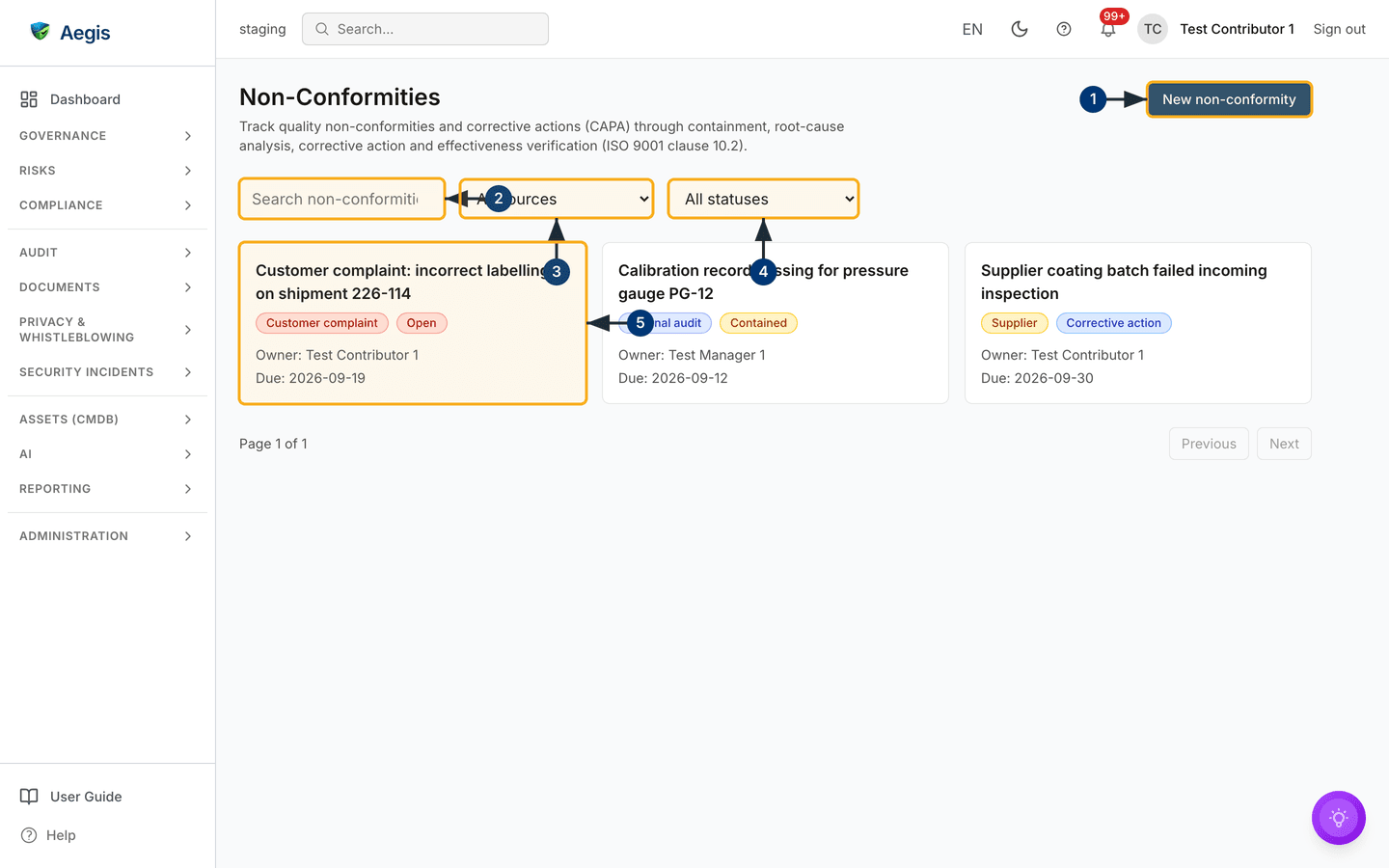
The register is a card grid rather than a table: each card is one
non-conformity, showing its title, a source badge, a status badge, its owner and
any due date. Above the grid sit a search box and two filters; below it, the
page count with Previous and Next. Find the working
parts first — they are numbered on the figure below.
-
The
New non-conformitybutton sits top right, beside the page title. It opens the create form described in the next section. A Viewer does not see it. - The search box filters the register by title and description as you type — useful once the register grows past a page.
- The source filter narrows the grid to one origin: customer complaint, internal audit, management review, process, supplier, or other.
-
The status filter narrows the grid to one lifecycle stage —
for example everything still at
Open, or everything awaitingVerification. -
The card grid itself. Selecting a card opens that
non-conformity's detail page, where the lifecycle is worked. When filters
match nothing, the grid is replaced by
No non-conformities match the current filters.
Raise a non-conformity
-
Select
New non-conformity. A form opens asking for aTitle(a short summary), aDescription(what went wrong and how it was detected), and aSource. -
Assign an
Owner— the person responsible for driving it to closure — and set aDue dateif the fix has a deadline. -
Save. The record appears in the grid at status
Open. The evidence fields — correction, root cause analysis, corrective action, effectiveness verification — can be filled in now or later; the lifecycle will insist on them at the right moments.
A mock-audit finding and a vendor's detail page each carry a
Raise non-conformity button. Raising one there pre-fills the
source and links the new record back to the audit or supplier it came from,
so the register stays connected to its evidence.
Work it to closure
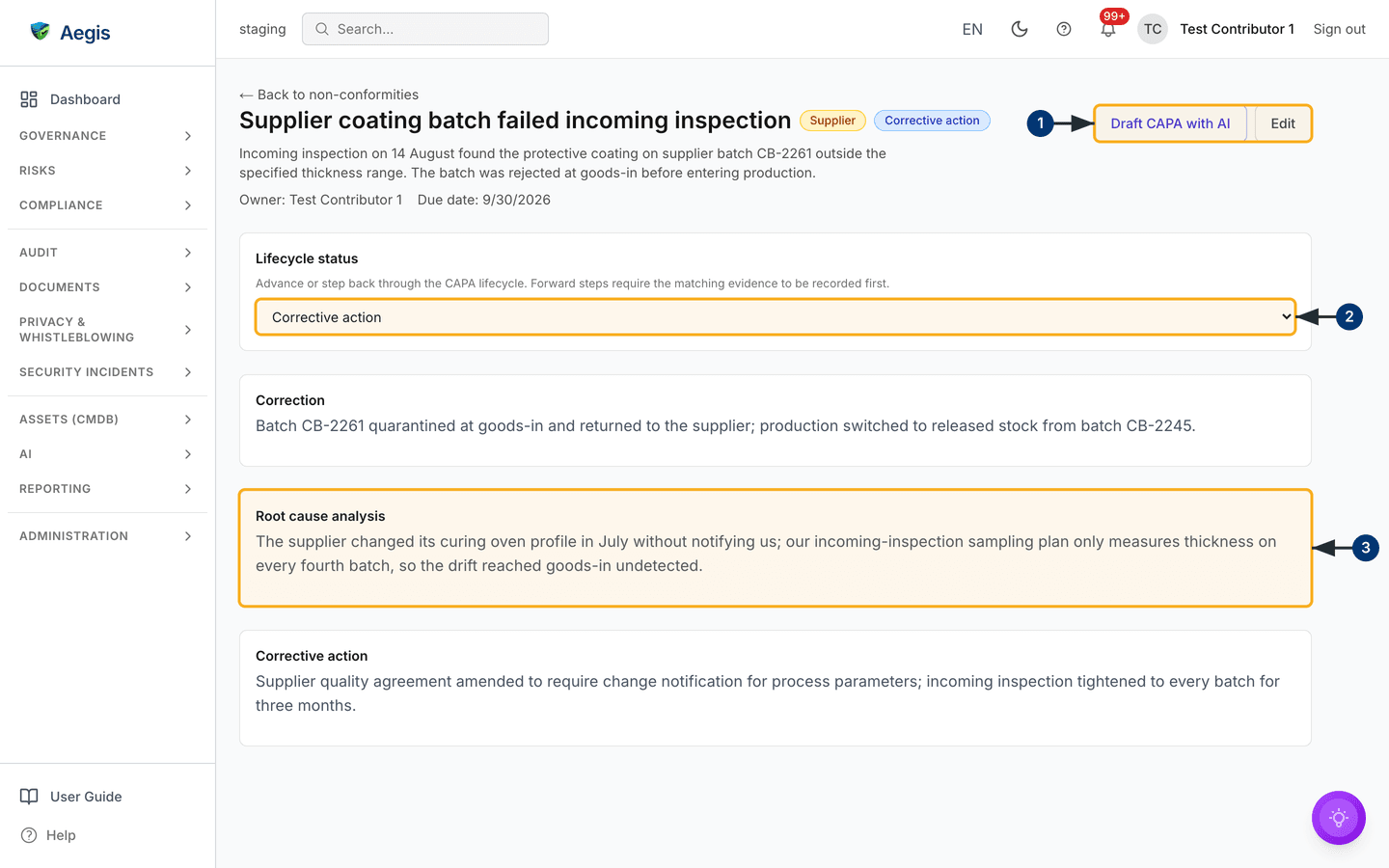
Open a card to reach the detail page. Its Lifecycle status control
advances the record one stage at a time — and each forward step is gated: Aegis
refuses the move until the matching evidence text has been recorded on the
record. That gating is what makes the register auditable: a closed
non-conformity always carries its whole story.
-
Use the action row —
Draft CAPA with AI,EditandDelete(the last only for a Manager or Admin).Editis where you record the correction, root cause and corrective-action text. -
Advance the
Lifecycle statuscontrol. Moving toContainedrequires a correction; toRoot cause analysis, a root-cause text; toCorrective action, the action itself; and closing requires the effectiveness verification. You can also step backwards if a stage has to be redone. - Read the evidence blocks beneath — the root cause analysis and the corrective action, alongside the correction and the effectiveness verification once they are recorded. These four texts are the record's proof; the lifecycle above merely confirms they exist.
A non-conformity raised from an audit finding or a supplier also shows a
Related records section, linking back to the framework control,
mock audit or vendor it is anchored to.
| Status | What it means | Required before entering it |
|---|---|---|
Open |
Raised and acknowledged; nothing proven yet. | — |
Contained |
The immediate damage is stopped. | A correction (the containment action taken). |
Root cause analysis |
The underlying cause has been investigated. | A root cause analysis text. |
Corrective action |
A fix that prevents recurrence is in progress. | A corrective action text. |
Verification |
The fix is being checked for effectiveness. | — |
Closed |
Proven fixed; the record is complete. | An effectiveness verification. |
The AI assist
Draft CAPA with AI on the detail page asks Aegis to read the
non-conformity and its linked records, then draft a root-cause analysis and a
corrective action for you. The drafts appear in an editable panel — nothing is
written to the record until you review, adjust and select
Apply & save. If the record already carries CAPA text, the
panel warns you that applying will replace it. The AI proposes; a person
decides.
Tips and limits
- A non-conformity is not an incident. A security incident (a breach, outage or attack) belongs in Incidents, with its own regulatory deadlines. Use this register for quality failures — the two can describe the same event from different angles.
- Do not fear the word. An auditor expects to see non-conformities being found and closed; an empty register at a mature organisation looks less credible, not more.
-
The gates are the point. If a forward step is refused, the
message tells you which evidence text is missing — record it via
Editand try again.
Where this connects
- Management Reviews — the open non-conformity register is a standing input to every review.
- Mock Audit — findings there can be raised straight into this register.
- Vendors — supplier failures raised from a vendor's page land here with the link preserved.
- Incidents — the security-incident lifecycle, for events that are attacks or outages rather than quality failures.