HR Integrations
A read-only register of your people, synced from an external HR system, so the compliance team can see who works here and tie each person to training, access reviews and reporting.
People are a common source of audit findings: joiners given access before a check is finished, movers who keep access they no longer need, leavers whose accounts outlive their departure. This page gives the compliance function one list of personnel, drawn from your HRIS (the human-resources information system that already holds your staff records — payroll, contracts, joiners and leavers), for use in access reviews, security-awareness tracking and compliance reporting.
Aegis does not manage payroll, contracts or leave, and you cannot add or edit a person by hand here. Records arrive by sync from a registered HR provider and are shown read-only. If no provider has been registered, the page is empty and tells you so — that is the normal starting state, not a fault.
Who uses it
Opening /hr requires at least
Contributor. A
Viewer who follows the link is sent
to the /unauthorized page, so this is not a reader-view screen. A
Contributor,
Manager or
Admin can open it, filter the synced
list by status and read each row — but nobody can edit a record, because the
data belongs to the provider. Registering that provider, authoring offboarding
templates and setting the privacy switches are separate jobs on
Settings → HR Integrations (/settings/hr), which
requires Manager or
Admin. Triggering a sync run needs
the connector-update permission, which a
Manager and an
Admin hold — but no screen offers
it, as the note below explains.
HR Integrations is gated by HR_INTEGRATIONS. If your plan does
not include it, the page shows a short message — "HR integrations are not
available on your current plan" — instead of the table, and the sidebar
entry may be hidden.
What's on this screen
The page opens with the heading HR Integrations and the line
"Manage employee data and HR system integrations." There is no
New button in the header — nothing is created here.
Below the heading sit four counter cards across the width of the page:
Total Employees, Active, On Leave and
Terminated. The last three are coloured green, amber and red. Under
the cards is a short filter bar — a Search employees… box, a
Search button beside it, and an All Statuses dropdown.
The rest of the page is the employee table. Once people have synced it carries
seven columns:
Name, Email, Department,
Job Title, Status (a coloured badge),
Provider and Last Synced. Rows are read-only; there is
no row menu and no detail page behind them. In the screenshot below no provider
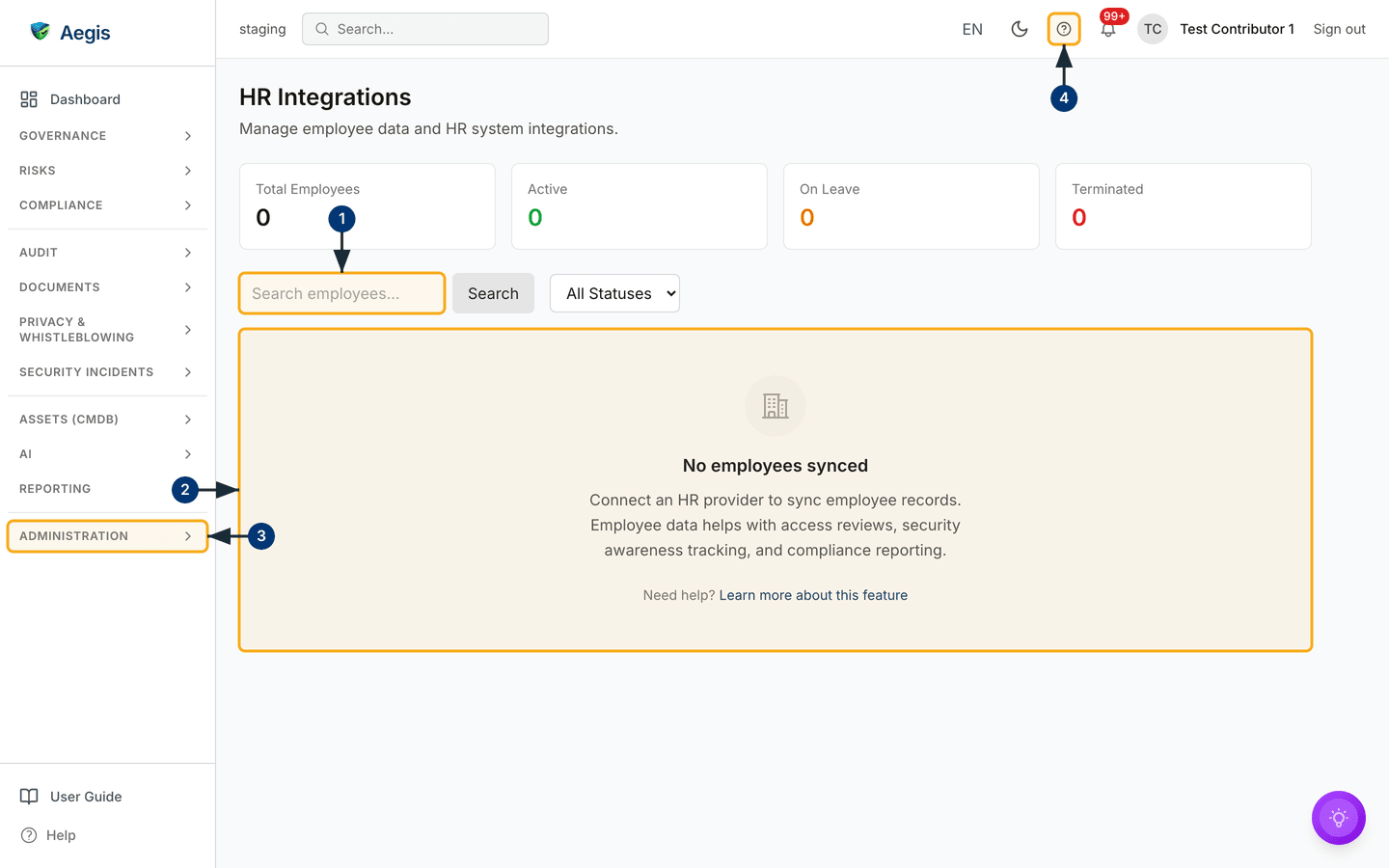
has been registered yet, so all four counters read 0 and a guidance
panel stands in for the rows.
-
The filter bar sits directly under the counter cards, starting with
Search employees…. Of its three controls, only theAll Statusesdropdown narrows the table. With nothing synced, none of them changes what you see. -
The wide area beneath is the table region. Here it shows the empty state: a
building icon, the heading
No employees synced, and the note that connecting an HR provider feeds access reviews, security-awareness tracking and compliance reporting. After the first sync lands, the column headers and rows appear in this same space, twenty at a time with paging beneath. -
In the left menu,
HRsits in theAdministrationgroup, alongsideWorkflows,ConnectorsandSettings. Expand that group to come back here, and to reachSettings → HR Integrations. -
The
?button in the top bar opens the in-app help drawer on the HR article: it slides in from the right over the page. TheLearn more about this featurelink at the foot of the empty state opens the same drawer.
Registering an HR provider
Nothing appears on /hr until a connection exists. This is a
Manager or
Admin task, done once.
-
Open
Settings → HR Integrations. The page carries the breadcrumbSettings / HR Integrationsand three stacked panels. The first isHR connections— "Register an HRIS provider so Aegis can sync your employee directory." Until you add one it readsNo HR connections yet. -
Select
Add connection. A short form opens in place with four fields:Provider,Subdomain,API keyandDisplay name (optional). -
Choose the provider — BambooHR is the only one supported today, and the
single entry in the dropdown. Enter your company slug in
Subdomain(the part that appears in your provider's URL) and paste the API key the provider issued you. -
Select
Save. Aegis confirms with "HR connection registered" and lists the connection. The API key is encrypted before storage and is never shown back to you. A second connection for the same provider and subdomain is refused.
Registering the connection stores the credentials; it does not fetch
anybody. The employee sync is an on-demand background job with no scheduled
run and no
Sync now control on the settings page today — it is started
through POST /api/hr/sync, which enqueues the run for the
worker. With no button to press, whoever operates your Aegis instance calls
that endpoint for you. Ask them to run it, then reopen /hr: the
four counters moving off 0 is the visible sign that the run
landed.
Reading the synced list
Once the first sync has run, the counters fill in and the table lists each person. These steps describe that populated state, which the screenshot above precedes.
-
Start with the
All Statusesdropdown rather than the search box: a name typed intoSearch employees…followed bySearchreturns the same rows as before. -
Open the
All Statusesdropdown and pickActive,On LeaveorTerminated. The table narrows to that lifecycle state and the count beneath it updates. The four counters above stay at their full totals — they count everyone, not the filtered view. -
Read across a row, which is sorted by name: the person, their email,
department and job title, the coloured
Statusbadge and theProviderthe record came from. Where the source system holds no department or job title, the cell shows an em dash. -
Do not read the list as today's truth. The
Last Syncedcolumn is in the table, but it shows an em dash for every row — the date is not returned to the page. Before you use the list for an access review or a training population, ask whoever ran the sync when it last ran; between runs it can be missing recent joiners and still showing recent leavers as active.
| Status | Badge colour | What it means |
|---|---|---|
Active |
Green | A current employee or engagement. |
On Leave |
Amber | Temporarily away — parental leave, long-term sickness, a sabbatical. |
Terminated |
Red | The person has left. The record stays in the list rather than disappearing. |
These three values are the whole vocabulary — there are no custom statuses, and
a record whose status is anything else is shown as Active.
Offboarding templates and privacy settings
Two further panels sit beneath the connections panel on
Settings → HR Integrations, and both need an honest description of
how far they go today.
-
Offboarding templates— "Reusable offboarding checklist templates." SelectNew Templateand a form opens withName, an optionalDescription, and aStepsbox that takes one step per line. SelectCreateand Aegis confirms "Template created", listing it with its step count, anActiveorInactivemarker, andEditandDeletebeside it. -
Privacy & data retention— "Control how HR personal data is displayed and retained." It holdsRetain terminated-employee records (days)plus four switches:Show personal email,Show department,Show job titleandAnonymize records on offboarding. Change them and save; Aegis confirms with "Privacy settings saved".
Offboarding templates are a library you author — creating one does not
attach a checklist to anybody, and a person turning
Terminated upstream does not start a checklist in Aegis. The
privacy switches and the retention figure are likewise stored as a statement
of your policy: they do not change which columns /hr shows, and
they do not delete or anonymise records on their own. Treat both as
documented intent and carry out the steps in your existing process.
Tips and limits
-
There is no create, edit, import or delete control on
/hr, and no CSV import. Records change only when the sync runs, so a correction is made in the HR system and picked up on the next run. -
Two controls are present but incomplete today: the
Search employees…box and itsSearchbutton do not narrow the table, andLast Syncedrenders an em dash for every row. Filter by status instead. - Employees do not need Aegis logins. This register is separate from user accounts — most people appear here without ever signing in.
- Rows do not open. There is no per-person detail page, and so no training record, policy-acknowledgement log, background-check history or document store behind a name. Earlier planning material described those; they are not shipped. Read the page as a directory, not a personnel file.
- Leavers are kept, not removed, so an auditor asking about someone who left can still see they were in scope.
- BambooHR is the only provider in the dropdown today. If your HRIS is something else, raise it with your Aegis contact.
-
All four counters showing
0means either no connection or no completed sync. CheckSettings → HR Integrationsto tell the two apart.
Where this connects
One link is wired up: a data-subject lookup in GDPR searches these records by email and reports the employee record it finds, so every row is personal data you hold. The other uses are manual. The list is a reference population you read alongside Security awareness and your access reviews — nothing in Aegis enrols a synced employee on a course or builds a review from this table for you. Other inbound integrations are set up in Connectors, and the three panels above live under Settings. Changes to the connection and the privacy settings are written to the Audit log, the menu group holding this page is covered in The left menu, and access is set out in What each role can do.