Scenario: an ordinary working week
You are not on the compliance team — Aegis touches your week three times: a policy to acknowledge, a training course to complete, and once, perhaps, a concern to report.
This chapter follows Tomas, a logistics planner. He does not write policies, score risks or prepare audits, and most weeks he never opens Aegis at all. But a compliance programme only works if everyone plays their small part, and three of those parts land on ordinary staff: confirming you have read the rules, completing security training, and speaking up when something looks wrong. Each takes minutes, and this chapter shows exactly where each one happens.
Who you are in Aegis
Most staff who sign in for these duties hold the Viewer role — enough to read every approved policy and acknowledge it — or Contributor if their job also involves logging incidents or uploading evidence. Many employees have no Aegis account at all: the training itself runs in your organisation's training platform, and reporting a concern deliberately needs no sign-in. If you have been asked to acknowledge a policy but cannot sign in, ask your administrator for an account — What each role can do includes a table of which role fits which job.
Task 1 — Read and acknowledge a policy
A new travel policy has been approved, and Tomas is asked to confirm he has read
it. Aegis does not chase him by itself — the request usually arrives by email or
from a manager, with a link to the policy. Once a policy is
Approved, every signed-in person can read it, whatever their role.
-
Open the
Compliancegroup in the left menu and choosePolicies. The policy register appears. Type the policy's name intoSearch policies…and selectSearchto narrow the table, then open the policy — as a Viewer, the eye icon in its row is your way in. -
Read the policy on its
Contenttab. The acknowledgment is a formal record that you read and accepted this version, so read it before you confirm — the audit log keeps the timestamp. -
Return to the
Document information & detailstab and find theRead Bysection. It lists who has acknowledged this policy so far. If the policy names required readers, theMust Readlist above it shows each person with a green tick or an amberOutstandingbadge. -
Select
Mark as Read. The button showsMarking...briefly, then a green line appears — "You have acknowledged this policy" — and your name joins the list with the date and time. That is the whole job; the button is offered once and does not return for this version.
![A policy's own page — the Document information & details tab carries the Required Readers and Read By sections — /policies/[id].](assets/figures/policy-detail@1x.png)
Acknowledgments belong to the version you read. When the policy is revised and re-approved, the round starts again, so being asked twice about the "same" policy is the system working as designed, not a mistake.
Task 2 — Complete your security training
The annual security-awareness course arrives by email from your organisation's training platform — KnowBe4 is a common one. The course itself runs there, not in Aegis: you follow the link, watch the material, answer the quiz. Aegis is where the result lands, as a completion record the compliance team can show an auditor.
- Complete the course in the training platform, before its due date. Nothing in Aegis needs pressing for this step.
-
If you want to confirm it was recorded and your role allows
it, open
Security Awarenessin theGovernancegroup. TheTrainingtab lists each course, person, status and score; type your name intoSearch training records...and selectSearch. A row readingCompletedis your proof. If the row is missing, records may arrive on the next sync — ask whoever runs the training if it has not appeared after a few days.
An overdue course is worth taking seriously: the compliance team sees it on
their side as an overdue record and a higher High-Risk Users count,
and unfinished training is one of the findings auditors raise most often. The
full reference for this screen is
Security Awareness.
Task 3 — Report a concern
Months later, Tomas notices invoices that do not add up. His organisation's whistleblowing channel runs on Aegis, and it is built so that using it costs him nothing: no sign-in, no name unless he chooses to give one, and legal protection from retaliation under the EU Whistleblower Directive (the European law that requires a safe internal reporting channel).
-
Open the reporting link your organisation published — on
the intranet, a staff notice, or a contract. It leads to a standalone page
headed
Report a Concern, on its own dedicated web address, with none of the usual Aegis navigation. You may prefer to open it on a personal phone; that is a supported and sensible choice. -
Choose a
Category, describe what happened, and decide about your identity. TheYour identity (optional)panel may be left entirely blank to stay anonymous. -
Select
Submit Report, then save the case number and recovery code shown on the confirmation panel. The recovery code appears once and is never shown again — it is your only way back to the case, to follow its status and answer the handlers' questions.
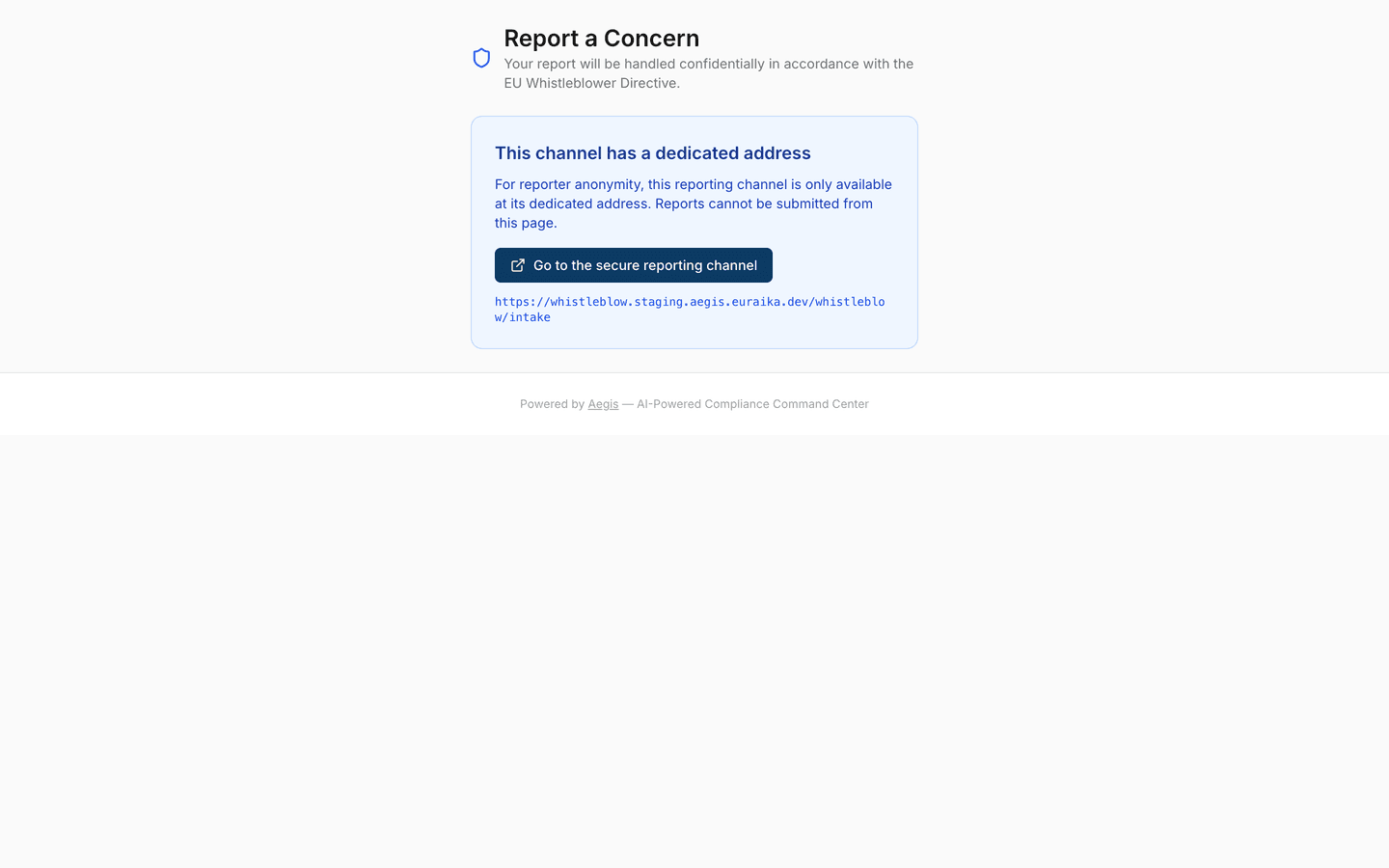
The step-by-step reference — including how to check your report later and what each status means — is Report a Concern. What happens on the receiving side is covered in Whistleblowing; the handlers see the case, not the reporter, unless the reporter chose otherwise.
Tips and limits
- Acknowledging a policy needs a signed-in account; reporting a concern never does. If you have no account, the acknowledgment is being collected another way — ask your manager.
-
Procedures can carry the same
Read Byconfirmation as policies — the flow is identical, on the procedure's own page (Procedures). - There is no personal "my outstanding acknowledgments" list today. The request that reached you — the email or the link from your manager — is the thing to work from.
- A concern about a security event you witnessed at work — a lost laptop, a phishing email you clicked — is usually an incident, not a whistleblowing case. Report it to your IT or security contact straight away; speed matters more than the channel.
Where this connects
The screens visited here have full references: Policies, Security Awareness and Report a Concern. If your duties grow into drafting documents or logging incidents, What each role can do explains the role to ask for, and the How do I…? index finds the right chapter for any other task. Terms glossed in brackets are collected in the glossary.