Board reports
Build a board-level summary of your compliance and security posture from your live records, review the wording, record what the board decided, and share the result as a file or an email.
Most frameworks expect the board to receive regular information about the security programme. Assembling that means pulling figures out of compliance, risks, incidents, vendors and evidence and writing them up for people who do not work with the detail every day. A board report (a summary document written for board members) does the gathering for you: a background job reads your current records, builds a document of eight labelled sections and drafts an opening summary. A person then reads it, corrects it, records the decisions taken against it, and sends it out. Unlike a custom report, you do not arrange the layout — the sections are a fixed set.
Who uses it
-
Viewer and
Contributor can open
/board-reports, search the list, open a report, read every section and download all three file formats. They do not seeGenerate Report, the executive-summaryEditandMark reviewedbuttons, orRecord Decision. - Manager can do all of that, plus generate reports, edit and review the executive summary, record and delete board decisions, and email a report.
- Admin can do everything a Manager can.
The Email Report button appears for every role that can open a
report, but the send needs Manager rights and is refused below that. If you
are a Viewer or Contributor and the form returns an error, ask a Manager to
send it. Board reports are also licence-gated: without the feature the page
reads "Board reports are not available on your current plan. Upgrade to
generate executive-level compliance and risk reports." in place of the list.
What's on this screen
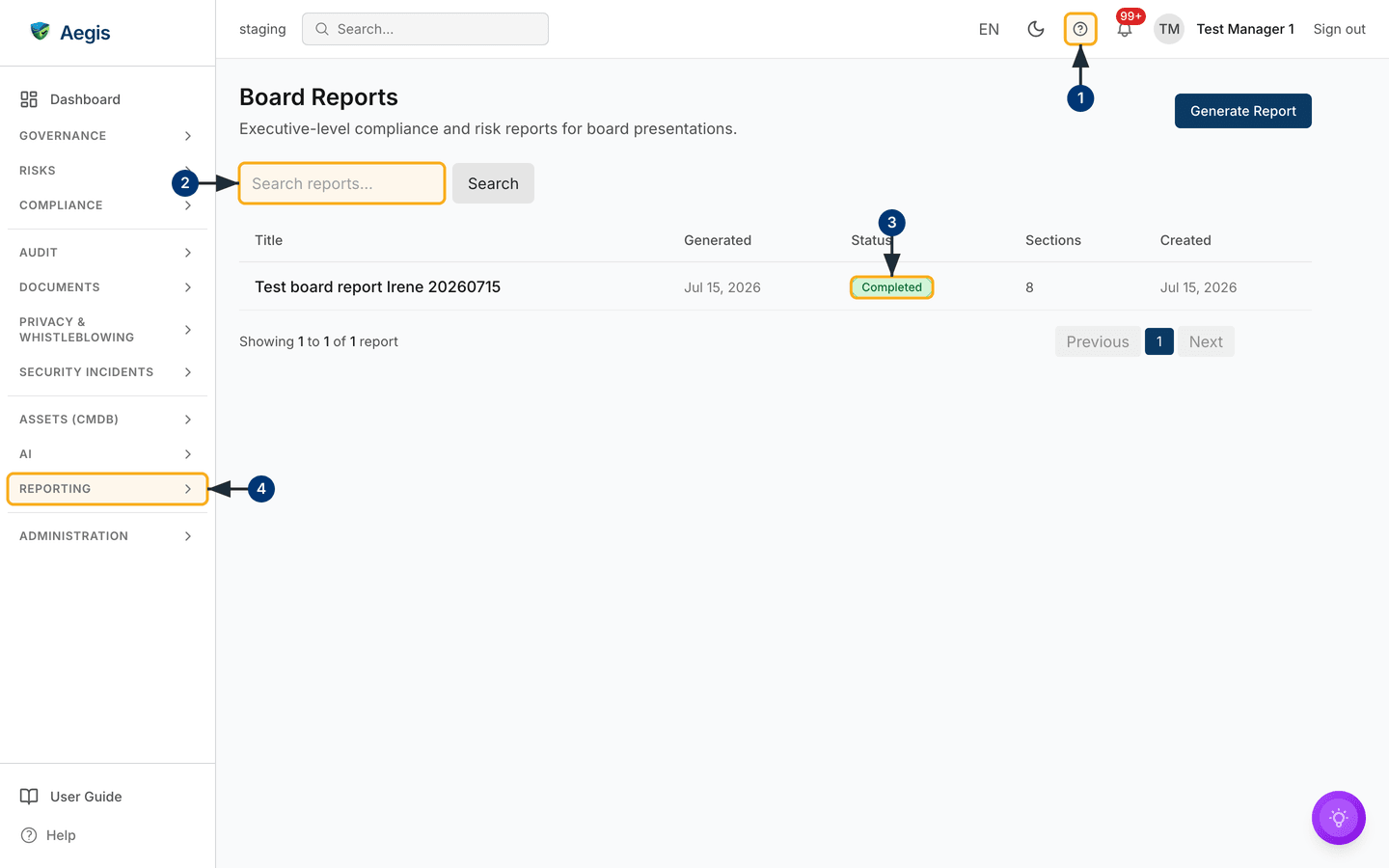
/board-reports is a single list page — everything else happens in
windows that open over it. The heading Board Reports sits top left
with the line "Executive-level compliance and risk reports for board
presentations." beneath it. Top right is Generate Report, the only
way to start a new report, shown only to Manager and Admin. Directly under the
heading is the filter bar: a Search reports... field with a
Search button beside it. That is the whole filter bar — no status
filter, no date range.
Below it runs a five-column table. Title is the name you gave the
report. Generated is the date the background job finished.
Status holds the lifecycle badge. Sections counts the
sections in the body — 8 for a finished report,
0 while it is still being built. Created is when the
record was first made, which can differ from Generated when the
work sat in a queue. There is no row menu: selecting anywhere on a row opens
that report.
In the example pictured, the table holds a single row —
Test board report Irene 20260715, generated
Jul 15, 2026, a green Completed badge,
8 sections — above a footer reading "Showing 1 to 1 of 1 report"
with Previous, page 1 and Next. The list
pages twenty reports at a time.
-
Select the
?help button in the top bar. Aegis opens its Help page with this chapter of the User Guide already loaded; the sidebar and top bar stay where they are, so you can read and then navigate straight back. -
Type a few letters of a title into the
Search reports...field. Typing is what applies the filter: the list narrows by title shortly after you stop. TheSearchbutton beside the field submits the form, but it does not fetch the results any sooner. A search that matches nothing shows "No results found" with aClear filtersbutton to bring the full list back. -
Read the
Statusbadge before you open a row.Generating…in amber means the job is still running, greenCompletedmeans the report is ready — as pictured — and redFailedmeans the job could not finish. A dash appears where no status was recorded. -
To come back later, open the
REPORTINGgroup in the left menu. Board Reports sits there beside Analytics and Reports.
Generating a report
Generation runs in the background. You supply a title and, if you want one, a period; Aegis reads your current records, builds the eight sections, drafts the executive summary, and the report appears in the list.
-
Select
Generate Reportat the top right. A small dialog headedGenerate Reportopens over the page. -
Enter a
Title. It is required, accepts up to 200 characters, and shows the expected shape as a placeholder:Q2 2026 Board Compliance Review. Submitting it blank returns "Title is required" inside the dialog rather than closing it. -
Optionally enter a
Periodsuch as2026-Q2or2026. There is no framework picker and no section picker on this form — those two fields are all it asks for. -
Select
Generateto queue the work, orCancelto close without generating. On success a short message confirms "Board report queued" and the dialog closes. -
The new report joins the list with a
Generating…badge and a section count of zero. While any row is generating, the list refreshes itself every few seconds, so the badge flips toCompleted— orFailed— without you reloading the page.
A Period is read as a quarter (Q2 2026,
2026-Q2), a month (2026-01) or a year
(2026). A recognised period scopes the time-based sections to that
window. Anything it cannot read, and a blank period, is treated as all-time
rather than filtering the report down to nothing — so check the
Period line in the finished report if you meant to narrow it.
This chapter has one screenshot — the list. The generate dialog, the report window, the executive-summary controls and the email form all open over the page, so they are described in words rather than pictured. Every label quoted is the one you will see on screen.
Reading a report
Selecting a row opens a window headed with the report's own title. Any status
banner comes first, then the action buttons — which appear only once the report
has sections — then five blocks in this order: Overview,
Executive Summary, Board Decisions,
Report Sections and Details.
- Select a report row in the list. The report window opens over the page.
- Check for a banner at the top. "This report is currently being generated. Please check back in a moment." means the job is still running — close the window and re-open it shortly. The sections, the summary and the action buttons all appear once it completes.
-
Read the
Overviewblock: the generated date and the section count, plusPeriodandFrameworkwhere those were recorded. A report generated without a period shows no period line at all. -
Work down
Report Sections. Each section is a stacked panel with a bold heading and labelled counts, scores and top items beneath it, drawn from your records. The block scrolls within the window, so keep going past the visible edge on a long report. -
Confirm the
CreatedandGeneratedtimestamps inDetailsat the foot of the window before you distribute anything.
The sections are always the same eight: Executive Summary,
Compliance Status, Risk Overview,
Incident Summary, Vendor Status,
Evidence Health, Regulatory Deadlines and
Recommendations. Each holds labelled figures rather than prose; the
one narrative passage is the executive summary. Where a source holds no data for
the period, the section reports what it found — often zero — rather than
inventing content. A report is a snapshot of your records at the moment the job
ran, so read it for accuracy before you share it.
A failed job shows a red banner reading "Report generation failed. You may delete this report and try again." There is no delete button and no row menu on this screen, so you cannot remove the failed record from the interface. Generate a fresh report with a new title instead; deleting the failed one is possible only through the API, which a Manager or an Admin can call.
The AI assist
One part of a board report is AI-assisted: the Executive Summary.
The figures in the eight sections are read straight from your records and are
not written by AI.
Where AI assist is licensed and configured, Aegis drafts the summary from the
figures the job has already assembled. The model is instructed to use only those
figures, never to invent numbers, and to write three to five sentences of plain
prose; the draft costs one AI credit. When AI assist is unavailable —
unlicensed, unconfigured, or the provider returns an error — a built-in template
builds a summary from the same figures instead, so a report always carries
readable text. Badges above the summary record where it stands:
Pending review while unreviewed, joined by
AI-generated when the model wrote the draft, and replaced by a
green Reviewed badge once you mark it reviewed.
- Read the drafted summary and the badges that state where it came from.
-
Select
Editto open the text in a box you can change. Adjust the wording and selectSave; a confirmation reads "Executive summary updated". Editing drops theAI-generatedlabel, because the text is now yours. -
Select
Mark reviewedonce the wording is right. The badge changes toReviewed. Who reviewed it and when is stored on the record and written to the audit log, though the panel itself shows only the badge. UseReopen for editingto go back to an unreviewed state.
The reviewed text is what the PDF and the emailed report lead with, so the summary you correct here is the one the board reads. The AI drafts; a person reviews, edits and decides. Nothing is sent or published on its own.
Recording board decisions
The Board Decisions block sits between the executive summary and
the report sections and keeps a traceable log of what the board decided against
the report that prompted it. Until something is recorded it reads "No board
decisions have been recorded for this report yet."
- Open the report and scroll to the
Board Decisionsblock. -
Select
Record Decision. A form opens inside the block; the button is shown only to Manager and Admin. -
Enter the
Decisiontext — required, with the placeholder "e.g. Approve the 2026 security budget" — choose anOutcome, which starts atNoted, add an optionalOwnerandDue date, then selectSave. A confirmation reads "Board decision saved". -
The decision joins the list with a coloured outcome badge and any owner and
due date beneath it. Use
Editto amend it, orDelete— which asks "Delete this board decision?" first — to remove it.
| Outcome | Use it when |
|---|---|
Approved |
The board agreed the proposal put to it. |
Rejected |
The board declined the proposal. |
Deferred |
The board postponed the decision to a later meeting. |
Action item |
The board asked for work to be done — record the owner and the due date. |
Noted |
The board acknowledged the information without deciding anything. |
Sharing a report
Once a report has sections, four buttons appear above the
Overview block. A report still generating, or one that failed,
shows none of them.
-
Select
Email Reportto open a form in place of the button. Enter aRecipient Email(required) and, optionally, aRecipient Name (optional), then selectSend. Aegis queues a job that builds the PDF and sends it through your configured email service, and the form shows "Report email queued for delivery" before closing. There is no batch send — use the form once per recipient. -
Select
Download PDFto save the report asboard-report-<id>.pdf. This is the route for board members with no Aegis account. The button readsGenerating PDF...while the file is built. -
Select
Download Excelfor a spreadsheet namedboard-report-<id>.xlsx, when someone wants to sort or chart the figures. -
Select
Download Markdownfor a plain-text version,board-report-<id>.md, for pasting into minutes.
The empty state
Before anyone has generated a report, the table is replaced by a centred panel
reading "Nothing here yet" with the line "No items have been created yet."
underneath. That panel carries no button of its own, so start from
Generate Report at the top right. If you are a Viewer or
Contributor and the list is empty, there is nothing you can do here until a
Manager generates the first report.
Tips and limits
- Email delivery needs a working SMTP email service. Without one the send returns "Email sending is not configured" — ask your administrator to set one up, either as an email connector under Connectors or in the deployment's own configuration.
- For a layout with charts and tables you arrange yourself, build a custom report instead — the generate form here has no section or framework picker.
- Board reports cannot be archived and the screen has no delete control, so every report you generate stays in the list. Give each one a title that will still make sense a year later.
- Aegis does not schedule board reports. Each one is generated by hand here, at whatever cadence your framework obligations and your board's meeting schedule call for.
- Generating a report, editing or reviewing the summary, emailing one, and every decision you record are all written to the audit log, so a statement quoted in board minutes can be traced back to the report that produced it.
Where this connects
For an interactive view of the same underlying data, see Reports and Analytics. The figures a board report summarises come from across the product — Compliance frameworks, Risks, Incidents, Vendors and Evidence. Emailing a report relies on a configured connector, covered in Connectors, and every action here is recorded in the Audit log.