First-time setup
A five-step onboarding wizard records who your organisation is, and then a live Getting Started checklist inside the Action Center walks you through the first week of real work.
Setting up Aegis happens in two parts, in order. First, the very first person to sign in to a brand-new workspace is routed through onboarding (a one-time wizard that records your company name, industry, sector, size, and primary framework). Those answers decide which frameworks appear, which obligations Aegis surfaces, and which score becomes the headline figure on your dashboard. Second, the workspace opens on a Getting Started checklist — a page that watches your real records and ticks tasks off as the underlying work gets done. This chapter orientates you to both, then hands you over to the modules where each task is completed.
Who uses it
The wizard is run once, by the first user in the workspace, who is given the
Admin role. The checklist is
readable by every signed-in user, but the tasks it links to need a working role.
An Admin can complete every step,
and is the only role that can invite colleagues. A
Manager can approve policies and
procedures, set up a connector, upload evidence and edit the organisation
profile. A Contributor can
draft and edit policies and procedures and upload evidence, but cannot approve
them — approval is a Manager or Admin action. A
Viewer can watch the percentage
climb but cannot complete any step, because creating and approving records is
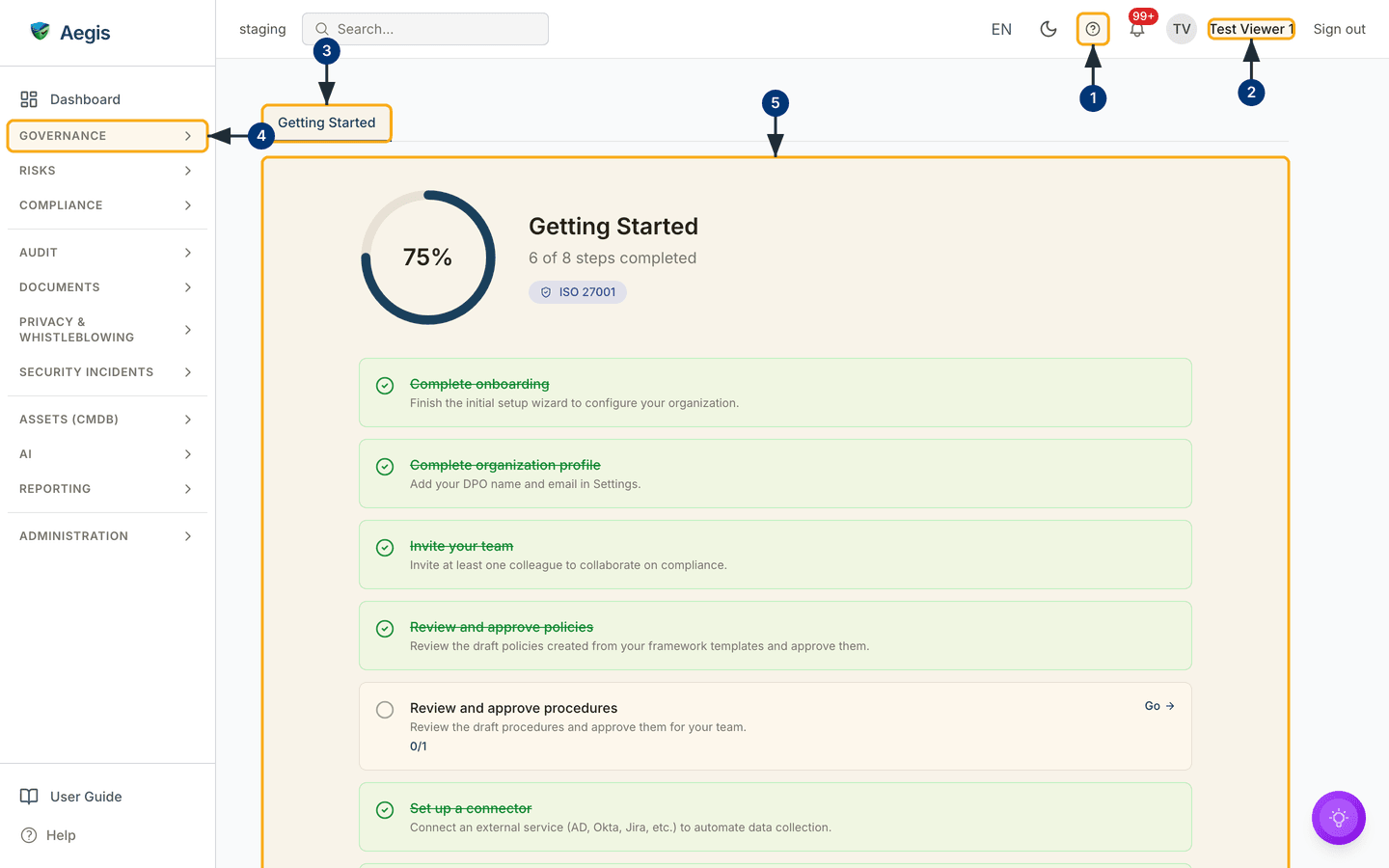
beyond read-only access. The screenshot below was captured while signed in as a
Viewer — Test Viewer 1 in the top bar — so the checklist renders in
full, but its Go links lead to screens this role can only read.
What's on this screen
The checklist now lives inside the Action Center. The old
/getting-started address still works: it redirects to
/action-center?tab=getting-started, which is the screen shown here.
Directly under the top bar is a single tab strip with one tab,
Getting Started, underlined in blue because it is the active one.
Everything below the strip is that tab's panel.
The panel opens with a hero row: a circular progress ring on
the left showing your completion percentage — 75% in the capture —
and, beside it, the heading Getting Started, the count
6 of 8 steps completed, and a small framework pill. The captured
workspace has ISO/IEC 27001 as its primary framework, so that pill
is shown; a workspace with no primary framework set shows no pill.
Below the hero is the checklist — one card per task, stacked in
a single column. A completed card has a green tick, a green tint, and its title
struck through. An open card has an empty circle and a blue Go link
on the right that jumps to the screen where the work is done; where the task
counts items, the card also shows a fraction. In the capture,
Complete onboarding, Complete organization profile,
Invite your team, Review and approve policies and
Set up a connector are ticked, while
Review and approve procedures is still open with a
0/1 count and a Go link. The remaining two cards —
Upload evidence and Start a compliance assessment —
sit below the fold of this capture, as do the certification roadmap and the AI
assist panel described later in this chapter.
Around the panel sits the standard frame. The left sidebar carries the
Dashboard link and eleven collapsible groups, from
Governance at the top to Administration at the bottom,
with User Guide and Help pinned at its foot. The top
bar carries the environment label (staging
in the capture), global search, the language selector, the light/dark toggle,
the help
? button, the notification bell, your name, and
Sign out.
-
Select the help
?button in the top bar. It opens the in-app copy of this guide at/help, on the chapter for the screen you were on; the button sits in the top bar of every screen the checklist sends you to. -
Check the name at the top right —
Test Viewer 1here, beside an avatar with your initials. It is a label, not a link: your own settings live underSettingsin the sidebar.Sign outbeside the name ends the session and returns you to the sign-in page. -
Select the
Getting Startedtab if it is not already active. The tab underlines in blue and its panel — ring, checklist, roadmap and AI panel — renders below. -
Select the
Governancegroup in the left sidebar. The group expands to revealAction Center— where this checklist lives — together withRoadmap,Governance Bodies,Action Itemsand the other governance pages your role and licence allow. The remaining groups behave the same way, and the checklist'sGolinks land inside them. -
Scroll the checklist panel. Each card shows its state, a one-line
description of the task, and — while the task is open — a
Golink on the right that takes you to the screen where it is completed.
A card turns green when the underlying work exists — a colleague is actually invited, a policy is actually approved, a connector is actually configured. There is no control to mark a card complete. Do the task the card links to, and the card updates the next time the page loads.
The onboarding wizard (runs once)
The first time you sign in to a brand-new workspace, Aegis routes you to
/onboarding instead of the dashboard. The wizard has five short
steps and every field is required. There is no screenshot of it in this guide:
it runs once per workspace and is gone by the time most readers arrive. Every
answer can be changed afterwards under Settings, so a wrong choice
here is a correction, not a dead end — but the answers do shape what the rest of
Aegis shows you, so it is worth a careful first pass.
-
Company information. Enter your
Company Nameand choose yourIndustry, then selectContinue. The name appears on every report and email Aegis sends; the industry steers which framework recommendations and regulatory feeds you see. -
Industry sector. Say where you sit under NIS2 (a European
cybersecurity law). Three tabs divide the choice —
High Criticality (Annex I),Other Critical (Annex II)andNot in NIS2 Scope— and picking a sector opens its sub-sectors. SelectContinue. Your answer decides which NIS2 obligations the compliance module surfaces. -
Organisation size. Pick an employee band and an annual
turnover band, then select
Continue. Several European frameworks use size to decide whether, and how strictly, they apply, and Aegis uses it for risk weighting and benchmark comparisons. -
Primary framework. Choose your home framework from the
cards — for example
ISO 27001,NIS2,CyFun,DORA,GDPRor theEU AI Act. Only the frameworks your licence covers are offered, and each card is taggedIncludedorAdd-on. Nothing is pre-selected in a new workspace, so you must pick one beforeContinuebecomes active. This framework's score becomes the headline figure on your dashboard, and its certification roadmap appears on the Getting Started tab. -
All set. A
Setup Summarycard lists your selections, and — because you are the first user — anAdmin Accessnotice tells you that you are being granted administrator rights. SelectGo to Dashboard. The workspace's organisation profile is stamped as onboarded, policy templates for your framework are seeded, no one is sent to the wizard again, and the first checklist card,Complete onboarding, is now green.
The gate is the workspace's organisation profile, not your user account. Once the first user finishes, colleagues invited later go straight to the dashboard. If a colleague is sent to the wizard, either an administrator has reset onboarding for everyone (see Tips and limits below) or they have landed in a different workspace. A Viewer cannot complete the wizard — the role has read-only onboarding access — so a Viewer sent there should ask an administrator to finish it.
Working through the checklist
Work down the open cards; each Go link drops you where the task is
done, and you return here to watch the ring climb. The steps below are the
remaining seven cards, in the order they appear.
-
Complete organisation profile. The card links to the
Organizationtab ofSettings. Add the details onboarding did not capture — your Data Protection Officer's name and email, which the GDPR module needs — and save. -
Invite your team. The card opens the user list under
Settings. Add at least one colleague and give them a role; the card turns green once a second user exists. -
Review and approve policies. The card opens
Policies filtered to
Draft. Read the drafts Aegis created from your framework templates, edit what does not fit, and approve them. -
Review and approve procedures. The card opens
Procedures filtered to
Draftand shows a0/1count until the first procedure is approved — this is the one card still open in the capture above. - Set up a connector. The card opens Connectors, where you link an external service — a directory, an identity provider, a ticketing tool — so that some evidence collects itself.
- Upload evidence. The card opens the Evidence locker. Add your first document or export, so a control can point at something concrete rather than an assertion.
-
Start a compliance assessment. The card opens
Compliance frameworks. Assess at
least one control and the card turns green. Once every card is green, the
tab replaces the ring, the checklist and the roadmap with a short
You're all set!confirmation.
The certification roadmap
Below the checklist — out of shot in the capture — Aegis shows a certification
roadmap for your primary framework, grouped into four phases:
Phase 1: Foundation, Phase 2: Implementation,
Phase 3: Verification and Phase 4: Certification. Each
entry names one milestone (for ISO 27001, defining the scope of your information
security management system, then a risk assessment, a Statement of
Applicability, and so on) with a Learn more link that opens the
help panel and, where the work happens inside Aegis, a Go link to
that module. The roadmap is reference guidance, not a tracker: entries do not
tick themselves off, and the final phase describes audits your certification
body runs, not screens in Aegis. With no primary framework set, the roadmap does
not appear at all.
The AI assist
At the foot of the tab sits an AI panel headed
Need help? Ask Aegis AI, with two controls.
Generate my setup plan opens a dialog,
Your personalized setup plan, where
Generate plan reads your live checklist progress and writes an
ordered plan for the steps you have left; Save as record keeps it,
and saved plans and any follow-up action items are listed below the panel.
Ask Aegis AI opens the assistant instead, so you can ask what to do
next in your own words. The AI only suggests: it never invites a user, approves
a policy, or connects a service — a person reads the plan and decides. See
AI assistant and
Action items.
Tips and limits
-
To change an answer, open
Settingsand edit the organisation profile; the change is recorded in the audit log. To run the wizard again, an Admin opens theAccounttab ofSettings, finds theWizardscard and selectsReset Onboarding. A confirmation dialog warns that this re-shows the wizard for every user in the workspace at their next sign-in, and the reset is written to the audit log. The same card carriesReset Getting Started, which only brings the checklist widget back on your own dashboard. -
A Viewer sees the checklist but
cannot complete most steps. If a
Golink lands you somewhere read-only, ask an administrator to raise your role or to do the task. - The framework pill and the certification roadmap depend on a primary framework being set during onboarding. Some frameworks also add a card of their own — registering an ICT provider for DORA, or an AI system for the EU AI Act — so your total may exceed eight.
- The percentage is a setup prompt, not a compliance score, and no auditor sees it. Reaching one hundred per cent means the workspace is ready to be worked in, not that any obligation has been met.
Where this connects
Next, learn the frame around every screen in The screen layout and The left menu, and how people get into the workspace in Signing in. Roles overview explains which role to give each colleague, and Getting Started covers the checklist tab in its own right. From there the modules each card links to — Policies, Procedures, Connectors, Evidence and Compliance frameworks — take over. If something is stuck, see Getting help.