AI Agents
Set an AI agent (an AI task that works through a goal on its own, using Aegis's own read-only lookups) one compliance or risk question, then read its answer and its working from the run history.
The AI Agents page handles the longer, multi-step questions that are awkward in a back-and-forth chat. You describe one goal up front — for example, “list the NIS2 (a European cybersecurity law) controls we have marked as not implemented” — and a background worker takes it from there. The agent forms a thought, calls one of a small set of read-only lookups over your records, reads what comes back, and repeats. Each of those think–act–read cycles is one iteration. The run, its iterations, the tokens it used and its final answer are kept in a history you can reopen at any time.
This is assistance, not automation of decisions. An agent reads and drafts; it cannot change a policy, a risk or a compliance record. A person reads the output and decides what to do with it.
Who uses it
The page requires Contributor or above, and the AI module must be switched on for your organisation.
-
Viewer — no access. The
AI Agentsentry does not appear in the sidebar, and opening/ai/agentsdirectly sends you to the/unauthorizedpage. - Contributor — can start runs, read the whole run history, and cancel a run that is still queued or running.
- Manager — the same as Contributor; there is no extra agent-specific power at this role.
- Admin — the same again, and also controls the AI settings that switch AI assistance on or off.
If you hold Contributor or above and the entry is missing, the AI module has not
been enabled for your organisation. If the entry is there but the history
reports
Failed to load agent runs with a Try again button, AI
assistance itself is off or unavailable; see
Settings.
What's on this screen
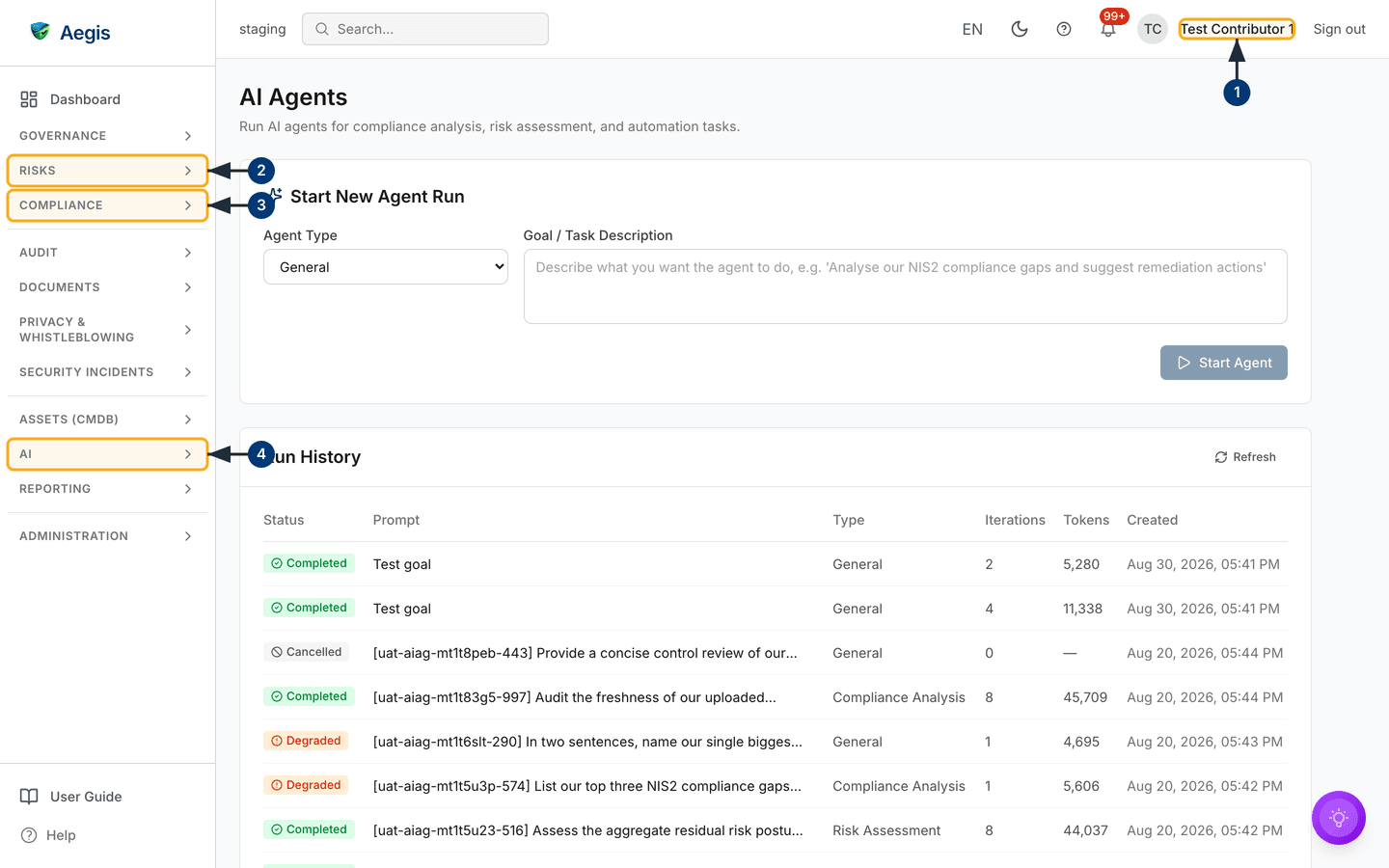
The page is a single column: the heading AI Agents above the line
“Run AI agents for compliance analysis, risk assessment, and automation
tasks”, then two stacked cards. The page itself has no filter bar and no
search box — the search field in the top bar is the app-wide one, and it does
not search run history.
-
Start New Agent Run— the first card. It holds a narrowAgent Typedrop-down on the left, which opens onGeneral, and a widerGoal / Task Descriptionbox beside it, with placeholder text showing an example goal. AStart Agentbutton sits at the bottom right of the card and stays disabled until the goal box has text in it. -
Run History— the second card, with aRefreshcontrol at its top right. Below that is a table of runs, newest first, with the columnsStatus,Prompt,Type,Iterations,TokensandCreated. Every row is clickable and opens a detail window.
In the captured screen the history holds seeded demonstration runs, so their
prompts carry a test tag in square brackets, and the rows show a mix of
outcomes: green
Completed rows with eight iterations and tens of thousands of
tokens, orange Degraded rows that stopped after one iteration, and
grey Cancelled rows with a dash under Tokens. Your own
history will differ, and on a new organisation it is empty.
Start an agent run
-
Open
Agent Typeand pick the framing for your question:Compliance Analysis,Risk AssessmentorGeneral. The type sets the instructions the agent works under — Compliance Analysis leans towards framework controls and evidence, Risk Assessment towards the risk register. -
Click into
Goal / Task Descriptionand write what you want in plain language. A precise goal — “identify which controls we have marked not implemented and suggest evidence that would close them” — gives a far better result than “check compliance”. TheStart Agentbutton becomes active as soon as you type. -
Select
Start Agent. The button changes toStarting…with a spinner, the form clears back toGeneral, and the history reloads with your new run at the top. If the run could not be created, a red message appears directly above theStart Agentbutton and your goal stays in the box. -
Watch the
Statuscolumn. A new run starts asQueuedand moves toRunningonce the worker picks it up. Nothing blocks while it runs, so you can leave the page and come back. -
Select
Refreshat the top right ofRun Historyto reload the table in place; the icon spins while it loads. Nothing polls automatically, so this is how you follow a run in progress.
Starting a run enqueues a background job, which the worker takes in turn. A
long wait in
Queued usually means the worker is busy with an earlier run or
has restarted. If it never moves, ask your administrator to check the
worker.
What the statuses mean
| Status | What it means |
|---|---|
Queued |
Submitted and waiting for the background worker. |
Running |
The agent is reasoning and calling lookups. The badge icon spins,
but
Iterations and Tokens stay at their
starting values — both are written once, when the run finishes.
|
Completed |
Finished with an answer that was grounded on at least one lookup of your records. |
Degraded |
Finished, but the agent never successfully read your own records. The answer is a generic framework, not an analysis of your data — read it as background reading only. |
Failed |
The run hit an error it could not recover from. The detail window shows the error. |
Cancelled |
Stopped before it finished, so no answer was produced. |
Degraded is deliberate honesty rather than a fault: an ungrounded
answer is flagged instead of being presented as a green success, and opening the
run repeats the warning in words.
Read a run and act on the answer
This edition has no capture of the run detail window; the steps describe what you will see.
-
Click anywhere on a row in
Run History. A window titledAgent Runopens over the page, with the status badge and the agent type along the top. The type here is the stored value —general,complianceorrisk— rather than the label used in the table. -
Read the
Promptsection — the full goal as you submitted it, not the truncated version shown in the table. -
Read the
Resultsection below it — the agent's final answer as formatted text. A degraded run shows its orange grounding notice above this section. A run that recorded an error gets a redErrorsection under the answer; on a failed run with no answer that section is all there is. -
Scroll on to
Tool calls— the heading carries the number of calls, as inTool calls (6), and the list below it is the agent's working: each lookup in turn, the arguments it was given and what came back. This is how you check whether an answer rests on your data. A run that called nothing has no such section. -
Use the controls at the foot.
Copyputs the answer on your clipboard for completed and degraded runs. Under the answer itself,Save as recordkeeps the output as an AI insight linked back to this run, andCreate action itemopens a small form — the description arrives prefilled from the answer, you supply the title — which needs permission to create action items. ACreate work itemscontrol appears beside them only for people who can create roadmap programmes.
Cancel a run
-
Open the run from the history table while it is still
QueuedorRunning. -
Select
Cancel runat the foot of the window. The control only appears for those two statuses and only for people who can start runs, so it is absent on a finished run. -
The button shows
Cancelling…, a confirmation message appears, and the status becomesCancelled. The agent checks between iterations, so it stops before spending anything on the next one, though a cycle already in flight finishes first.
When the history is empty
On a new organisation the lower card shows a sparkle icon, the heading
No agent runs yet, and a line inviting you to start your first run
by describing a compliance task — the form for that sits in the card above.
Starting a run replaces the message with the table. The card holds twenty runs
at a time; beyond that a pager appears under the table with the count of runs
shown, Previous and Next controls and a
Page 1 of 2 marker.
The AI assist
Each run from this page is a reasoning loop with a ceiling of eight cycles. The agent is given read-only lookups over your own records — counts by type and status, risk analytics, framework coverage, a posture summary, listings and single records, and a search of your evidence — plus a regulation lookup, a freshness check, a claim check and, where one is configured, a web search. It has no tool that can write anything, so a run can never alter your records.
Reaching the cap does not throw the work away: a partial answer written at the
last cycle is kept as it stands. Only when the loop returns nothing usable at
all — a blank answer, or an error part-way through — does Aegis fall back to a
single reply made without any lookups. That fallback answer is ungrounded by
construction, so the run is marked Degraded.
Agent runs are recorded in your AI usage history but are not billed against your AI credits.
The agent gathers and drafts; you decide. A run reporting “no gaps found” has told you only that it found none with the lookups it made — not that your compliance position is sound.
Tips and limits
- Read the output critically. The model can state wrong facts with confidence, so check it against the source records before any of it reaches a binding compliance document.
- Check the tool calls before trusting a number. If the working shows no lookup of your data, treat the figures as unverified.
- Large questions may be summarised rather than exhausted. A goal spanning hundreds of risks can return a partial result: both the iteration cap and the model's context have limits.
- Runs can take minutes. The token count gives a rough sense of how much reasoning went into one.
- A submitted run cannot be edited. If the type or goal was wrong, cancel it while it is still queued and start a fresh one.
- The history shows every run in your organisation, not only your own, and this version has no filter or search here. Write goals a colleague would be comfortable reading.
Where this connects
- The AI assistant — the conversational counterpart, better suited to quick questions than to one long goal.
- Action items — where an answer goes when you turn it into tracked work from the run detail window.
- Risks, Compliance frameworks and Evidence — the records the lookups read.
- Audit log — where activity across Aegis, including AI use, is recorded.