Audit readiness
One screen that answers a single question — if an auditor walked in today, how would you fare across every framework you have switched on?
Doing compliance work and being ready for an audit are not the same thing, and this screen shows the distance between them. Audit readiness reads records you already keep — policies, framework controls, evidence (the proof a control works), risks and vendors — and turns them into a weighted score, a framework table and a short list of the moves that would lift the score most. Reading it never changes a record; the fixes happen in the modules it sends you to.
Who uses it
Opening the page needs audit-readiness:read, which all four
employee roles hold, so Viewer,
Contributor,
Manager and
Admin see the same score, table and
recommendations, with nothing to create or edit in them. The panels below are
gated more tightly.
-
Readiness Triage (AI)needs theAI_ASSISTlicence feature and spends an AI credit per run. Any role can run it. -
Editing or deleting a plan in
Saved AI insightsneedsaudit-readiness:generate— Manager and Admin only. Turning one into an action item needsaction-item:create, held by Contributor and above. -
Starting a mock audit needs
mock-audit:write, held by Manager and Admin; all four roles can read past runs. -
Without the
AUDIT_READINESSmodule the sidebar entry is absent, and a role without the read permission that opens the route directly lands on/unauthorized.
What's on this screen
The page sits at /audit-readiness, under the
COMPLIANCE group in the left sidebar, below the standard top bar
(environment name, search box, EN language switch, light/dark
toggle, Help ?, notification bell, your name and
Sign out). The heading reads Audit Readiness over
"Assess your readiness for compliance audits across all frameworks", with one
button on that row — Readiness Triage (AI), on the right.
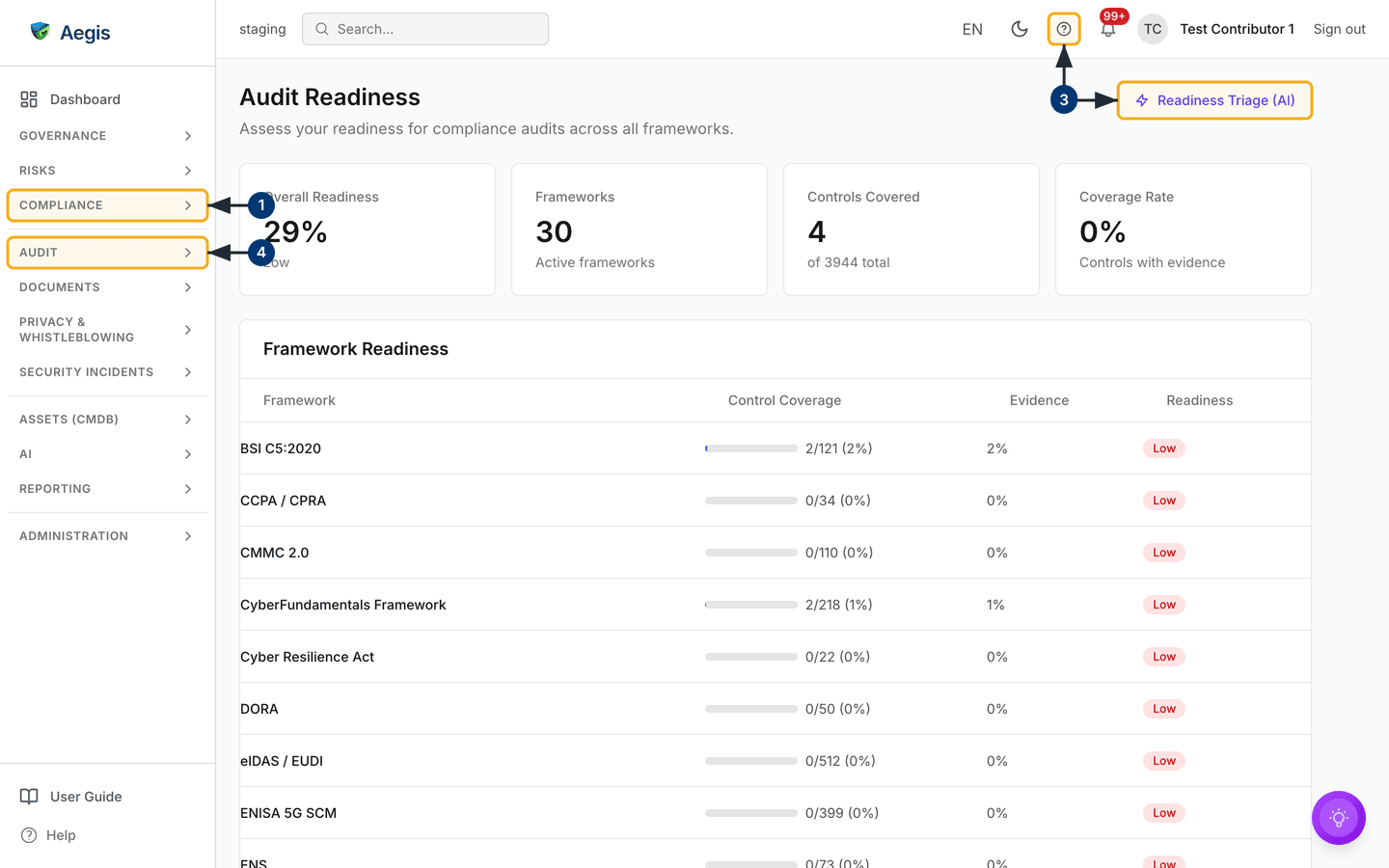
Four stat cards follow. In the capture:
Overall Readiness 29%, marked Low — a
weighted composite, not a count; Frameworks 30;
Controls Covered 4, "of 3944 total"; and
Coverage Rate 0%, "Controls with evidence", which
is those same four over the 3,944. Four out of 3,944 rounds down to nought,
which is why the two percentage cards disagree so sharply here.
The Framework Readiness table gives one row per active
framework and four columns: Framework,
Control Coverage (a bar with the fraction and percentage beside
it), Evidence (a percentage) and Readiness (a
High, Medium, Low or
N/A badge). There is no search box, no filter bar and no row menu —
it is a read-out, and rows open nothing. Its rows run in framework-name order,
from BSI C5:2020 at 2/121 (2%) to
ENS
at 0/73 and onwards below the fold, every visible one badged
Low. Out of shot beneath it sit the
Recommendations panel, then Saved AI insights, then
Action items from AI.
Open the page and read your headline
-
Open the
COMPLIANCEgroup in the left sidebar and selectAudit Readiness. Four grey placeholder cards appear first, then the real figures and the framework table fill in as the compliance data loads. -
Select the Help
?button in the top bar. Aegis opens this guide at the matching chapter in place of the screen, with the sidebar and top bar still in view; your browser's Back returns you to the page. -
Note the
Readiness Triage (AI)button beside the heading. Selecting it opens the triage dialog described below, so read the numbers first and come back to it. -
Open the
AUDITgroup further down the sidebar. It holdsMock Audit— the rehearsal covered later in this chapter, on its own screen.
With the page open, read the Overall Readiness card first, then
scan the Readiness column for frameworks badged Low or
Medium. Those rows are where the work is.
How the score is worked out
Overall Readiness is a weighted composite of five dimensions, taken from the most recent snapshot the daily background job computes and stores:
| Dimension | Weight | What raises it |
|---|---|---|
| Control implementation | 25% | Bringing controls to a compliant state |
| Evidence completeness | 25% | Attaching fresh evidence to more controls |
| Policy coverage | 20% | Approving and publishing more policies |
| Risk management | 15% | Mitigating or accepting open risks |
| Vendor compliance | 15% | Completing assessments for active vendors |
Where no snapshot exists yet the card falls back to the plain control-coverage
ratio, so the number is never blank. The word under the score, and every
framework badge, follow one fixed scale: High (green) at 80% and
above, Medium (amber) from 50% to 79%, Low (red) below
50%. Each framework row is scored on its own control coverage alone; one with no
controls loaded reads 0/0 (0%) and is badged N/A. With
no active frameworks at all, the table body is replaced by "No frameworks
configured. Add a compliance framework from the Compliance page to get started."
Work through the recommendations
The Recommendations panel beneath the table tells you what to do
next. A fixed rule engine builds it — not AI — so the same data always yields
the same list in the same order, read from the stored snapshot rather than the
live records. Each row carries a priority badge, an impact label, a title, a
description and a Take action link.
| Recommendation | Raised when | Take action opens |
|---|---|---|
| Improve a dimension | It scores under 80; High at 40 or under |
Policies, Compliance, Evidence, Risks or Vendors |
| Refresh stale evidence | Evidence past the freshness window; High at 10 |
Evidence, filtered to stale |
| Attach missing evidence types | Controls missing an expected type; High at 10 |
Compliance, filtered to missing type |
| Close open control gaps | Controls not yet compliant; High at 20 |
Compliance, filtered to non-compliant |
-
Scroll to the
Recommendationspanel. Rows arrive sortedHighfirst, then by descending impact, so the top row is the largest single move open to you. -
Read the impact label beside the priority badge. A dimension row reads
+4.5 pts— the weighted points it would add at 100. A count-driven row reads12 controls— the records to work through. -
Select
Take action. Aegis opens the matching screen with the filter already applied, so you land on the records concerned rather than the whole list. - Fix the gap and return. The panel is rebuilt from the same snapshot as the score, so a cleared item stays listed until the next recompute — expect a day's lag.
When no rule fires, the panel shows "You're audit-ready" over "No recommendations right now — every readiness dimension is in good shape and your evidence is up to date". That means one thing only: as of the last snapshot, no rule fired. A tenant with no snapshot at all also has no recommendations, so a brand-new organisation sees the same message before anything has been measured.
The AI assist
Readiness Triage (AI) drafts a "what's missing before the audit"
plan. It is deliberately narrow: it reads your readiness score and the same
fixed recommendation list shown on the page, and writes them up as a sequenced
plan with a concrete next step per item. It does not reorder the priorities,
rescore anything, or invent gaps or numbers. A person reviews the plan and
decides; the triage never changes a record, a control status or a score on its
own.
-
Select
Readiness Triage (AI). A dialog opens, titledAudit Readiness Triageand subtitled "What's missing before the audit", listing what it will and will not do. -
Select
Run Readiness Triage. Four progress lines appear in turn — reading the score, gathering the recommendations, sequencing what to fix first, drafting the plan — then the answer streams in below them. -
Read the result, then either
Run againorSave as record. Saved plans land inSaved AI insights, stamped with the date;EditandDeleteappear there for Manager and Admin only. -
From a saved insight, select
Create action item. It appears in theAction items from AIpanel below and in Action items, to track to done. A Viewer does not see this control.
The dialog's note says to run a readiness scan first if there is no score yet. Run it anyway on a tenant with no snapshot and the answer reports that nothing has been computed to assess, rather than guessing a plan — and the run still spends a credit. Every run spends an AI credit against your monthly quota, so re-run it when the numbers have moved, not to reword the same plan.
Rehearse with a mock audit
Readiness answers "how much of the work is done?". A
mock audit answers "how would we hold up
under questioning?", by rehearsing against one framework. It sits at
/compliance/mock-audit, under the AUDIT sidebar group,
and needs the MOCK_AUDIT licence feature; without it the route
shows "Mock audits are not available on your current plan" under the heading,
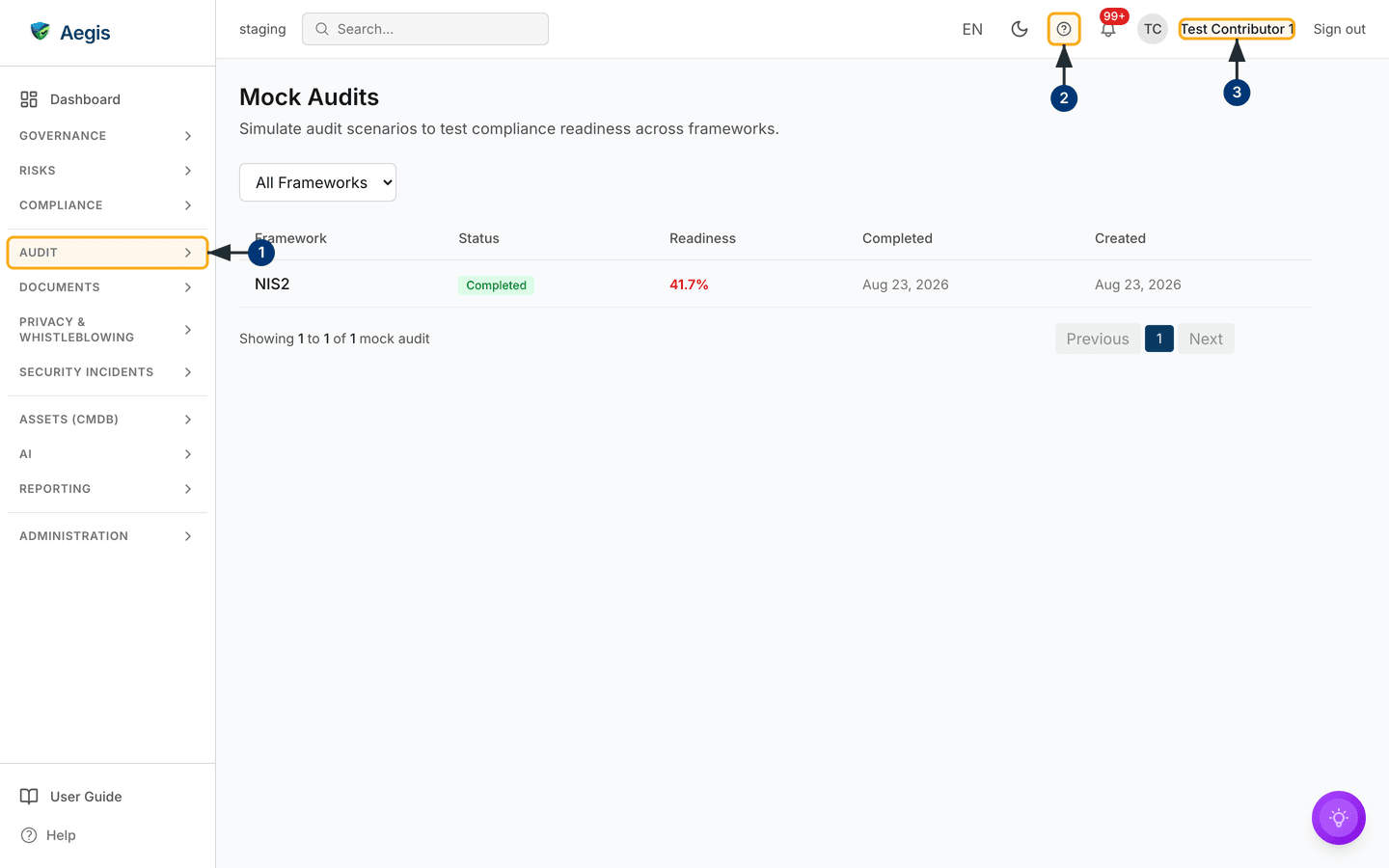
instead of the list. The screen is a plain list — an
All Frameworks dropdown over a table of Framework,
Status, Readiness, Completed and
Created, then a count line and Previous/Next
paging.
-
Open the
AUDITgroup in the sidebar and selectMock Audit. The entry is singular; the page it opens is headedMock Audits. -
Select the Help
?button to open this guide at the Mock Audit chapter; your browser's Back returns you to the list. -
Check the top-right corner for the account you are signed in as.
Run Mock Auditrenders for Manager and Admin only — which is why the captured Contributor view has no such button. With the permission, select it, pick a framework and confirm withRun Audit; the new row readsIn Progresswith aPendingreadiness until the score arrives.
The All Frameworks dropdown above the table narrows the list to
NIS2, GDPR, CyFun or DORA.
Selecting a row opens its detail dialog — status and readiness badges over the
report sections. Readiness shows green from 80%, amber from 60% and red below
that; the capture's one completed NIS2 rehearsal scores
41.7% in red. Mock audits covers that
dialog in full.
Tips and limits
- The two headline percentages measure different things. Overall Readiness is the weighted five-dimension score; Coverage Rate is covered controls over total controls. They diverge whenever policies, risks or vendors are in better shape than your evidence-backed controls — the reason the capture shows 29% beside 0%.
- The composite score comes from the last stored snapshot, so it moves after the daily job runs, not the moment you attach evidence. The framework table and the two coverage cards are recalculated on each page load.
- Activating a framework adds all its controls to the denominator, and evidence past its validity date stops counting — so a score can fall with no one having touched anything. Renew expired items in Evidence.
- The table does not name the individual uncovered controls. Open the framework in Compliance frameworks and read its gaps there.
- Only frameworks Aegis carries and you have activated appear. SOC 2 is not among them today — it is a planned addition, not shipped, so no SOC 2 row can appear here. Activate what you have in Compliance frameworks.
- A readiness score is an internal preparation aid built from your own records — not an audit result, a certification, or a prediction of one, and the work it measures is never finished.
Where this connects
Readiness is assembled from Policies, Compliance frameworks, Evidence, Risks and Vendors, and every recommendation links back into one of them. The formal programme lives in Audits, saved triage plans surface in Action items, the headline level suits a board report, and Benchmarking sets the same score against your peers. For the whole journey through to an evidence pack in an auditor's hands, read the external-audit scenario.