Mock Audit
Rehearse an audit against a framework, read the readiness score and findings Aegis produces, then answer the auditor's questions one by one before anyone from outside asks them.
A mock audit (a rehearsal of a real compliance audit) tests how your organisation would answer an auditor today. You choose a framework, Aegis works through a question bank for it, checks each question against the evidence (the proof a control works) in your Evidence Locker, and writes back a readiness percentage with findings, critical gaps and recommendations. Nothing is filed with a regulator and no compliance record changes. Audit Readiness counts how much of the work is done; Mock Audit asks how well that work would hold up under questioning.
Mock Audit needs the MOCK_AUDIT feature, included in the
PROFESSIONAL and ENTERPRISE tiers, plus the
matching MOCK_AUDIT module provisioned for your tenant. Without
the module the menu item does not appear. With the module but without the
feature, the route still opens, but the filter and table are replaced by a
centred notice under the Mock Audits heading: "Mock audits are
not available on your current plan. Upgrade to practice audit scenarios with
AI-generated questions."
Who uses it
Reading a mock audit needs mock-audit:read, which every role holds,
so the page is readable down to
Viewer. Anyone without it is sent
to /unauthorized rather than to the dashboard.
-
Viewer and
Contributor — read every
past run and open any result in full. The
Run Mock Auditbutton is not rendered for them, and neither are the simulate, AI-question and delete actions inside a result. -
Manager and
Admin — hold
mock-audit:write, so they can start a run and delete one. The two AI actions,Run simulationandGenerate AI questions, need that write permission and AI assist switched on for your tenant; if AI is off, the rest of the page still works.
Raise non-conformity is gated separately, on the permission to
create a non-conformity. A
Contributor holds that
permission without holding mock-audit:write, so they see that one
action inside a result even though they cannot start or delete a run. A
Viewer does not see it at all.
What's on this screen
The page lives at /compliance/mock-audit, listed as
Mock Audit under AUDIT in the left menu beside
Benchmarking, Audits and Audit Log. The
header reads Mock Audits, with "Simulate audit scenarios to test
compliance readiness across frameworks." beneath. For a Manager or Admin a
Run Mock Audit button sits at the far right of that header. Below
the header is one filter, an All Frameworks dropdown narrowing the
list to NIS2, GDPR, CyFun or
DORA. There is no search box. The rest of the screen is a single
table, twenty rows to a page:
| Column | What it shows |
|---|---|
Framework |
The framework the run targeted, in display form (CyFun,
not the key).
|
Status |
In Progress while the evaluation runs, then
Completed.
|
Readiness |
The score to one decimal place, or Pending until the
run finishes.
|
Completed |
The date the evaluation finished, or a dash while it runs. |
Created |
The date the run was started. |
Readiness is colour-coded — green from 80%, amber from 60%, red below — but the
number always carries the meaning. Under the table sit the count and pager:
"Showing 1 to 1 of 1 mock audit", then Previous, the page number
and Next. There are no per-row buttons.
-
Open the
AUDITgroup in the left menu and chooseMock Audit. The list loads with every run recorded for your tenant. -
Select the Help
?button in the top bar to read this guide beside the screen. It opens the in-app User Guide at the chapter for the page you are on; your browser's Back returns you to the list. -
Check the account named at the top right — it decides what the header offers
you. The capture was taken as
Test Contributor 1, a Contributor, which is why noRun Mock Auditbutton sits opposite the title: the permission gate at work, not a missing control.
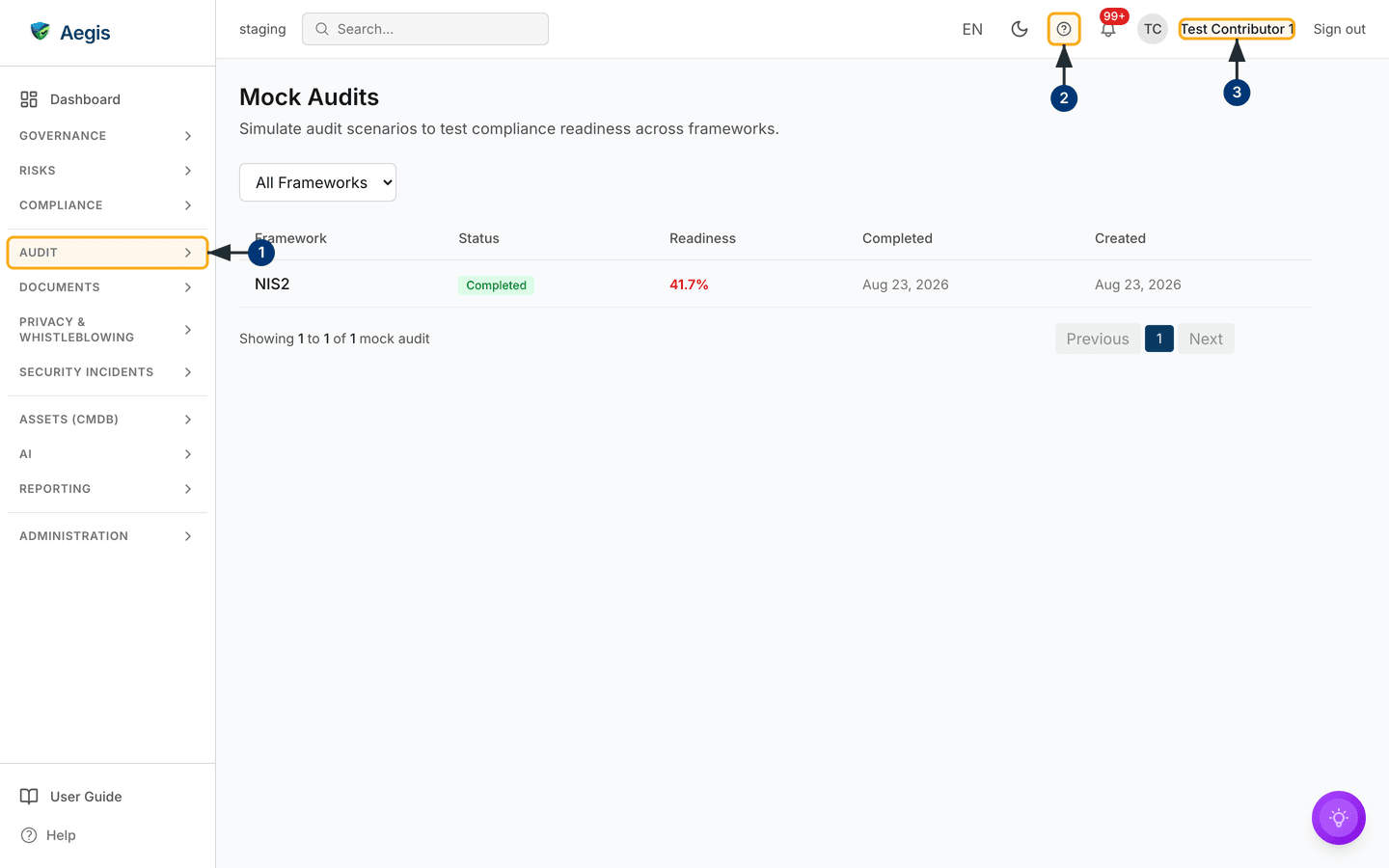
There are three things to do on the list itself. Narrow it with the
All Frameworks dropdown to one framework's history — if the filter
matches nothing, the table is replaced by "No results found" and a
Clear filters button. Read the Readiness column to see
where each rehearsal landed: in the capture the tenant holds one
NIS2 run, Completed, readiness 41.7% in
red, a normal score for a tenant with little evidence recorded yet. And select
anywhere on a row to open the full result. On a tenant that has never run one,
the table is replaced by an empty state reading "Nothing here yet" with "No
items have been created yet." beneath.
Run a mock audit
-
Select
Run Mock Auditat the top right of the header. A small dialog of the same name opens, explaining that the system will evaluate your evidence and produce a readiness report. -
Choose the target from the
Frameworkdropdown. It opens onNIS2. -
Select
Run Audit. The button shows a spinner, both buttons disable and the dialog cannot be dismissed while the run is queued; it then closes and the table refreshes. -
Watch the new row. The evaluation happens in the background, so it starts as
In Progresswith aPendingscore. Reload shortly after; once the evaluation lands, the badge turnsCompletedand the percentage appears.
Cancel closes the dialog without starting anything. Each run is its
own row, so re-running a framework keeps the earlier result and you can watch
the score move as gaps close.
Read a result
-
Select any row. A large dialog opens in the centre of the screen, titled
with the stored framework key and the words
Mock Audit— so a CyFun run is headedCYFUN Mock Audit. - Read its top row: the status badge, then — once the run has a score — a readiness badge repeating it on the same colour scale, reading for example "41.7% readiness". The actions available to you sit at the right-hand end of that row.
-
Work down the report —
Summary, a plain-language paragraph;Overview, the framework, total findings and timestamps;Findings Breakdown, a badge per finding type with its count;Critical Gaps, the most serious findings with question reference, type, explanation and suggested fix;Recommendations, a de-duplicated list drawn from those findings; andMetadata, the created and last-updated timestamps. - Close the dialog. The list stays where you left it, filter and page included.
Overview and Metadata always show.
Summary, Findings Breakdown,
Critical Gaps and Recommendations
appear only when the report has content for them, so a run with no serious
findings has no
Critical Gaps block. The finding types are standard audit language:
| Finding | What it means | Score |
|---|---|---|
Conforming |
Every piece of evidence the question expects was found. | 100 |
Observation |
Half or more of the expected evidence was found, but not all of it. | 75 |
Minor NC |
A minor non-conformity — some evidence found, but under half of what the question expects. | 40 |
Major NC |
None of the expected evidence was found. | 0 |
Readiness is the average of those scores across all findings, so the number is
arithmetic rather than an opinion. Matching is done on words: each question
names the evidence it expects, and the run compares those words against the
name, type and tags of every item in your Evidence Locker. Descriptive evidence
names therefore score better than a file called scan-final-v3.
Critical Gaps collects every Major NC, plus any
Minor NC
raised against a question the framework marks as critical.
Rehearse question by question
The score tells you where you stand; the simulator makes you practise, walking the question bank one question at a time and evaluating each written answer into a finding.
-
In an open result, select
Run simulation. A dialog titledInteractive Audit Simulationopens, subtitled "Answer auditor questions and receive AI-evaluated findings". - Read the progress line and bar at the top — for example "3 of 12 questions answered". If the framework has no question bank, a grey notice says so and there is nothing to answer.
-
Choose an entry from the
Remaining questionslist; each shows its reference, category and any control it maps to. Until you pick one, the panel prompts you to select a question. -
Type into
Your response— how your organisation addresses that question, as you would say it to an auditor. An empty answer is refused. -
Select
Submit answer. A blue banner reads "Evaluating your answer..." while the evaluation runs in the background, and Aegis re-checks every few seconds. -
Read the finding under the
Findingsheading when it lands: a type badge, a description, a recommendation, and sometimes the follow-up a real auditor would ask next. Answer the next question, or close and return later. When the last one is answered, a green banner confirms the simulation is complete.
If an evaluation has not returned after about a minute, an amber notice says it is taking longer than expected, that it keeps running in the background, and that the finding will be there when you reopen the simulator. If your tenant has no AI credits left, the answer is refused and your response is not recorded — top up and submit it again.
Draft the questions an auditor would ask
-
In an open result, select
Generate AI questions. A dialog titledAI-Generated Audit Questionsopens, subtitled with the framework, explaining that it will build context-aware questions from your control posture, recorded gaps and supporting policies and evidence. A blue note states that nothing is saved until you attach. -
Select
Generate Questions. The dialog shows a spinner and "Drafting audit questions…", and cannot be closed while it works. -
Review the draft. A line at the top counts what came back; each question
carries a severity badge of
High,MediumorLow, its control domain and reference. The question and its "What good evidence looks like" note are editable text boxes — correct anything that does not fit your organisation. -
Select
Rejecton anything you do not want. It stays visible but fades, its two boxes lock and it drops out of the attach count — the line at the top still counts every question that came back.Restoreputs it back.Run Againdiscards the whole batch and returns you to the opening screen, whereGenerate Questionsdrafts a fresh set. - Select the attach button — it names the count, such as "Attach 6 questions". The approved set is saved to the run and appears at the top of the result, above the summary, under a heading that counts them ("6 AI-drafted questions").
If the framework has no seeded controls to reason over, nothing can be drafted; the dialog says so and asks you to add controls to the framework first.
Raise a non-conformity from a finding
-
Select
Raise non-conformityin the action row of an open result. -
A
Create non-conformitydialog opens with itsSourcealready set toINTERNAL_AUDIT, a prefilled title along the lines of "Non-conformity from NIS2 mock audit", and this run recorded as the record it was raised from. Both prefilled fields stay editable. - Add the description and remaining fields from the finding you are acting on, then save. The new non-conformity stays traceable to the mock audit it came from.
Delete a run
-
Open the result and select
Delete, the outlined red button at the end of the action row. It appears only for roles withmock-audit:write. - A confirmation asks "Delete this mock audit?" and warns that this permanently deletes the mock audit and its generated questions and report, and cannot be undone. It also takes that run out of your record of how readiness has moved over time, so keep old runs unless you have a reason not to.
-
Select
Deleteto confirm. The result closes, a short confirmation appears and the table refreshes without that row.Cancelleaves everything untouched.
The AI assist
Two parts of this page use AI, and it is worth being precise about which. The run itself does not: the readiness score, findings and recommendations come from the rule-based evidence matching described above, which is why the same records always produce the same score. AI is used for the question drafting and for evaluating each answer typed into the simulator. Both read your own records — controls, gaps, policies, evidence — and write back an opinion for a person to judge. A person reviews and decides what it means. The AI never changes a control, an evidence item, a policy or your compliance status on its own, and drafted questions are stored only once you attach them. They are an internal preparation aid built from your own records, not a regulatory submission and not a pass or fail determination. Both AI actions draw on your tenant's monthly AI credit pool.
Tips and limits
-
Four frameworks have a question bank here today —
NIS2,GDPR,CyFunandDORA. They are the only choices in the run dialog, so other frameworks you have activated elsewhere cannot yet be rehearsed this way. - A low score on a young tenant reflects how little evidence has been recorded, not a fault in your organisation. Add evidence with names that say what it is, link it to controls in Compliance frameworks, then run again.
- The score reads your whole Evidence Locker, not only evidence linked to that framework — so renaming a vague evidence item can move the number.
- Deleting a run is the one destructive action here. Running one changes no compliance data.
- With only the framework filter and no search box, a long history is browsed page by page, twenty rows at a time.
- If the run, simulate, AI-question or delete actions are missing, your role holds read access only — or, for the two AI actions, AI assist is off for your tenant. Every result stays fully readable to you either way.
Where this connects
- Audit Readiness — the always-on coverage view. Track progress there; stress-test it here.
- Compliance frameworks — where you close the gaps a mock audit surfaces, by mapping policies and evidence to controls.
- Evidence — the locker the evaluation reads.
- Audits — the internal audit programme, for audits run for real.
- Scenario: an external audit — the end-to-end journey a mock audit rehearses.
- AI dashboard and AI agents — how Aegis uses AI, the credit pool, and where a person stays in control.
-
The left menu — where
Mock Auditsits in theAUDITgroup.