Scenario: responding to a new regulation
A supervisory authority publishes a decision, it lands in your feed overnight, and you need to judge whether it touches your programme — and be able to show that you reviewed it the week it was published, not the week the auditor asked.
A directive amendment, a data-protection authority's decision, or an updated technical standard can unsettle a control mapping that took months to build. This scenario follows one such publication from the moment it appears in the feed to the point where a policy has been revised because of it. Two people do the work: Contributor Daniel, who watches the feed and prepares the ground, and Manager Ruth, who records the formal review decision. The journey crosses Regulatory changes, Compliance frameworks and Policies, and leaves a dated, attributed trail in each.
Settle one thing up front: Aegis pulls regulatory developments
automatically. A background worker polls the feeds registered
for your tenant on each feed's own cadence, writes every new publication in as a
regulatory change (a record of something an
authority has published), and scores it for relevance against the frameworks and
topics you track. Out of the box that means ENISA and
NIST Cybersecurity, plus GDPRhub DPA Decisions where
the licence allows it. An Admin can
register further RSS or Atom feeds — another supervisory authority, say — in
Settings, giving each one an identifier, a name, a
URL, a region and a polling frequency. Nothing on this screen lets you type a
change in by hand. What needs a person is the judgement.
Before you start
Two gates stand in front of this screen, both carrying the same name. The
REGULATORY_INTELLIGENCE module has to be switched on for your
tenant, or the menu entry never appears; and your licence has to include the
matching feature, which ships from the Professional tier upwards. Without it the
page reads "Regulatory change tracking is not available on your current plan."
Above that gate, the split is between reading and deciding:
| Role | What they can do with a regulatory change |
|---|---|
| Viewer Contributor |
Read the feed, open any item's detail dialog, follow the source
link, and run
Relevance Triage (AI) and
Suggested actions
|
| Manager |
All of the above, plus Mark as Reviewed,
Analyze impact, Dismiss and
Restore to queue
|
| Admin | All of the above, plus registering the feeds that are polled and switching on the daily regulatory digest email in Settings |
The write actions sit behind the regulatory:write permission. Where
a role lacks it, those buttons are not rendered at all — so Daniel opens the
same dialog Ruth does and sees fewer buttons on it. Anyone can keep watch;
signing off that a change has been reviewed rests with a named, accountable
person.
What's on this screen
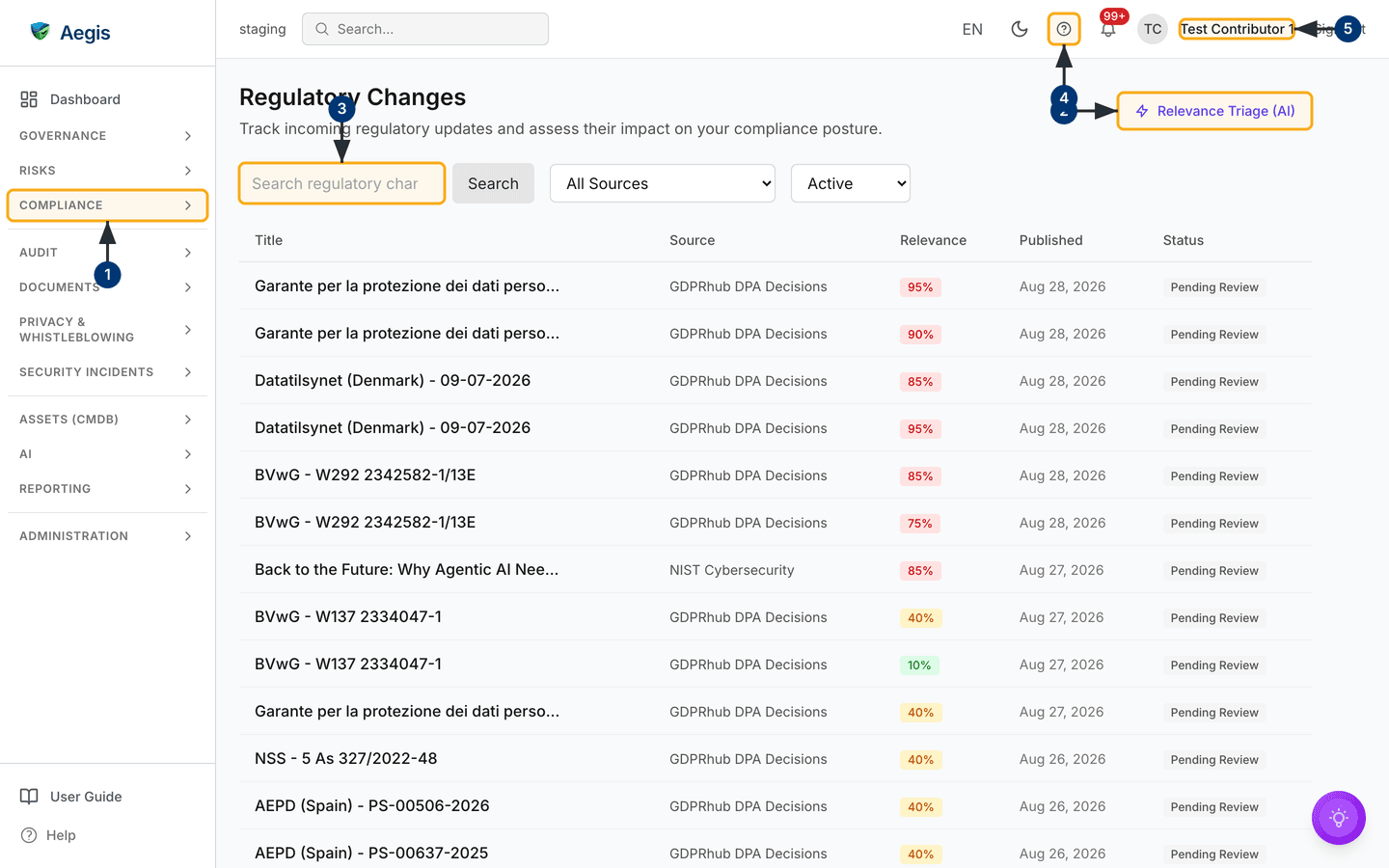
/regulatory-changes is a single feed of incoming items — one table,
no folders, no create button. In the left menu,
Regulatory Changes sits at the foot of the
Compliance group. Across the top runs the global bar: the
environment name, global search, the language picker, the light/dark toggle, a
help icon, the notification bell, and the signed-in user's name with
Sign out beside it.
The page header reads Regulatory Changes over the line "Track
incoming regulatory updates and assess their impact on your compliance posture",
with a single action on the right: Relevance Triage (AI). Below it
sits the filter bar — a Search regulatory changes... box with its
own Search button, an All Sources dropdown built from
the sources actually present in your data plus the feeds in your registry, and a
View dropdown set to Active that you can switch to
Dismissed. The table carries five columns: Title,
Source, Relevance as a coloured percentage,
Published, and Status. There are no per-row buttons —
clicking anywhere on a row opens its detail dialog. In the capture below, every
visible row comes from GDPRhub DPA Decisions, all published on the
same day, and every one reads Pending Review in grey: a fresh queue
nobody has worked through yet. Scroll past the table, below the fold of this
capture, and two more panels follow — the AI insights saved from a triage run,
and the action items raised against them.
Step 1 — Daniel opens the feed and works out what to read first
The change arrives on its own. Daniel's job is not to find it but to decide which items in the queue deserve his afternoon.
-
Open the module. Expand the
Compliancegroup in the left menu and selectRegulatory Changes. The feed loads twenty items to a page, newest first. -
Ask for a reading order. Select
Relevance Triage (AI)at the top right, thenRun Relevance Triagein the panel that opens. Aegis ranks your open — that is, non-dismissed — changes by stored relevance, review state and recency, then drafts a plan naming a next step for each: review it, assess its impact, or dismiss it. The ranking is computed, not written by the AI.Save as recordkeeps the plan in the saved-insights panel below the table. -
Narrow the feed. Type into
Search regulatory changes.... The table filters as you type — the match runs over both the title and the summary text — and theSearchbutton beside the box submits the same term. Or pick one authority fromAll Sources. Daniel filters to the issuing authority and finds the row he wants, stillPending Review. - Check the guide if a column is unfamiliar. The help icon in the top bar opens this User Guide inside Aegis, at the chapter for the screen you are on.
- Confirm whose account you are in. The name at the top right is the account every action from here on is attributed to — and, for Daniel, the cue that the write actions will not be available to him.
On arrival the percentage is computed by keyword match against the frameworks your tenant tracks, your sectors, and how recently the item was published: green below 40, amber from 40 to 69, red at 70 and above. Where an impact analysis has since run, the figure you see is that analysis's own overall relevance instead. Either way it helps you triage — read the red rows first — but it decides nothing. A low score on an item that turns out to matter is exactly why a person still reads each change.
Step 2 — Read the change and draft the actions it implies
Clicking a row opens a dialog headed Regulatory Change. Daniel
reads it in full before anyone records a decision.
-
Open the change. Click anywhere on the row. The dialog
opens with the relevance figure and its band across the top — for example
95% — High Relevance. -
Read the record.
Detailsholds theSource,Identifier,Publication DateandRelevance Score.Summarycarries the publication's own text, tidied of feed markup;Categoriesshows the feed's own tags, plus the key of any framework a later impact analysis flagged; andSource LinkoffersView original document, which opens the authority's page in a new tab. Read the original — the summary is an extract, not the decision. -
Ask for a draft checklist. Select
Suggested actions. Aegis turns this change, plus any impact analysis already on record, into a prioritised list of concrete compliance actions with an owner hint for the top items. Saving it keeps the checklist on this change, in the insights and action items panels at the foot of the dialog. This needs only read access, so Daniel can prepare the ground before handing over. -
Hand it to a Manager. Daniel sees no
Mark as Reviewed,Analyze impactorDismissbutton — they are not rendered for his role. He confirms the change looks relevant and passes it to Ruth.
Step 3 — Ruth analyses the impact and records the review
Ruth opens the same item. As a Manager she holds regulatory:write,
so three further buttons appear along the top of the dialog.
-
Look at what is already there. Where your licence includes
the AI assistant, newly ingested changes are queued for impact analysis on
arrival — twenty-five per scan run at most, so a large ingestion leaves the
remainder unanalysed. The
Impact Analysissection may therefore already be filled in. If it readsNo impact analysis yet, selectAnalyze impact. Aegis queues a background job and confirms "Impact analysis queued — results appear here when ready". -
Reopen the change once the worker has run. The section then
shows a written summary, an
Overall relevancefigure, when it wasAnalyzed, and a list ofAffected frameworks, each with its own percentage. - Judge the reading. The analysis is a draft opinion. Ruth weighs it against what she knows of the programme and decides whether she agrees. Running it rewrites this change's own relevance score and adds the flagged framework keys to its categories, so the row's percentage may move — but no control, policy or review state has changed.
-
Mark it reviewed. Select
Mark as Reviewed. The button is replaced by a greenReviewedbadge, aReviewsection appears withReviewed AtandReviewed By, and the row'sStatusin the feed turns green. That dated, attributed record is the point of the whole step. -
Or set it aside honestly. If the change does not touch you,
select
Dismissinstead. The item leaves theActiveview and stays reachable underView→Dismissed, where its row carries an amberDismissedbadge; the dialog gains aDismissedsection withDismissed AtandDismissed By. The button asks no question first, so nothing records why — theReasonline appears only where one was supplied through the API.Restore to queuereverses it. Dismissing is a recorded decision, not a delete.
The AI assist
Three AI reads appear in this journey: the triage plan on the list, the suggested actions in the dialog, and the impact analysis. All three produce text for a person to weigh. None of them marks anything reviewed, dismisses an item, or edits a control, a policy or a framework mapping. The triage plan and the suggested actions write nothing at all until you save them; the impact analysis is the one exception to watch — it stores its findings on the change and, in doing so, overwrites that change's relevance score and adds the flagged framework keys to its categories. All three reason only over your own records — they never fetch outside data and never invent a change that is not in your feed. Each run is metered against your tenant's AI credits; see the AI assistant chapter for how that budget works.
Step 4 — Carry the change into your frameworks and policies
Marking a change reviewed records that you saw it. Acting on it happens in the
modules it touches, starting from the Affected frameworks list.
- Open the affected framework and update its controls. Go to Compliance frameworks, open the framework the analysis flagged, and filter its controls by status, domain or owner group. Where the change tightens an expectation, update the control's implementation status and re-check its mappings — because one control can satisfy more than one framework, a single update may close a gap in several at once. See Control mapping for that view.
- Revise the policies. In Policies, edit each policy the change touches. Every revision runs through its own draft, review and approval lifecycle, so the update is itself approved by a person — another dated, attributed record.
- Refresh the evidence behind the affected controls. Where a control's proof no longer matches the new expectation, attach a current artefact in Evidence. An auditor will ask what changed as well as when you noticed.
- Close the loop on the action items. Work through the checklist saved on the change. The change record itself has no "addressed" status, so the action items are what tell you the response is finished.
Frameworks such as ISO 27001 (clause 6.1.3), NIS2 (a European cybersecurity
law) and DORA (a European financial-sector resilience regulation) expect a
documented way of monitoring and responding to regulatory change. An auditor
examines the trail as much as the source — the feed, the dated review, who
reviewed it, and what changed downstream. Marking each relevant change
Reviewed in the week you see it is what builds that trail; the
audit log keeps its own immutable copy.
Tips and limits
-
The review status is deliberately narrow —
Pending Review,ReviewedorDismissed. There is no "under assessment" state between them, so anything you want chased has to become an action item. -
Mark as Reviewedis one-way: there is no un-review. Leave an itemPending Reviewuntil someone has genuinely read it. - Nothing here tracks an effective date, and no reminder fires when one approaches. Record that date as a dated action item instead.
-
The impact analysis runs on a background worker, so it appears after a
delay. A failed parse shows as no analysis rather than an error — and it
drops the change's relevance to 0 on its way out. If your AI credits are
spent the job is skipped without writing anything. Either way, an empty
Impact Analysissection is worth re-running rather than reading as "no impact". - Aegis raises a per-user alert only for newly ingested changes scoring 50% or above; below that, the item still appears in the feed but nobody is notified. Admins can also switch on a daily digest email in Settings.
- The feed reflects only the authorities your tenant polls, each on its own cadence. Never assume every change relevant to you will appear there — the registry is worth reviewing as your scope grows.
Where this connects
Each module in this journey has its own chapter: Regulatory changes for the feed and the detail dialog in depth, Regulatory alerts for the wider intelligence view, Compliance frameworks for the control mappings, Policies for the revisions, and Action items for the follow-up. When the auditor comes asking for that trail, Scenario: preparing for an external audit picks the story up. See also What each role can do and Settings, where the polled feeds and the digest are configured.