Action Items
One working list for the follow-up tasks people create from AI outputs across Aegis — open it from the left menu, filter it by status, and move each task forward one step at a time.
Many of the AI actions (analyses the AI runs on your data, always at a person's request) end with a finding that someone has to act on: a control that has never been implemented, a critical vendor that needs reassessing, a procedure that is overdue for review. When you decide a finding is worth tracking, you turn it into an action item. This chapter shows where those items land and how to work them.
Action Items is no longer a page of its own. It is now a tab on the Roadmap
page, so all forward-looking work — programmes, projects, proposals and these
follow-up tasks — sits in one destination. The menu entry and the old
/action-items address both open
/compliance/roadmap with the Action Items tab already
selected, so old links and bookmarks keep working.
Who uses it
- Viewer can open the tab and read every action item. The status circles are inactive, so nothing can be changed.
- Contributor can also create action items from an AI action's result elsewhere in Aegis, and advance an item's status here. A Contributor sees no bin icon.
- Manager and Admin can do all of that and delete an item as well — a bin icon appears at the right-hand end of each card for these roles.
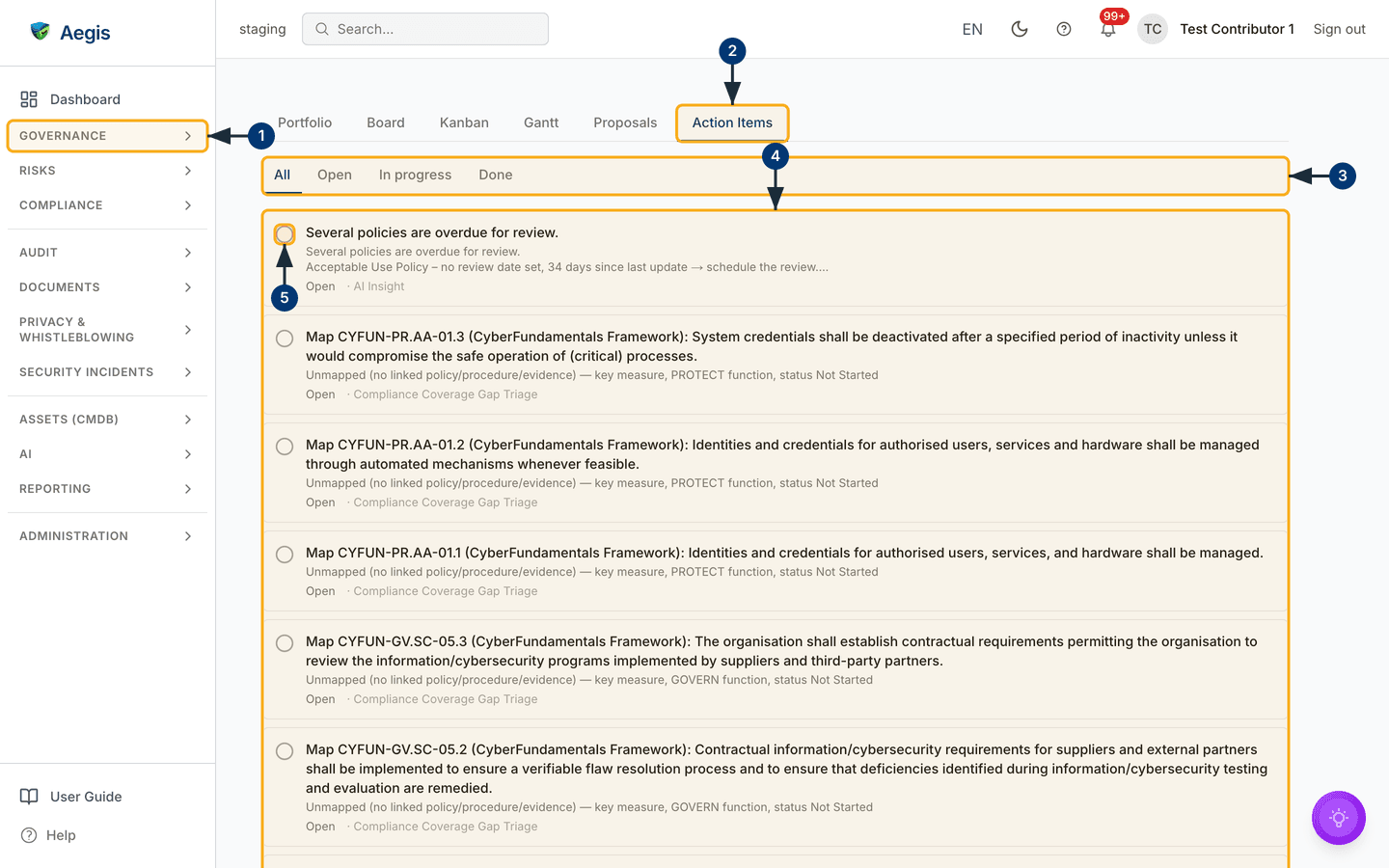
Every signed-in role reaches the tab; the difference is what you may do once you are there. The screenshot below was captured as a Contributor, which is why no bin icons appear on the cards.
What's on this screen
The Action Items tab has no header block and no create button of its own — the
Roadmap tab strip is the top of the page. It runs Portfolio,
Board, Kanban, Gantt,
Proposals, Action Items, with the active tab
underlined in blue.
Directly under the tab strip sits a second, smaller row of four status filters:
All, Open, In progress and
Done. The selected filter is underlined in the same blue. Below
that is the list itself. Each action item is one bordered card holding:
-
a status circle at the left — an empty grey circle for
Open, an amber circle with a centre dot forIn progress, and a green tick forDone(a done item also has its title struck through). The circle is the button that advances the item; -
the title — typed by whoever created the item, or taken
from the finding when several items are created from one AI result at once.
Every title in the capture begins
Remediate CYFUN-ID.AM-08…(CyberFundamentals Framework)followed by the wording of the control; -
a short description under the title, trimmed to two lines
with the full text shown when you hover. Every card in the capture reads
Control not yet implemented or assessed (status: not started).; -
a grey detail line showing the current status, then the
owner's name and the due date if those were set, then the name of
the AI action that raised the item. In the capture this reads
Open · Compliance Control Gap Triage— no owner and no due date on these items, and a clear trail back to the analysis that produced them.
Every item in the capture is at Open, so each card carries an empty
grey circle. There is nothing else on the tab: no search box, no sort control,
and no column headings.
Working through the list
-
In the left menu, open the
Governancegroup and selectAction Items. Aegis opens the Roadmap page. (In the capture the menu groups are collapsed, so the entry itself is not visible.) -
Check that the
Action Itemstab at the top is the underlined one. It is selected for you when you arrive from the menu; if you had switched tabs, select it again and the follow-up list replaces the roadmap view. -
Use the status filters to narrow the list —
Openfor untouched items,In progressfor work someone has started,Donefor finished ones,Allto see everything. The list refreshes as soon as you select a filter. - Read the cards. The detail line under each title tells you the status, the owner and due date where they exist, and which AI action raised the item — enough to decide what to do next without leaving the tab.
-
When you have acted on an item, select its status circle to advance it one
step.
OpenbecomesIn progress, andIn progressbecomesDone. The icon, the colour and the status word all update on the card as soon as the change is saved.
The status circle always moves an item exactly one step. There is no
drop-down that jumps from Open straight to Done —
an item passes through In progress on the way. Selecting the
circle on a Done item cycles it back to Open,
which is how you reopen something that was closed too early. If the change
cannot be saved, Aegis shows
Could not update the action item and the card keeps its
previous status.
When the list is empty
The tab tells you plainly which kind of empty you are looking at, and how to get out of it.
-
With
Allselected and nothing to show, the tab readsNo action items yet. Use "Create action item" inside an AI action's result to track one here.That is the whole message — there is no create button on this tab. -
With a status filter selected and no matches, the message names the status
instead — for example
No done action items.— and aClear filterlink appears under it. Select the link to return toAll. -
If the list failed to load rather than being empty, you get
Could not load action items.with aRetrylink — select it before assuming anything has been lost.
Where action items come from
Action items are created inside AI results, not on this tab. Run an AI action from the record it belongs to — a framework's control gaps, a vendor portfolio, a risk — and the result gains a small row of follow-up buttons underneath it.
-
Run the AI action and read the result. Under the output, select
Create action item. -
A small panel opens in place, headed
New action item from this output, with a title box (What needs to be done?) and a description box (Details (prefilled from the AI output — edit as needed)). Only the description is pre-filled — Aegis copies the AI output into it. The title starts empty; write the task yourself, as an instruction to a colleague. -
Select
Create action itemin the panel. The button stays inactive until the title box has text in it. It readsCreating…while it saves, then Aegis confirms withAction item created — find it under Action Items. The new item appears on this tab at statusOpen, carrying the name of the action that raised it.Cancelcloses the panel without creating anything.
Some AI actions return a list of findings rather than one block of text. Those
show a panel headed Create action items from these findings with a
tick box beside each proposed finding: tick the ones worth tracking and select
the create button, whose label counts your ticks —
Create 3 action item(s) for three. Aegis then reports how many it
created, and says so plainly when only some worked —
Created 3 of 5 action items. The optimisation plan on a security
process works the same way: each proposed improvement can become a tracked item
linked back to that process.
The panel on a record
Records that AI actions have run against also carry a small panel of their own,
headed
Action items from AI. It shows only the items raised from that
record — the same items you see on this tab, narrowed to one place — so you can
pick up the follow-up while you are reading the record. The panel has no status
filters, but its status circles advance an item exactly as they do here.
Deleting an item
- As a Manager or Admin, select the bin icon at the right-hand end of the card.
-
A confirmation window opens, headed
Delete action item, askingDelete "…"? This cannot be undone.with the item's title in the quotes. -
Select
Deleteto remove the item, orCancelto keep it. On success the card disappears from the list and Aegis showsAction item deleted; on failure it showsCould not delete the action itemand the card stays.
Status reference
| Status | Circle | Meaning |
|---|---|---|
Open |
Empty grey circle | Raised but not started. |
In progress |
Amber circle with a centre dot | Someone is working on it. |
Done |
Green tick, title struck through | Finished. Advancing a done item reopens it. |
The AI assist
The AI never puts an item on this list by itself. An AI action may propose
follow-up work, but nothing is tracked until a person reads the output, writes
or confirms the wording and chooses to create the item. Each item then keeps the
name of the action that produced it —
Compliance Control Gap Triage in the capture — so the reasoning
behind the task stays traceable months later. The AI assists; the person reviews
and decides.
Tips and limits
-
The tab loads at most 50 items, and there is no page control to reach the
rest. Cards are ordered
Openfirst, thenIn progress, thenDone; within a status by due date, then newest first. Narrowing with a status filter refetches the first 50 items of that status, so it is the practical way to find something on a long list. - There is no manual "new item" form here. If you want a free-standing task, either create it from the relevant AI result and write your own title over the pre-filled description, or track it in the module it belongs to.
- The owner and due date shown on a card are set when the item is created. This tab has no form for changing them afterwards, and both are often blank — as they are on every card in the capture.
-
Titles and descriptions are stored as they were written but rendered as
plain prose, so a card never shows stray
**or##punctuation from an AI output. - The Roadmap page reopens on the tab you used last, and switching between its tabs preserves each view's filters and selections.
- Deleting an item removes it from the list; the record is retained behind the scenes.
Where this connects
- Roadmap — the page that now hosts this tab, and the other five views on it.
- AI Assistant — the wider picture of AI activity, including the actions whose results raise these items.
- Compliance frameworks — the control-gap triage that produced every item in the capture.
- Risks, Vendors, Procedures and Security processes — other modules whose AI results can create action items.
-
The left menu — where to find
Action Itemsin theGovernancegroup.