Report a Concern
A confidential public web form for raising a concern about wrongdoing — you may stay anonymous, and you keep a private code that lets you follow the case and exchange messages later.
This chapter is written for the person making a report, not for the organisation receiving it. The page lives on a public web address, needs no sign-in, and is open to anyone: a member of staff, a contractor, a supplier, a former employee. It exists to meet the EU Whistleblower Directive (2019/1937) — a European law obliging organisations to offer a safe, confidential reporting channel and to protect the people who use it from retaliation. What you submit becomes a case in the organisation's internal queue, worked from the Whistleblowing screen. You never see that side; you see this form, and later the status of your own report.
Who uses it
No role applies to you as a reporter — the page has no sidebar, no account, and no sign-in, so there is nothing for Aegis to attach a role to. On the receiving side, only Manager and Admin reach the case queue and work a case; Contributor and Viewer are redirected away from it. Viewing a reporter's identity is restricted further again and is logged every time. See Whistleblowing for who can do what once a report arrives.
What's on this screen
The reporting channel has its own dedicated web address. For reporter anonymity,
Aegis accepts reports only at a host that begins with
whistleblow. — for example
https://whistleblow.aegis.example.com/whistleblow/intake. If you
open /whistleblow/intake on the organisation's ordinary application
address instead, the form is not shown at all, because a report submitted from
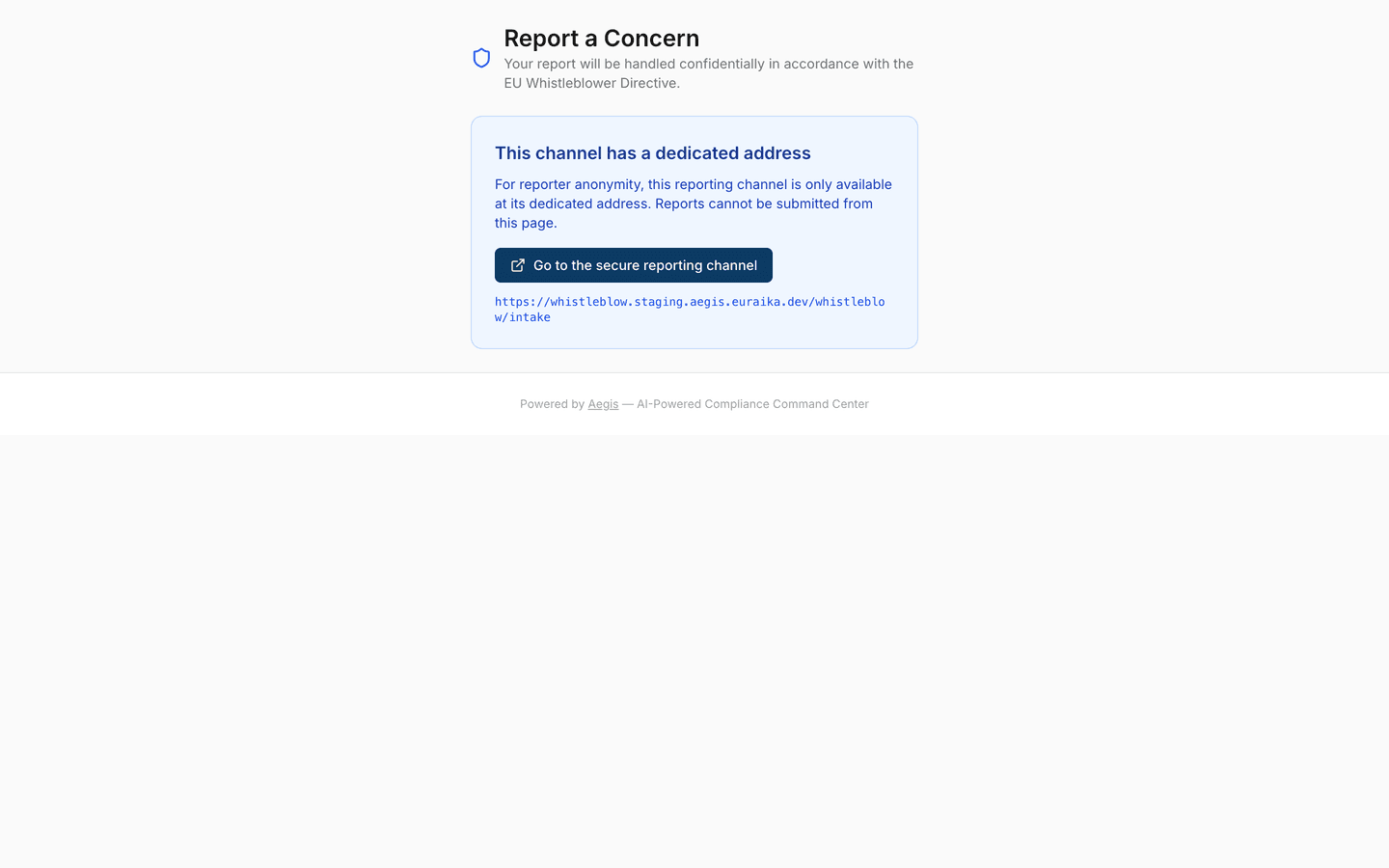
there would be refused by the server. The screenshot below is that situation,
captured on the main application address.
What is on the page in this state, from top to bottom:
-
A blue shield beside the heading
Report a Concern, with the lineYour report will be handled confidentially in accordance with the EU Whistleblower Directive.beneath it. -
A pale blue panel headed
This channel has a dedicated address, explaining that for reporter anonymity the channel is only available at its dedicated address and that reports cannot be submitted from this page. -
A dark button,
Go to the secure reporting channel, which takes you to the right address. - The full dedicated address printed underneath in a monospaced font, so you can copy it, type it into another device, or check it against a link you were given.
-
A footer reading
Powered by Aegis — AI-Powered Compliance Command Center.
There is nothing else on the page — no navigation, no search, no account menu, and nothing that records who you are.
Reach the reporting channel
-
Open the reporting link your organisation published — usually on an intranet
page, a staff notice, or a supplier contract. If that link already points at
a
whistleblow.address, the form opens directly and you can skip to the next section. -
If instead you see the panel
This channel has a dedicated address, you have landed on the ordinary application address. Nothing is wrong with your device; this page cannot accept submissions by design. -
Select
Go to the secure reporting channel. The dedicated address opens and the report form is shown in place of the notice. - If you would rather not follow a link from a work device, copy the address printed below the button and open it on a personal phone instead.
On a separate host, a visit to the channel does not sit alongside your ordinary activity in the organisation's application. That separation is an anonymity control, which is why Aegis enforces it rather than accepting reports from any address.
Submit a report
On the dedicated address, the same shield and heading are followed by a single, centred form. Work down it in order.
-
Open the
Categorydropdown, which starts onSelect a category, and choose the closest match. The options areFraud,Harassment,Discrimination,Safety,Anti-Money Laundering,Data Protection,CorruptionandOther. Your choice replaces the placeholder text. -
In the
What happened?box, describe the situation in your own words. The placeholder asks for dates, locations and the people involved, which is what helps a handler act. The box holds up to 50,000 characters, so there is room for a full account. -
The bordered panel
Your identity (optional)holds four boxes —Name,Email,PhoneandRelationship to the organization. Fill in as many or as few as you wish. Leave every one of them blank to report anonymously; a note above them confirms that anything you do enter is encrypted. -
Select
Submit Reportat the foot of the form. The button stays dimmed until you have chosen a category and typed something, showsSubmitting...while the report is sent, and is then replaced by a green confirmation panel.
The confirmation panel is headed Report Submitted and shows two
values: a Case Number such as WB-A3F9K2, and a
Recovery Code. Select Copy to clipboard — it
changes to Copied! for a moment — and store both somewhere safe
and private. The recovery code is displayed once and is never shown again.
Without it you cannot reach your own report, and no one can restore it for
you, because Aegis holds nothing that would let it recognise an anonymous
reporter.
If submission fails you see one short message,
We couldn't submit your report. Please try again. — kept
deliberately vague rather than returning server detail to an anonymous visitor.
It covers every cause, from a dropped connection to a channel the organisation
has not enabled, so retry once; if it repeats, raise the concern by another
route.
Check your report and message the handlers
Your case number and recovery code together are the only key back into the report. They let you follow progress and message the handlers, still without revealing who you are.
-
On the same dedicated address, open the
Check Report Statuspage at/whistleblow/return. It shows the shield, the heading, and two boxes. -
Type your
Case Numberinto the first box — the placeholder shows the expected shape,WB-A3F9K2— and yourRecovery Codeinto the second. -
Select
Access Report. It showsVerifying...briefly. If either value is wrong you seeInvalid case number or recovery code.and nothing else is revealed — the same wording is used whether the case does not exist or the code does not match, so no one can probe for valid case numbers. -
Once verified, the page shows your case number, the line
Your report statuswith its current value, and aMessagesarea. Messages from you are labelledReporter, replies from the organisation are labelledInvestigator, and each carries a timestamp. Before any exchange has happened it readsNo messages yet. -
To add a note, type into the message box at the foot of that area and select
the send button. The box clears and your message appears in the thread. Use
Backat the top to return to the verification screen when you are finished.
These are the status values you may see against your report:
| Status | What it means for you |
|---|---|
New |
The report has arrived and has not yet been picked up. |
Triage |
Someone is assessing what the report needs and who should handle it. |
Investigating |
The case is being worked. This is where you are most likely to receive questions. |
Actioned |
The organisation has taken a step in response. |
Closed |
The case is finished. The message box is withdrawn and you can no longer reply. |
Purged |
The case has reached the end of its retention period and its content is gone. |
If a handler sends you a secure link
Handlers can also send you a one-off secure link to a fuller view of your case:
your case number and status, the same two-way conversation with a reply box, and
a list of any files attached. That list is metadata only — content type, size,
and virus-scan state (Scanned,
Pending scan or Blocked). There is no download,
because original filenames are encrypted and could identify someone. The link is
scoped to your case alone: editing the address to another case does not work,
and an expired link lands on a neutral page that says nothing about why.
How your report is protected
- Anonymous by default — leave the identity panel empty and the organisation receives the concern with no name attached to it.
- Contact details, if you give them, are encrypted before storage, held apart from the case metadata, and a handler opening them leaves an audit record.
- Access rests entirely on a code only you hold: Aegis stores a one-way hash of it, not the code itself.
- The channel runs on its own host and is not indexed by search engines.
- The reporting endpoint is rate-limited to resist abuse, but kept reachable, as the Directive requires.
Tips and limits
- You cannot attach files on the report form. Describe any documents in the text, and a handler can ask you for them through the message thread once the case is open.
- There is no draft save. If your account is long, write it elsewhere first, then paste it in and submit in one go.
- Losing the recovery code is final. You would need to submit a fresh report, which would arrive as a new, unconnected case.
- If anonymity matters to you, take care not to identify yourself in the narrative — a detail only one person could know can be as revealing as a name.
-
Otheris a reasonable choice when nothing fits. Put the detail in the description and the handler will categorise it during triage. - Whistleblowing is a licensed module. If your organisation has not enabled it, the form still appears but the submission is refused, and you see the same short failure message — ask internally where to raise your concern instead.
Where this connects
- Whistleblowing — how the organisation receives, triages, assigns and replies to the reports raised here.
- Incidents — where a substantiated concern may be escalated for formal handling.
- Incident reporting — the regulator-facing notifications that can follow.
- Getting help — who to contact if the reporting page will not load at all.