Access from outside Aegis
Some Aegis pages are made for people without an account — a reviewer invited by email, a whistleblower, or anyone taking the public readiness check. This chapter is written for those visitors, from the link onwards.
If someone sent you a link into Aegis, you do not need an account, a password or any software — a normal browser is enough. Which page you land on depends on the kind of link, so find yours below. Nothing you are shown reaches beyond exactly what was shared with you.
Invited by email to a shared document
An Aegis user can invite an outside person — a lawyer, an auditor, a supplier — to read one specific document, and optionally to comment on it or approve it. The invitation arrives by email and carries a magic link (a sign-in link that proves who you are by your mailbox, replacing a password).
- Open the link from the email soon after it arrives — it can be used once, and it expires 15 minutes after it was sent. It signs you in and lands you directly on the shared document.
-
The document page shows the title and details — type, status, owner,
version, last updated — above the full text, with your own access spelled
out as capabilities:
Can view,Can comment,Can approve. -
If you were invited with comment access, a
Commentssection sits beneath the text: write inAdd a commentand selectPost comment. Your feedback is visible to the team that invited you. -
If you were invited as an approver, a
Review statussection offersApproveandReject. Your decision is recorded against the document's review. With view-only access, both sections say plainly that commenting or approving is not enabled on your invitation.
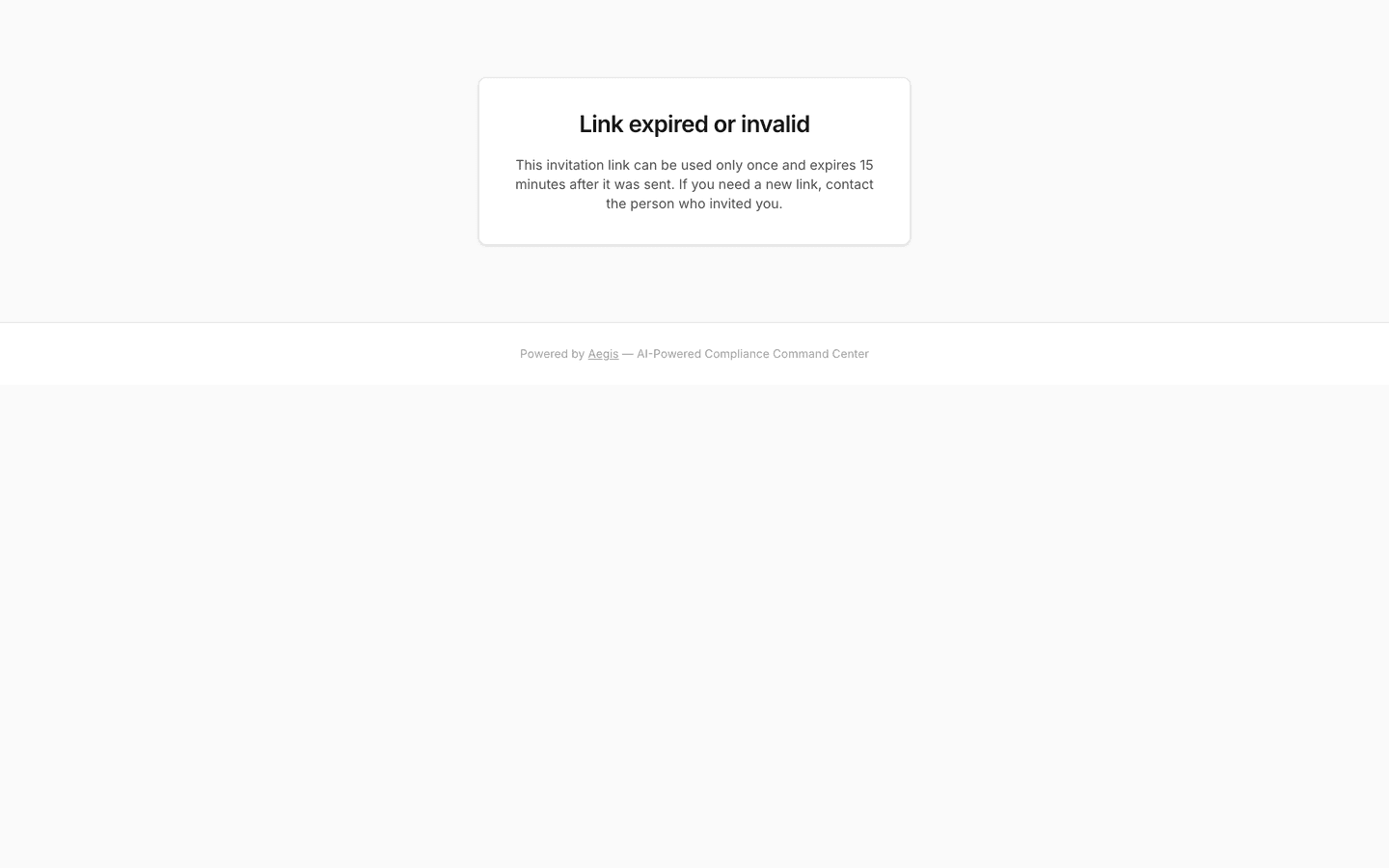
A used, mistyped or out-of-date link lands on one page only, headed
Link expired or invalid: "This invitation link can be used only
once and expires 15 minutes after it was sent. If you need a new link, contact
the person who invited you." That is the whole recovery procedure — ask your
contact to send a fresh invitation. The page deliberately says nothing about why
the link failed.
Reporting a concern (whistleblowing)
The whistleblowing intake is also public and account-free — and it is deliberately anonymous, which is a different promise from the invited access above. It has its own chapter written for reporters: Report a Concern. In short: you submit through the public form, receive a case key, and return with that key to read replies from the handler — no email address required at any point.
The public CyFun readiness check
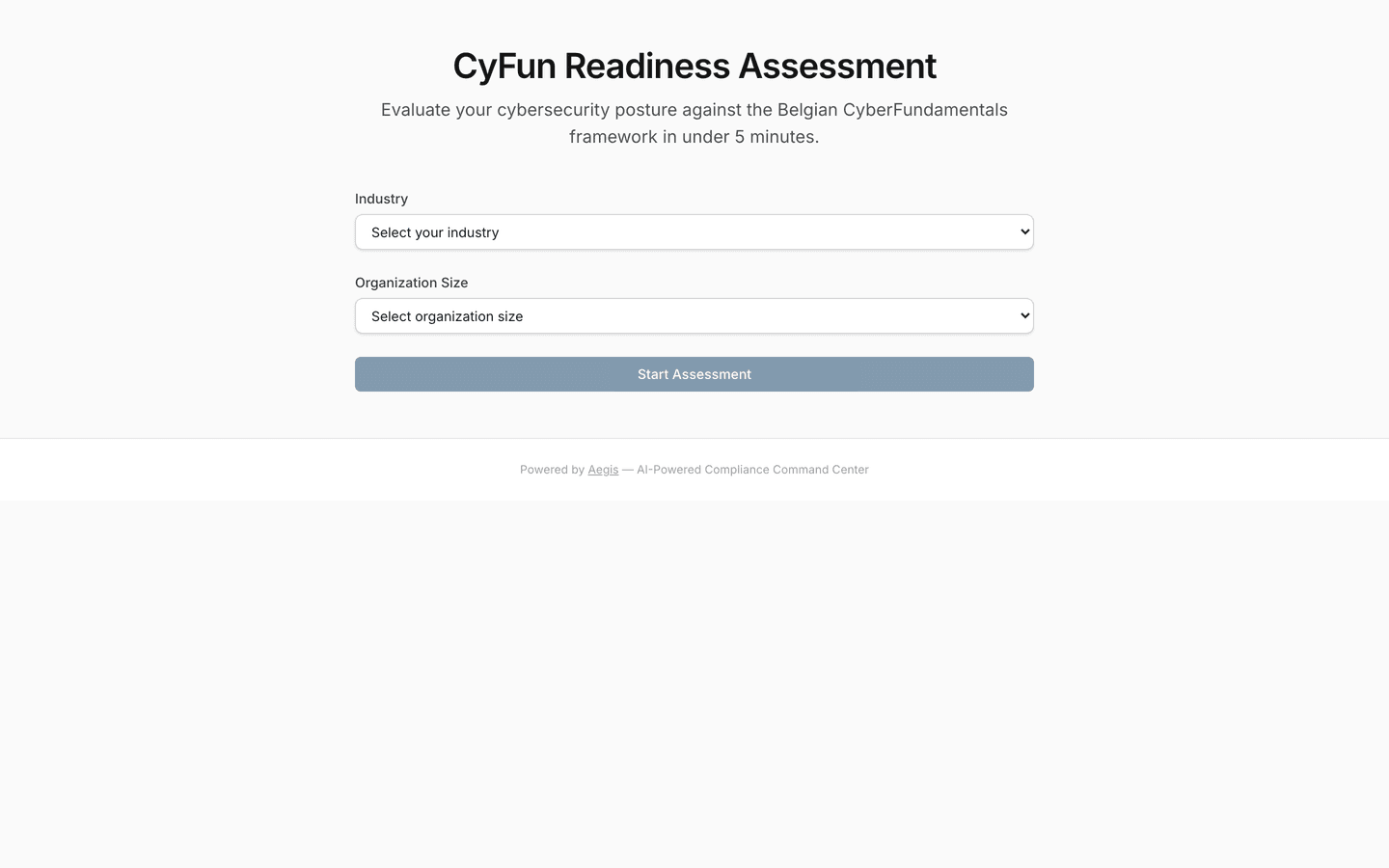
/assess/cyfun is an open self-assessment against CyberFundamentals
(CyFun, the Belgian cybersecurity framework
behind many NIS2 obligations). Anyone can take it — no account, and nothing you
enter touches the organisation's compliance data.
- Answer the short profile first — industry and organisation size — so the reading of your score fits your context.
- Work through 15 questions, five per page, spanning the six CyFun functions: Govern, Identify, Protect, Detect, Respond, Recover.
- Your score appears immediately, broken down by function. A fuller report is offered in exchange for an email address — that exchange is the only thing the email is asked for.
The public check uses a simplified subset of CyFun and scores it client-side. The full framework work — controls, evidence, maturity levels — happens inside Aegis, in CyFun Maturity.
Aegis inside Microsoft 365
Aegis also carries an embed surface for Microsoft 365, intended to show the dashboard, risks and tasks inside Teams. Today it is an early placeholder: the pages exist and check who you are, but state plainly that the real widgets arrive in a later phase. If your organisation offers you Aegis inside Teams and you see a placeholder card, that is why — use the full browser application in the meantime.
Tips and limits
- Magic links are personal. Forwarding one is like handing over a signed pass — and since each link works once, the recipient would consume yours. Ask the inviter to invite the other person directly.
- Your document session itself eventually expires; the emailed link does not sign you in forever. When the page stops responding to you, request a fresh link rather than retrying the old one.
- For the inviting side: invitations, their capabilities and their revocation are managed inside Aegis, and every external comment and decision lands in the same collaboration records as internal ones — see Action Center.
Where this connects
- Report a Concern — the public whistleblowing intake, step by step.
- Whistleblowing — the internal case-handling side.
- Action Center — where internal users see the comments and approvals externals leave.
- CyFun Maturity — the real framework work behind the public check.