DORA Compliance
Keep your Digital Operational Resilience Act programme in one place — the entity profile, the ICT asset register, your third-party providers, your resilience tests, and the Article 18 incident classification.
DORA (the Digital Operational Resilience Act, EU 2022/2554 — the European law that requires banks, insurers, investment firms and similar financial entities to show their IT can withstand and recover from disruption) rests on five pillars. This module holds the records a supervisor asks for: who you are under DORA, which ICT systems carry your critical functions, which suppliers you depend on, how you test, and which incidents crossed the reporting thresholds. It is a pay-per-framework module: without the DORA entitlement on your licence, this page becomes a short upgrade message and every sub-page redirects back to it.
Who uses it
Access is granted by permission, not by one minimum role. Every DORA page
requires
dora:read; anyone without it is redirected to
/unauthorized. Writing needs dora:update, and the
buttons that need it are hidden rather than disabled. Classifying an incident
needs dora:classify, and each register's
Export CSV button needs dora:report — without it the
button is not rendered at all.
| Role | What they can do in DORA |
|---|---|
| Admin | Every DORA permission — read, update, classify and report — so every control on every page. |
| Manager |
Read everything, configure the profile, add and edit assets and
providers, classify incidents, and — holding
dora:report — export the registers to CSV.
|
| Contributor |
The same, apart from dora:report — so the
Export CSV
button does not appear on any of the registers.
|
| Viewer |
Read-only. Every page opens, but Add, row
Edit, the profile Edit control and
Export CSV are all hidden. The classify action on the
DORA incidents list is still drawn, but the request behind it is
refused without dora:classify.
|
What's on this screen
Open /compliance/dora from the Compliance group in the
left sidebar. The screenshot below was captured as a Contributor, so every write
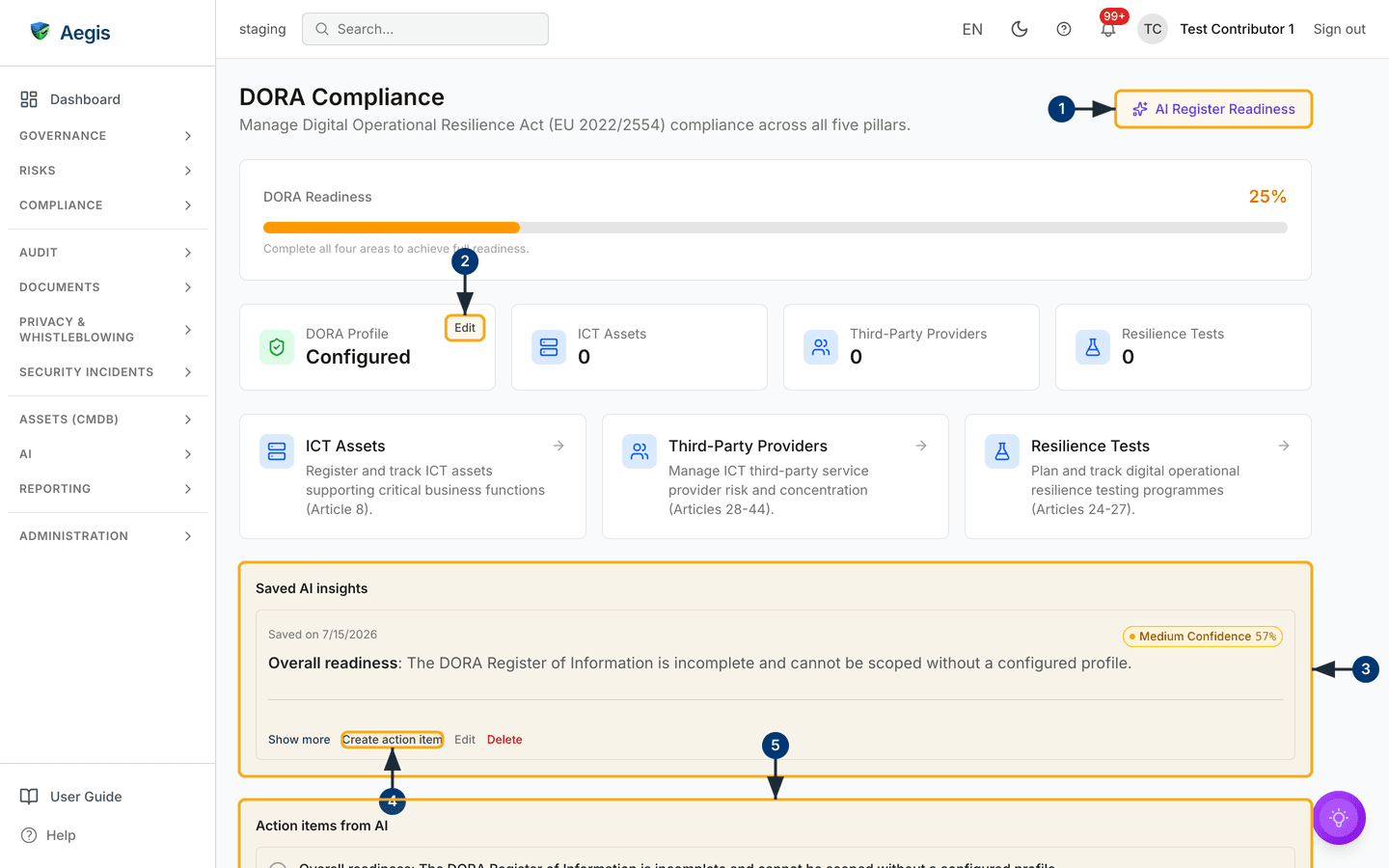
control is visible. The header reads DORA Compliance, with the
page's only primary action — AI Register Readiness — on the right.
Below it, the DORA Readiness bar scores four areas at 25% each: a
configured profile, at least one ICT asset, at least one third-party provider,
and at least one resilience test. It is red below 25%, amber from 25% and green
from 75%. In the capture it reads 25% in amber, captioned "Complete
all four areas to achieve full readiness."
Under the bar sit four cards: DORA Profile, showing
Configured with a small Edit button in its corner,
then ICT Assets, Third-Party Providers and
Resilience Tests, each with a count — all 0 here.
Three navigation cards below carry the same names, a one-line description and
their DORA article, and open the matching register.
Two panels close the page. Saved AI insights lists narratives you
have kept — the capture shows one, saved on 7/15/2026, tagged
Medium Confidence 57%, carrying the actions Show more,
Create action item, Edit and Delete.
Below it, Action items from AI is empty and says where items come
from.
-
Select
AI Register Readiness. A modal opens explaining what the action reads, with aRun Register Readinessbutton; the narrative then streams into the modal. -
Select
Editon theDORA Profilecard. TheSet up DORA Profiledialog opens with the entity fields, pre-filled if a profile already exists. -
Read the
Saved AI insightspanel: each entry shows its save date, a confidence badge and the opening lines.Show moreexpands it. -
Select
Create action itemon a saved insight. There is no form: Aegis creates the item straight away, taking its title from the insight's first line and its description from the whole narrative, and confirms with a short message. -
Check
Action items from AIbelow, where the new item appears without a page reload. In the capture it is still empty and explains where items come from.
Each 25% only confirms that an area has been started — a profile exists, and each register holds at least one record. It says nothing about whether your asset inventory is complete, your tests passed, or your providers have been assessed. Read it as a setup checklist.
Configure the DORA profile
The profile records who you are under DORA and is the first 25% of readiness. It is set from the dashboard card, not a separate page.
-
Select
Editon theDORA Profilecard — the button readsConfigurewhen no profile exists yet. TheSet up DORA Profiledialog opens. -
Enter the
Entity Type. This is the only required field; theSave profilebutton stays disabled until it has a value. -
Choose an
Entity Category(Financial entityorICT service provider), type yourFinancial Sector, and pick aProportionality Tier—Simplified,StandardorEnhanced, the lighter or fuller regime that matches your size and risk. -
Add the supervisory details that apply: tick
ESA Designatedif a European Supervisory Authority has designated you, then fill inCompetent Authorityand its URL,Lead Overseer Authority, and theApplicable SinceandLast Assessmentdates. All of these are optional. -
Select
Save profile. The dialog closes and the card refreshes toConfigured, adding 25% to the readiness bar if it was not set before.
Register ICT assets (Article 8)
This is your information-asset inventory under Article 8: the hardware,
software, network, data, services and cloud systems behind your critical
business functions. Open it from the
ICT Assets navigation card.
The header carries Export CSV (with dora:report) and
Add ICT Asset (with dora:update). The columns are
Name, Type, Criticality,
Status, Business Function and Actions,
with a view (eye) action on every row and an edit (pencil) action for writers.
Twenty-five rows fit a page. An empty register reads "No ICT assets registered
yet."
-
Select
Add ICT Asset. TheAdd ICT Assetdialog opens. -
Enter the
Asset Name— the placeholder suggests "e.g. Core Banking Platform" — then pick theAsset Type: Hardware, Software, Network, Data, Service, Cloud or Other. -
Set the
Criticality— the form offers Low, Medium, High and Critical, and new records start at Medium — then theBusiness Functionit supports and itsLocation. The form has no status field; a new asset is saved asActive. -
Select
Save. A confirmation appears, the table reloads with the new row at statusActive, and the dashboard'sICT Assetscount rises.
Register third-party providers (Articles 28–44)
This register tracks the ICT suppliers you depend on and the concentration risk
they carry — the exposure that builds when too much rests on one provider. Open
it from the
Third-Party Providers card.
The columns are Name, Type, Critical,
Headquarters, Contract End,
Substitutability and Actions; a contract ending within
90 days is flagged in its cell. The header offers Export CSV (with
dora:report) and Add Provider (with
dora:update).
-
Select
Add Provider. TheAdd Providerdialog opens. -
Enter the
Provider Nameand choose theProvider Type, then tickCritical Providerif the supplier underpins a critical or important function. -
Pick the
Headquarterscountry from the list — it is stored as the two-letter code shown beside each name — set theContract Enddate, and choose theSubstitutability: Easy, Moderate, Difficult or Not Possible, meaning how hard the provider would be to replace. -
Select
Save. The provider joins the table and the dashboard'sThird-Party Providerscount rises. -
Select the view (eye) action on a row to open the provider detail dialog,
which includes a
Concentration Risk (DORA Art. 29)section: the overall concentration risk, this provider's risk, the contributing factors and recommendations.
Read the resilience-testing register (Articles 24–27)
This holds your testing programme, from vulnerability assessments and
penetration tests up to a
TLPT (Threat-Led Penetration Test, the
advanced red-team exercise DORA expects of larger entities). Open it from the
Resilience Tests card.
-
Read the table:
Name(with the test type as a badge beneath it),ICT Asset,Status,Last Run,Next Scheduled,FindingsandHistory. Statuses are Planned, In Progress, Completed or Overdue — Overdue is derived, not stored: it is shown when the next scheduled date has passed and the test is not yet completed. -
Check the
Findingscell for pass, fail and open counts, and theHistorydots for recent runs. -
Use
Refreshto re-read the register, or — holdingdora:report—Export CSVto downloaddora-resilience-tests-register.csv.
The page has no add or edit control — it lists tests that already exist,
with export, refresh and pagination. Tests are created through the DORA
resilience-tests API by an account holding dora:update. The
dashboard still counts the first test as the fourth 25% of readiness,
however it was created.
Classify an ICT-related incident (Article 18)
Article 18 decides when an ICT incident counts as major and starts the reporting
clock: an initial notification within 4 hours, an intermediate report within 72
hours, and a final report within one month. The page at
/compliance/dora/incidents lists the incidents flagged as DORA
incidents — classified or not yet — with a column for each of the three
deadlines, reading Sent, Due, Overdue or
N/A. Nothing in the app links to the page: there is no dashboard
card and no sidebar entry, so reach it by typing the URL. A
Back to DORA link at the top returns you to the dashboard.
-
Open the incidents list and select the classify action on the row you want —
the warning-triangle button beside the view action, which appears only while
the incident has no classification. The
DORA Article 18 Classificationdialog opens, with an amber note at the top saying the result is a recommendation only. -
Fill in the impact fields —
Affected Clients (%),Affected Transactions (%),Duration (hours),Member States AffectedandEconomic Impact (EUR)— then tickData Loss or Integrity Breach,Critical Function ImpactedorSignificant Cyber Threatwhere they apply. -
Select
Classify. The dialog answers with a single line —Classification: Major,Significant Cyber ThreatorNot Applicable. The matched criteria and the confidence level are computed and stored with the incident, but the dialog itself does not list them. -
Confirm the classification yourself. Aegis writes the result to the incident
as you submit — and for a
Majorit stamps the three deadlines — so the amber note asks you to review what has just been recorded, not to approve it first. ANot Applicableresult clears the DORA flag, and the incident drops out of this list.
The Article 18 check is a fixed rule test, not AI: it compares your figures against seven thresholds — 10% of clients, 10% of transactions, two hours of unavailability, two member states, any data loss, a critical-function impact, or €100,000 of cost — and reports which were crossed. It records the outcome on the incident and starts the deadline clocks, but it files nothing with a supervisor and settles nothing on your behalf. Per DORA Article 18 and EU AI Act Article 14, the dialog states that a human must confirm the final classification.
The AI assist
One AI action lives here: AI Register Readiness. Aegis first scores
your Register of Information (Article 28(3)) itself — the profile, the three
counts, and a fixed list of gaps ranked by severity and tied to DORA articles.
Only then does the model narrate that picture: where you stand, plus three to
five next steps drawn from your worst gaps. It never recomputes the score,
reorders the gaps, or invents a provider, an asset or an article.
-
Select
AI Register Readiness. The modal explains what will be read, and notes that the narrative summarises gaps Aegis has already detected. -
Select
Run Register Readiness. Progress lines appear as it reads the register, checks the counts, scores the gaps and drafts the narrative. -
Choose
Save as recordto keep it. The narrative then appears inSaved AI insights, where you can expand, edit or delete it, or turn it into an action item.
The run is billable: it consumes one AI credit and is written to your AI usage
log. Anyone with
dora:read can run it, a Viewer included. Nothing it produces
changes a record — the output is a read, and the decisions stay with you.
Tips and limits
- The readiness bar reaches 100% with one record in each register. It is a start-up measure, and the work does not end when it turns green.
- Information sharing, DORA's fifth pillar, has no register of its own here.
- The resilience-tests register cannot be edited in the app, and nothing in the app links to the DORA incidents page. Both are gaps in the current build, not hidden features.
-
Each register exports to CSV from its own header, which is how you hand an
auditor a copy of the Register of Information — but the button needs
dora:report, so a Contributor cannot export. - The reporting clocks start at the moment you classify, not when the incident began, so classify promptly and treat the recorded deadlines as accurate only from that point.
Where this connects
For framework coverage in general, see Compliance frameworks and Control mapping. Article 18 classification builds on Incidents and Incident reporting. Provider work overlaps with Vendors, and ICT assets have a wider home in Assets (CMDB). Follow-ups are worked in Action items, AI runs are listed in the AI dashboard, and Roles overview confirms who can reach these pages.