Information Assets
The register of the information your organisation holds — each entry carrying a confidentiality classification, a lifecycle status, a data category and a retention period.
An information asset is anything that holds
or processes data worth protecting: a customer database, a payroll spreadsheet,
a document store. This register is where you write those down and grade how
sensitive each one is, so that risk and data-protection work can point at real,
named things. It sits in the Assets (CMDB) group of the left menu,
alongside machines,
software,
services and
external services. CMDB stands for
Configuration Management Database: the record of what your organisation runs and
relies on.
This register is maintained by hand. There is no discovery agent and no import file for information assets today — you add each one through the form on this screen, and correct it through the same form.
Who uses it
Everyone with access to the CMDB module can read the register. What you may change depends on your role:
| Role | What they can do here |
|---|---|
| Viewer |
Read the register, search and filter it, and reload it with
Refresh. Neither Add Information Asset nor
the Actions column is shown.
|
| Contributor | Everything a Viewer can do, plus add new assets and edit existing ones. This is the role used for the screenshot below. |
| Manager | As Contributor. A Manager also holds the delete permission for information assets, but no delete control appears on this screen — see "Tips and limits" below. |
| Admin | Full access to every information-asset permission. |
What's on this screen
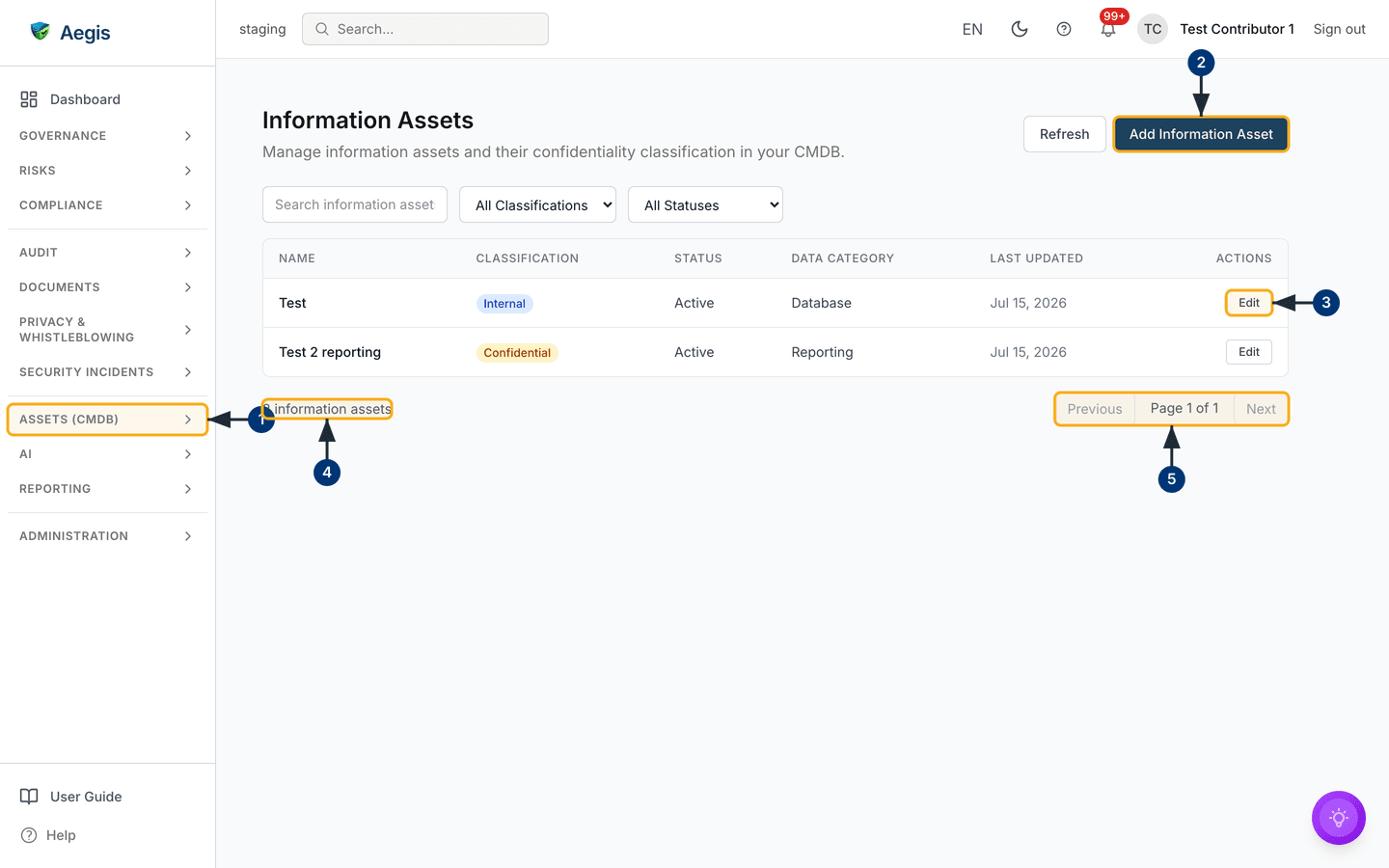
The screen is one long page: a header, a row of three filters, the table, and a pagination row beneath it. There is no side panel and no separate detail page — an asset's full record opens in a dialog when you edit it.
-
Header — the title
Information Assetsabove the line "Manage information assets and their confidentiality classification in your CMDB." On the right sit two buttons: an outlinedRefresh, which re-runs the current query, and the blueAdd Information Asset, which opens the create form. -
Filter row — a
Search information assets...box and theAll ClassificationsandAll Statusesdropdowns. -
The table — columns
Name,Classification,Status,Data Category,Last UpdatedandActions. Classification renders as a coloured pill; theActionscolumn appears only if you may edit. Rows are sorted by name. -
Pagination row — the total on the left ("2 information
assets" here), and
Previous,Page 1 of 1,Nexton the right. The register pages in blocks of twenty. - Empty state — when no asset matches the filters, and on a register that holds nothing yet, the table and the pagination row are replaced by a single panel reading "No information assets found. Adjust your filters or add a new asset."
The capture below is a staging tenant holding two placeholder records,
Test and Test 2 reporting — enough to show the table,
the badges and the row actions, but not a real register. Walk the screen in this
order to get your bearings:
-
Open the
Assets (CMDB)group in the left menu and chooseInformation Assets. The group expands to show the sibling inventories —CMDB,Software,CMDB Services,External ServicesandSBOM— with this page highlighted. -
Look to the top right for
Add Information Asset— the only way to create one. If you cannot see it, your role does not carry the create permission. -
Read a row left to right: name, classification pill, status, data category,
and the date the record last changed. The
Editbutton at the end reopens that asset in a form. - Below the table, the count tells you how many assets match the filters now applied, not how many exist. Clear the filters to see the whole register.
-
To the right of the count,
PreviousandNextmove through the pages, withPage 1 of 1between them. Both are greyed out when everything fits on one page, as here.
Add an information asset
The create form opens as a dialog over the register. Only the name is required;
everything else can be filled in later through Edit.
-
Select
Add Information Asset. A dialog titledAdd Information Assetopens with the fields laid out in two columns. -
Type the asset's
Name— the placeholder suggests the style, "e.g. Customer Database". Use the name your colleagues use; the register sorts on it. -
Choose the
Classification. It opens onInternal; the other choices arePublic,ConfidentialandRestricted. -
Choose the
Status. It opens onActive; useInactive,Archived,DecommissionedorUnknownwhere the asset is no longer in daily use. -
Fill in
Data Category— a free-text label for the kind of data held, such as "Customer PII". It is a text field, not a list, so agree your vocabulary first. -
Enter
Retention period (days)as a whole number of days: five years is1825. Anything that is not a whole number is refused with "Retention period must be a whole number of days". Leave it blank if no period has been agreed. -
Add
Tagsas a comma-separated list, for examplegdpr, critical. Tags are searchable, so they group assets that share a treatment. -
Write the
Descriptionand anyNotes. Both are free text; the description is searched, so put the identifying detail there. -
Select
Add Information Assetat the foot of the dialog. The dialog closes, the register reloads, and the new asset takes its place in name order — on a register longer than one page, that may be a page you are not looking at. ChoosingCancelinstead discards everything you typed.
There is no owner field on the form: the asset is recorded against the person who created it. If the name matches an asset that already exists, the dialog stays open and shows "An information asset with this name already exists" — change the name and submit again.
Correct an asset
Editing uses the same form, opened over the row you chose and pre-filled from the saved record.
-
Find the row and select
Editat the end of it. A dialog titledEdit Information Assetopens with every field carrying its current value; tags appear as a comma-separated list. - Change what needs changing — usually the classification after a review, or the status when an asset is retired. Nothing is written until you save, so closing the dialog leaves the record as it was.
-
To clear a value, empty the field. Clearing
TagsorRetention period (days)in the editor removes the stored value rather than leaving the old one in place. -
Select
Editat the foot of the dialog to save. The dialog closes, the register reloads, and the row'sLast Updateddate moves to today. If you have renamed the asset to a name another asset already uses, the dialog stays open and shows "An information asset with this name already exists".
Find an asset in the register
The three filters combine — a search term, a classification and a status all narrow the same query. Changing any of them returns you to the first page.
-
Type into
Search information assets.... The list refreshes shortly after you stop typing, matching on name, description and data category, and on an exact tag. -
Open
All Classificationsand pick one level to see only assets graded at it. -
Open
All Statusesand pick a lifecycle value — for exampleDecommissioned, to review what has been retired. - If the empty-state panel appears, your combination matched nothing. Widen the filters or clear the search box to bring the rows back.
-
Select
Refreshto re-run the current query without changing it — worth doing if a colleague has been editing the register while you have had it open.
Classification and status
Two columns use a fixed vocabulary. Classification answers "how sensitive is the data in this asset?"; status answers "where is this asset in its life?"
| Classification | Use it when |
|---|---|
Public |
The information can be shared openly with no harm. |
Internal |
For staff use; not intended for release outside the organisation. |
Confidential |
Sensitive; limited to the people who need it for their work. |
Restricted |
The most sensitive grade; access tightly controlled and recorded. |
| Status | Meaning |
|---|---|
Active |
In use. |
Inactive |
Not currently in use, but retained. |
Archived |
Kept for the record only. |
Decommissioned |
Retired from service. |
Unknown |
No status established yet. |
Tips and limits
-
No delete button. Managers and Admins hold the delete
permission, and the interface (the API) supports it, but this screen offers
no way to remove an asset. To take one out of use, set its status to
DecommissionedorArchived. - No detail page. The description, the notes, the tags and the retention period are visible only inside the edit dialog. The table carries the other five fields: name, classification, status, data category and the last-updated date.
- No AI assist on this screen. Classification is a judgement your organisation makes; nothing here suggests or changes a grade for you.
- Adding and changing assets is recorded. Creating and editing an asset writes an entry to the audit log, naming who did it and when.
-
Twenty rows to a page. If an asset you expect is missing,
clear the filters first, then check
Next. -
Free-text fields drift.
Data CategoryandTagsaccept anything you type, so "Customer PII" and "customer pii" become two labels. Agree the wording once and keep to it.
Where this connects
- CMDB — the machine inventory and the entry point to this area.
- Software, CMDB Services and External Services — the other registers in this group.
- Risks — where an asset's classification helps you weigh how serious a risk to it would be.
- GDPR — where data categories and retention periods matter for your data-protection records.
- Audit log — who added or changed which asset.
- Roles overview — what each role may do.