Audits
Plan and run a real compliance audit from end to end — name the engagement, pick the controls it will test, assign a lead auditor, and move it through its lifecycle from planning to closure.
An audit engagement (a planned exercise that
checks whether a set of controls really work) is the live record of an audit you
are running or preparing for. Each engagement carries a name, an optional date
range and report-due date, a lead auditor, and a
scope — the framework controls the audit will
test. Every control in scope becomes one plan item: a single
control under test, with its own tester and status. The engagement therefore
doubles as the checklist of work to be done.
The screen lives at /compliance/audits, but its menu entry sits in
the AUDIT group in the left menu, alongside
Mock Audit, Benchmarking and Audit Log.
It is not the same as Audit readiness, which
scores how prepared you are; Audits is where you run the engagement itself.
This chapter is the screen-by-screen reference. To see the preparation for a real external audit worked as a story — evidence, policies, rehearsal and the audit week itself — see the full walkthrough in Scenario: prepare for an external audit.
Who uses it
Access follows your role, and the permissions differ enough that two people can look at the same audit and see different buttons.
| Role | What you can do here |
|---|---|
| Viewer | Read-only: open the list, filter it, read any audit's status, metadata and plan items. |
| Contributor |
Everything a Viewer can do. Contributors are the testers — they hold
the fieldwork (“conduct”) permission, so they can assign a tester to
a plan item and move its status forward directly in the plan-items
table. No New audit button.
|
| Manager | Create an audit, change its status along the lifecycle, and delete it. Managers also hold the fieldwork permission. |
| Admin | Everything a Manager can do. |
Audits also needs the Compliance module switched on for your organisation,
because the route sits under the /compliance prefix. If it is not
switched on, the Audits entry drops out of the
AUDIT group and the route itself is blocked.
What's on this screen
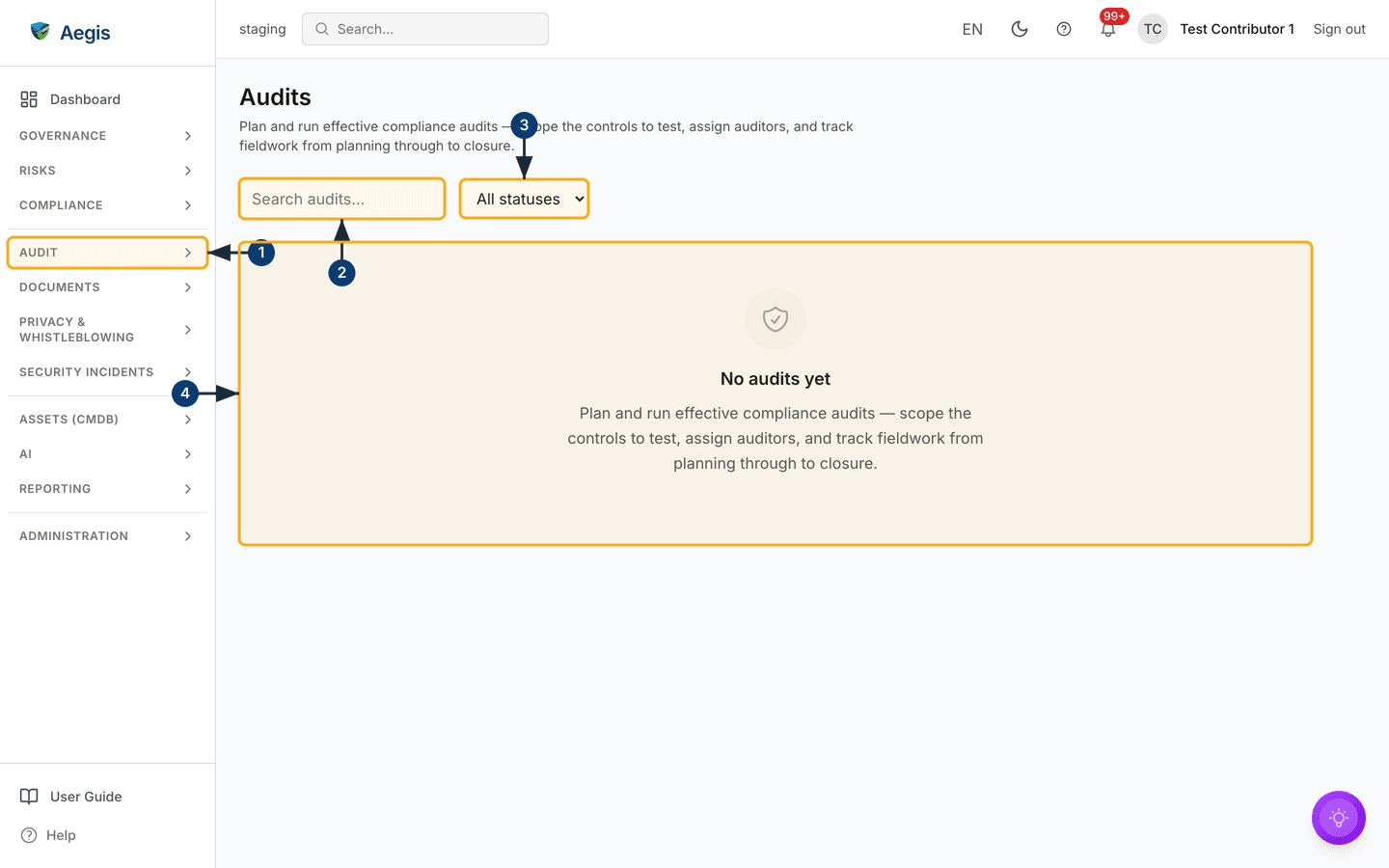
The Audits list is deliberately plain. At the top-left sits the page heading
Audits
with a one-line description of what the module is for. For a Manager or an
Admin, a navy
New audit button sits at the top-right of that same row; the
screenshot below was taken as a Contributor, which is why no create button is
there.
Under the heading is a two-control filter bar: a
Search audits... box that matches on the engagement name, and an
All statuses dropdown that narrows the list to a single lifecycle
stage.
Below the filter bar is the list itself. In the capture there are no audits yet,
so instead of a table you see the empty panel — a shield icon, the heading
No audits yet and that same one-line description repeated
underneath. A Manager or an Admin also gets a New audit button
inside the panel itself. Once engagements exist, a table with six columns takes
its place: Name, Status (a coloured badge),
Framework, Lead auditor, Plan items (how
many controls are in scope) and Period. A pagination row then
appears at the foot with Page 1 of 1, Previous and
Next, the buttons greyed out while there is only one page.
Find your way to the list and filter it
-
Open the
AUDITgroup in the left menu. The group expands and reveals its pages, includingAudits; select it to land on this screen. -
Type part of an engagement's name into the
Search audits...box. The list re-queries shortly after you stop typing and jumps back to the first page of matches. The search matches the name only — not controls, not auditors. -
Choose a stage from the
All statusesdropdown —Planned,Scoping,Fieldwork,ReportingorClosed— to show only engagements at that stage. -
Read the panel below. With no audits at all it reads
No audits yet, as in the capture. If audits exist but your filters exclude all of them, a shorter message appears instead: “No audits match the current filters.” Clear the box and reset the dropdown to bring the table back.
Each row is clickable across its whole width, and the name is also a link. Either one opens that engagement's detail page, with its status control, metadata block and plan items.
Create an audit
Creating an audit is a Manager or Admin task. It opens a full page at
/compliance/audits/new rather than a side panel, because the scope
picker needs the room. No capture of this form is included in this chapter —
follow the steps against the live page.
-
Select
New auditat the top-right of the list. The create page opens, headedNew auditwith the note “Name the engagement, choose its scope and assign a lead auditor.” -
Fill in
Audit name— the only required field. Leaving it blank and submitting produces the inline message “An audit name is required” and nothing is saved. -
Pick a
Lead auditorfrom the dropdown of users. It defaults toUnassigned. -
Set
Period start,Period endandReport due dateif the engagement has fixed dates; all three are optional. An end date before the start date raises “Period end must be on or after the period start” and blocks submission. -
Build the
Audit scope. The picker lists your enabled frameworks as collapsed groups. Select a framework's name to expand it — its controls load at that moment as a checkbox list, each showing the control reference and title. Tick individual controls, or useSelect whole frameworkin the group header to take every loaded control at once (it turns intoClear frameworkwhen all are selected). A running total sits above the groups, for example “12 controls selected”. There is no keyword search inside the picker in this release; scroll the expanded group to find a control. -
Select
Create audit. Aegis saves the engagement, confirms withAudit created, creates one plan item per selected control, and takes you to the new audit's detail page.Cancelreturns you to the list without saving.
You choose individual controls, so the engagement is not anchored to a
framework record. That is why the list's Framework column can
read No framework even when every control you picked belongs to
one. The detail page works it out from the scope and shows the framework
name there — or Multiple (…) when the scope spans more than
one.
Move an audit through its lifecycle
An engagement runs through five stages in a fixed order. The status control sits
in its own panel at the top of the detail page: the word Status,
the current stage as a coloured badge, and a button for each stage you may move
to next.
| Status | Badge colour | Meaning |
|---|---|---|
Planned |
Slate | The engagement exists; its scope is still being worked out. |
Scoping |
Amber | In-scope controls are chosen and plan items are being prepared. |
Fieldwork |
Blue | Testers are working through the plan items. |
Reporting |
Indigo | Fieldwork is finished and findings are being written up. |
Closed |
Emerald | The engagement is complete and kept as a record of the work done. |
- Open the audit from the list. The status panel is the first thing under the engagement name, with the current stage shown as a badge.
-
Select the button for the stage you want — the label spells it out, for
example
Change status to Fieldwork. Aegis saves the change, confirms with “Status updated to Fieldwork”, and the badge and the available buttons both refresh. -
To enter
ReportingfromFieldwork, every plan item must first beCompleted, and there must be at least one. Until then that button stays disabled and an amber note reads “All plan items must be completed before reporting.”
You can step back to correct course — Reporting back to
Fieldwork, or Closed back to
Reporting — but you can never skip a stage. Only the adjacent
stages are offered, and the server checks the move again when you save.
Roles without the update permission see the badge and no buttons.
Read the plan items
Under the status panel sits the metadata block — Lead auditor,
Framework, Period and Report due —
followed by the Plan items section, headed with the note “One
control under test per row.”
Each row shows four things: the Control (its reference, then its
title), the Framework that control belongs to, the
Tester assigned to it (or Unassigned), and its
Status — Not started, In progress or
Completed. If you created the audit without selecting any controls,
the section shows a single notice instead: “No controls are in scope yet. Edit
the scope to add controls.”
If you hold the fieldwork (“conduct”) permission — Contributors, Managers and
Admins do — the Tester and Status cells are drop-downs
rather than plain text. Pick a person in the Tester drop-down to
assign them to that control (or pick Unassigned to clear the
assignment), and move the item through Not started,
In progress and Completed in the
Status drop-down as the fieldwork progresses. Each change saves
immediately, confirms with “Plan item updated”, and is written to the audit log
with the values before and after. Once every item reads Completed,
the Change status to Reporting button on the status panel unlocks.
Without the permission the cells stay read-only: the tester as plain text and
the status as a coloured badge.
Delete an audit
-
Open the engagement you want to remove. For a Manager or Admin, a
red-outlined
Deletebutton sits at the top-right, level with the audit name. -
Select
Delete. A confirmation dialogue asks “Delete this audit? This cannot be undone.” Choose to confirm and Aegis removes the engagement, showsAudit deleted, and returns you to the list; cancel and nothing changes.
Tips and limits
-
This is an early phase of the module. The screens cover
planning, scoping, the lifecycle and working the plan: holders of the
fieldwork permission assign testers and progress each plan item to
Completedstraight from the plan-items table, which is what unlocks the move toReporting. Richer fieldwork tooling — recording the testing performed and linking evidence per item — arrives in a later release. - There is no edit form yet either. The empty plan-items notice tells you to edit the scope, but the detail page carries no scope editor in this release. For now, set the scope when you create the engagement.
-
No audit report artefact. Closing an engagement does not
require a generated report — that document comes in a later phase. Treat a
Closedaudit as your record that the work was done, and keep the underlying proof in Evidence. - No AI in this module. Audits is a manual planning and tracking tool. A person scopes the audit, assigns the auditor and decides every status change; nothing here moves on its own.
- Nothing here is silent. Every create, status change and delete is written to the Audit log, and a status change records the values before and after the move, so the history of the engagement survives the engagement itself. The list itself pages at twenty rows.
Where this connects
- Audit readiness — check how prepared you are before, or alongside, running an engagement here.
- Mock audit — rehearse the questions an auditor will ask.
- Compliance frameworks — the source of every control you can put in an audit's scope.
- Evidence — the proof a tester relies on when working a plan item.
- Control monitoring — continuous checks that complement a point-in-time audit.
- Scenario: an external audit — the whole journey across the modules involved.