Regulatory changes
A feed of incoming regulatory developments, ranked by relevance, with a dated record that a named person read each one — and AI actions that help you decide what to act on first.
A directive amendment or a supervisory authority decision can undo a control mapping that took months to build; this module gives that watching work a home. Aegis ingests developments from external sources — the GDPRhub (a public database of European data-protection decisions) and other registered feeds — scores each for relevance, and lists them for review. You mark an item reviewed, leaving a dated record that you looked, or dismiss it as not applicable to your organisation.
You use that history to keep on top of the regulatory calendar; auditors use it to confirm you monitor change systematically — something ISO 27001, NIS2 (a European cybersecurity law), DORA (the EU operational-resilience regulation) and the EU AI Act all expect.
Regulatory Changes is gated by the
REGULATORY_INTELLIGENCE module and feature. Without the
feature, the page shows a short "not available on your current plan" notice
instead of the feed; without the module, the sidebar link is hidden
altogether.
Who uses it
-
Viewer and
Contributor hold
REGULATORY_READ: open and filter the feed, read any item, and run both AI actions. They cannot change the state of an item. -
Manager and
Admin also hold
REGULATORY_WRITE. Only they seeMark as Reviewed,Analyze impactandDismiss— those buttons are hidden, not disabled, for everyone else.
What's on this screen
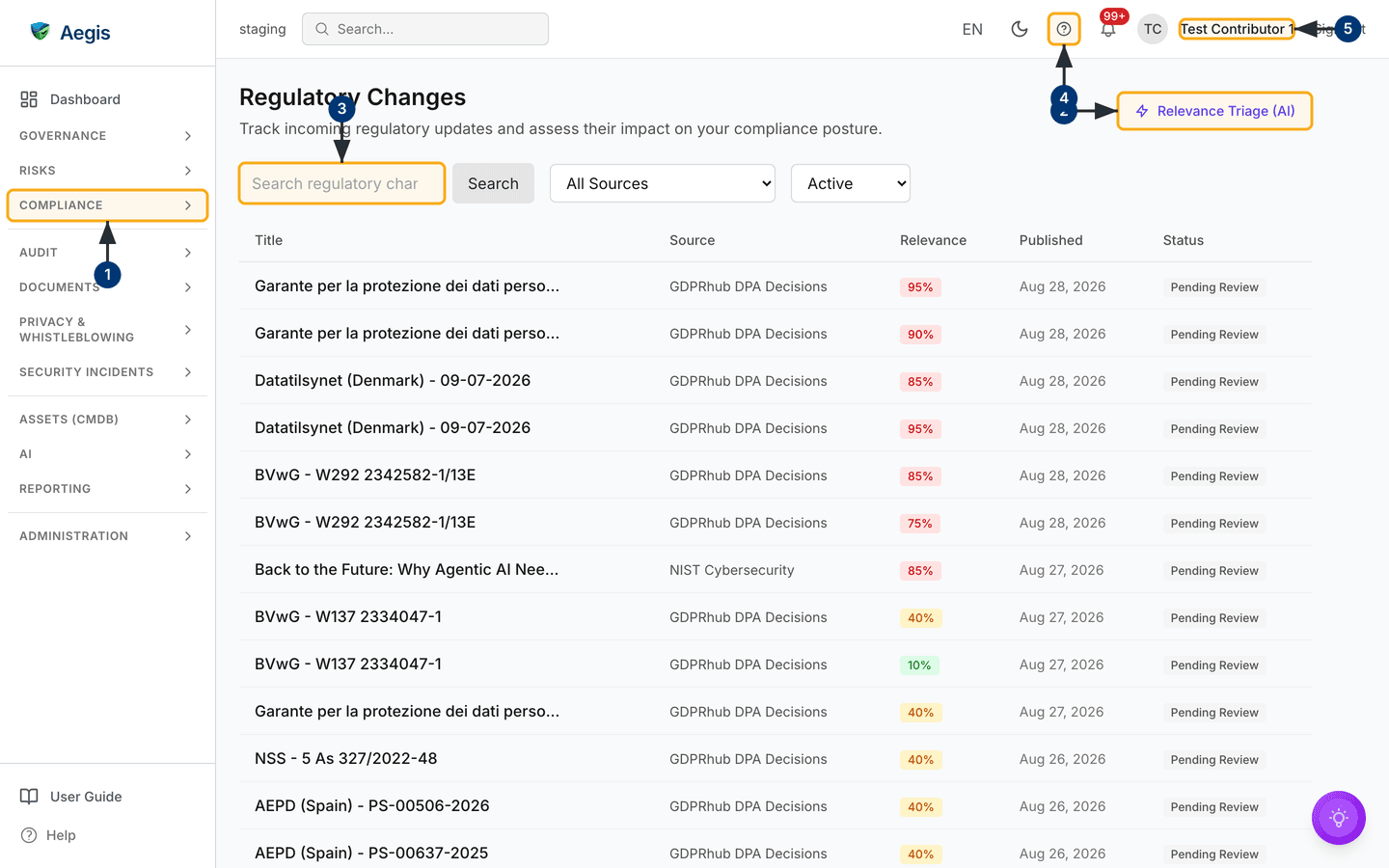
The header reads Regulatory Changes over the line "Track incoming
regulatory updates and assess their impact on your compliance posture", with one
button opposite: Relevance Triage (AI). There is no "add change"
button — items arrive from the ingested sources.
Under the header runs a filter bar of four controls: a search box (placeholder
"Search regulatory changes…"), a Search button, an
All Sources dropdown built from the sources your tenant has
actually ingested rather than a fixed list, and a view dropdown set to
Active that you switch to Dismissed to see items set
aside. The body is one table with five columns:
| Column | What it shows |
|---|---|
Title |
Usually a national decision reference — in the captured feed, entries such as "DSB (Austria) - DSB-D124.2437/25". Long titles truncate. |
Source |
The feed it came from — every captured row reads
GDPRhub DPA Decisions.
|
Relevance |
A stored score from 0 to 100%, shown as a coloured badge: green below 40%, amber from 40% to 69%, red at 70% and above. |
Published |
The publication date from the source, or a dash when the source gave none. |
Status |
Pending Review in grey until someone reviews the item,
then Reviewed in green. In the dismissed view, an amber
Dismissed badge instead.
|
Selecting a row opens that item in a detail panel. The feed pages twenty rows at
a time; below the pager sit two panels that stay empty until you use the AI
actions,
Saved AI insights and Action items from AI. A tenant
that has ingested nothing sees the table's empty state instead of rows. To get
your bearings:
-
Find the module in the left sidebar: selecting the
Compliancegroup expands it and lists Regulatory Changes among its links. -
Note the
Relevance Triage (AI)button opposite the page title. It works on the whole open queue, not on one row. - Type into the search box to narrow the feed. The table reloads a moment after you stop typing.
-
Select the
?in the top bar to open in-app help over the page. - Your name at the top right opens the account menu and confirms your role — worth a glance, because the write actions appear only for some roles.
Narrow the feed and pick what to read
Every visible row in the captured screen was published on the same day, so narrow before reading.
- Type a regulation name, authority or keyword into the search box. The table reloads with items whose title or summary matches.
-
Open the
All Sourcesdropdown and pick one issuing body. A source you have never received items from does not appear in the list. -
Read down the
Relevancecolumn and start with the red badges — the captured feed opens on a 100% row followed by several at 95%, against others scoring 0% to 15%. The score is a stored first-pass estimate, not a judgement you have to accept. -
Switch the view dropdown to
Dismissedto see what a colleague set aside, and back toActivefor the review queue.
Read and review a change
Reviewing records that a person read the item, and on what date — which is what an auditor asks for, more than the headline itself.
-
Select a row. A detail panel opens over the page, headed
Regulatory Change, with a relevance badge such as95% — High Relevanceand the action buttons beside it. -
Read the
Detailsblock — source, identifier, publication date and relevance score — then theSummary, the item's text with the source site's formatting stripped out. -
Where the item carries one, select
View original documentunderSource Link; the issuing body's page opens in a new tab. -
With
REGULATORY_WRITE, selectMark as Reviewed. A greenReviewedbadge replaces the button, the row behind updates, and aReviewsection records who reviewed it and when.
Marking an item reviewed stamps it with your name and the date, and the panel offers no way to undo that. Dismissal, by contrast, is reversible.
Dismiss what does not apply
Not every ingested decision concerns your organisation. Dismissing one takes it out of the active queue without deleting it, and records who did.
-
Open the item and select
Dismiss. A toast reads "Change dismissed" and the item leaves theActiveview. -
The panel now shows a
Dismissedsection with the date and the person. There is no reason field on this screen — aReasonline appears only where one was recorded through the API. -
To reverse it, set the view dropdown to
Dismissed, open the item and selectRestore to queue.
The AI assist
Three things here are AI-assisted. All draft; a person reads, decides and records. None marks an item reviewed, dismisses anything, or files work on your behalf.
-
Relevance Triage (AI), in the page header, works across your open (non-dismissed) changes. Aegis ranks them itself — by stored relevance, review state and recency — and the model narrates that fixed ranking as an action plan with a next step per change. It never reorders or rescores, and reads nothing but your own open changes. -
Suggested actions, in the detail panel, turns one change and any impact analysis already on file into a prioritised checklist of actions. Every role that can read the module can run it. -
Analyze impact, in the detail panel and limited toREGULATORY_WRITE, queues a background job; a toast confirms "Impact analysis queued — results appear here when ready". Reopen the item later and theImpact Analysissection shows a summary, an overall relevance percentage, the date analysed, and a badge per affected framework such asGDPR — 80%; until then it reads "No impact analysis yet". This one writes back to the record: it replaces the storedRelevancescore with its own figure and adds the frameworks it named to the item'sCategories.
The two streamed actions run the same way:
-
Select
Relevance Triage (AI)in the page header, orSuggested actionsin an open change. A dialog opens on a short explanation of what the action reads and what it will not do. -
Select
Run Relevance TriageorSuggest Actions. Progress lines name each stage while the answer streams in. -
When it finishes, take the text away with
Copy,Export DOCXorExport PDF, or selectRun again. -
Save as recordkeeps it inSaved AI insights— on the change itself forSuggested actions, at the foot of the feed page for the triage.Create action itemfiles it as work, shown in theAction items from AIpanel and in Action items; a Viewer can save and export, but does not get that button.
Treat a relevance score or a named framework as a prompt to look, not as a finding — check what the model names against your own control set first. Aegis assists; the organisation decides what a change means and what to do about it.
Tips and limits
- You cannot add a change by hand, and the table has no export button — the only export here is of an AI result.
- There is no status pipeline beyond pending, reviewed and dismissed, and no effective-date reminders. A future-dated change will not chase you — create an action item for it instead.
-
The
Relevancescore is first set at ingestion, from keyword and recency matching. It is not fixed: anAnalyze impactrun overwrites it with the analysis's own figure, and records 0% if the model's answer cannot be read. Scores vary widely across similar-looking items, so use them to order your reading, not to conclude anything. -
Each streamed action and each
Analyze impactrun is a billable AI action against the tenant's AI credits, so re-running one is not free. -
Impact analysis is asynchronous: after selecting
Analyze impact, expect to come back to the item later — it will not fill in while you wait.
Where this connects
Standing alerts for particular regulations live in Regulatory alerts. A change usually points at requirements in Compliance frameworks, GDPR, DORA or the EU AI Act. Track the work it creates as a risk or an action item, and file the source document in Evidence; for a worked example, see the regulation scenario.