Compliance documents
A controlled library for the supporting documents your programme writes — registers, templates, forms, plans and charters — each with a type, an owner, a version and a review cycle.
Policies and procedures have their own areas of Aegis. This library holds everything else your compliance work produces: an incident register, a corrective-action form, a business continuity plan, an internal audit checklist. A compliance document (a supporting record your programme authors, as distinct from a policy that binds people to a behaviour) is a titled piece of text with a type, an owner, a version and a review cycle.
Who uses it
-
Viewer can open the library and
read any document. No create, edit or delete control is drawn for this role;
opening
/compliance-documents/newdirectly lands on an unauthorised page. - Contributor can also create documents and edit them in place, but not delete them.
- Manager and Admin can do all of that, and delete.
Controls follow the permission rather than greying out — each is drawn only for a role that may use it. All captures here were taken as a Contributor, except the creation page (a Manager; both roles see the same form), which is why no delete control appears.
What's on this screen
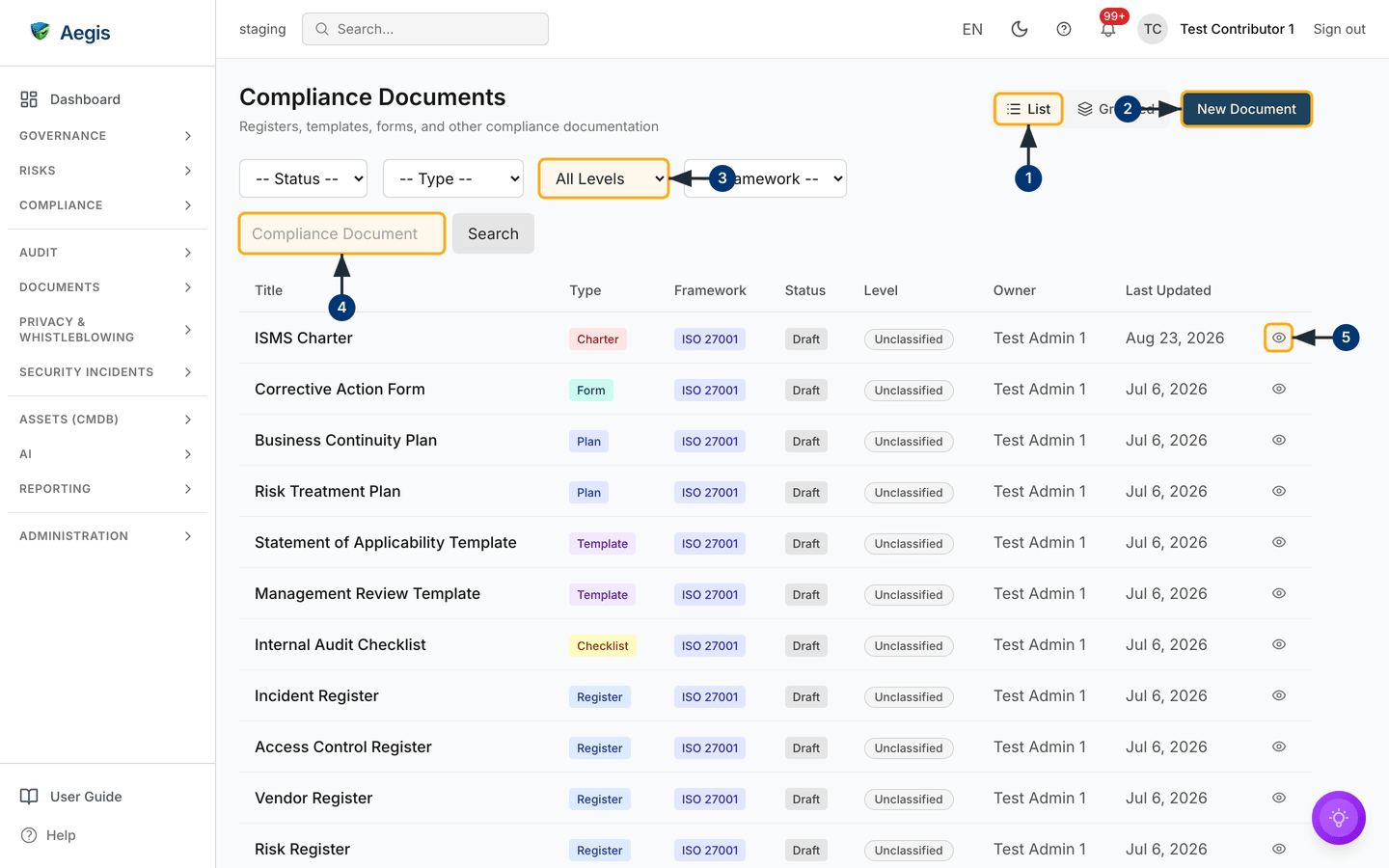
Open /compliance-documents and the page loads in
List view. The heading Compliance Documents sits
top-left; on the right of the same header row sit a two-button view toggle —
List and Grouped — and the dark-blue
New Document button. Below the header runs a row of four dropdowns
— -- Status --, -- Type --,
All Levels and -- Framework -- — over a search box
with a Search button beside it.
The table has seven labelled columns — Title (a link to the
document), Type (a coloured badge),
Framework (a badge, or a dash where none is set),
Status, Level, Owner and
Last Updated — plus an unlabelled column holding an eye-shaped
view control. The capture shows a seeded ISO 27001 set — a charter, a form,
plans, templates, a checklist and several registers — every row still
Draft and Unclassified. The table pages in twenties.
Finding your way around the library
-
Confirm which view you are in.
Listis selected on load and shows every document in one flat table;Groupedreloads the same documents as collapsible sections, one per governance level. -
Select
New Documentto add one. This is a full page, not a dialog — Aegis navigates to/compliance-documents/new, walked through in the next section. -
Narrow the table with the
All Levelsdropdown and its three neighbours. The table redraws as soon as you choose, and the four filters stack. -
Type part of a title into the search box. The table reloads a moment after
you stop typing, with the dropdowns still applied. Where nothing matches, it
reads
No results found over a
Clear filtersbutton, which empties the search box and leaves the dropdowns as you set them. - Open a document with the eye-shaped view control at the end of its row, or by selecting its title. Both lead to the same detail page.
Grouped loads the same documents as one collapsible section per
governance level, each headed with a count. Unclassified documents form
their own section, and an empty one reads
No documents at this level. Not pictured here.
Three separate fields describe a document.
| Field | What it records | Values |
|---|---|---|
| Type | What kind of document it is | Register, Template, Form, Notification, Plan, Charter, Methodology, Guide, Checklist, Standard |
| Status | Where it sits in its life |
Draft, In Review, Approved,
Retired
|
| Level | Its place in the governance hierarchy |
Strategic, Tactical, Operational, or Unclassified until
one is set
|
Creating a document
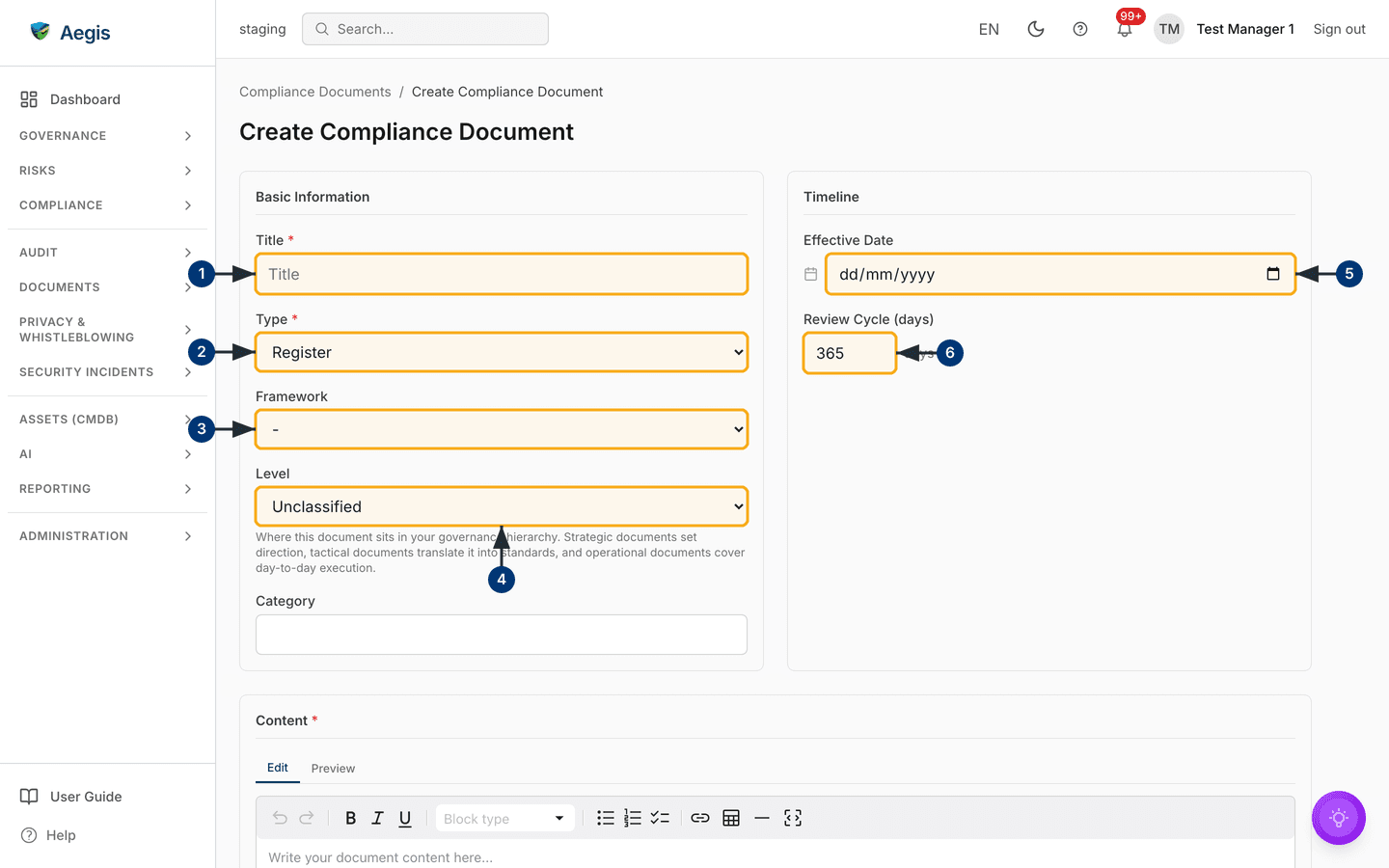
Creation is a page of its own: /compliance-documents/new, headed
Create Compliance Document. Two cards sit side by side —
Basic Information and Timeline — with a full-width
Content card beneath. The Cancel and
Create Document
buttons sit at the foot of the page, below the edge of this capture.
- Enter a Title. It is required — submitting without one raises Title is required under the field, and nothing is saved.
-
Choose a Type. It is required and starts on
Register; the dropdown offers the ten types in the table above. - Add a Framework tag if you want one. The first option is a bare dash — no framework at all — followed by ISO 27001, NIS2, CyFun, GDPR, DORA, EU AI Act and ISO 9001.
-
Set a Level, or leave it on
Unclassified. The help text underneath spells out the choice — strategic sets direction, tactical translates it into standards, operational covers day-to-day execution. Below it, an optional Category box takes a free-text label, shown later on the detail page. -
Under
Timeline, set an Effective Date if you know it. The field readsdd/mm/yyyyuntil you fill it, with a calendar icon beside it. -
Set the Review Cycle (days). It starts at 365 and accepts
any whole number from 1 to 3,650, with
daysprinted after the box. -
Write the body in the
Contentcard — required, or Content is required appears. You type into a formatting editor, not a raw text box: undo and redo, bold, italic, underline, aBlock typeselector for headings, three kinds of list, link, table, horizontal rule and full screen. ThePreviewtab shows the document as the detail page will render it. -
Select
Create Document. A Compliance document created successfully confirmation appears and Aegis opens the new document's detail page — statusDraft, version 1.0, you as its owner.Cancelreturns to the library instead, discarding everything typed.
Reading a document
The detail page opens with a breadcrumb back to
Compliance Documents, then the title with its type, framework and
version beneath — Charter · ISO 27001 · v1.0 in the capture. The
status badge and Edit Document sit opposite. Below, the page splits
into a wide DOCUMENT BODY card and a narrower
DETAILS panel.
-
Read the document in the
DOCUMENT BODYcard. The stored text is rendered, so headings, paragraphs and tables appear as written — the ISMS Charter shows numbered sections and an objectives table. -
Check the
DETAILSpanel on the right: Owner, Type, Framework, Level, Review Cycle, Version, Effective, Created and Updated, plus Category where one was set. Level is a badge, readingUnclassifiedhere; a dash against Effective means no date is set. -
Select
Edit Documentto change anything on the page. The button is drawn for Contributors and above, and dims while an edit is already under way.
![A compliance document detail page in reading mode — /compliance-documents/[id].](assets/figures/compliance-document-detail@1x.png)
Scroll past the body card for the collaboration panel — the comment threads and
review requests raised on this document, the same threads
Collaboration
deep-links into. At the foot sits the readable document identifier, such as
ISO27001-CHR-001. Where an approval trail exists, an
Approval history card joins DETAILS; this one has
none.
Editing a document
Editing happens in place — no separate screen. Edit Document turns
the body card into the same formatting editor as the creation page and the
DETAILS panel into a form, and one Save writes both
together.
-
Amend the Title at the top of the
DETAILSform. Clearing it and saving raises Title is required, and nothing is written — the same applies to an emptied body. - Change the Type with its dropdown — the same ten types offered at creation.
- Set or clear the Framework tag. Its first option is a bare dash, storing no framework at all.
-
Set the Level;
Unclassifiedclears any level set. - Set or clear the Effective Date, and below it the Review Cycle (days) — any whole number from 1 to 3,650.
-
Select
Saveat the top of the body card. The page returns to reading mode with your changes rendered, and a Changes saved confirmation appears.
![Editing in place — body editor on the left, DETAILS form on the right — /compliance-documents/[id].](assets/figures/compliance-document-edit@1x.png)
Cancel, beside Save, leaves edit mode at once and
throws away every unsaved change to both the body and the fields — no
confirmation, no undo. Part-way through a long rewrite, save first.
Deleting a document
Deletion is open to Managers and Admins. The control is a bin-shaped button beside the eye on each list row, absent from these Contributor captures.
-
Select the bin-shaped delete control on the row. A
Delete Documentconfirmation dialog opens, naming the document in bold. - Confirm to remove it, or cancel to keep it. The table refreshes without the row; if the delete fails, a Failed to delete document message appears and nothing is removed.
The empty state
Before anyone has written a document, List shows
No documents yet over
Add your first document to get started. — the header's
New Document button is the way in. Grouped reads
No compliance documents yet, over
Create your first compliance document or seed templates from your
framework.
Neither seeds anything on its own: the ISO 27001 set in these captures was
written by someone in that organisation.
Tips and limits
- The framework tag is one label per document. It groups and filters documents; it does not link them to individual controls. For that, see Compliance frameworks and Control mapping.
-
Category can only be set on the creation page. It appears on the
DETAILSpanel when present, but the in-place editor has no field for it, so it cannot be changed or cleared afterwards in this release. - Every document carries a version number, but this release offers no side-by-side comparison of earlier versions.
- Status is a stored field, not the output of a review workflow — neither the creation page nor the in-place editor can change it. Where an approval trail has to be evidenced, use Policies, which carries a full approval lifecycle.
- Review Cycle states how often the document should be revisited. It is not a reminder; raise that in Action items.
- This library holds documents your programme authors. Proof that a control works belongs in Evidence.
- There is no AI assist here. Nothing drafts, classifies or files a document for you.
Where this connects
For documents that bind people to a behaviour, see Policies and Procedures; for reusable starting points, Document templates. Comments and review requests surface in Collaboration, every change is recorded in the Audit log, and the permissions behind each control are set out in Roles overview.