External Services
A hand-kept register of the third-party, SaaS and supplier-delivered services your organisation depends on, held inside the configuration database alongside your own machines.
An external service (a piece of software or infrastructure that someone else runs for you — a hosted email platform, a payments provider, a payroll SaaS) is part of your real attack surface even though you do not operate the server. This page is the corner of the CMDB (Configuration Management Database — the record of the technology your organisation runs) that tracks those services, so an auditor can see in one place which outside systems your work depends on and where their data is held.
The page is deliberately slim: each row records a name, a provider, a status, where the data sits and the vendor it belongs to. It is a governance view for the compliance team, not a replacement for an IT-operations CMDB.
Who uses it
The page sits behind the CMDB module gate, so it appears only when
your operator has enabled that module for your organisation. Within the module,
the buttons you see follow your role:
-
Viewer holds
EXTERNAL_SERVICE_READonly, so a Viewer may read every row and search the register, and noAdd Servicebutton is drawn. The menu entry itself is Contributor-and-above, though: a Viewer sees noExternal Serviceslink in the sidebar and reaches the page only by following a direct link to/cmdb/external-services. -
Contributor adds
EXTERNAL_SERVICE_CREATEandEXTERNAL_SERVICE_UPDATE, so theAdd Servicebutton appears. The capture below is a Contributor account. -
Manager and
Admin hold the same rights plus
EXTERNAL_SERVICE_DELETE, and the wider asset-management rights described in the main CMDB chapter.
What's on this screen
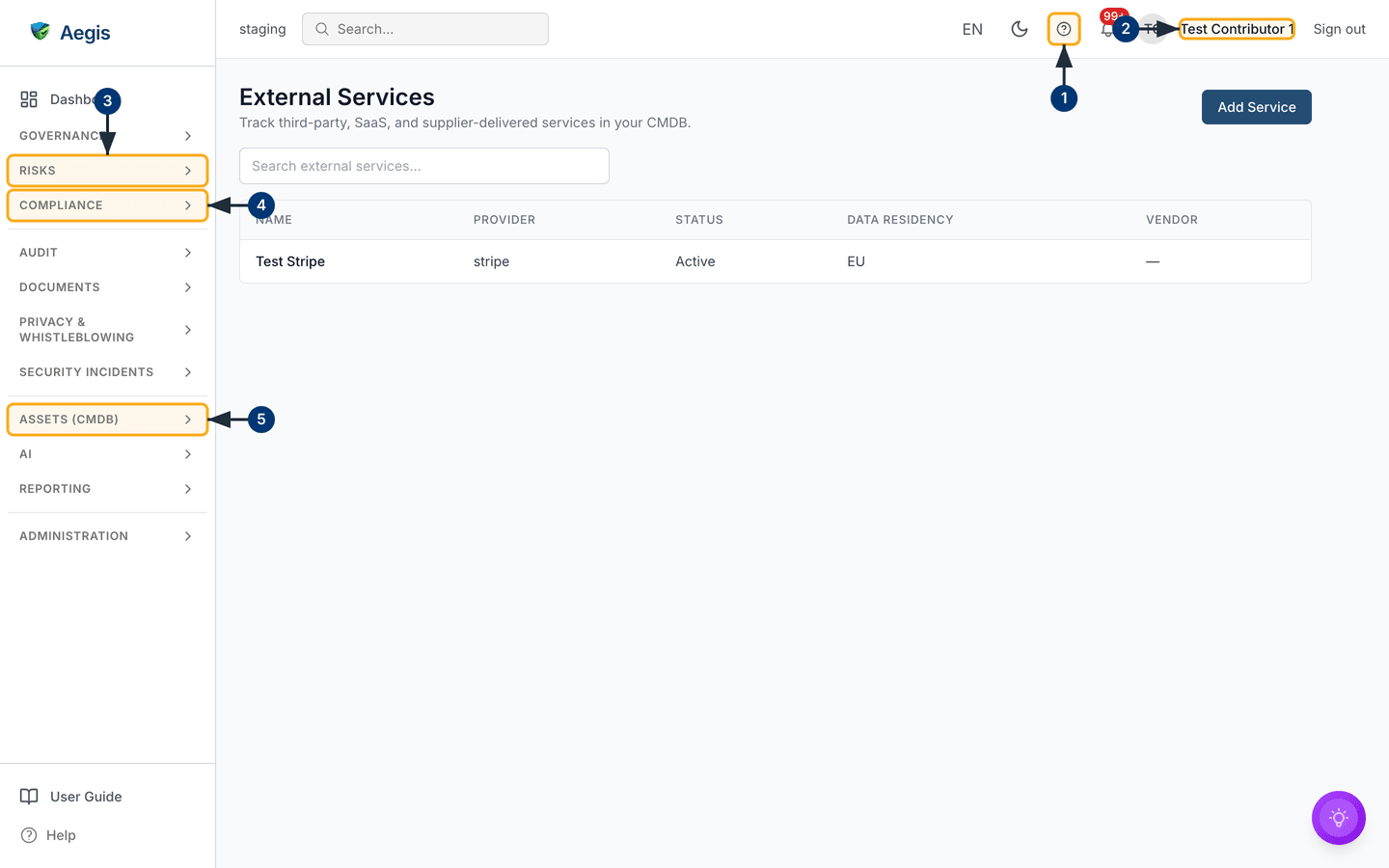
The figure below is the register signed in as the Contributor account "Test Contributor 1". Read it in three bands.
The header band runs across the top of the content area. At its left is the
heading
External Services with the one-line description "Track third-party,
SaaS, and supplier-delivered services in your CMDB." At the far right of that
same line is the dark blue Add Service button — on screen only
because this account holds EXTERNAL_SERVICE_CREATE.
The search band sits under the heading and holds a single box,
Search external services…, about a third of the page wide. There is
no status filter, no provider filter, no date range and no sort control: search
is the only way to narrow this list on screen.
The register itself is one bordered panel holding a five-column table —
Name, Provider, Status,
Data Residency and Vendor. One service is registered
in this capture: "Test Stripe", provider "stripe", status Active,
data residency "EU", and a Vendor cell showing an em dash because
no vendor record is attached. Rows highlight on hover but are not links: on this
release a row is a read-only line of text, with no checkbox, no row menu and no
detail page behind it. Before anything is registered the panel reads "No
external services registered. Add your first service to get started." instead.
Around all that sits the usual workspace furniture: on the left the sidebar,
with
Assets (CMDB) open — it unfolds on its own while you are on one of
its pages, whatever you last left it set to — and
External Services highlighted beside its siblings
CMDB, Software, Information Assets,
CMDB Services and SBOM; along the top the environment
label ("staging" in this capture), global search, the language switch, the
dark-mode toggle, the Help "?" button, the notification bell, your name and
Sign out.
Open the register and check what you may do
The numbered steps below match the callouts on the figure that follows, working from the top bar down the left-hand menu.
-
Select the Help "?" button in the top bar. The guide opens inside Aegis at
the chapter for the area you are in. It resolves on the first part of the
address, so from anywhere under
/cmdb— this page included — it opens the main CMDB chapter rather than this one, and you follow its link on to this page. -
Read your name at the top right to confirm which account you are signed in
as. That account's role decides whether
Add Serviceis drawn, so check here first if the button is missing. -
Select the
Risksheading in the sidebar. A sidebar heading is a toggle, not a link: it unfolds to show the pages beneath it, and you pick one from there. The risk register is where an external service usually ends up next — a provider outside the EU, say, or one with no exit plan. -
Select the
Complianceheading to unfold that group in the same way, when you need the frameworks a service may fall in scope for and the obligations it touches. -
Select the
Assets (CMDB)heading, thenExternal Servicesbeneath it. The register loads with its search box, its five-column table and — with the right permission — theAdd Servicebutton.
Register a service
Add Service opens a dialogue titled
Add External Service. Two fields are required —
Name and Provider — and everything else is optional.
The guide has no capture of this dialogue, so work through it top to bottom as
described.
-
Select
Add Service. TheAdd External Servicedialogue opens over the register, withCancelandAdd Servicein its footer. -
Enter the
Nameyou know the service by, prompted with "e.g. Stripe". Required, and capped at 255 characters. -
Enter the
Providerthat runs it, prompted with "e.g. Stripe Inc.". Also required and also capped at 255 characters. The two fields are separate on purpose: the product you use and the company behind it are not always the same words. -
Add a
Descriptionif a colleague who does not know the service would need one. Optional. -
Choose a
Statusfrom the list. It opens onActive; the five values are described in the table below. -
Enter
Data Residency, prompted with "e.g. EU, US". This is free text with no picker and no validation, so agree a house style first — otherwise "EU", "eu" and "Europe" all sit in the same column meaning the same thing. -
Add
Tagsas a comma-separated list, andNotesfor anything an auditor would want in writing. Both optional. Tags are split on the commas and saved as separate labels. -
Select
Add Servicein the footer. The record is saved, the dialogue closes and the table reloads with the new row in it. You are recorded as the service's owner, and the create is written to the audit log naming you as the actor.Cancelcloses without saving and discards what you typed.
The Add Service button in the footer stays available while
Name or Provider is blank. Select it with either
one empty and the dialogue stays open with "Name is required" or "Provider
is required" under the field concerned. If the save itself fails, the
server's message appears in a red band above the fields and your entries are
kept, so you can correct and retry.
The Status values, which appear both in the dialogue and in the
table column:
| Status | Use it for |
|---|---|
Active |
The service is in use today. This is the value the dialogue starts on. |
Inactive |
Registered, but not in use at the moment. |
Deprecated |
Still running, but on the way out — no new use should be made of it. |
Decommissioned |
Switched off, and kept in the register as a record that it once existed. |
Unknown |
Nobody has established the current state yet. |
Aegis attaches no behaviour to the status: nothing is hidden, archived or re-scored when you change it. It is a label for the people reading the register.
Vendor has its own column, but the create dialogue does not
offer it, so a service created here is always saved with
Vendor empty. Attaching a
vendor record means setting
vendorId through the API — on
POST /api/cmdb/external-services at creation, or on
PATCH /api/cmdb/external-services/<id> afterwards. There
is likewise no edit and no delete control on this screen: correcting a typo
means that same PATCH, and removing a retired row means
DELETE on the same address, which only
Manager and
Admin may call. If none of that
is work you do yourself, it is a job for your operator.
Find a service
-
Type any part of a service name into
Search external services…. Every keystroke re-queries the register on the server rather than filtering in the browser, so on a slow connection the loading skeleton flicks past between letters. - Read the narrowed table. If nothing matches, the table is replaced by the line "No external services match your search criteria."
- Empty the box to bring the whole register back. There is no separate "clear" control — clearing the field is what resets the view.
Aegis does not scan your network or your cloud accounts to find external services on its own. Every row here is one a person has registered. Treat it as a maintained record: add services as you adopt them, and read the register through before an audit so it still reflects what you actually use.
Tips and limits
- This is a register, not an asset-relationship map. For machines, software and the wider inventory, use CMDB and its sibling pages Software, Information Assets and CMDB Services.
-
Data ResidencyandVendorshow an em dash when empty. Empty does not mean "none" — it means nobody has recorded a value, so do not read a blank cell as a settled answer. - The table has no sorting, no status filter and no pagination controls. The underlying API supports all three, but this screen does not surface them, so a long register is a long scroll.
-
If the list fails to load, the panel shows "Failed to load external
services." with a
Retrybutton. Select it to re-fetch rather than reloading the whole page. -
If the
Assets (CMDB)heading unfolds without anExternal Servicesentry under it, either the CMDB module is not enabled for your organisation or your role is below Contributor. The module is a matter for your operator, not something you can switch on from Settings.
Where this connects
- CMDB and asset inventory — the wider asset register this page belongs to, and the machines the services run beside.
- Vendors — the supplier behind a service, and the due diligence held on them.
- Risks — where to raise and track a risk about a service whose data residency, status or provider is a concern.
- Connectors — where live integrations to outside systems are configured and run, as opposed to this hand-kept record.
- Onboarding a new vendor — the end-to-end journey in which registering the service is one step.