Compliance frameworks
The Compliance area gathers every framework your organisation answers to onto one screen and lets you work down to the individual control that still has nothing behind it.
A framework is a published set of requirements you measure yourself against — ISO 22301, DORA, GDPR. Each breaks into controls. You link policies, procedures, evidence (the proof a control works) and risks to those controls, and those links are all Aegis reads. One detail decides the headline number: a control counts as covered only when at least one linked evidence item is still inside its valid-until date. A control with only a policy, a procedure or a risk linked is partial, not covered.
A newly enabled framework arrives with every control at
Not Started and nothing linked to it. That is why the
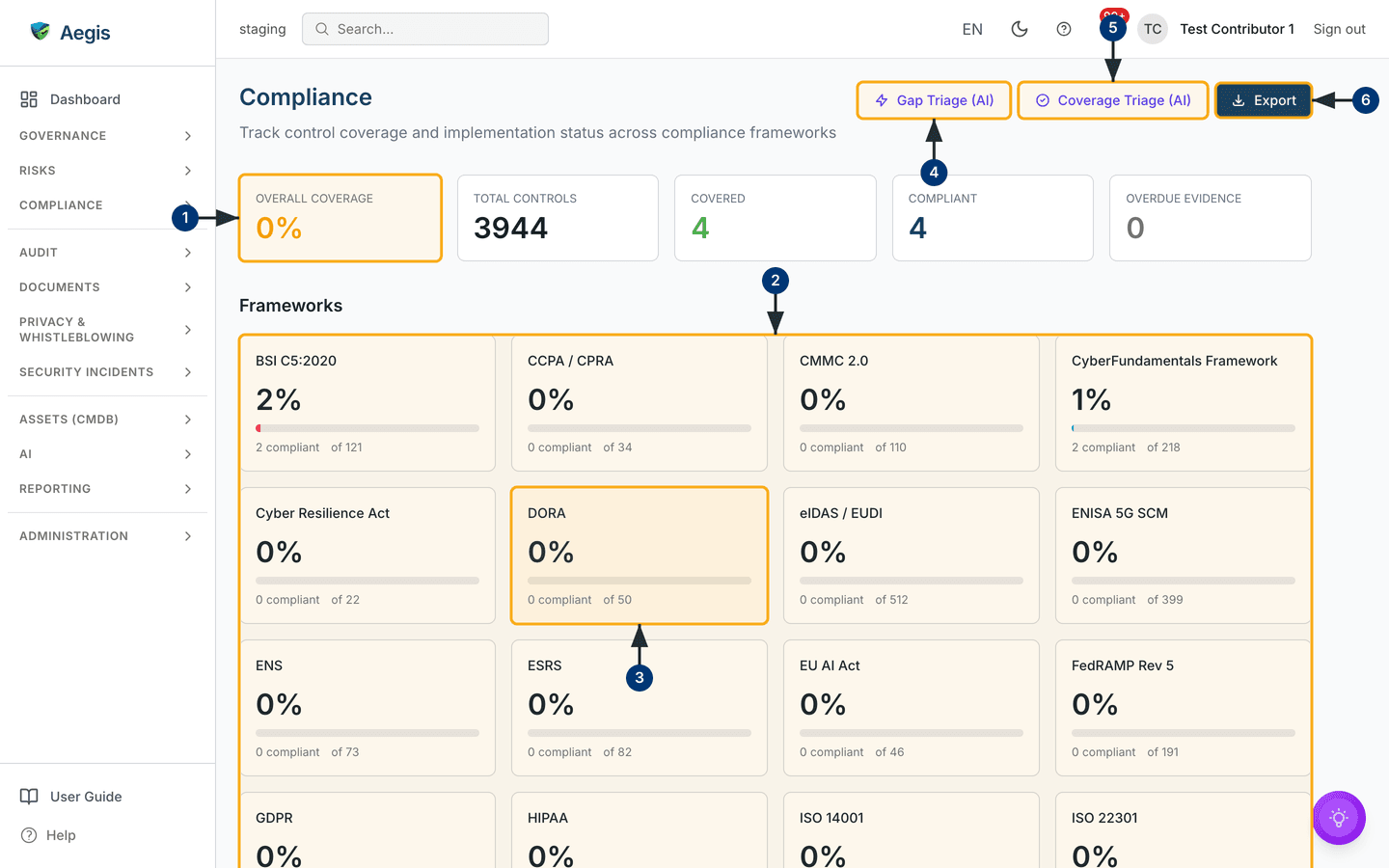
demonstration organisation below reads 0% overall coverage:
only 4 of its 3944 controls have current evidence
behind them. Coverage rises as you link work to controls, and falls back as
that evidence expires.
Who uses it
- Viewer and Contributor read everything here and can run an export — the export endpoint checks only the compliance read permission. Neither can move a requirement forward: without the compliance update permission the requirement status control is disabled and the AI proposal button is not shown at all.
- Manager and Admin hold that permission. They work the requirements inside a control, request AI proposals and confirm cross-framework status changes.
- The DORA pages carry their own permission, and it is set lower: a Contributor can configure the DORA profile, while a Viewer only reads it. The ISO 42001 page goes the other way — it needs Contributor at minimum, and a Viewer is redirected to the unauthorised page.
- The DORA and EU AI Act pages are gated by entitlement as well and are pay-per-framework; without the licence the page shows a short "not available" notice.
What's on this screen
Open Compliance from the left menu to land on
/compliance. The header reads Compliance over the line
"Track control coverage and implementation status across compliance frameworks",
with three buttons on the right: Gap Triage (AI),
Coverage Triage (AI) and Export. Below run five
numbers — Overall Coverage, Total Controls,
Covered, Compliant and Overdue Evidence —
counting only frameworks that are both enabled and applicable to your
organisation. Coverage is green from 80%, yellow from 60%, amber below.
Under the Frameworks heading is a grid of cards, four to a row,
each giving the framework name, its percentage, a progress bar and a line such
as "2 compliant of 121". The seeded tenant opens with BSI C5:2020, CCPA / CPRA,
CMMC 2.0 and CyberFundamentals Framework, and runs on alphabetically below the
fold. Only enabled frameworks appear: switching one off removes its card and its
entry in the framework filter rather than greying it out. A framework your
organisation profile marks as not applicable stays on the grid but is dimmed,
shows — in place of a percentage and carries a short "not
applicable" line. The NIS2 card additionally carries an Essential,
Important, Basic or Small badge, taken
from your NIS2 classification.
Scroll on to Control Requirements — the controls table, with
search, framework, status and owner-group filters above it (a domain filter
joins them when the controls on show are grouped that way, and CyberFundamentals
adds its own) and columns for Control ID, Description,
Framework, Evidence, Procedures,
Progress, Status, Owner group and
X-Framework. Saved AI insights and
Action items from AI close the page.
Reading your position and filtering to one framework
-
Read
Overall Coveragefirst — the share of controls carrying at least one linked evidence item that is still inside its valid-until date. The four numbers beside it break that down. -
Scan the
Frameworksgrid to see where the work is concentrated. A card at0%has no control with current evidence behind it yet. -
Select a card, say
DORA, to filter the table below to that framework. The card gains a highlighted border, the heading becomesFrameworks (click to clear filter)and the table heading readsControl Requirements - DORA. Select it again to clear the filter. -
Select
Gap Triage (AI). TheControl Gap Smart Triagewindow explains what it will do, then waits for you to pressRun Gap Triage. -
Select
Coverage Triage (AI)for the sister action, which looks at controls with nothing linked at all rather than at open gaps. -
Select
Exportto openExport Compliance Data: a format (JSON,CSV,PDF,OSCAL SSPorOSCAL AR), a scope (All Frameworks,Single FrameworkorExecutive Summary) and which details to include. The file downloads in your browser.
Working a single control
The controls table is where coverage is earned. Selecting a row opens a window headed with the control's reference and title: its requirements, its current status, everything linked to it, and any unresolved gaps and active implementation blockers Aegis has recorded.
-
Filter the table to the work in hand: search matches control text, and the
framework, status and owner-group filters narrow it further. Unmapped
controls sit at
Not Startedwith empty counts. - Select the row. The control window opens over the page.
-
With Manager rights or above,
work the requirements listed inside the control: each carries a small status
control you set to
Not Started,In ProgressorComplete. You do not set the control's own status by hand. Aegis derives it from the requirements and any unresolved gaps — every requirementCompleteand no gap open givesCompliant; every requirementCompletewith a gap still open givesNon-Compliant; any requirementIn ProgressgivesIn Progress; otherwise it staysNot Started. -
If that recalculation changes the control's status and the control has
equivalents in other frameworks, a
Cross-Framework Syncwindow asks whether to carry the new status across. You confirm or decline; it never happens silently. -
Select
AI Implementation Proposalin the footer to have Aegis draft a plan for that control. Read it, edit it, apply the parts that fit; nothing is applied until you say so. -
Close the window. The row reflects the new status. Ticking rows in the table
raises a bar with
Export CSVon it, which downloads only that selection.
The DORA page
DORA (the EU's Digital Operational Resilience Act, Regulation 2022/2554) has its
own page at
/compliance/dora because it asks for a register of information, not
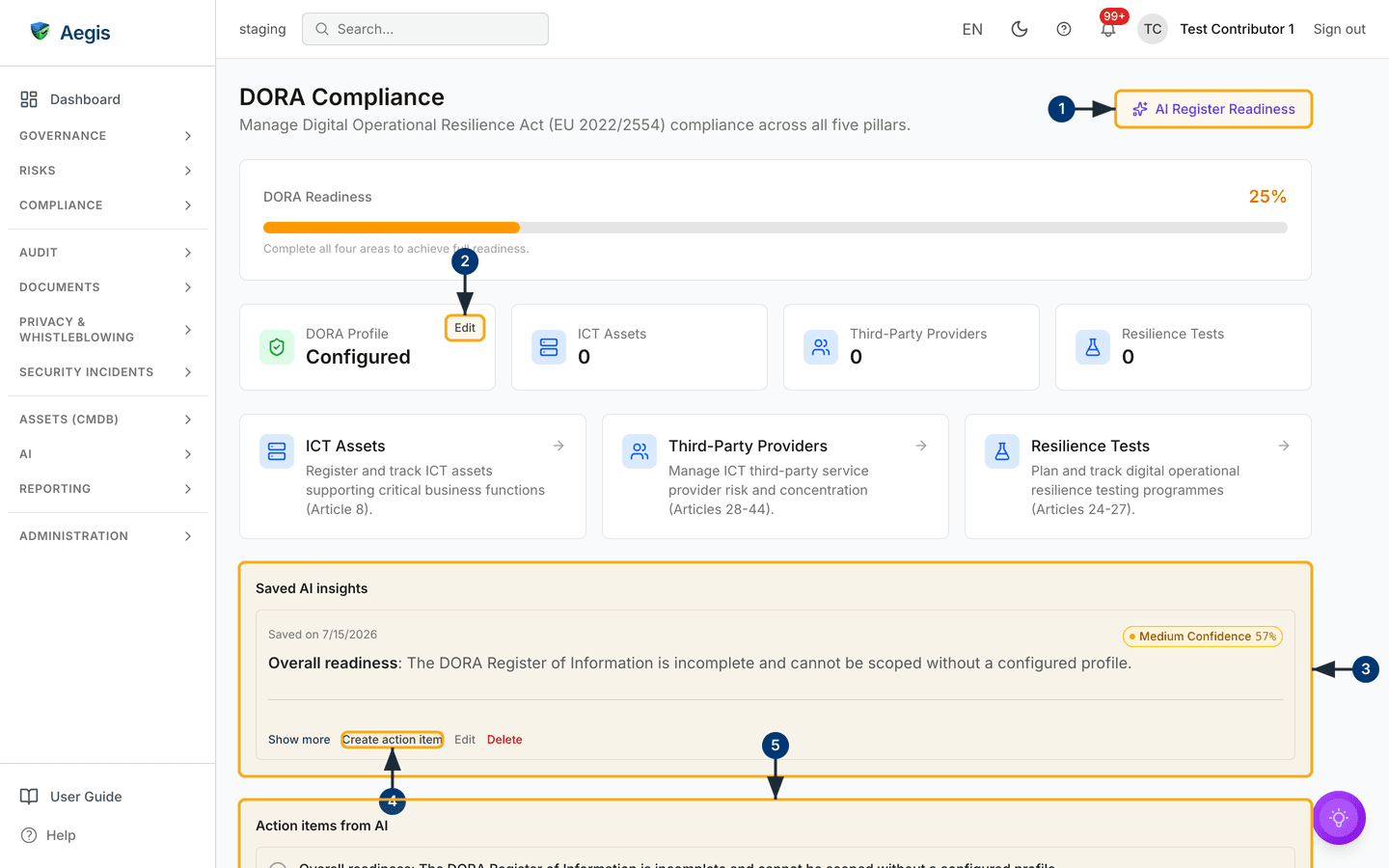
only control statuses. A DORA Readiness bar sits under the header —
25% in the capture, with the note "Complete all four areas to achieve full
readiness". Each area has a card:
DORA Profile (Configured, with Edit),
ICT Assets, Third-Party Providers and
Resilience Tests, the last three at 0 here. Navigation
cards repeat those registers with their article references.
-
Select
AI Register Readiness. Aegis scores your Register of Information against DORA Article 28(3), then lists the gaps found, each tied to an article, with three to five next steps. -
Select
Editon theDORA Profilecard to open the profile setup window — entity type (the one required field), category, sector, proportionality tier, competent authority and the applicable-since and last-assessment dates. Save, and the card readsConfiguredand the readiness bar moves. With no profile yet the button readsConfigure; without the DORA update permission there is no button at all. -
Read the
Saved AI insightspanel. Kept runs appear with their date and a confidence badge — the capture holds one saved on 15 July 2026 at "Medium Confidence 57%", reporting that the register cannot be scoped without a configured profile.Show moreexpands the full text. -
Select
Create action itemto turn a recommendation into tracked work, orEditandDeleteto amend or remove the insight. -
Check
Action items from AIat the foot. Until you create one, it says there are none and points you back toCreate action item.
The EU AI Act page
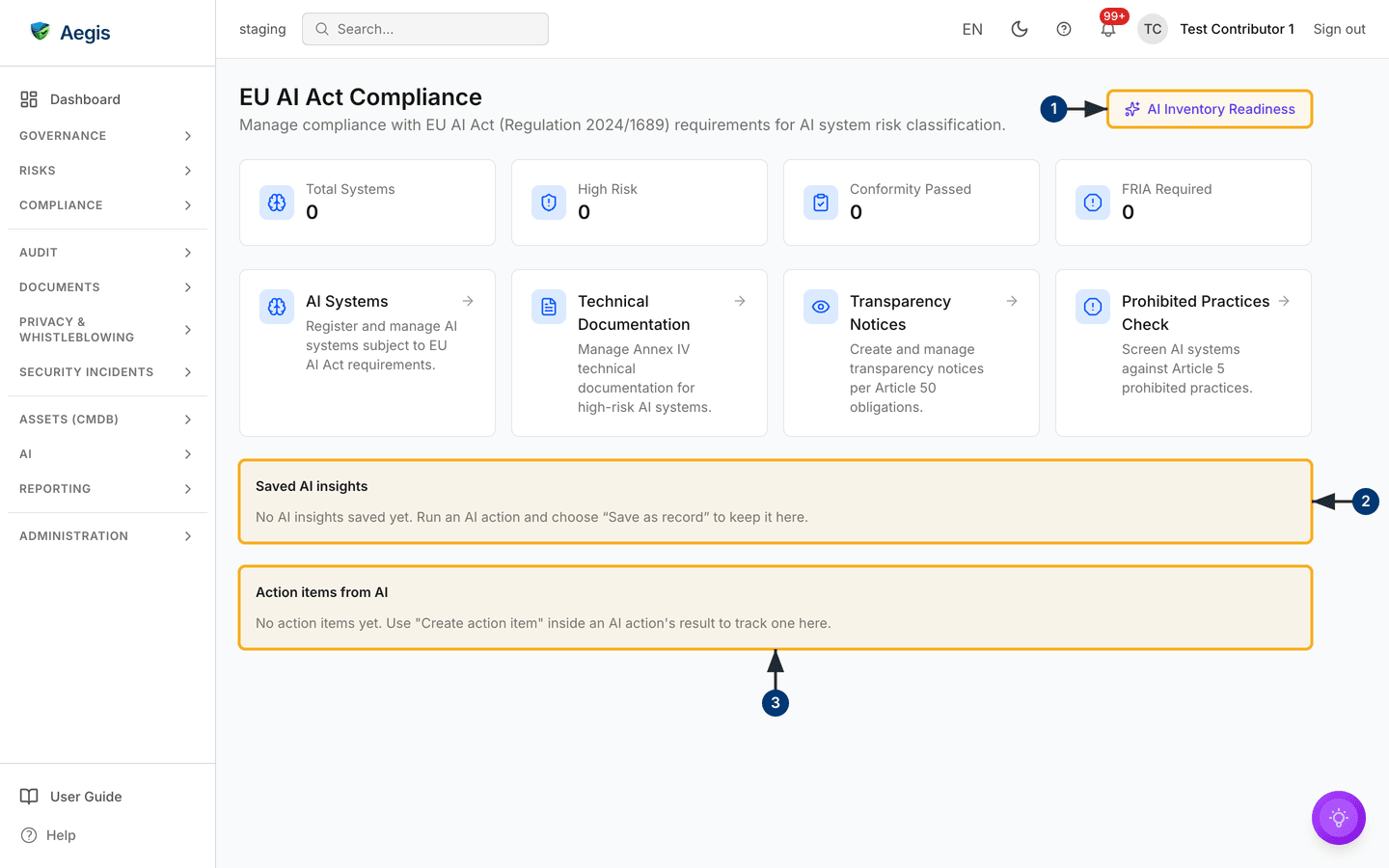
/compliance/eu-ai-act is the entry point for Regulation 2024/1689.
Four numbers follow the header — Total Systems,
High Risk, Conformity Passed and
FRIA Required — all 0 here, because nothing has been
registered. Four navigation cards lead to the registers:
AI Systems, Technical Documentation (Annex IV),
Transparency Notices (Article 50) and
Prohibited Practices Check
(Article 5).
-
Select
AI Inventory Readiness. Aegis scores your registered systems on prohibited practices, classification, risk management and data governance, fundamental-rights impact assessment, conformity and registration, tying each gap it finds to an article. With an empty inventory it says exactly that — it does not invent systems, so register them first throughAI Systems. -
Whatever you keep from a run lands in
Saved AI insights. Until then the panel says no insights have been saved yet and tells you to useSave as record. -
Action items from AIbehaves as it does on the DORA page: empty until you turn a recommendation into a tracked item.
The other compliance pages
| Page | Route | What it does |
|---|---|---|
| Cross-framework | /compliance/cross-framework |
Shows where the same requirement appears in more than one framework. |
| Deduplication | /compliance/deduplication |
AI-assisted matching of equivalent controls; you accept or reject each suggestion. |
| Mock Audit | /compliance/mock-audit |
Practice audit runs with AI-generated questions and a readiness score. Licence-gated. |
| CyFun maturity | /compliance/cyfun/maturity |
Scores CyberFundamentals controls against your target level. |
| ISO 42001 | /compliance/iso-42001 |
The AI management system control set. Needs Contributor rights and its own framework entitlement. Early — see below. |
The AI assist
Five AI actions live here — Gap Triage (AI),
Coverage Triage (AI), the two readiness runs and
AI Implementation Proposal. All behave the same way: they read what
is recorded, produce a written briefing, and leave the decision to a person.
None changes a control, status or mapping on its own.
Gap triage ranks open gaps by severity and control importance — the ranking
itself is deterministic, not generated — and sequences them into a 90-day sprint
and a 12-month horizon. Coverage triage looks instead at controls with nothing
linked at all. Any run can be kept with
Save as record and turned into an action item; every AI action is
logged and counts against your tenant's AI credits.
Tips and limits
-
Coverage and implementation status differ. A control can be covered because
current evidence is linked to it and still sit at
Not Startedbecause none of its requirements has been worked. -
Covered,Compliantand each card's "N compliant" line all report the same count — controls with current evidence, not controls whose own status readsCompliant. Read a control's status in the table or on the control itself. -
Overdue Evidenceis the number most likely to move without anyone touching the system, so check it regularly. - The figures at the top of the page are cached for about 30 seconds, so a change you make below may take a moment to show up there.
- A dimmed card means your organisation profile marks that framework as not applicable. Correct the sector or entity type in Settings.
- Custom control sets are not supported; the shipped sets follow the published texts.
- The ISO 42001 pages are early: where the control set has not been seeded, the page shows a placeholder rather than a control list, and the governance screens around it are still being built. SOC 2 is on the roadmap — not shipped, and absent from the grid.
- If framework data cannot be loaded the page still renders, with an amber banner and an empty framework list. Refresh first; if it persists, check the audit log or contact support.
Where this connects
Close gaps by linking work from Policies, Procedures and Evidence, and by recording treatment in Risks. Control Mapping, CyFun Maturity and Mock Audit cover the sub-pages listed above; DORA Compliance and EU AI Act go further into the two framework pages. Audit readiness turns this picture into a checklist, and what you act on is tracked in Action items.