Roadmap
One page for the work that moves your compliance programme forward — planned, owned and tracked across four levels, shown through six tabs.
The Roadmap is where compliance work lives. Everything on it sits in
one hierarchy: a Program holds Projects, a project
holds work packages (a bundle of related
tasks that belong together), and a work package holds
Work items (the individual tasks somebody actually does). One page
carries the lot across six tabs — Portfolio, Board,
Kanban, Gantt, Proposals and
Action Items. Reach it from the left menu under
Governance → Roadmap, or at
/compliance/roadmap. This chapter walks the
Portfolio tab, because that is where objects are created, owned,
linked and changed; the other five are summarised further down.
Who uses it
-
Viewer — the
Roadmapmenu entry is shown from Contributor upwards, so a Viewer does not see it, though a Viewer does hold read permission on roadmap objects. - Contributor — the role in the captured screen. Can create objects, edit them, assign owners, move them under a different parent, manage governance links and run the AI actions. Cannot delete: the bin icon is absent.
- Manager and Admin — all of the above, plus deleting programs, projects, work packages and work items.
What's on this screen
Reading the captured screen from the top down:
-
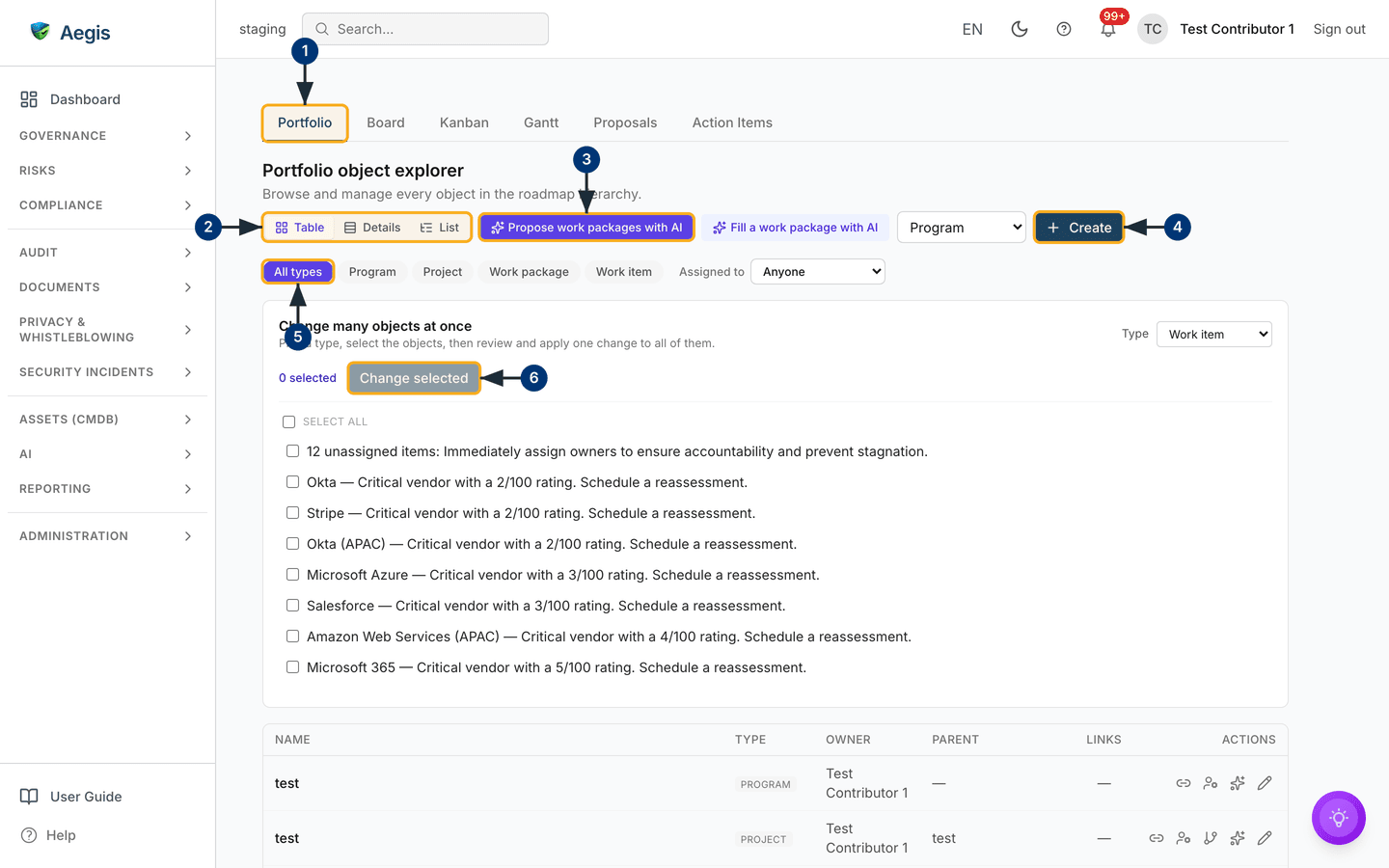
A row of six tabs, the active one underlined — here
Portfolio. -
The heading Portfolio object explorer, and on the same band
a toolbar: a three-way view switcher (
Table,Details,List), two AI buttons (Propose work packages with AI,Fill a work package with AI), a dropdown showingProgram(the level to create, labelledType to create) and aCreatebutton. -
A filter row of five pills —
All types,Program,Project,Work package,Work item— withAll typesselected, then anAssigned todropdown set toAnyone. -
A panel headed Change many objects at once, with its own
Typedropdown (hereWork item), a0 selectedcounter, a greyed-outChange selectedbutton, aSELECT ALLrow and a scrollable list of tickable work items — in this seeded tenant, follow-up tasks such as "Okta — Critical vendor with a 2/100 rating. Schedule a reassessment." -
The object table: columns
NAME,TYPE,OWNER,PARENT,LINKS,ACTIONS. The two rows visible in the capture are both namedtest— aPROGRAMand aPROJECTbeneath it, each showing—underLINKSbecause nothing is linked yet, and both owned by the signed-in user. They are demonstration rows in a test tenant, not a worked example, and the list continues below the fold. -
Each row ends with action icons: governance links, assign
owner, move to another parent, fill with AI (programs and projects only) and
edit — plus delete for a Manager or Admin. Below the table, out of shot, a
note says that governance links added here also appear in the Board's
Linkscolumn, and under it aWork packagessection creates, edits and deletes packages and moves work items in and out of them.
Find your way around the Portfolio tab
The numbered steps below match the numbered markers on the screenshot that follows.
-
Choose a tab.
Portfoliois the object explorer, and where the page opens on your first visit. Each tab you visit stays loaded, so switching back keeps its filters, expanded rows and selection. -
Pick a view.
Tableis the working view described here;Detailsgives one read-only row per object with status, priority, owner, deadline and a completion bar, andListdraws the tree as an indented outline. Neither changes anything, and your choice is remembered. -
Select
Propose work packages with AI. A dialog opens where you pick a target project and the governance sources to draw on; nothing is created until you review the proposal and apply it. -
To add something by hand, set the type dropdown to the level you want and
select
Create; that level's create dialog opens. The dropdown offers a level only once a parent for it exists, so a fresh tenant starts withProgramalone. Both controls appear inTableonly. -
Narrow the table with the type pills. The
Assigned todropdown beside them lists only people who own at least one object, plusAnyoneto clear it. When nothing matches, a short message replaces the table. -
Use
Change many objects at oncewhen one edit applies to several objects. Tick the objects; the counter to the left of the button counts them, andChange selected— greyed out at0 selected— becomes available.
Create an object
-
Set the type dropdown to the level you want and select
Create. A dialog titledCreate Program,Create Project,Create Work packageorCreate Work itemopens. -
Enter a
Name. It is required —Savestays disabled until it has content. Add aDescriptionand, if you want one, aPriority; both are optional. -
For anything below
Program, choose aParent— the program, project or package the new object belongs under. This is required too: saving without it reportsA parent is required.and nothing is created. -
Select
Save. The dialog closes, a confirmation readingCreated "…"appears, and the object joins the table — and the Board, Kanban and Gantt tabs, which read the same hierarchy.
Owners, parents and governance links
The icons at the right of each row are the per-object actions, left to right. They are not a sequence — use whichever one the job needs.
- The links icon opens the governance-links panel. It lists the artefacts already linked — policies, procedures, framework controls, risks, vendors and evidence — and lets you add one by picking a register and searching it, or remove one.
-
The assign owner icon opens a dialog with one
Ownerdropdown; leaving it blank unassigns the object. Save and theOWNERcolumn updates. - The move icon re-parents an object — a project under a different program, a work item into another package. It is greyed out when no candidate parent exists, and absent on programs.
-
The edit icon reopens the same form, titled
Edit …, with the object's name, description and priority loaded. The parent is not offered here — use the move icon for that. - Manager and Admin also see a delete icon, which asks for confirmation first.
Removing a program takes its projects, their work packages and their work items with it. The confirmation dialog says so before anything is written — "This also removes everything beneath it." The records are soft-deleted — kept in the database for the audit trail, but gone from every view and every count. If you only want the object out of the way, move its children to another parent first.
Change many objects at once
-
Set the panel's
Typedropdown to the level you want. The list reloads with objects of that level and any earlier selection is cleared. -
Tick the objects, or use
SELECT ALL. The counter updates as you go and aClear selectionlink appears. -
Select
Change selected. Step 1,Choose values, listsAssignee,Status,Start date,DeadlineandPriority. Tick each attribute you want to change and give it a value; anything unticked is left alone.Statusis not offered for programs. -
Select
Next. Step 2,Review & apply, shows one row per changed attribute with its destination value and how many objects it will touch. -
Select
Apply. The changes are written together, a message reports how many objects were updated, and the selection clears.
The other tabs
| Tab | What it shows |
|---|---|
Board |
A sortable, filterable grid across the hierarchy, with inline editing of status, priority and completion and drag-and-drop to re-parent a row. |
Kanban |
The same objects as cards in five columns — To do,
Doing, Blocking, Solved,
Done. Drag a card to change its status; program cards
are not draggable, as they roll their status up.
|
Gantt |
A timeline. Each bar shows its planned span against a thinner baseline bar, with a red deadline marker and amber for the critical path. Drag a bar to reschedule, or draw a dependency between rows. |
Proposals |
Every work item that came from an AI implementation proposal saved anywhere in Aegis, each showing the object it came from. Empty until a proposal is saved on a source object such as a framework control or a risk. |
Action Items |
The follow-up actions raised from AI insights elsewhere, folded in from what used to be its own page — see Action items. |
The AI assist
-
Propose work packages with AI— pick a target project and any mix of governance sources (policies, procedures, baseline security standards, risk mitigations). Aegis proposes work packages with candidate work items; only the ones you accept are created. -
Fill a work package with AI— for one package, Aegis suggests which work items from other packages in the same program to move in, and which new ones to create. -
Fill with AIon a row — the same idea for a container: on a program it suggests projects to move in or create, on a project it suggests work packages. The icon is on program and project rows only.
Each proposal is a draft on screen. Nothing is written until you tick what you want and apply it, and closing the dialog leaves everything unchanged. AI assists; the organisation decides.
Tips and limits
-
The table view is the working view. The create control, the
filters and the bulk panel appear in
Tableonly;DetailsandListare read-only. The two AI buttons stay in all three views. In an empty tenant the only level you can create isProgram— the levels below it appear once a parent exists. - Empty states are plain. With nothing recorded the table shows "No roadmap objects yet."; filtering to a level with none shows "No objects of this type yet."; the bulk panel shows "No objects of this type you can edit."
-
Tabs remember themselves. The page reopens on the tab you
last used, and a link carrying
?tab=overrides that — which is how theAction Itemsmenu entry lands you on its tab.
Where this connects
- Action items — now a tab on this page.
- Compliance frameworks and Risks — controls and mitigations you can link to roadmap work, and the origin of most AI proposals.
- Policies, Procedures, Security standards, Vendors and Evidence — the other proposal sources and link targets.
- Governance bodies — the boards that review whether this work is on track.