Governance Bodies
Record the forums that govern your organisation — the security board, the management review, the steering committee — together with their meetings, minutes and the follow-up actions they produce.
A governance body (a standing forum with a mandate to decide and oversee) is where compliance decisions are actually taken. Aegis keeps a record of each one: who chairs it, how often it meets, who sits on it, what it decided, and what it asked someone to do next. That is what an auditor asks for when they want to see that oversight happens on a schedule rather than by accident, and it underpins the management system (a structured way of running and proving an ongoing programme) behind standards such as ISO 27001 and ISO 42001, the international standard for managing AI responsibly.
Two neighbouring modules sit beside this one in the
Governance group and are covered here in outline, with full
walkthroughs in their own chapters:
Security Standards records the technical
norms you hold yourself to, and
Security Processes records the security
activities you run, evidenced by linked tickets. Standards set the bar,
processes show the bar being met, and governance bodies oversee both.
Who uses it
Every role can read all three modules; what differs is who may create, change or
delete. Buttons for actions you cannot take are not shown at all. The
screenshots here were captured as a
Contributor, which is why no
New governance body button appears in the page header.
| Module | Create and delete | Update | Read |
|---|---|---|---|
| Governance bodies (including minutes and actions) | Admin, Manager | Admin, Manager, Contributor | All roles |
| Security processes (including ticket links) | Admin, Manager | Admin, Manager, Contributor | All roles |
| Security standards (including requirements and policy links) | Admin, Manager | Admin, Manager | All roles, including Viewer |
What's on this screen
Open Governance Bodies from the Governance group in
the sidebar, or go straight to /governance-bodies. The header shows
the page title and the line "Define the organization's governance forums, record
their meeting minutes and track the resulting action items." An Admin or Manager
also sees a New governance body
button at the top right of that header.
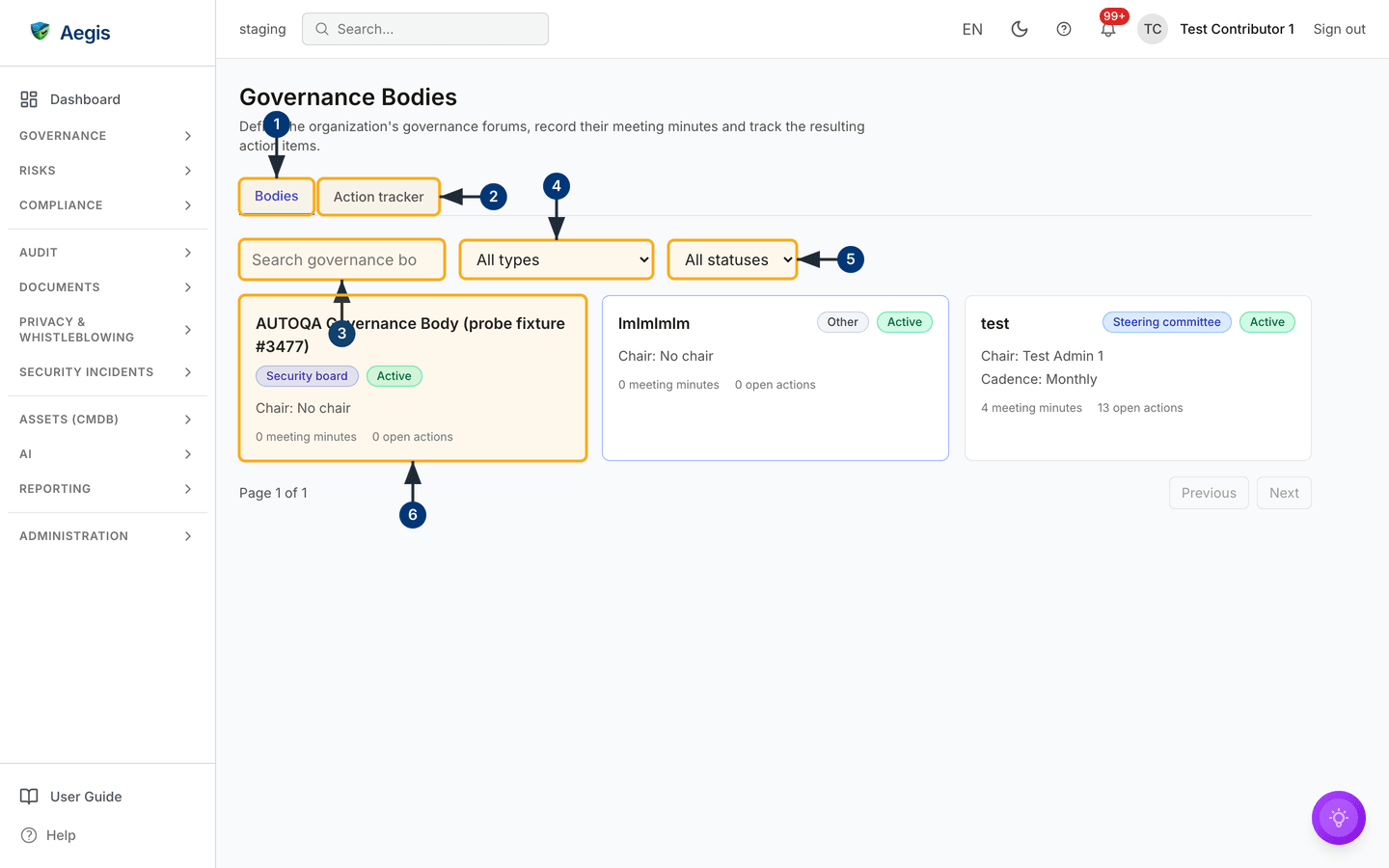
Below the header is a tab bar with two views: Bodies, which is
selected when the page loads, and Action tracker. The
Bodies view opens with a filter row — a
Search governance bodies… box, an All types dropdown
and an All statuses dropdown — above a grid of cards, with
Page 1 of 1 and Previous / Next buttons
underneath. Each card carries the body's name, a type badge and a status badge
on the same line, then its chair and meeting cadence, then two counts: meeting
minutes and open actions. The whole card is a link to that body's detail page.
Two bodies are present in the capture. lmlmlmlm is typed
Other with status Active, has no chair and no cadence,
and shows 0 meeting minutes and 0 open actions —
defined but not yet used. test is a
Steering committee, also Active, chaired by Test Admin
1 with a Monthly cadence, and shows
4 meeting minutes and 13 open actions. Where a tenant
has no bodies at all, an empty state replaces the grid, and the invitation to
create the first one appears only for an Admin or Manager.
-
Stay on the
Bodiestab. This is the view the page opens on, and it shows each governance forum as a card. -
Select
Action trackerto swap the card grid for a single table of follow-up actions gathered from every body, with its own filters. - Type into the search box to find a body by name. The grid narrows as you type, after a short pause, and paging resets to page one.
-
Choose an entry in the
All typesdropdown — security board, management review, steering committee, risk committee, audit committee or other — to show only forums of that kind. -
Choose
ActiveorInactivein theAll statusesdropdown to hide bodies that no longer meet. If a combination of filters matches nothing, the message "No governance bodies match the current filters." appears in place of the cards, with the filter row still there so you can clear it. -
Select a card —
test, for example — to open that body's detail page, with its meetings, minutes and actions.
Working the cross-body action tracker
The Action tracker tab answers the question a chair asks between
meetings: what did we ask people to do, and has it happened? It replaces the
cards with one table, whose columns are Action, Body,
Owner, Due date, Status,
Source minutes and Actions. There is no separate
screenshot of this tab in this guide; the tab itself is visible in the figure
above.
-
Select the
Action trackertab. The table loads with every action from every body. -
Narrow it with the filter row above the table:
All body typesandAll bodiesrestrict the source forum,All statusesandAll ownersrestrict the action itself, and theOverdue onlycheckbox leaves only the items past their due date. -
Use
Add action itemto record a follow-up, or the per-row controls to edit one or change its status in place. Each change saves at once and is confirmed with a short message. Deleting an action is reserved for an Admin or Manager, so the delete control is absent for a Contributor. -
Follow the
Source minuteslink on a row to open the meeting the action came from, so the decision behind it stays visible.
Inside a body: meetings, minutes and actions
Opening a body shows its name with the type and status badges, its description,
chair, cadence and open-action count — plus an overdue count in warning ink when
there is one — then its mandate and member list. Beneath that sit the next
scheduled meeting, any saved AI insights, and three tabs: Meetings,
Minutes (which opens by default) and Actions. This
guide has no capture of the detail page, so the steps below describe the flow
without one.
-
On the
Meetingstab, chooseSchedule meeting. The meeting appears in the list with its title, scheduled date, status, location and attendees, and it also fills the next-meeting panel above the tabs. Row controls move it through its lifecycle —Start meeting,Complete meeting,Cancel meeting— andAgendaopens the agenda to write or read. -
On the
Minutestab, chooseRecord minutesand fill in the title, meeting date, attendees, agenda, notes and decisions. The new minute appears in the list with its status, date, recorder and action-item count. -
Select a minute to open it in place. Its toolbar carries
Send invitation, which emails the body's members the meeting details — you choose the recipients and their email addresses, the email language and an optional note. While the minute isDraftyou can keep editing it; chooseFinalizeonce the discussion is captured and it becomesFinaland content-locked, withReopenandCreate new versionavailable afterwards. Record the follow-ups the meeting produced withAdd action item, which anchors each one to this minute. -
On the
Actionstab, work the same follow-ups filtered to this body alone — set owners and due dates, and move each action along as it is completed. -
Use the header toolbar for the body itself.
Editappears for anyone who may change the body — Admin, Manager or Contributor — and reopens the same form used to define it.Deleteappears only for an Admin or Manager; it asks for confirmation, then hides the body's minutes and actions from view. That delete is a soft delete: the record stays in the database for audit purposes, and the change is written to the audit log.
The member list on a body is free text — a name, an optional role and an optional email address. Adding somebody as a member does not create an Aegis account for them or grant them any access. Accounts and roles are managed under Settings.
Security standards — the screen in brief
Open Security Standards from the Governance group, or
go to /security-standards. The layout follows the same pattern with
two differences: there is no tab bar, and there is no type dropdown — so the
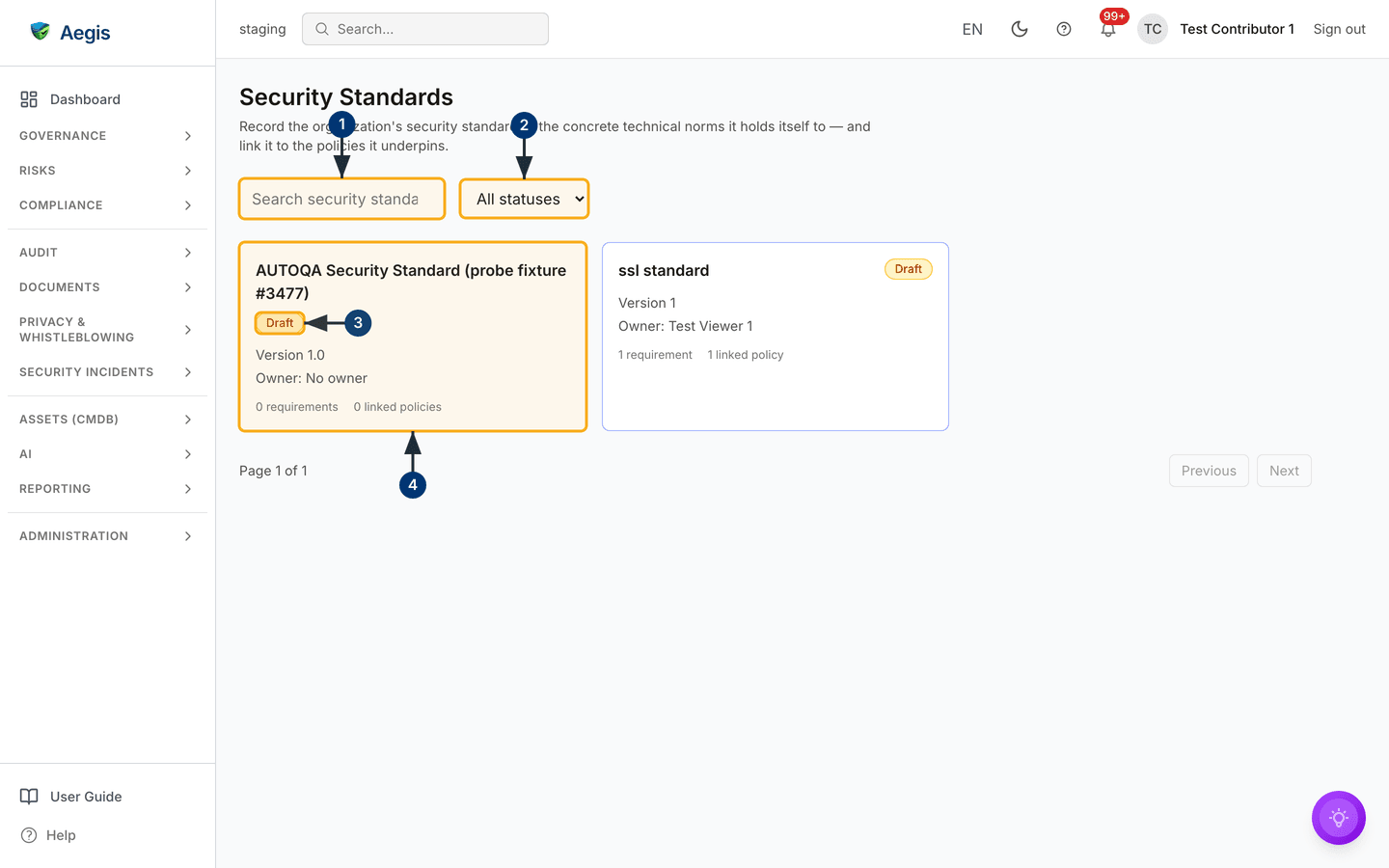
filter row holds a Search security standards… box and an
All statuses dropdown, and the card grid sits straight beneath it.
Each card shows the standard's name with a status badge, its version, its owner,
and counts of requirements and linked policies. The capture below holds one
standard — ssl standard, status Draft,
Version 1, owned by Test Viewer 1, with
1 requirement and 1 linked policy.
- Type into the search box to find a standard by name.
-
Use the
All statusesdropdown to narrow the grid to one lifecycle stage. A standard isDraft,ActiveorRetired. -
Read the status badge on the card.
Draftmeans the standard is still being written, so nothing should be measured against it yet. - Select the card to open the standard, where you itemise its requirements and link the policies that enact it. Both are reserved for an Admin or Manager — a Contributor sees the standard but cannot change it.
Security processes — the screen in brief
Open Security Processes from the Governance group, or
go to /security-processes. The filter row has a
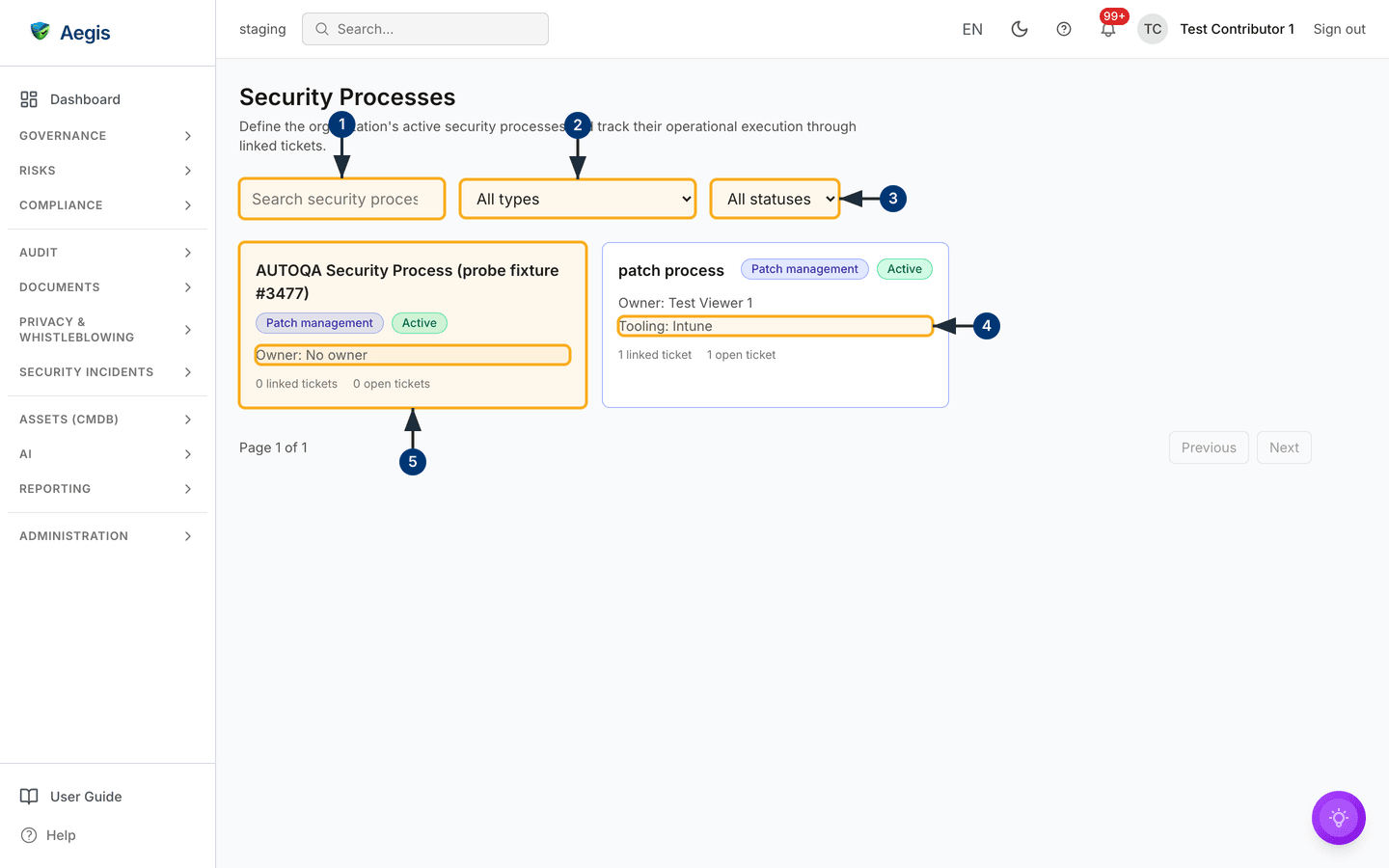
Search security processes… box, an All types dropdown
and an All statuses dropdown. Each card shows the process name with
a type badge and a status badge, then its owner and the tooling that runs it,
then counts of linked and open tickets. The capture below shows one process:
patch process, typed Patch management, status
Active, owned by Test Viewer 1, tooling Intune, with
1 linked ticket and 1 open ticket.
- Type into the search box to find a process by name.
-
Use the
All typesdropdown to show one kind of activity — patch management, vulnerability management,EDR,NDR, SIEM monitoring, incident response, backup and recovery, access management, change management or other. -
Use the
All statusesdropdown to chooseActiveorInactive, so processes that no longer run can be kept as evidence without cluttering the grid. - Read the owner and tooling lines. These are the two facts an auditor asks for first: who is accountable, and what performs the work.
- Select the card to open the process, where you link tickets as evidence that it runs day to day. Each linked ticket is tagged with the system it came from — GitLab, Jira, ServiceNow, GitHub, SharePoint or other — and Aegis holds the link, not the ticket itself. A Contributor can maintain those links; creating or deleting the process needs an Admin or Manager.
The AI assist
Each of the three modules offers AI help from the detail page toolbar, and every one of them produces a draft for a person to review. Nothing is finalised, closed or changed on your behalf.
-
Draft AI Agendareads the body's mandate, cadence and members, then gathers the item types you tick — framework controls needing attention, open roadmap work, open high and critical risks, and policies or procedure documents in draft or under review. Standing items (approval of the previous minutes and a review of open actions) are always included, even if you tick nothing. You edit, add or remove items in the proposed agenda before applying it to a draft meeting minute or creating one from it. -
Smart Triageranks what this body should discuss next, andAction Summaryreports how its follow-ups are tracking. Either can be saved as a record against the body. -
Within a minute,
Draft Minutes (AI)turns the recorded attendees, agenda and rough notes into formal minutes you apply to the notes field yourself — it warns you before overwriting what is there.Extract action items (AI)proposes the follow-ups it finds in the text; you choose which to create and who owns each one. -
Review & Mapon a standard checks its baseline and requirements and suggests policies to map to.Review Gaps & ControlsandValidate & Optimizeon a process test its objective against its tooling and cadence, name framework controls it should map to, and flag stale or duplicate ticket links.
Each of these reasons over your own records inside Aegis. Where the record is thin, the draft will be thin too — a signal to improve the record, not to accept the draft.
Tips and limits
-
Give every body a chair and a cadence. Both appear on the card, and a body
with neither — like
lmlmlmlmin the capture — tells a reader nothing about whether oversight is happening. - The open-action count is the most useful number on this screen. A body with many open actions and few minutes is meeting without following through.
- These are early modules: card lists, detail pages and tables rather than dashboards or maturity scoring, and none of them produces a certification artefact. SOC 2 support is on the roadmap and is not shipped.
- Recording a body, a standard or a process does not make the organisation compliant with anything. It records what you decided and what you run, so the claim can be checked — and keeping that current is continuous work. A stale minute tells an auditor as much as a missing one.
Where this connects
The two neighbouring modules have their own chapters: Security Standards and Security Processes. Standards link to the documents that enact them in Policies. Follow-ups raised in meetings sit alongside the wider Action items queue, and every change is recorded in the audit log. Because this record supports management standards such as ISO 27001 and ISO 42001, it works with Compliance frameworks and with Audit readiness when an assessment is coming. Agenda drafts draw on Risks and Incidents, so the better those records are, the better the agenda.