API Keys
Mint, name and revoke API keys — the secret tokens that let your own scripts and systems talk to Aegis without a person signing in.
Most people never open this screen. It exists for the cases where another system has to read from or write to Aegis on a schedule: a build pipeline that uploads evidence after every release, a reporting script that pulls compliance figures into a spreadsheet, or an integration your own team has written. Rather than sharing a colleague's login, you create a named key, hand it to that one system, and switch it off the moment it is no longer needed. Each key is independent, so revoking one never disturbs the others.
Be clear about what this page is today. It mints real keys and stores them properly, and the checks behind a key — status, expiry, scopes, IP allowlist, rate limit — are written and tested. The other half is missing: at the time of writing, no shipped Aegis endpoint authenticates a caller with a key created here. Treat this screen as groundwork for the public API, and ask your Aegis contact which endpoints your key will reach before you build anything against it.
Who uses it
- Admin The only role with access. Administrators can list keys, create them and revoke them.
-
Manager
Contributor
Viewer No access. Opening
/settings/api-keysas any of these roles sends you to the/unauthorizedpage, and theAPI Keysentry does not appear in their left menu at all.
The screen is also gated by your licence. Programmatic API access is part of the
Professional and Enterprise plans. On a plan without
it, the page loads a locked state instead of the form: a padlock, the heading
API Keys, the message
This feature is not available on your current plan. Upgrade to enable this
feature.
and a View Plans button that takes you to the licence page. There
is a second switch behind it: if whoever provisions your Aegis has turned the
API Keys module off for your organisation, the menu entry disappears too. See
Roles and what each can do for the wider
picture of administrator-only areas.
What's on this screen
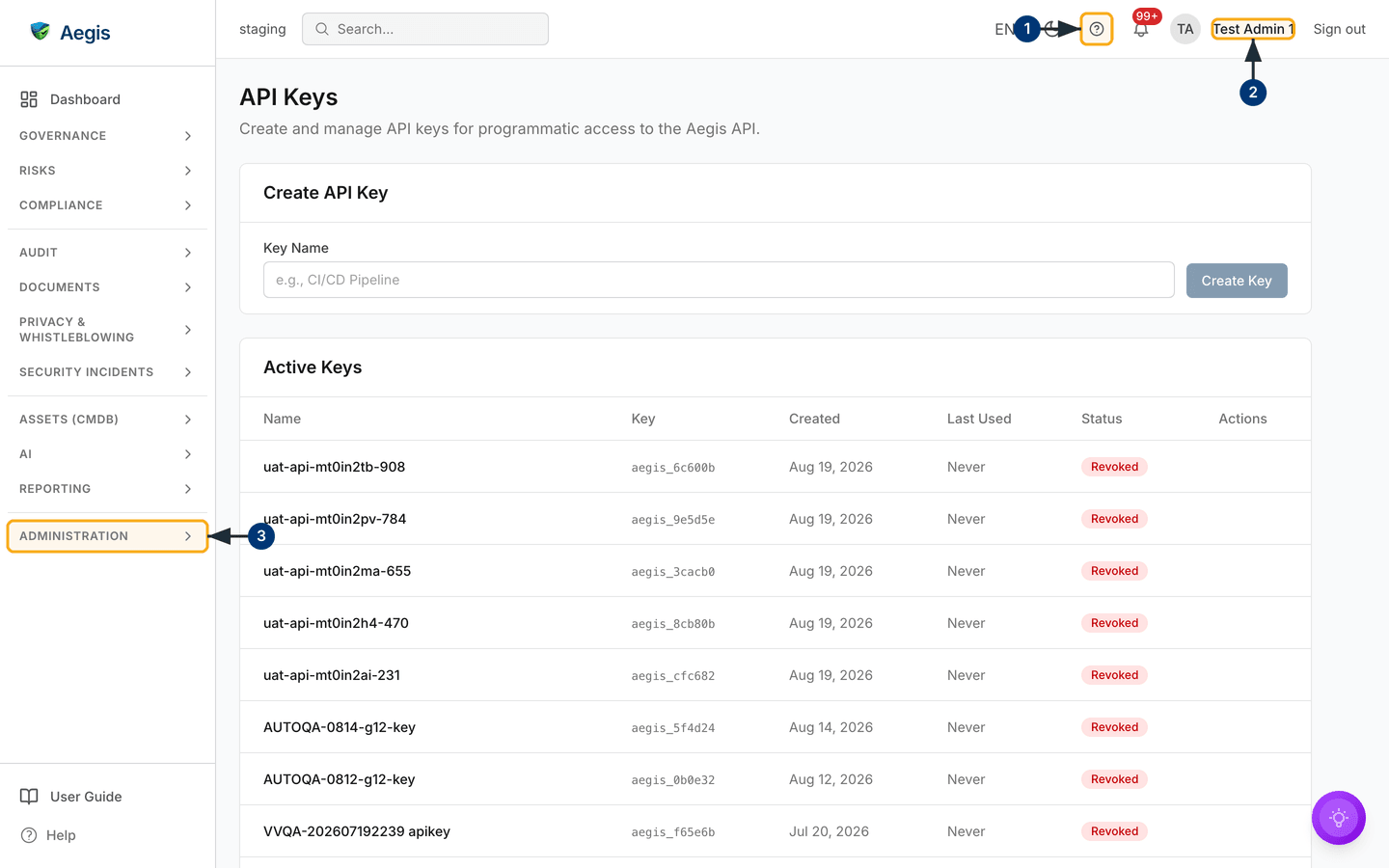
The layout is deliberately plain — this is a settings page, not a working module. There is no filter bar, no search, no sort and no side panel.
-
The page header is the title
API Keyswith the line Create and manage API keys for programmatic access to the Aegis API. underneath. There is no button in the header; creating happens in the card below. -
The
Create API Keycard holds a single field,Key Name, with the placeholdere.g., CI/CD Pipeline, and aCreate Keybutton beside it. In the capture below the button is greyed out — it stays disabled until you type a name. -
The
Active Keyscard is a six-column table:Name,Key,Created,Last Used,StatusandActions. TheKeycolumn shows only the first twelve characters of the token —aegis_6c600band the like — never the full secret.Last UsedreadsNeveruntil a key is first used to authenticate, so today every row showsNever. -
Around the page is the usual application chrome: the left
menu with its groups, and the top bar with the environment label, search,
language, the light/dark toggle, the help
?, notifications, your name andSign out.
The screenshot was taken on a staging organisation seeded by earlier test runs,
so the table is full of machine-generated names such as
uat-api-mt0in2tb-908. Every one of them carries the status
Revoked, which is why the Actions column is empty:
only a live key offers a Revoke link. On a fresh organisation you
would instead see the message
No API keys created yet. Create your first API key above. in place of
the table.
Despite the heading, the table is the full history: revoked and expired keys
stay listed so the record of what once existed is not lost. Read the
Status column, not the card title, to tell which keys still
work.
Opening the screen
-
Select the help
?in the top bar to read along. Aegis opens its in-app copy of this guide at the topic for the page you are on. -
Check the name in the top right — it tells you which account you are signed
in as. Only an administrator can open this page; signed in as anyone else
you will not find the link in your menu, and typing the address sends you to
/unauthorized. -
In the left menu, select the
ADMINISTRATIONgroup. It expands to list the settings pages, andAPI Keysis among them. Select it and the page loads at/settings/api-keys, showing theCreate API Keycard above theActive Keystable.
Create a key
-
In the
Key Namefield, type a name that says which system will use the key —CI/CD PipelineorMonthly report export, for example. The name can be up to 100 characters. As soon as the field is not empty, theCreate Keybutton turns solid navy and becomes clickable. -
Select
Create Key. The button changes toCreating…while Aegis generates the token. -
A green banner appears above the card reading
API key created successfully. Copy it now — it won't be shown again., with the full token in a monospaced box and a
Copy & Dismissbutton. Select that button: the token goes to your clipboard and the banner closes. Paste it straight into the secret store of the system that needs it. -
The name field clears and the table refreshes. Your new key is at the top
with status
Active, its twelve-character prefix in theKeycolumn, today's date underCreated, andNeverunderLast Used.
Aegis stores only a one-way hash of the key, so there is no screen anywhere that can show it to you again. If you navigate away or dismiss the banner before copying, revoke the key and create a replacement. Treat the token like a password: never paste it into a chat message, a ticket or an email.
Revoke a key
Revoking switches a key off immediately — there is no grace period. Any system still presenting it starts failing authentication at once, so where the integration must keep running, create the replacement and move it into the consuming system first.
-
Find the key in the table by its
Name. ARevokelink appears in theActionscolumn only for rows whose status isActive. -
Select
Revoke. A confirmation dialogue titledRevoke API keyasks Are you sure you want to revoke this API key? This action cannot be undone., withCanceland a redRevokebutton. -
Select
Revoketo confirm. The dialogue closes, the table reloads, the row's status readsRevokedand itsRevokelink disappears. The row stays in the table as a record.
What the status column means
| Status | What it means |
|---|---|
Active |
The key is live: it is the one status the key checks accept, and the
only status that offers a Revoke action.
|
Revoked |
An administrator has switched the key off. It no longer authenticates and cannot be turned back on — create a new key instead. |
Expired |
The key has passed an expiry date and no longer authenticates. Keys created from this screen are made without an expiry date, so you will normally only see this status on keys set up for you by your Aegis contact. |
What a key can and cannot do
- Two actions only. This screen creates keys and revokes them. There is no rename, no rotate button and no way to edit a key after it exists. Rotation is a manual cycle: create, switch over, revoke.
- A rate limit is stored, not yet applied. Every key is created carrying a limit of 100 requests per hour. Plan your calls around that figure rather than polling in a tight loop.
- Scopes are not set from this screen. The underlying key record supports scopes and an IP allowlist, but the create form asks only for a name. If you need a narrowly scoped key, raise it with your Aegis contact.
- Creation and revocation are audited. Both write an entry to the audit log naming the administrator who acted and the key by name; the creation entry also records the twelve-character prefix. The secret itself is never written anywhere.
- Odd-looking names are hidden. Aegis filters out keys whose names match the patterns left behind by security scanners. If a key you expect is missing from the list, that filter is the likely reason; a straightforward, human name avoids it.
On deployments where the API key service is not yet switched on, the screen loads normally and shows the empty-state message rather than an error. That is expected behaviour, not a fault — check with your Aegis contact before assuming your keys have gone.
Tips and limits
-
One key per system. Separate keys mean a leak in one place
can be closed without breaking everything else, and once calls are possible
Last Usedwill tell you which integration is actually calling. -
Name for the reader who inherits it.
Nightly evidence uploadis a name a colleague can act on in a year's time;test2is not. -
Review the list on a schedule. A key nobody can account for
is worth revoking to minimise your exposure. With
Last Usedstill readingNevereverywhere, the name and theCreateddate are all you have to judge by — one more reason to name keys well. - Prefer a connector where one exists. For named third-party services, a connector is set up and monitored inside Aegis, which is easier to reason about than a raw key.
- You cannot test an integration end to end yet. Until an endpoint accepts these keys there is nothing to call, so treat any automation on this route as unproven.
Where this connects
- Settings — the wider administration area this page belongs to, including licence and plan details.
- Webhooks — the other half of programmatic integration: keys let a system call Aegis, webhooks let Aegis call a system.
- Connectors — ready-made integrations with named services, usually a better fit than a hand-built one.
- Audit log — where every key creation and revocation is recorded.
- Roles and what each can do — why this screen is administrator-only.
- Getting help — if a key stops working or the page shows a locked state you did not expect.