CyFun Maturity
Score every CyberFundamentals control for how well it is written down and how well it is actually practised, compare both against your target level, and work down the list of controls that fall short.
This is the maturity workbench for CyFun (the
CyberFundamentals Framework — the Belgian baseline cybersecurity framework
published by the Centre for Cybersecurity Belgium). Every CyFun control carries
two scores: a documentation score for how well it is written up, and an
implementation score for how well it is actually run.
Maturity (how reliably and repeatably
something is done, scored 1 to 5) is measured against
the target set by your organisation’s CyFun assurance level, and the page
collects every control below it. Aegis can suggest scores from what you have
linked; a person reviews and applies them.
Open the COMPLIANCE group in the left navigation and select
CyFun Maturity; the route is
/compliance/cyfun/maturity. CyFun is licensed per framework —
without it, the route shows a “framework not available” placeholder.
Who uses it
Opening the page requires
Contributor or above. A
Viewer never sees
CyFun Maturity in the left navigation, and is sent to
/unauthorized
when opening the route directly. Reading and scoring are separate rights:
- Contributor — read every tab, run the AI maturity narrative, ask for auto-score suggestions and open the Quick-Start wizard. Saving a score, and applying suggestions, are refused.
- Manager and Admin — all of that, plus setting scores and applying auto-score suggestions.
Aegis does not hide the scoring controls from a
Contributor. On
Gaps the refusal reads
Failed to save score. Please try again.; on the other tabs the
button quietly falls back to its old value. If a score will not stick, check
your role before anything else.
Each saved score is written to the audit log against the person who set it.
What’s on this screen
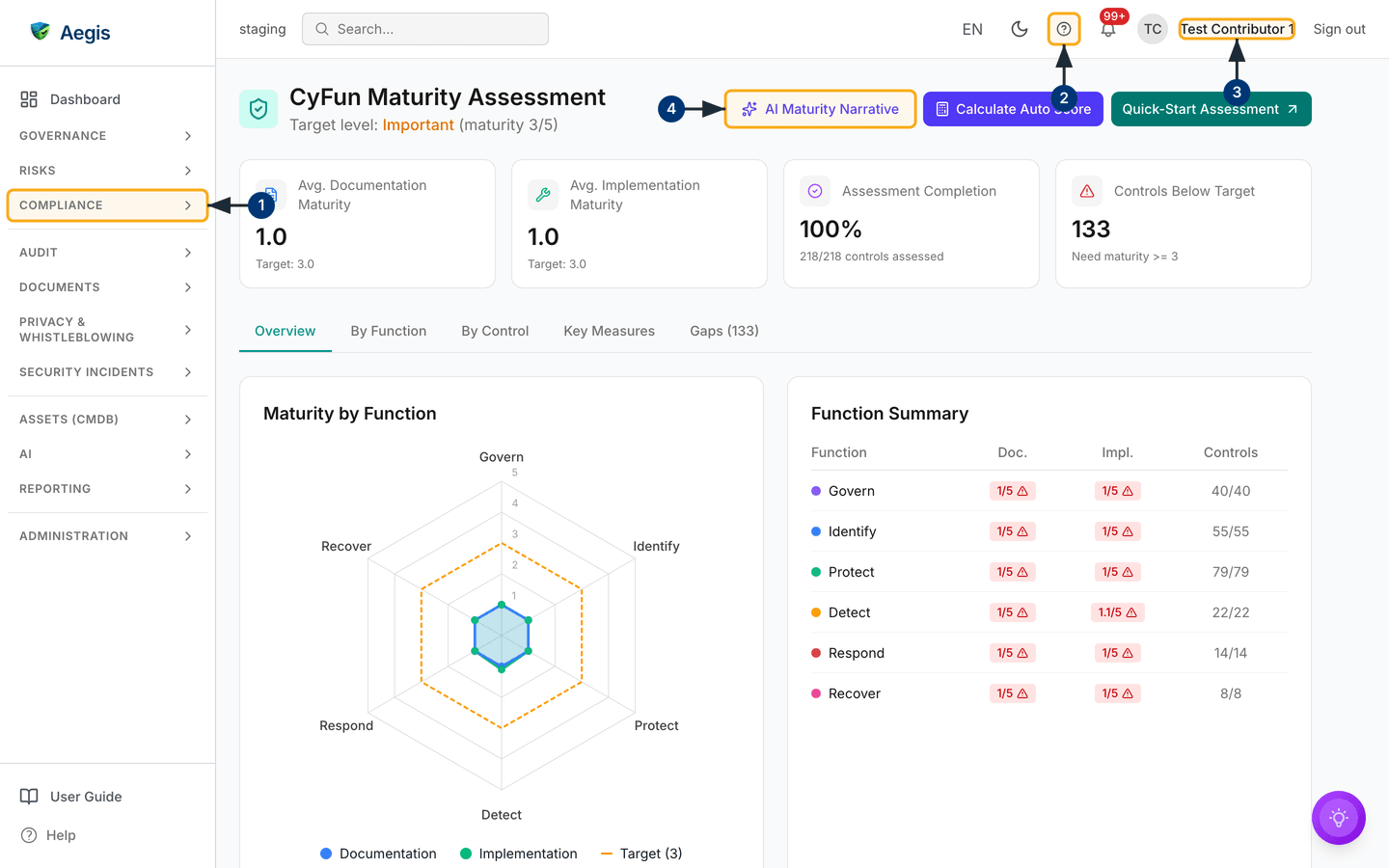
The header shows a teal shield, the title
CyFun Maturity Assessment, and beneath it
Target level: Important (maturity 3/5) with the level in amber.
Three buttons sit to the right: AI Maturity Narrative (outlined,
sparkle icon), Calculate Auto Score (indigo, calculator icon) and
Quick-Start Assessment (teal, with an arrow marking that it opens
another page).
Four summary cards follow: Avg. Documentation Maturity and
Avg. Implementation Maturity, each with its target underneath;
Assessment Completion; and Controls Below Target. The
seeded tenant in the capture reads 1.0 and 1.0 against
a target of 3.0, 100% completion across
218/218 controls, and 133 below target — every control
scored at the floor rather than left unscored.
Then a tab strip: Overview, By Function,
By Control, Key Measures and Gaps with
the gap count in brackets. Overview puts a
Maturity by Function radar chart on the left and a
Function Summary table on the right. Below whichever tab you have
open — not only Overview — sit a saved AI insights panel and an
action-items list.
-
In the left navigation, select the
COMPLIANCEgroup. It expands; selectCyFun Maturityand this dashboard opens. -
Select the help
?icon in the top bar. Aegis opens this User Guide at the matching chapter on the/helppage; your browser’s back control returns you to the scores. - Check the account name at the top right. Scoring is recorded against whoever is signed in.
-
Select
AI Maturity Narrativeto open the briefing dialog described under The AI assist below. The dashboard stays behind it until you close the dialog.
Read your standing at a glance
Both averages are means across every control against the same target, so the
distance between them tells you whether the weakness is in the paperwork or in
the practice.
Assessment Completion is the share of controls carrying any score;
below 100%, the averages come from a partial picture.
Look at maturity function by function
The radar chart plots the six CyFun functions — Govern, Identify, Protect,
Detect, Respond and Recover. A blue shape is documentation maturity, a green
shape implementation maturity, and a dashed amber ring marks the target;
anything inside the ring is short. The
Function Summary table repeats this as numbers: a coloured dot per
function, badges such as 1/5 under Doc. and
Impl., and an assessed-versus-total count such as
40/40. A badge is green when the target is met and red with a
warning triangle when below — in the capture all twelve are red, and Detect is
the only function above the floor, at 1.1/5.
The By Function tab shows the same six functions as a
Detailed Function Breakdown: one block per function, a blue
documentation bar and a green implementation bar, each with an amber marker at
the target position.
Score a control by hand
The By Control tab, headed All Controls, lists every
CyFun control with columns Control, Function,
Doc. Score, Impl. Score,
Assurance Levels and Key Measure.
-
Select the
By Controltab. The table replaces the chart, under a line readingShowing 218 of 218 controls with maturity scores.for your totals. -
Type a reference, category or title into the
Search controls...box. The table filters as you type and the count follows; with no matches you getNo controls match your search. -
In
Doc. Score, select one of the five numbered buttons. It turns green if it meets the target or amber if below, and a small spinner runs while the change saves. -
Set
Impl. Scorethe same way. Each score saves on its own the moment you select it — there is no save button — and the summary cards catch up on the next page load. - Select the teal control reference to open that control in the main compliance register, where you link the policies, procedures and evidence behind it.
Work through the key measures first
Some controls are flagged as key measures —
those the framework treats as priorities at a given assurance level. The
Key Measures tab shows only those, with its own search box, a
KM Level column, and the same inline scoring. If your time is
limited, score these first.
Close the gaps
The Gaps tab, headed Controls Below Target, is the
focused worklist: only controls under the target appear, under a line such as
Controls below Important target of 3. Each row adds
Doc. Gap and Impl. Gap columns reading
OK in green when met, or a red figure such as -2 when
short.
-
Select the
Gapstab. Its count matches theControls Below Targetcard, so you know the size of the list before opening it. -
Select a row anywhere except the score buttons. The chevron rotates and the
control’s requirements appear underneath, each with a status mark — open
circle for not started, half circle marked
WIP, filled circle markedDone. A control with no requirements says so. -
Set the scores inline. The gap column recalculates immediately: reach the
target and the cell changes to
OK. The row stays in place until the next load, so you can keep working down the list.
With nothing below target, the table is replaced by a green tick and
All controls meet the target maturity level.
The AI assist
AI Maturity Narrative. The button opens a dialog titled
CyFun Maturity Narrative, subtitled
Your maturity, read by function, with next steps, which lists what
it will cover before you run it. Select Run Maturity Narrative and
Aegis works through four visible stages, from reading the scores to drafting the
next steps, then returns a plain-language account of where you stand plus three
to five next steps. It narrates figures already computed; it never recomputes,
rescores or invents a score. Keep it with the dialog’s save-as-record action:
saved narratives appear in the insights panel below and can become tracked
Action items. Each run counts against your
tenant’s monthly AI allowance, and is refused if an administrator has switched
AI assistance off.
Calculate Auto Score. This proposes scores from what each
control already has linked. Documentation follows the linked policy: nothing
linked scores 1, rising to 5 for an approved policy
reviewed within its cycle. Implementation follows procedures, evidence and
control monitors on the same scale, with 5 reserved for an approved
procedure backed by valid evidence and healthy monitors. Nothing is written
until you confirm.
-
Select
Calculate Auto Score. The button shows a spinner while Aegis reads your linked artefacts, then a dialog opens titledAutomatic Score Suggestions. -
Read the summary line — how many controls were analysed, how many have a
suggested change — then check the table beneath, which shows
current → suggestedvalues for up to fifty changed controls. -
Choose
Apply Unset Onlyto fill controls with no score yet, orApply All (Overwrite)(amber) to replace existing scores too. Both need Manager or Admin.Cancelcloses the dialog unchanged. - A message confirms how many scores were updated and how many skipped, and the dashboard reloads with the new figures.
Apply All (Overwrite) replaces scores people set by hand,
including ones argued over and agreed. Use
Apply Unset Only unless you mean to reset the whole assessment
to what the linked artefacts show.
Auto-score reflects what is linked in Aegis, not an inspection of how the control runs. Leave the final judgement with the control’s owner.
Tips and limits
-
The target follows your CyFun assurance level:
Basictargets maturity2,Importanttargets3andEssentialtargets4— the three levels the framework publishes. No control on this screen changes it: the level is held on the organisation profile, set when your tenant is configured, and defaults toImportant. - Documentation and implementation are scored separately on purpose: a control can be written up thoroughly and barely practised.
- Scores save one at a time, as you select them; there is no bulk save and no undo. If a score does not stick, select it again.
- The summary cards and radar chart are drawn on page load. Scores update their own tab at once, but the cards and gap count catch up only after a reload.
- Maturity scoring records where you stand; it does not by itself make an organisation ready for assessment. Closing a gap means improving the control and its proof, then reflecting that here.
Where this connects
Auto-score reads work you do elsewhere, so the more you link, the more useful it is: write controls up in Policies and Procedures, attach proof in Evidence, and keep checks running in Control monitoring. See where CyFun sits among the other standards in Compliance frameworks, and use Audit readiness before an external assessment.