Playbooks
A playbook is a numbered response sequence for a repeating situation — a security incident or a remediation run — that a person works through while Aegis records how far it has got.
A playbook (a tracked list of response steps for a repeating scenario) holds an ordered set of steps and a completion percentage. It is not a procedure, which is a standing document you author, version and put through approval. A playbook is bound to one piece of work: opened when something happens, worked through, then completed or cancelled. Aegis can draft the sequence for you, but nothing reaches the record until a person has read the draft and applied it.
Who uses it
The screen sits behind the PLAYBOOKS module, so it appears only
where your organisation has that module switched on. Above that gate, your role
decides what you can do:
-
Viewer holds
playbook:read: open the list, filter it, read any detail. NeitherNew Playbooknor the AI drafting button is rendered. -
Contributor adds
playbook:create, soNew Playbookappears. The drafting button still does not — drafting writes steps onto the record, and that needs update rights. -
Manager and
Admin also hold
playbook:updateandplaybook:execute, so they see the drafting button and can change steps, status, assignee and step progress through the API.
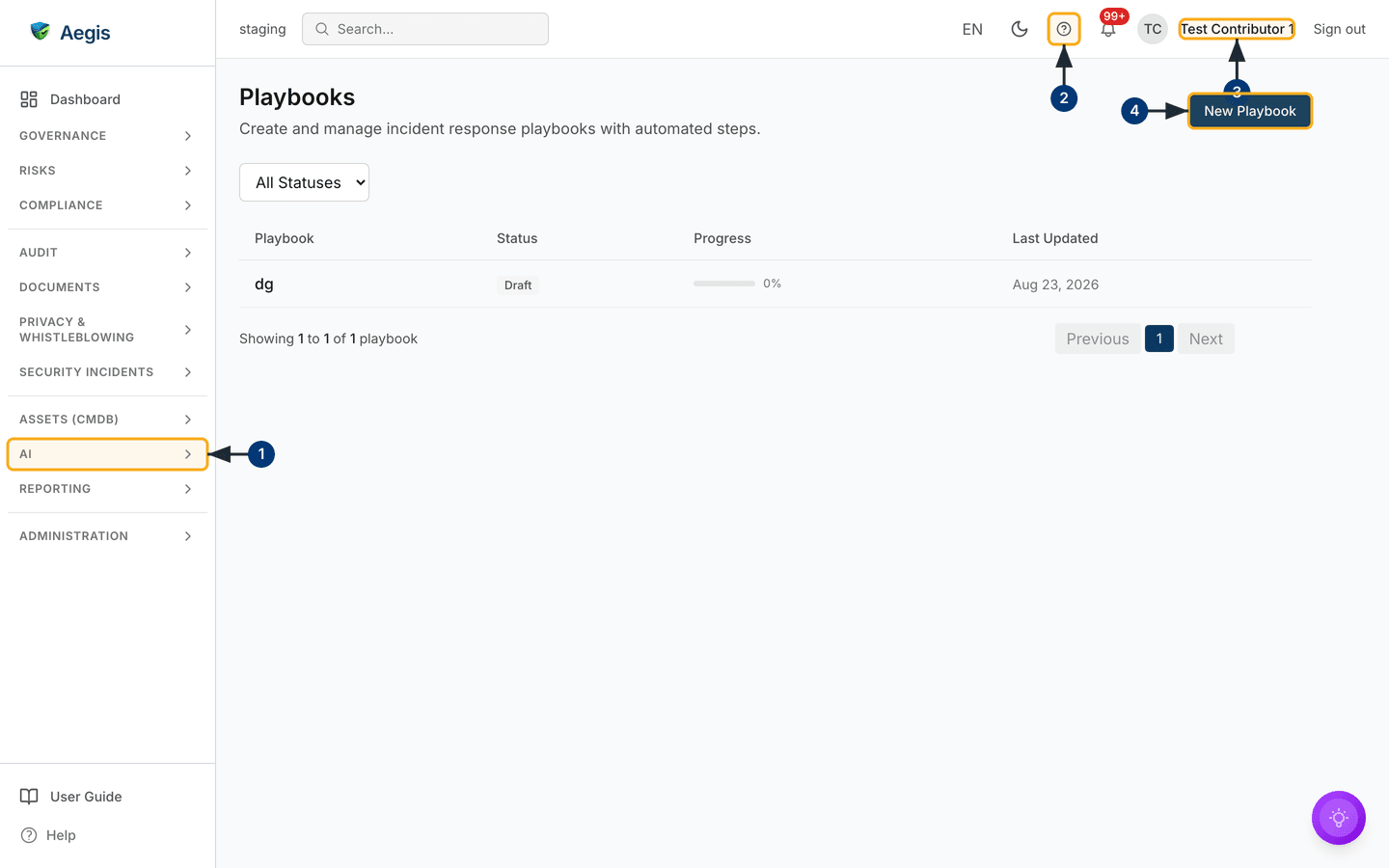
The screenshot below was captured as a Contributor on staging; roles are set out in Roles at a glance.
What's on this screen
Playbooks lives at /playbooks. The page opens with the heading
Playbooks, the line “Create and manage incident response playbooks
with automated steps.”, and a New Playbook button at the top right.
One filter sits below it, the All Statuses dropdown; this table has
no free-text search of its own, and the Search… box in the
application bar covers the whole application rather than these rows.
The table has four columns and no actions column: Playbook (the
title, with a one-line description beneath where one is set),
Status (a coloured chip), Progress (a bar and its
percentage) and Last Updated. The whole row is the control —
selecting anywhere on it opens the detail. Beneath sits a count, “Showing 1 to 1
of 1 playbook”, and Previous / page-number /
Next controls; twenty rows load at a time. Here the workspace holds
one playbook, dg, at Draft and 0% — the
normal starting state, since a playbook is created before anyone works it.
-
Select the
AIgroup in the navigation rail. It expands to showPlaybooks, alongsideAI DashboardandAI Agentswhere the AI agents module is also on; choosePlaybooksto load this list. -
The
?control in the application bar opens the in-app User Guide at the chapter for the screen you are on — this chapter, from here. - Your name at the far right shows which account, and so which role, you are working as. That decides whether the button below is rendered at all.
New Playbookopens the create dialog described below.
Narrowing the list
- Open the
All Statusesdropdown above the table. -
Choose
Draft,Active,CompletedorCancelled. The table reloads from the server with only playbooks in that state, and the “Showing … of …” line and the paging controls update to match. -
Where the chosen status matches nothing, a panel headed “No results found”
replaces the table, with a
Clear filtersbutton that brings the full list back.
Creating a playbook
The form is short on purpose: it opens the record, and the steps are added afterwards.
-
Select
New Playbook. A dialog headedCreate Playbookopens over the list, with aTitlefield, aDescriptionbox, andCancelandCreatein its footer. -
Type a
Title. It is required — the label carries a red asterisk — and takes up to 200 characters. Name it after the situation it answers, so one column identifies it. -
Add a
Description. It is optional, holds up to 1,000 characters, and is read later by the AI drafting action as the playbook's scope — real context here makes the drafted steps markedly more specific. -
Select
Create. The button readsCreating…while it saves, then a “Playbook created successfully” message appears, the dialog closes and the list refreshes with the new playbook atDraftand0%.Cancelsaves nothing. The new record has no steps and no assignee; the template key and control link that some playbooks carry are set through the API, not on this form.
The field is marked required, so with the title empty your browser blocks the submit and prompts you to fill it in. A title of spaces alone gets past that check and is refused inside the dialog instead, as a red “Title is required” message; either way nothing is saved. Where the save itself fails, the reason appears in that same place and the dialog stays open, so your text survives.
Reading a playbook
- Select any row. A dialog opens headed with the playbook's title, and the record loads.
-
At the top sit the status chip and the progress bar with its percentage. A
Descriptionblock follows where one was set, thenOverview— the sourceTemplate, the number ofSteps, theAssigned Touser id and aCompletedtimestamp once finished. Fields with no value are left out rather than shown blank. -
The
Stepsblock lists every step in order — its number, or a tick once complete, then the title, the description and any note recorded while it was worked. A playbook with no steps yet shows noStepsblock at all. -
Metadataat the foot gives theCreatedandLast Updatedtimes. Close the dialog to return to the list.
A step is held as NOT_STARTED, IN_PROGRESS,
COMPLETED or BLOCKED, and the percentage shown is
the share completed. Neither the list nor the detail offers a control to
move a step on: step status is changed through the playbook API — the
per-step call needs playbook:execute, and rewriting the whole
step list needs playbook:update, so either way Manager rights
or above. A background routine can run a whole sequence, but nothing in the
interface starts it.
Drafting the steps with AI
The drafting button sits in the detail dialog above the Steps block
and reads Draft steps with AI — or
Re-draft steps with AI where steps exist. It is rendered only for
roles holding playbook:update.
-
Select
Draft steps with AI. A second dialog opens over the detail, headedDraft response steps with AIand subtitled with the playbook's title. It states that Aegis will draft a detect → contain → eradicate → recover → lessons-learned sequence from the playbook's scope and its linked control. - Where the playbook already holds steps, an amber warning appears here. Applying a draft writes the whole sequence, so it replaces rather than merges — any step it does not reproduce, and any note or progress held against that step, goes with it. On a playbook already being worked, re-draft only when you mean to start again.
-
Select
Draft with AI. The dialog switches to a progress view listing three stages — reading the scope, structuring the phases, drafting the steps. Every way of closing it is disabled while it runs, because a draft in flight cannot be stopped. -
The drafted steps arrive as an editable list — each a number, a title field
(up to 200 characters), a description box and a
✕to drop it. Reword and delete freely; nothing has been written to the playbook yet. -
Select
Apply & save. Any step whose title you emptied is dropped, the rest are renumbered from 1 and saved, a “Playbook steps saved” message appears and the detail refreshes with the newStepsblock.Draft againdiscards the draft; empty every title and the save is refused with “Keep at least one step before saving.”
The AI assist
The action reads the playbook's title, description and linked framework control,
and returns a step list grounded in that context and in general
incident-handling duties under laws such as NIS2 (a European cybersecurity law)
and DORA (the EU's financial-sector digital resilience regulation). It proposes;
you decide. The steps reach the record only on
Apply & save, and the action never changes a playbook's status
or progress. A drafted sequence is a starting point, never an authority — review
it against your own obligations before relying on it during an incident.
The ordinary AI gating applies: the AI assist feature must be on your
organisation's licence, the first use asks you to acknowledge an AI-transparency
notice (an EU AI Act obligation), each run counts against the monthly allowance,
and runs are rate-limited per user. Where AI is not configured or the allowance
is spent, the dialog reports “AI could not draft the steps.” with the reason
beneath, and offers Retry and Close. Usage is reported
on the AI Dashboard.
Playbook statuses
| Stored value | Chip | What it means |
|---|---|---|
DRAFT |
Draft, grey |
Being prepared; work has not started. |
ACTIVE |
Active, blue |
Being worked — at least one step is IN_PROGRESS or
COMPLETED. A step left at BLOCKED alone
does not move the playbook here.
|
COMPLETED |
Completed, green |
Every step is done; the detail shows a
Completed timestamp.
|
CANCELLED |
Cancelled, red |
Abandoned before completion. |
Statuses are stored in upper case but shown as ordinary words in the chips and the filter.
Tips and limits
-
A workspace with no playbooks shows a panel headed “Nothing here yet” with
the line “No items have been created yet.” It carries no button — not even
for a
Contributor — so start
from
New Playbookin the page header. -
There is no edit or delete control on either screen. Renaming, reassigning,
changing status and deleting are API operations at present, all needing
playbook:update. - The create dialog offers no template picker. Aegis carries five templates internally — access control, patch management, incident response, data protection and vendor assessment — but no screen builds a playbook from them today, and the create API records a template key without copying its steps in. Treat the library as unfinished, and use the AI draft or the API to put steps on a playbook.
- Status is the only filter here, and there is no per-column sort. Name playbooks so the title alone identifies them.
Where this connects
Playbooks are the response side of Security incidents, which drive the step progress you read here; the end-to-end story is told in Scenario: a security incident. Rules that open an incident unattended are covered in Automatic incident rules, and triggered automation in Workflows. For standing authored instructions with an approval lifecycle, use Procedures; the control a playbook remediates is described in Control mapping.