Exceptions Register
The read-only list of every risk your organisation has formally chosen to accept, with the justification, the person who accepted it, and the date the acceptance falls due for review.
Sometimes the right answer to a risk is to accept it: the cost of treating it
outweighs the harm, or no practical control exists yet. An assessor will then
ask who decided, why, and until when. The
exceptions register (the formal list of
consciously accepted risks) is where those answers live. You do not accept a
risk here — the register reads back every risk whose status is
Accepted and lays the acceptance evidence out in one table.
Who uses it
- Viewer and above can open the register, search and filter it, and follow any row through to the risk behind it — the same rights as reading the risk register itself.
- Contributor, Manager and Admin can additionally accept a risk and edit an acceptance afterwards — on the risk's own detail page (see Risks), not here.
Nothing on this page changes data: there is no New button, no
inline editing and no export — only the two filters and the links out to each
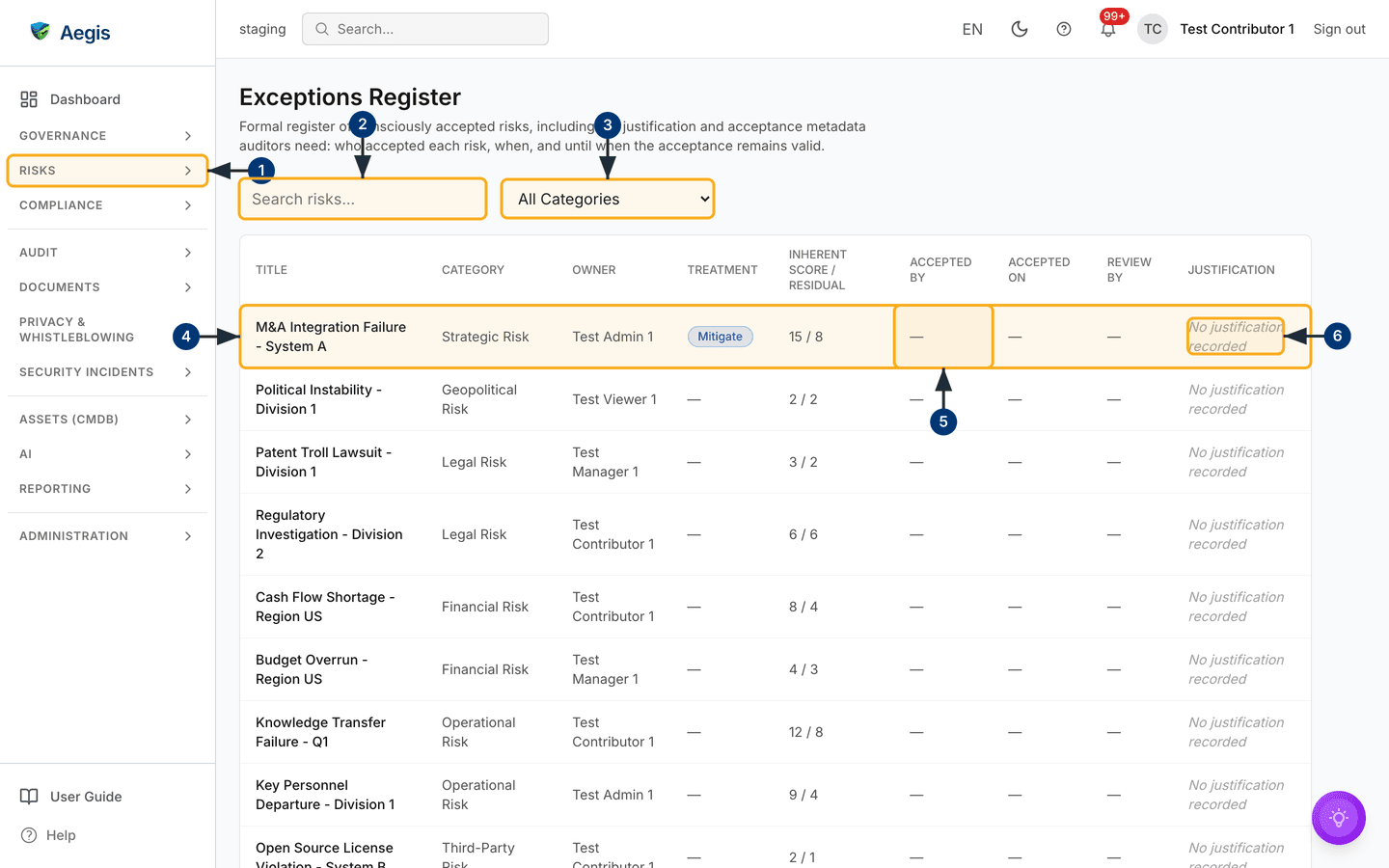
risk. The screenshot below was captured as a Contributor, and a Viewer sees the
same screen.
What's on this screen
The register sits under the RISKS group in the left sidebar. The
page opens with the heading Exceptions Register, a short
description of what the register is for, and a two-control filter bar: a
Search risks... box and an All Categories dropdown.
Below that is the table, with nine columns — Title,
Category, Owner, Treatment,
Inherent Score / Residual, Accepted By,
Accepted On, Review By and Justification.
It is wide, so on a narrow window it scrolls sideways with a soft shadow at
whichever edge has more content off-screen.
In the captured screen the register holds a full page of accepted risks —
Talent Shortage - System B,
M&A Integration Failure - System A,
Political Instability - Division 1 and so on — each with its
category, owner and scores. Only one row in view carries a treatment badge
(Mitigate, in blue); the rest show an em-dash there. Every row
shows an em-dash under Accepted By, Accepted On and
Review By, and No justification recorded in italics
under Justification. That combination is worth recognising; the
note below the figure explains what it means.
-
Select
RISKSin the left sidebar and chooseExceptions Register. The page loads with its heading, the filter bar, and a table of every risk currently markedAccepted. -
Type into
Search risks...to narrow the register. The search matches the risk title and its description, ignoring case. Aegis waits a moment after you stop typing, then reloads the table with the matching rows and returns you to page one. -
Choose a category from the
All Categoriesdropdown to see only the accepted risks in that category. The table reloads against that filter; set it back toAll Categoriesto bring the whole register back. - Read a row from left to right: title, category, owner, treatment badge, then the inherent and residual scores. Select the title to open the full risk record, where the acceptance can be edited.
-
Check
Accepted By. It names the person who recorded the acceptance in Aegis; here it shows an em-dash on every row, as doAccepted OnandReview By. -
Read
Justificationlast. A recorded reason appears as one truncated line — hover it for the full text — whileNo justification recordedin grey italics means the acceptance has no reason attached.
Aegis stamps Accepted By and Accepted On when a
risk moves into Accepted through the app. Risks that arrived
already marked as accepted — from an import or a migration off a spreadsheet
— appear with those columns empty, exactly as in the screenshot above. They
are real accepted risks carrying no governance record. Their risk pages say
so: the Acceptance panel reports that no acceptance details
were recorded and asks you to re-accept the risk. Editing that panel adds a
justification and a review date but does not stamp an acceptor or a date —
only a fresh acceptance does. To record those too, move the risk to
Open or In Progress and then accept it again.
How a risk reaches the register
Membership is decided by one rule: the risk's status is Accepted.
Treatment is a separate field — a risk whose treatment reads
Accept is not on the register unless its status says so too, which
is why the screenshot shows an accepted risk badged Mitigate.
- Open the risk from Risks. Its detail page shows the status buttons near the top for anyone who may edit risks; a Viewer sees no buttons at all.
-
Select the
Acceptedstatus button. Rather than switching the status straight away, Aegis opens theAccept Riskdialogue, which explains that formal acceptance places the risk on the exceptions register. -
Fill in
Justification. The form will not submit without it, and it holds up to 2,000 characters. The placeholder suggests reasoning that stands up later: residual risk within appetite, compensating controls in place, insured. -
Optionally set
Review by (optional)— the date the acceptance must be looked at again. Leave it empty and the register shows an em-dash there, meaning nothing ever falls due. -
Select
Accept Riskto confirm. Aegis sets the status toAccepted, records you as the acceptor with today's date, writes an entry to the Audit Log, and confirms withRisk accepted and added to the exceptions register. The risk now appears on the register with its evidence complete.
The risk's detail page then carries an Acceptance panel showing
Accepted by, Accepted on, Review by and
the justification. Anyone who may edit risks can use the small edit control
there to correct the justification or move the review date; that edit touches
only those two fields, so it does not re-stamp the acceptor or the date.
Setting several risks to Accepted at once records the acceptor
and the date, but that flow has no justification field — those rows land on
the register reading No justification recorded. Accept one at a
time when the reasoning matters.
Reading a register row
| Column | What it shows |
|---|---|
Title |
The risk name, as a link to the full risk record. |
Category |
The risk category — for example Legal Risk — or an
em-dash if none.
|
Owner |
The person accountable for the risk. |
Treatment |
Accept, Mitigate, Transfer,
Insure or Avoid; an em-dash means no
treatment has been decided. Separate from the acceptance.
|
Inherent Score / Residual |
The score before controls and the rest-risk after them. Where no residual score has been recorded, the inherent score is repeated. |
Accepted By |
The person who accepted the risk in Aegis, or an em-dash if none. |
Accepted On |
The date the acceptance was recorded, in your locale's date format. |
Review By |
The review date. A red Review overdue badge marks a
date already past; an amber Review due soon badge marks
one due within 30 days. Neither appears in the capture, because none
of these rows has a review date.
|
Justification |
The recorded reasoning, truncated to one line with the full text on
hover, or
No justification recorded.
|
Rows are sorted by review date, so overdue acceptances come first; acceptances
with no review date fall to the end, most recently updated first. In the capture
no row has a review date at all, so the whole page falls into that last group.
The table shows 20 rows to a page. Beneath it — below the part of the screen
captured above — sit a
Page 1 of 2 style counter with Previous and
Next buttons, greyed out when there is nowhere to move to.
When the register shows nothing
There are two different kinds of empty here, and they mean different things:
-
No risk has been accepted at all. A panel headed
No accepted risksexplains that formally accepted risks will appear here with their justification, acceptor and review date. That is the normal starting point, not a fault. -
A filter matched nothing. A search term or category with no matches shows
No results foundinstead. The filter bar stays on screen, so clear the search box or set the dropdown back toAll Categoriesto recover the full register.
If the register fails to load, Aegis shows
Failed to load the exceptions register. with a
Retry button rather than an empty table — so an outage never reads
as "we have no accepted risks". The filter bar stays on screen in that state
too.
The AI assist
The register has no AI of its own, but each accepted risk does. The
Acceptance panel on the risk's detail page carries a
Review (AI) button, which opens
AI Exception Review — Justification, renewal & governance check. It reads the record and the signals Aegis has already calculated — severity,
how overdue or stale the acceptance is, whether a justification exists — and
reviews three things:
- whether the recorded justification is specific, risk-based and still plausible;
- what review-by date and compensating control themes to keep in place;
- whether the exception warrants governance attention.
The dialogue states its own limits: the review is read-only — it narrates your
record and the computed signals, and never changes the exception or invents
data. It cannot renew an acceptance, move a review date, or take a risk off the
register; a person reads it and decides.
Save as record keeps a review with the risk's acceptance section
for the next reviewer. Each run counts as one AI action against your
organisation's AI credits and is audit-logged.
Tips and limits
- The search box matches a risk's title and description — not the recorded justification — so the category dropdown is the only other way to slice the register.
-
Rows reading
No justification recordedare the ones to fix first: an accepted risk with no stated reason is difficult to defend in an audit. -
An acceptance with no
Review Bydate never expires and never turns amber or red. Setting one is what makes it something the organisation revisits. -
There is no export button here. Risks has one — set
its status filter to
Acceptedand useExport register— but its columns stop at the risk itself: the acceptance evidence (Accepted By,Accepted On,Review Byand the justification) is not in that file. For an assessor who wants the evidence, work from this screen or the individual risk pages. -
To withdraw an acceptance, move the risk back to
OpenorIn Progresson its detail page. It leaves the register at once, and the last acceptance details stay on the risk as a record of what was decided.
Where this connects
- Risks — where risks are created and scored, and where the decision to accept one is actually taken.
- Threat Actors — who might exploit a risk you are considering accepting.
- Audit Readiness — accepted risks and their justifications are part of what an assessor asks to see.
- Audit Log — every acceptance, edit and AI review is recorded there with the person and the timestamp.
- Roles — who may read the register and who may accept a risk.