Procedures
A policy says what your organisation commits to; a procedure says how people actually carry it out — written, versioned, reviewed, acknowledged and mapped to controls like any other governance document.
A procedure is the operational layer beneath
a policy. Where a policy says "all production changes must be approved", the
procedure tells the change manager what to check, in what order, and what to
record. Procedures follow the same lifecycle as policies — Draft,
In Review, Approved, Retired — and live
under COMPLIANCE in the left menu, at /procedures.
Who uses it
Anyone signed in can read the register. A
Contributor can create a
procedure, edit a draft, run the AI actions and move it through the lifecycle —
submit for review, return to draft, revise, retire and reactivate. Approving,
rejecting and deleting take a
Manager or
Admin. Where your organisation has
configured designated approvers, the person approving must also be named there —
by user or by role; where it has not, the Manager and Admin roles carry the
right on their own. A Viewer sees
everything read-only: Create Procedure is only rendered from
Contributor upwards, and /procedures/new redirects a Viewer to
/unauthorized.
What's on this screen
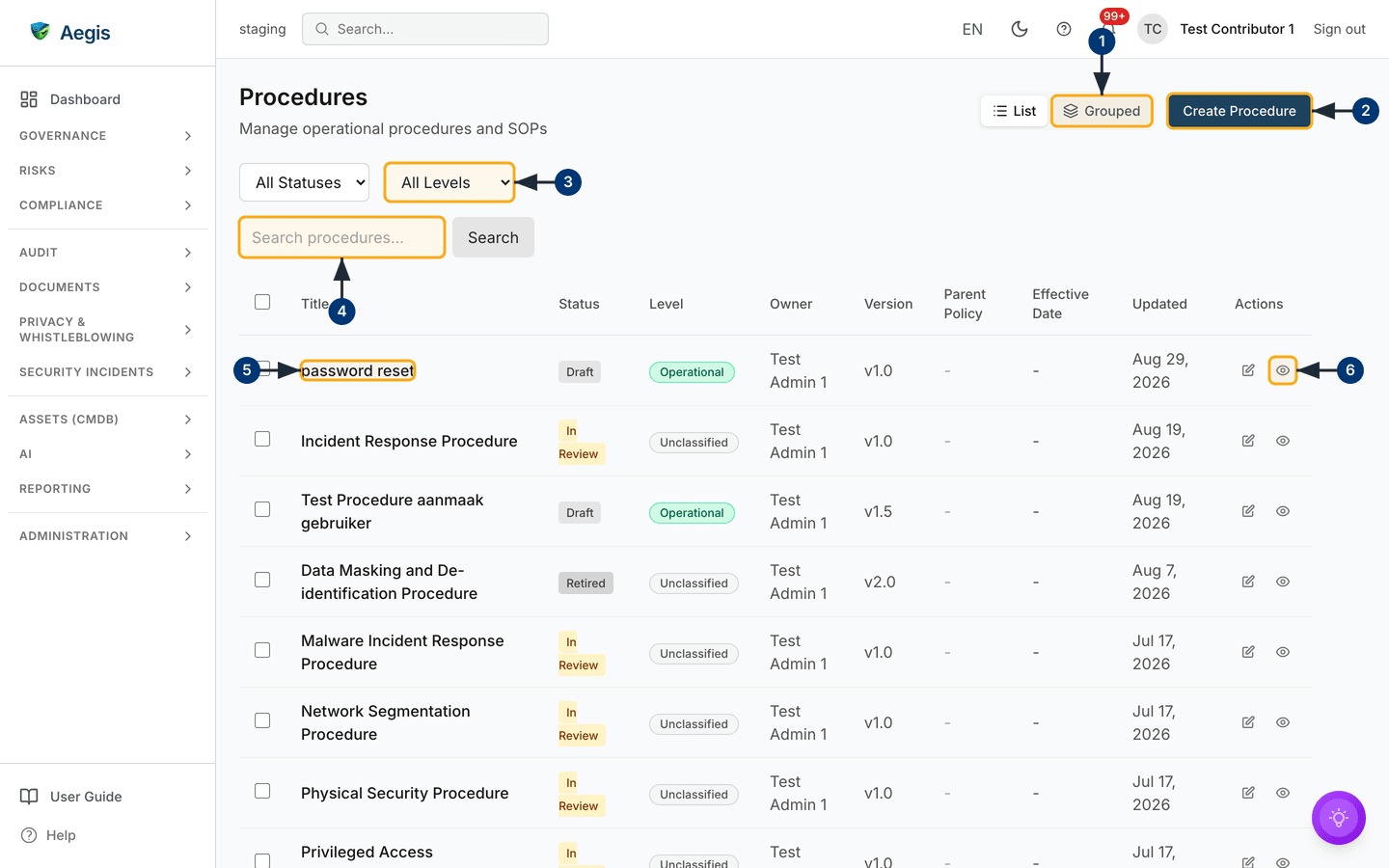
The register at /procedures is one page with one table. The header
reads Procedures, "Manage operational procedures and SOPs"; on the
right sit a List / Grouped view toggle and the navy
Create Procedure button. Below them is the filter row —
All Statuses, All Levels, and a
Search procedures... box with a Search button. The
filters combine.
The table runs a selection checkbox, Title, Status (a
coloured chip — grey Draft, amber In Review, green
Approved, darker grey Retired), Level (a
pill), Owner, Version, Parent Policy,
Effective Date, Updated and Actions,
which holds a pencil and an eye. The capture was taken as a Contributor in a
test organisation: no bin in Actions (that appears from Manager
upwards), seeded rows, mostly Unclassified, and dashes where a real
organisation would carry a parent policy and an effective date.
-
Use the
List/Groupedtoggle to switch between the flat table and a register grouped by governance level. The page changes in place. -
Select
Create Procedureto reach the full-page create form at/procedures/new. -
Choose a value in
All Levelsto narrow the table to one governance level; it refetches immediately.All Statusesdoes the same for lifecycle state. -
Type a word into
Search procedures...and selectSearch. Only titles containing that word remain, within whatever the dropdowns filter. -
Select a
Titleto open that procedure on theDocument information & detailstab; clicking elsewhere in the row opens theContenttab instead. -
Or use the row actions: the eye opens the details tab, the pencil the
Contenttab. A Manager also sees a bin, which asks for confirmation first.
The bin icon and the bulk Delete procedure action take the
procedure out of the register and out of the AI assistant's search index.
Both ask for confirmation first, and neither can be reversed from the
interface. To keep the document on the record while showing it is no longer
in force, use Retire instead.
Creating a procedure
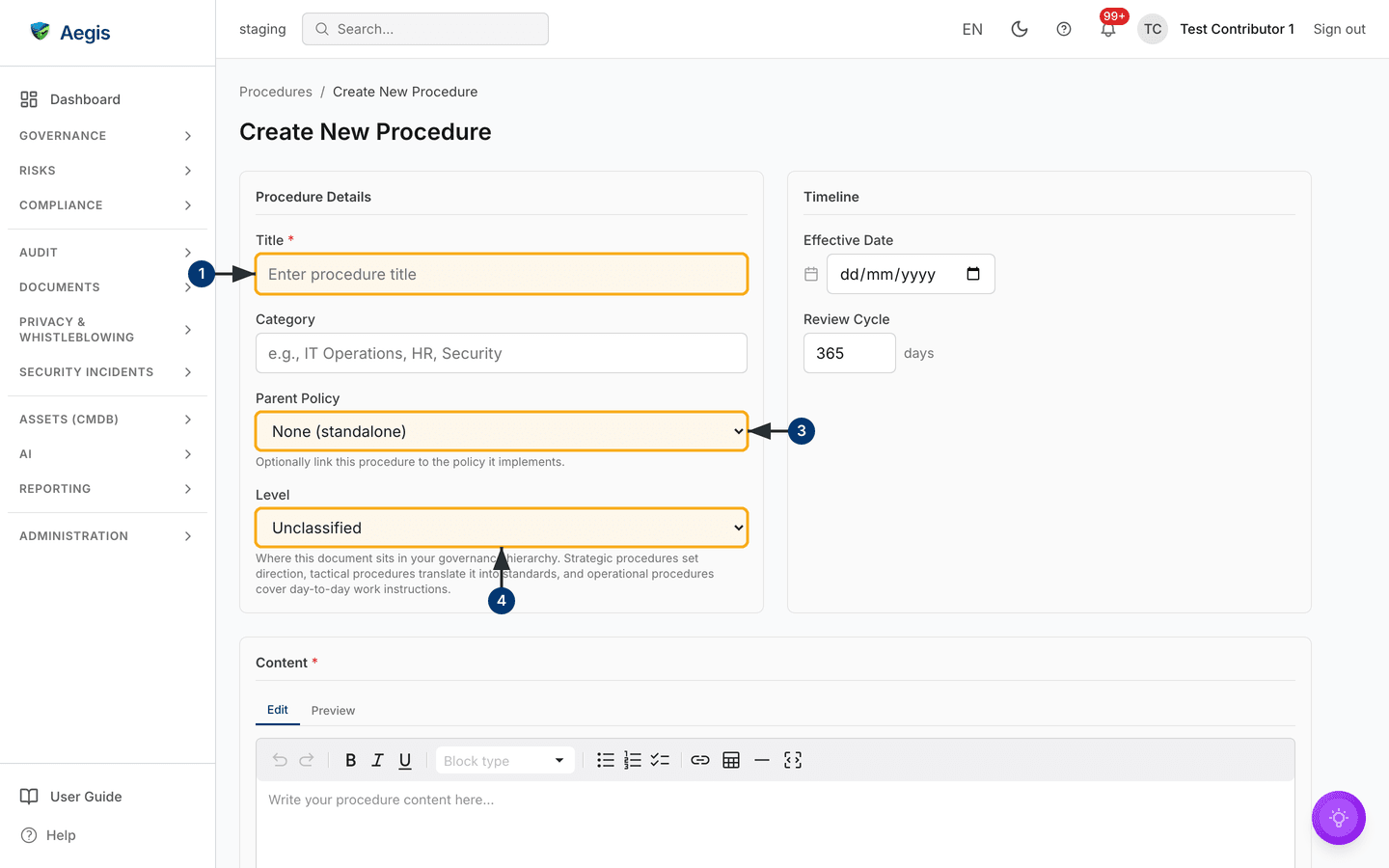
Create Procedure opens a dedicated page, not a popup, headed
Create New Procedure: Procedure Details and
Timeline side by side, with a Content card beneath.
Only Title and Content are required — each carries a
red asterisk.
- Enter a
Title— the name that appears in the register. -
Optionally type a
Category; the placeholder suggestsIT Operations,HRorSecurity. -
Optionally choose a
Parent Policy. The dropdown opens onNone (standalone)and lists your policies. -
Set a
Level. It opens onUnclassified; the helper text explains the hierarchy — strategic sets direction, tactical translates it into standards, operational covers day-to-day work instructions. The level drives theGroupedview. -
In
Timeline, set anEffective Date— when the procedure becomes binding — and adjust theReview Cycle, pre-filled with365days. -
Write the body in
Content: theEdittab has a formatting toolbar and thePreviewtab shows the result. Where your organisation has set a company document template, the editor arrives pre-filled from it. SelectCreate Procedureat the foot of the page — the procedure is saved as aDraftand you land on its workspace.
The procedure workspace
The detail page at /procedures/{id} is a tabbed workspace. The
header carries the title with its status chip, then a "Version 1.0 • Last
updated …" line whose right-hand end shows the AI status —
Ready when idle, progress or an error while a job runs.
Under that sits one row of action buttons. The row never wraps: the labels
appear only on a very wide window (from about 1700 pixels across) and below that
the buttons are icons only, as in the figure — hover one, or reach it by
keyboard, to read its name. This procedure is
In Review, so the row is Edit (greyed out — editing is
draft-only), Review & Draft, Return to Draft,
Export to Word and Help. A Draft adds
Improve Writing, AI Enhance and
Upload Word/PDF, and shows Submit for Review instead.
The tab row is the workspace: Document information & details,
Content, Document Review, Translations,
Version history, Controls and Evidences.
AI result tabs join the row only once that action has been run —
Document Review is here because a
Review & Draft has already been run on this procedure, and
Improve Writing and AI Enhance would appear the same
way. The details tab holds three cards, ending in APPROVAL STATUS:
Awaiting Approval above an Approval History still
empty here. Below them sit the collapsed
Changes since last approved version panel and
Required Readers.
-
Select
Edit(the pencil) to open the body on theContenttab. It works on aDraftonly; here it is greyed out. -
Select
Review & Draft(the clipboard with a tick) to start the AI review assistant. A dialog opens and writes the review out as it goes; when it finishes, the result is kept on aDocument Reviewtab. It is never written into the procedure — you copy across what you want. -
Select
Export to Word(the down arrow) to download the body as a.docx. On aDraft,Upload Word/PDFbeside it brings the edited file back. -
Select
Help(the question mark, always last) to read what every button in the toolbar does. -
Expand
Changes since last approved versionbefore you submit or approve — on one never yet approved, there is nothing to compare against. -
Under
Required Readers, tickEveryone must read this procedure, or use theRequired rolescheckboxes and theRequired individual userssearch. SelectSave Required Readers: a confirmation appears and theRead Bylist refreshes.
![A procedure workspace on its Document information & details tab — /procedures/[id].](assets/figures/procedure-detail@1x.png)
Review and approval
Lifecycle transitions live in the toolbar; the decision itself is taken on the details tab.
-
From a
Draft, selectSubmit for Review: the chip turns amber,Approval StatusbecomesAwaiting Approval, and aSubmitted for Reviewentry joins the history. -
An eligible approver opens the details tab, where the
APPROVAL STATUScard names the designated approvers, and selectsReview & Approve. TheReview Proceduredialog offersApprove(optional comments) orReject, which needs a reason — the owner is notified with it and the procedure returns toDraft. -
On an
Approvedprocedure the toolbar offersRevise— a change summary, a snapshot into the version history, a version bump, back toDraft— andRetire, in red.Reactivatereturns a retired procedure toDraft. WhileIn Review, anyone who can edit may pull it back withReturn to Draft.
| Status | What it means | Who can move it on |
|---|---|---|
Draft |
Being written; the only editable status. | Contributor+ submits for review. |
In Review |
Awaiting a decision. |
A designated approver (Manager+) approves or rejects;
Contributor+ can
return it to Draft.
|
Approved |
Published and binding. | Contributor+ revises or retires it. |
Retired |
Kept for the record, not in force. | Contributor+ can reactivate it. |
Acknowledgements, controls and evidence
The Read By section is always there. Anyone signed in who has not
yet confirmed sees a Mark as Read button; selecting it replaces the
button with "You have acknowledged this procedure" and adds them to the list
with the date and time. Once a required reader list is saved, the section also
shows a running count — "3 of 8 acknowledged" — above a must-read list naming
who is still outstanding. Four tabs then connect the procedure outwards.
-
Controlsholds the control mappings. Link a framework control and the procedure counts towards it in Compliance frameworks; an unmapped procedure is documentation only. -
Evidenceslists linked evidence — name, type, owner and valid-until, with an expired marker where that date has passed. You link an existing item from the Evidence locker rather than uploading a file here. -
Translations: where your licence includes document translation, request an AI (DeepL) translation per language or all at once. Results appear as language tabs onContent, and one whose source has since changed is flagged as out of date. -
Version historylists every version with its timestamp — what the procedure said when a given incident or audit happened. You can compare two versions side by side, and restore an earlier one, which is written as a new version rather than overwriting the current text.
The AI assist
Three AI actions sit in the toolbar, each parking its result on its own tab
instead of changing the procedure. Improve Writing (draft only)
rewrites the body section by section for clarity. AI Enhance (draft
only) suggests improvements, including framework controls it thinks the
procedure should map to. Review & Draft works in any status: it
reads the procedure alongside its parent policy and mapped controls and drafts
text for the gaps it finds.
One job runs at a time: the header status text shows progress and the other AI
buttons grey out, though Export to Word stays available. Every AI
action is logged against your organisation's AI usage, and a person reviews each
suggestion and decides — the AI never edits, approves, publishes or retires a
procedure on its own.
Tips and limits
-
The parent policy link is optional and can be set later.
Level, left atUnclassified, puts everything in oneGroupedheading. -
To change an approved procedure, use
Revise: it keeps the approved text in the version history and sends the new text back around the review loop. -
The Word round-trip exports
.docxand accepts.docxor.pdfback, on a draft only.Categoryis free text with no picklist behind it. -
Selecting rows in the register gives bulk
Change Status,Exportand (from Manager)Delete procedure; a bulk change toApprovedskips anything that is not in review or outside your approver rights, and reports how many it approved and how many it skipped. -
If you cannot see
Create Procedure, you hold the Viewer role — ask an administrator to raise it.
Where this connects
Procedures implement Policies and satisfy controls in Compliance frameworks. Proof that one is followed belongs in Evidence; for records attached to a live event, see Playbooks. Approvals, acknowledgements and status changes appear in the Audit log; overdue reviews surface in Action items.