Regulatory Alerts
A scannable, relevance-scored feed of new publications from European and national supervisory bodies, so you can see what has changed and hand the items that matter on for assessment.
The sidebar calls this screen Regulatory Alerts; the page header
calls it Regulatory Intelligence. Both names describe the same
thing: an inbox of regulatory updates collected by a daily background scan. Each
entry — an alert — carries the feed it came
from, a relevance percentage, a review tag, a short excerpt, the publication
date, a link out to the original document, and a link into the assessment
workflow described in Regulatory Changes.
Nothing is created or edited here; the screen exists so you can triage quickly
and decide what deserves a proper look.
Regulatory Alerts is a premium feature, gated by the
REGULATORY_INTELLIGENCE flag. If your licence does not include
it, the route shows a locked panel instead of the feed: a padlock icon, a
Premium feature
badge, a short description of what the feature does, three ticked bullets
naming what it adds (daily scans, relevance scoring, a prioritised alerts
feed), the line
Available on the Professional plan and above., and an
Upgrade your plan button that opens your licence page in
Settings. That panel means the feature is
switched off, not that something is broken.
Who uses it
Reading the feed needs the regulatory:read permission, which every
standard role holds. There is nothing to edit here, so all four roles see the
same screen. The roles only pull apart on the assessment screen that
Assess change opens, where recording a decision needs
regulatory:write.
-
Admin and
Manager — read and filter the
feed, and are the two roles that hold
regulatory:write. On the assessment screen they can mark a change reviewed, run an impact analysis and dismiss a change. -
Contributor — reads and
filters the feed and follows both links on a card. On the assessment screen
the
Mark as Reviewed,Analyze impactandDismissbuttons are not shown, so a Contributor takes the follow-up work forward where they do have write access — the risk register, a policy, a control. The screenshot below was captured as a Contributor. - Viewer — the same read-only view of the feed and the source documents, and the same read-only assessment screen.
What's on this screen
The page opens straight onto the feed — there is no create button, because you do not author alerts. Working down the capture:
-
Header — a bell icon, the title
Regulatory Intelligence, and a one-line description of the page as automated monitoring of regulatory feeds with relevance-scored alerts. -
Summary strip — four cards, reading
Total alerts561,New in last 30 days20,High relevance16 andActive sources1 in the capture. Only the first counts the whole feed; the other three describe the page you are on (see Tips and limits). -
Filter row — a
Searchbox with the placeholderSearch alerts..., aSourcedropdown set toAll sources, andFromandTodate pickers. AClear filtersbutton joins the row as soon as one of them is set; with nothing filtered, as in the capture, it is not shown. -
Recent alerts — a heading, a note that the most recent
updates come first, then the list. Each card carries the feed name (in the
capture, every row is
GDPRhub DPA Decisions), a colouredRelevance: 100%-style badge, aPending revieworReviewedtag, the title (for exampleDSB (Austria) - DSB-D124.2437/25), a two-line excerpt, aPublisheddate, and the linksView sourceandAssess change. -
Below the list — a
Showing 20 of 561 alerts-style count on the left, and on the rightPreviousandNextbuttons with aPage 1 of 29-style indicator between them. The feed pages twenty alerts at a time, and each button greys out at its end of the range.
Opening the feed and getting your bearings
Regulatory Alerts sits in the Compliance group of the left menu, beside the assessment screen it feeds. Note the neighbouring groups too — most of what you do with an alert continues in one of them.
-
Open the Compliance group in the left menu and select
Regulatory Alerts. The feed loads with the summary strip, the filter row, and the most recent alerts underneath. - Note the Risks group directly above. When an alert turns out to affect your organisation, this is usually where it ends up — as an entry in the risk register.
- Note Privacy & Whistleblowing further down. Much of the feed is data-protection material from GDPRhub and the EDPB, and the follow-up work lands in GDPR.
- The ? button in the top bar opens this guide at the matching chapter if you need a reminder without leaving the screen.
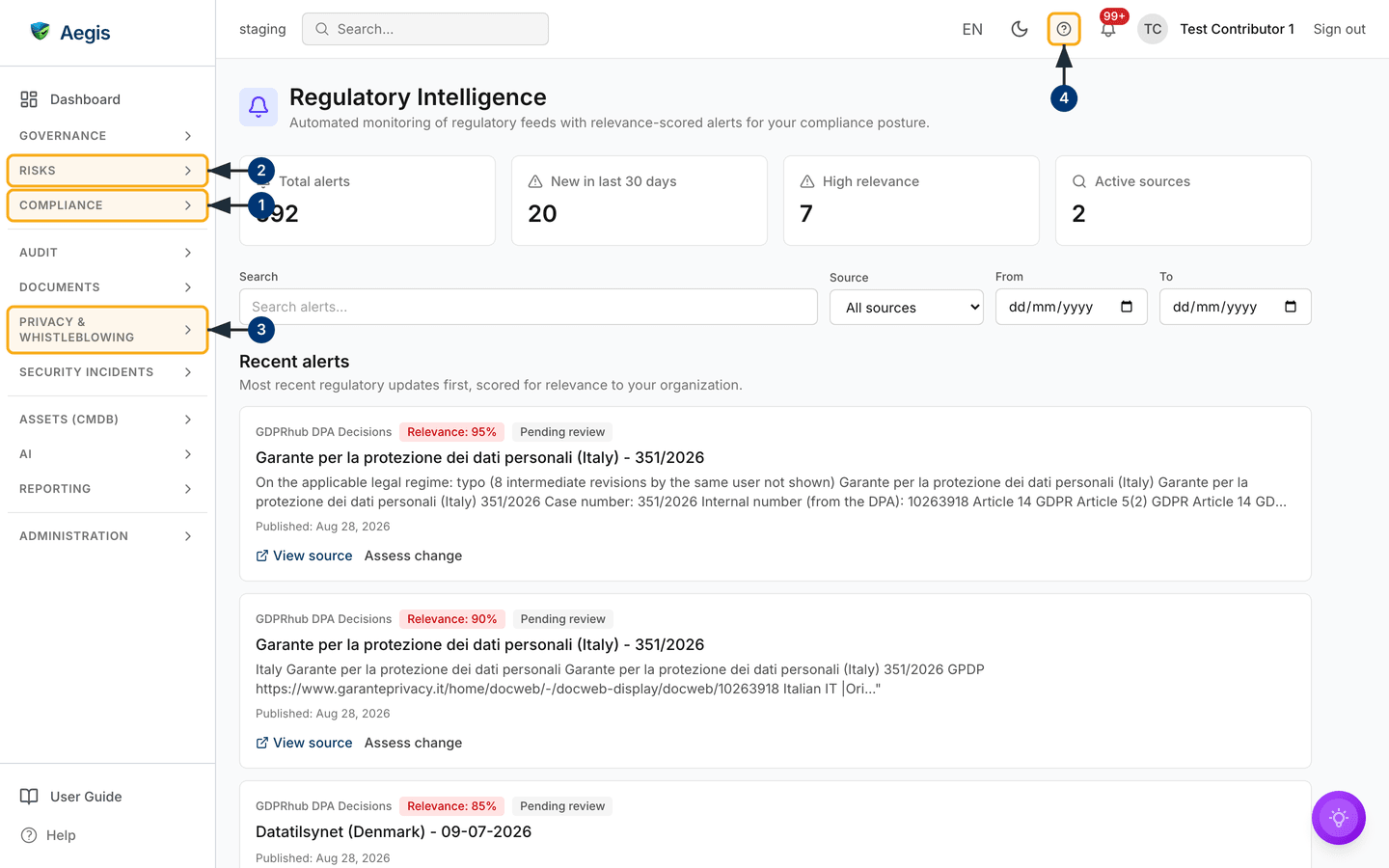
Triaging a single alert
Each card is built to be read in a few seconds. Work across the badge row first.
- Read the feed name and the Relevance badge. The colour follows the score: red at 70% and above, amber from 40% to 69%, green below 40%.
-
Check the review tag.
Pending reviewmeans nobody has assessed this change yet; a greenReviewedtag with a tick means someone already has. -
Read the title and the two-line excerpt to judge whether it
touches your obligations, then check the
Publisheddate underneath it. -
Select
View sourceto open the regulator's own document in a new browser tab when you need the full text. The link only appears when the feed supplied a URL. -
Select
Assess changeto move to Regulatory Changes, where the impact and the decision are recorded. It opens that table, not the change itself — the link carries the record's id, but the table does not yet act on it, so search for the title there and open the row yourself.
The excerpt is the summary the source publishes, tidied up for display. On some feeds that is a clean abstract; on others — the Austrian decision in the capture is a good example — it is an identifier string with a URL in it. A thin excerpt does not mean the alert is unimportant, so open the source document before you judge it.
Narrowing the feed
A busy feed runs to hundreds of items. The four filters combine, and changing any of them returns you to page one.
-
Type into
Search alerts...to match on the title and the summary text of the updates. The list refreshes as you type. -
Pick a regulator from the
Sourcedropdown. The list offersAll sourcesplusGDPRhub,EDPB,EIOPA,EBA,ESMA,CCB,BSI,ANSSI,ENISAandNIST. It is a fixed list matched exactly against the feed name stored on each alert, so an option can return nothing — see Tips and limits before you trust an empty result. -
Set
FromandTodates to bound the feed by publication date. Either one works on its own. -
Select
Clear filters— it appears once any filter is set — to reset all four fields and return to the full feed. -
Use
PreviousandNextbelow the list to move through the results twenty at a time. The page number between them tells you how far in you are.
When the list is empty
If nothing matches, the feed area shows an empty state headed
No regulatory alerts yet, with a clock icon and a note explaining
that the scan runs daily, that the first scan may not have run, or that no
recent change matched your filters. If you arrived there by filtering, a
Clear filters button sits inside the empty state. On a newly
provisioned tenant there is nothing to clear — alerts appear once the first scan
completes.
If the feed fails to load rather than coming back empty, a red panel headed
Could not load regulatory alerts appears with a
Retry button. Retry first; if it keeps failing, see
Getting help.
The AI assist
The feed itself has no AI action to run — the round violet button in the bottom-right corner of the capture is the app-wide assistant described in The screen layout, not a feature of this screen. It is worth being precise about the relevance percentage too. It is calculated when the daily scan ingests each item, by matching the item's text against the frameworks and sectors recorded in your organisation profile — 30 points per matching framework, 20 per matching sector, and 10 more if the item was published in the last 30 days. That is keyword matching, not a model's judgement. Treat it as a triage hint: a high score means "read this one first", and a low score never means "ignore this". The AI-assisted triage and suggested-action features live on the assessment screen in Regulatory Changes, and there, as everywhere in Aegis, a person reviews the suggestion and decides. Aegis never assesses or closes a regulatory change on its own.
One consequence worth knowing: if someone runs an impact analysis on a change, the score stored on that record is replaced by the overall relevance the analysis produced, so the percentage you see in the feed may be an analysed figure rather than the scan's original one.
One thing does happen automatically. When the scan ingests a new change scoring 50 or above, it sends a regulatory-update notification to the users subscribed to that type — in-app, and by email, Slack or Teams where those channels are enabled. A single change produces one alert naming it; a large batch collapses into one summary message so nobody is flooded.
Tips and limits
-
Three of the four cards count the current page only.
Total alertsis the full count across the feed, butNew in last 30 days,High relevanceandActive sourcesare worked out from the twenty alerts on screen — which is why the capture shows a single active source: every row on that page came from the same feed. Page through the list and the three figures move. For full-history numbers, use the change tracking module. -
Two
Sourceoptions do not match the feeds they name. The dropdown lists short regulator names and the filter matches the stored feed name exactly. Out of the box, three feeds are scanned and they are stored asENISA,NIST CybersecurityandGDPRhub DPA Decisions— soENISAworks, whileGDPRhubandNISTreturn an empty feed even though those alerts are there. Type the name intoSearch alerts...instead. The remaining options match only once an administrator has registered a feed under exactly that name. -
Dismissed changes disappear from here. If someone dismisses
a change on the assessment screen, it drops out of this feed and out of the
Total alertscount. It is not deleted — it is still reachable, and restorable, in Regulatory Changes. -
The screen is read-only. You cannot add, edit or dismiss an
alert here; every decision is recorded through
Assess change. - The feed only holds what the scan has found. Coverage is the configured set of European and national feeds, not the whole of regulation, so treat it as an early-warning list that supplements your own monitoring rather than replacing it. Scores also depend on your organisation profile: if the frameworks and sectors recorded there are incomplete, the relevance figures will be less useful.
Where this connects
-
Regulatory Changes — the assessment
workflow that
Assess changeopens, and the authoritative view of the same records. - Risks — where a change that genuinely affects you becomes a tracked risk with an owner.
- Compliance Frameworks — the obligations and controls a change may force you to revisit.
- GDPR — the destination for much of the data-protection material here.
- Scenario: a new regulation lands — the journey from this feed through to updated policies and controls.
- Settings — your licence, and the notification channels that decide whether a high-scoring change reaches you outside the app.